How to strikethrough on google docs takes one shortcut or three menu clicks. It has no button of its own beside Bold and Italic, and that absence is what turns a one-click formatting job into something that has to be looked up. Both routes are below, and both are Google’s own.
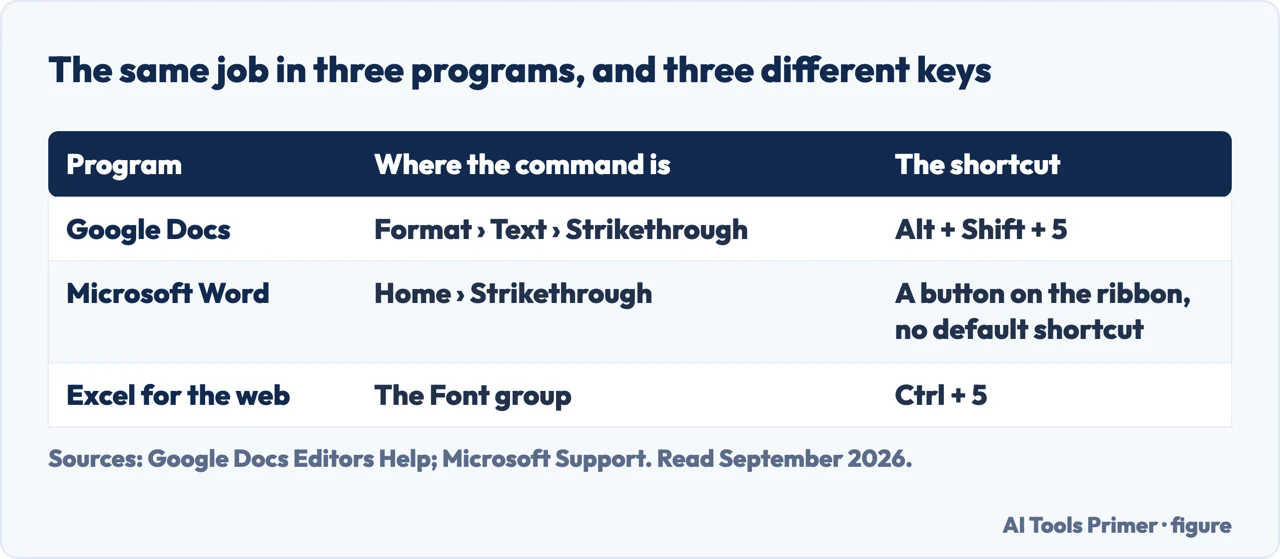
The same formatting in three programs, with three different ways in
Program
Where the command is
The shortcut
Source
Google Docs
Format › Text › Strikethrough
Alt + Shift + 5
Google
Microsoft Word
Home › Strikethrough
A button on the ribbon; Word also offers a double-line version
Microsoft
Excel for the web
The Font group
Ctrl + 5
Microsoft
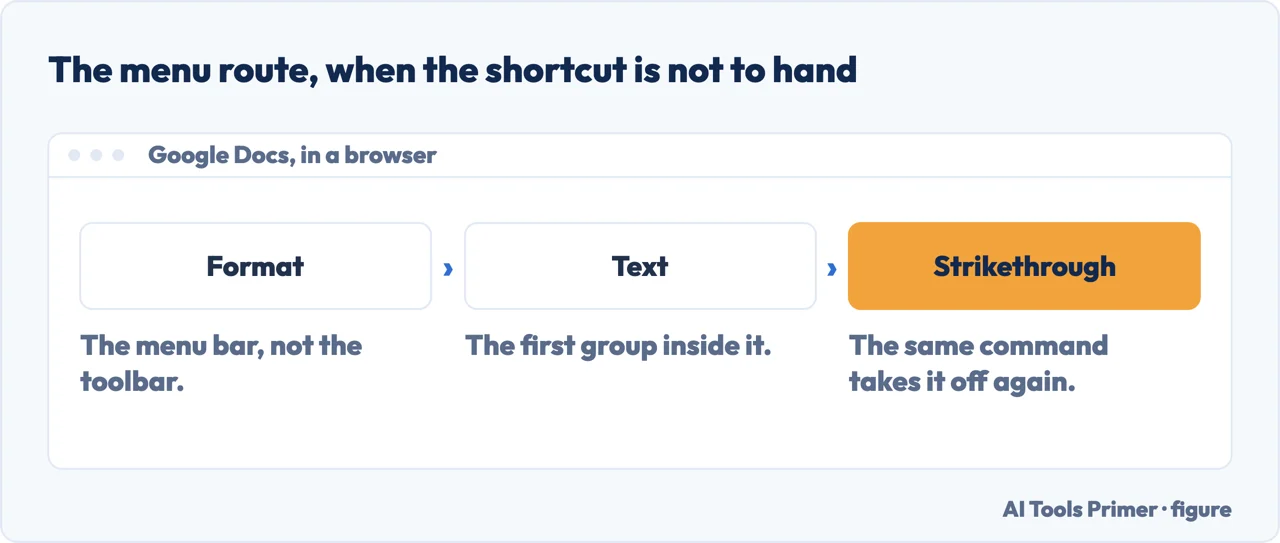
Three clicks, because there is no button on the toolbar. Figure drawn by AI Tools Primer.
From the menu
Google’s own steps: “Select the text you want to change. Open the Format menu. Select
Text. Choose your text format” — and Strikethrough is the fourth entry, under Bold,
Italic and Underline.
Format rather than the toolbar is the part people miss. There is no strikethrough button sitting
beside the B and the I.
From the keyboard
Google lists two, one per platform, and they share no keys: Alt + Shift + 5 on
Windows and Chrome OS, ⌘ + Shift + X on a Mac.
It is a toggle, so the same keys take it off again — which is also the answer to removing
a strikethrough somebody else applied. Select the text, press it again.
Select the text you want to cross out. A word, a line, a paragraph: the command works
on whatever is selected.
Press Alt + Shift + 5. That is Google’s own shortcut,
and it is the whole operation.
Or take the menu: Format, then Text, then Strikethrough. There is no button beside Bold
and Italic on the toolbar, which is the reason this gets looked up at all.
To remove it, do the same thing again. The command is a switch, not an action: the
shortcut and the menu item both toggle.
If you meant to propose a deletion rather than decorate one, use Suggesting instead.
Strikethrough is a font style; a suggestion is a change somebody can accept or reject.
Same line through the words, three different keys. Figure drawn by AI Tools Primer.
What a strikethrough means to the person reading it
It is the only formatting that says something rather than showing something. Bold says look here;
italic says this is a title or an emphasis. Struck-through text says: this was here, it is no
longer true, and I am not hiding that it was here.
Which is exactly why it is the right tool for a price that has changed, a task that is done, a
clause that has been withdrawn — and the wrong tool for a mistake you simply want gone. If the
reader does not need to know the old version existed, delete it. If they do, strike it.
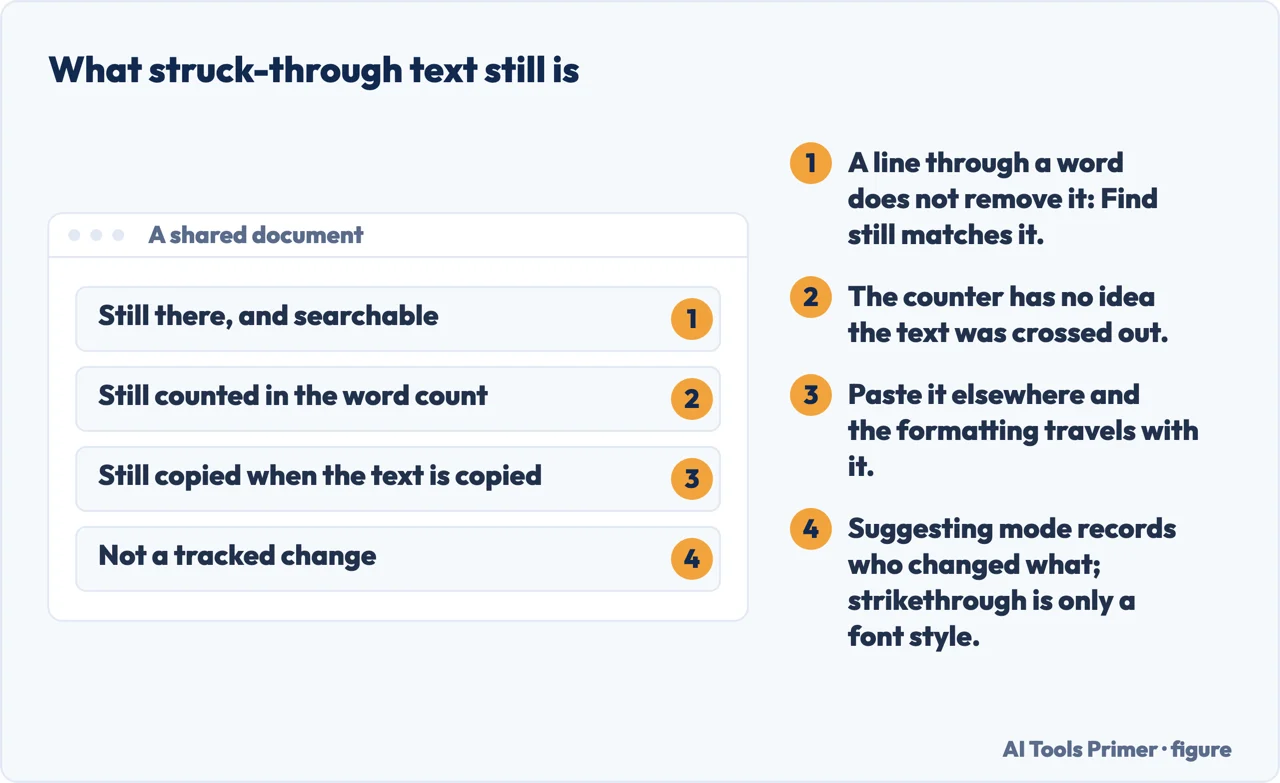
And a caution for shared documents. Struck-through text is still text. It is copied when
somebody copies the paragraph, it is found by search, and it is read aloud by a screen reader unless
the reader’s software is set to skip it. A deleted clause left visible is a deleted clause that
still travels.
A line through a word changes how it looks and nothing else. Figure drawn by AI Tools Primer.
It sits with the other formatting that hides in a menu — the same drawer as the hanging indent and tracked changes, all of them one click deep and none of them on the toolbar.
The neighbours, from the same reference
Ctrl + b
Bold.
Ctrl + i
Italicize.
Ctrl + u
Underline.
Alt + Shift + 5
Strikethrough — the odd one out, and the reason it is hard to guess.
Ctrl + \
Clear text formatting. The fastest way out of a paragraph that has collected several formats by accident.
If the shortcut does nothing, the first thing to check is which one you are pressing. Google’s shortcuts reference gives Alt + Shift + 5 for Windows and Chrome OS and ⌘ + Shift + X for a Mac — not two spellings of one combination, but two different keys. On Windows the usual cause after that is the number row: the shortcut wants the 5 above the letters rather than the one on a numeric keypad, and on some layouts the combination is taken by something else. On a Mac no number is involved at all, so any advice about the 5 is a dead end there. The menu route always works, which is why it is worth knowing even if you prefer shortcuts.
On a phone the route exists even though the instructions stop short of it. Google’s Android steps are to open the document, tap Edit, double-tap the text and “Move the blue markers to select more text”, then tap Format — at which point the instruction ends with “Choose a format option” and never says what the options are. The list appears only on the Computer tab, where strikethrough sits fourth under Bold, Italic and Underline. So the place to look on a phone is the Text section of that Format panel, and the reason you cannot confirm it from the help page is that the help page does not enumerate it.
Removing one that somebody else added is the same two actions. Select the struck text and press the shortcut, or go back through Format › Text and choose Strikethrough again. There is no separate remove command, because it was never a separate state — it is a switch.
One place it behaves differently from the way it is usually described. Strikethrough is character formatting, so it belongs to the letters rather than to the paragraph. Copy the text into another document and the line comes with it; retype the same words and it does not. That is convenient when you are moving a withdrawn clause into an archive, and a nuisance when you are copying a price list and would rather the old prices arrived clean — in which case Ctrl + \ clears the formatting after the paste.
On a phone the command is missing from Google’s own instructions. The help page for editing and formatting a document has separate tabs for Computer, Android and iPhone & iPad. On the Computer tab the relevant instruction is headed Bold, italicize, or strikethrough text. On both mobile tabs the matching instruction is headed Bold, italicize, or underline text, and strikethrough is not named anywhere in it. The word does appear once on each mobile tab, but inside a passage about the toolbar that carries the Windows, Chrome OS and Mac keyboard shortcuts — desktop text served on a mobile tab. So if you are looking for it on a phone and Google’s steps seem to skip it, they do. All three tabs read on 23 August 2026.
The menu route, the keyboard shortcut and the neighbouring shortcuts are quoted from Google’s own Docs Editors documentation, read on 22 August 2026 and listed below. The reading of what a strikethrough communicates, and the caution about shared documents, are ours.
Select the text and press Alt + Shift + 5, or take the menu: Format › Text › Strikethrough. There is no button for it beside Bold and Italic.
How do I remove strikethrough?
The same way you applied it. Both the shortcut and the menu item are switches: use them again on the same selection and the line comes off.
Is struck-through text deleted?
No. It is still in the document, still found by search, still counted by the word count, and still copied when the text is copied. The line is a font style, nothing more.
What should I use if I want to propose a deletion?
Suggesting mode, not strikethrough. A suggestion records who proposed the change and can be accepted or rejected; a line through a word is a decoration that the next person has to interpret.
Not covered here. It will not send you looking for a toolbar button. There is not one, and that is the whole reason this is a question.
It will not treat striking and deleting as interchangeable. One of them tells the reader something the other hides.
And it will not suggest an add-on for something that is one keyboard shortcut. What holds instead is simple: the menu route and the keyboard shortcuts are quoted from Google’s own Docs Editors documentation, with the date each page was read.
Editing a document other people will read
Marks that are meant to be seen by whoever opens the file next.
Google Docs Editors Help — Change how paragraphs and fonts look, including the Format › Text route and the Bold, Italic, Underline and Strikethrough options — support.google.com, read 22 August 2026.
Google Docs Editors Help — Keyboard shortcuts for Google Docs, including Strikethrough as Alt + Shift + 5 and the neighbouring text formatting shortcuts — support.google.com, read 22 August 2026.
Google Docs Editors Help — the same page on its Android tab, where the instruction is headed Bold, italicize, or underline text and strikethrough is not named — support.google.com, read 23 August 2026.
Google Docs Editors Help — the same page on its iPhone & iPad tab, headed Bold, italicize, or underline text in the same way — support.google.com, read 23 August 2026.
Microsoft Support — Apply or remove strikethrough text formatting: the same job in Word, with a single and a double line, and the note that pushes tracked changes to another page — support.microsoft.com, read 3 September 2026.
AG
Written by Alberto Gulotta
Founder and editor of AI Tools Primer, writing from Palermo, Italy. Thirty-five years of
taking computers apart, starting with a Commodore 64 — the long version is on the
about page.
Written on 22 August 2026 · last checked 3 September 2026.
§
Independence and limits
No affiliate links and no paid placements anywhere on this site. Nobody pays to appear here,
and no company has seen this page before you did.
This is general information, not professional advice. Where a page touches money, health,
safety or the law, it names its source and the date it was read — and your situation may
still differ. See the privacy page and the
cookie policy.