
Docs · guide
How to add a watermark in Word, and what it will not do
By Alberto Gulotta · Updated · 9 min read
How to add a watermark in word takes four clicks and they are below. The reason this guide is longer than four clicks is that adding a CONFIDENTIAL watermark looks like protecting something, and they are not — they are labelling it, which is a different and still useful thing.
The steps, which are short
Microsoft’s own route. The Mac dialog is named slightly differently and offers the same choices.
- On the Design tab, select Watermark.
- “Choose a pre-configured watermark, like DRAFT, CONFIDENTIAL, or DO NOT COPY.”
- For your own wording or a logo: Watermark › Custom Watermark, then either a text watermark or “Picture watermark › Select Picture”.
- On a Mac the Insert Watermark dialog lets you set “the font, layout, size, colors, and orientation”.
If you add one and nothing appears, you are probably not in the right view. Microsoft gives the fix and the reason: “If you don’t see the watermark, click View › Print Layout. This also shows how the printed watermark will look.” One more limit worth knowing before you go looking for the button: in Word for the web “you can see watermarks that are already in a document, but you can’t change them or insert new ones”.
“The Mark as Final command is not a security feature. Anyone who receives an electronic copy of a file that has been marked as final can edit that file by removing the Mark as Final status from the file.”
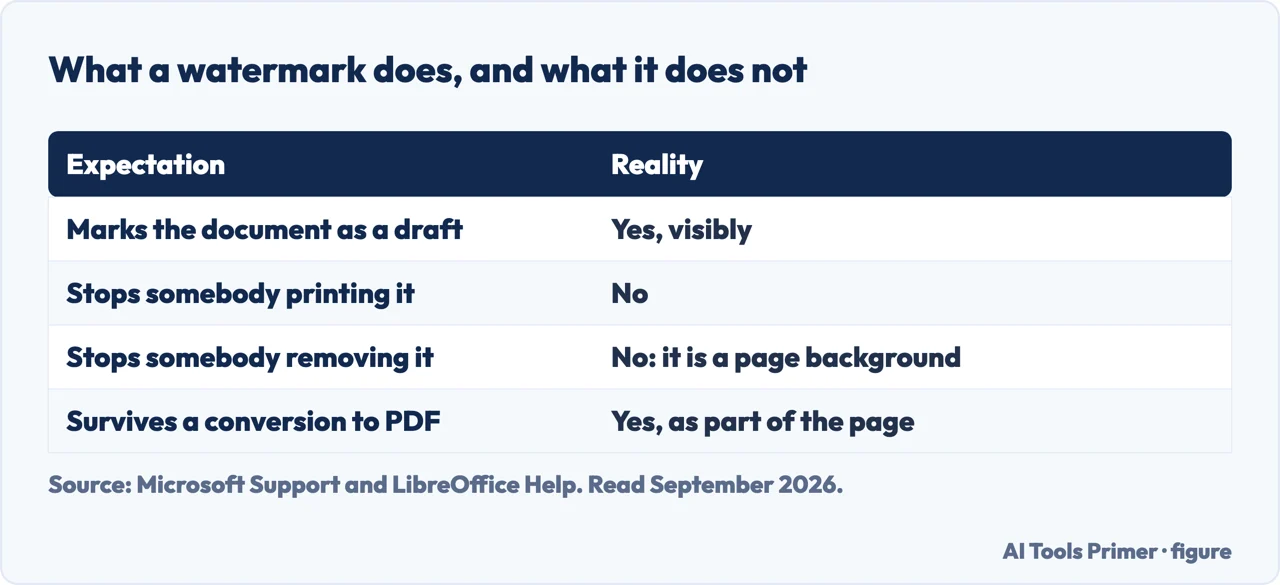
Microsoft, read 22 August 2026. That sentence is about the neighbouring feature. It is quoted here because it states, for a feature Microsoft does describe, the property this page has been arguing about: a mark that a reader can take off is a label, not a lock. Whether Microsoft would say the same of the watermark is not something this page can tell you — what it can tell you is what the watermark demonstrably is, which is the next paragraph. A watermark reading CONFIDENTIAL is removed by opening the Design tab and choosing Remove Watermark. DO NOT COPY does not stop copying. DRAFT does not stop the document being treated as final. They are messages to a cooperative reader, and they work perfectly well as that — which is a real job, and a different one from control.
What each option actually gives you
In ascending order of how much it withstands. Only the last one survives a determined recipient.
- Watermark
- A label across the page. Communicates status to somebody reading in good faith. Removed in two clicks.
- Mark as Final
- Makes the file read-only and sets the Status property to Final, so typing and editing commands are “disabled or turned off”. Microsoft: not a security feature. Selecting the same command again turns it off.
- A password
- The only one on this list that Microsoft points you to when you actually mean restriction: “If you want to encrypt a presentation with a password or restrict who can edit it, see Protect a document with a password.” It has its own trade — a lost password means a lost document.
- Not sending it
- The option that belongs on the list. If a document must not be altered by a particular reader, sending them a PDF, or a link with view-only access, does more than any label ever will.
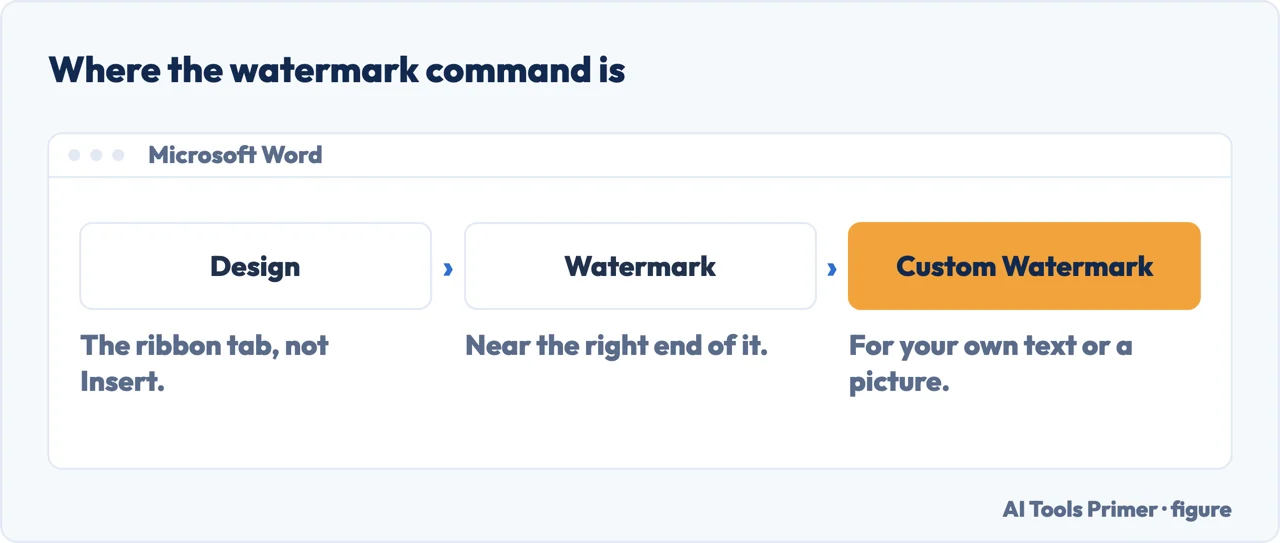
Add or insert — and the tab is the surprise. Whichever verb you searched for, the command is not on the Insert tab where almost everybody looks first. Microsoft puts it on Design, beside the document themes, which is the single reason people conclude Word cannot do it.
None of which makes the watermark pointless. A DRAFT stamp across a page prevents the commonest document accident there is: somebody circulating, quoting or acting on a version that was never meant to be final. It works because the reader is not an adversary — they simply did not know, and now they do. Used for that, a watermark is one of the most effective things in Word.
Where it goes wrong is when it is used against somebody. A photograph marked DO NOT COPY, a price list marked CONFIDENTIAL sent to a competitor’s customer, a report stamped for one recipient — in each case the label is doing no work at all beyond making the sender feel covered. If the consequence of the document reaching the wrong hands is serious, the answer is in how you send it and to whom, not in what is printed across it.
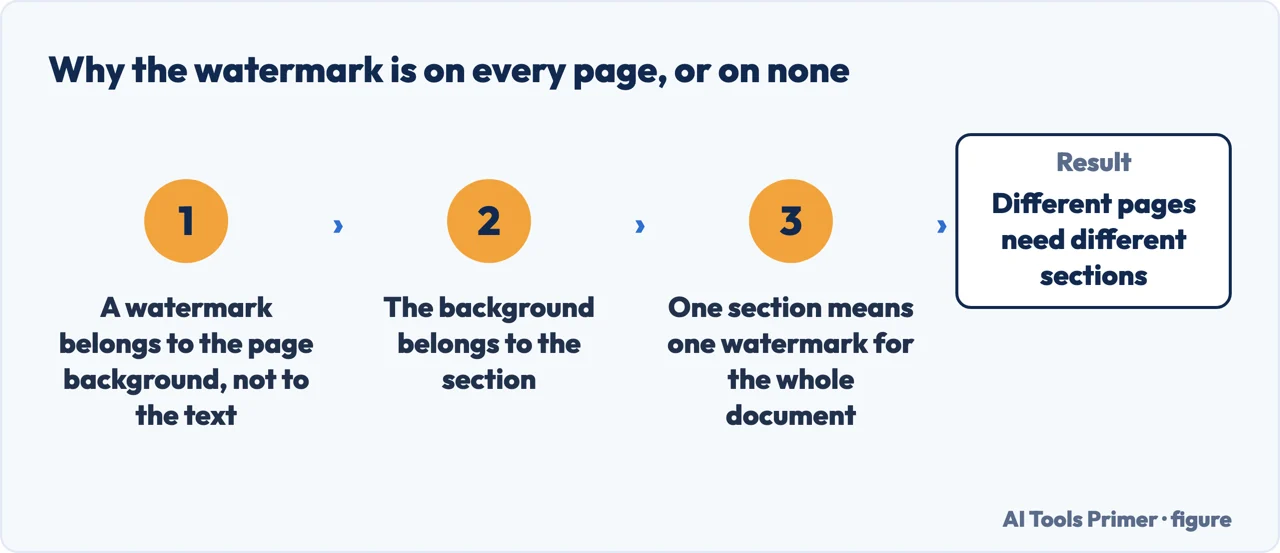
One practical note about printing. Watermarks are set per section, so a document with multiple sections may carry one on some pages and not others — which is usually a surprise rather than a choice. And a pale grey watermark that looks right on screen can print almost invisibly on some printers, or dark enough to make the text hard to read on others. The Print Layout view Microsoft points to “also shows how the printed watermark will look”, but a single test page settles it properly.
The other word processor puts it in the same place and explains what it is. LibreOffice has Format › Watermark, and its documentation gives the reason the feature exists rather than only the clicks: a watermark is “an identifying image or pattern in paper that appears as various shades of brightness when viewed by transmitted light”, made during manufacture “to discourage counterfeiting”. A digital watermark is a picture of that, which is the honest frame for what it can and cannot do to a document somebody can edit.
The steps, the pre-configured options, the Print Layout note, the Word for the web limitation and the statement about Mark as Final are quoted from Microsoft’s own documentation, read on 22 August 2026 and listed below. The argument that a watermark is a message rather than a control, and the ordering of the options, are ours.
Where to start
Four ways in.
- “I need DRAFT across the page.”
- Four clicks, above — the steps
- “I added it and cannot see it.”
- Print Layout — the steps
- “I need to stop people editing this.”
- A watermark will not — what actually restricts
- “It must not leave this office.”
- Then it is about sending — sending it safely
The steps
Four clicks on the Design tab, plus the two places Word quietly behaves differently from what you expect.
What actually restricts
Microsoft states plainly that one of these is not a security feature. The rest are worth checking one at a time, because a label is not a lock.
Sending it safely
If the consequence of the wrong reader is serious, the answer is in the sending rather than in the label.
Documents that travel
A watermark is usually added to something about to be sent. What happens to it on the way is a separate question.
Not covered here. It will not let you believe a watermark protects a document. Microsoft says as much about the neighbouring feature, and the same holds here.
It will not dismiss the watermark either. Marking a draft as a draft prevents the commonest document accident there is.
And it will not recommend a document-security product. The honest ladder is four rungs long and three of them are already in Word. What holds instead is simple: the Word for the web limitation and the statement about Mark as Final are Microsoft’s own wording, read on the dates this page names.
Editing a document other people will read
Marks that are meant to be seen by whoever opens the file next.
- The same job, in the other places it comes up
- How to strikethrough on Google Docs, and take it off
- How to track changes in Word, and how to get rid of them
- How to combine Word documents, without uploading them
Sources
- Microsoft Support — Insert a watermark, including the Design tab route, the pre-configured DRAFT, CONFIDENTIAL and DO NOT COPY options, custom text and picture watermarks, the Print Layout note and the Word for the web limitation — support.microsoft.com, read 22 August 2026.
- Microsoft Support — Help prevent changes to a final version of a file, including the statement that Mark as Final is not a security feature and the pointer to password protection when restriction is what you mean — support.microsoft.com, read 22 August 2026.
- LibreOffice Help — Page Watermark: the same command in another word processor, and what a watermark originally was — help.libreoffice.org, read 4 September 2026.
Written by Alberto Gulotta
Founder and editor of AI Tools Primer, writing from Palermo, Italy. Thirty-five years of taking computers apart, starting with a Commodore 64 — the long version is on the about page.
Something wrong on this page? Write to aitoolsprimer@gmail.com and it gets fixed.
Written on 22 August 2026 · last checked 23 September 2026.
Independence and limits
No affiliate links and no paid placements anywhere on this site. Nobody pays to appear here, and no company has seen this page before you did.
This is general information, not professional advice. Where a page touches money, health, safety or the law, it names its source and the date it was read — and your situation may still differ. See the privacy page and the cookie policy.