
Docs · guide
How to combine Word documents, without uploading them
By Alberto Gulotta · Updated · 8 min read
There is a built-in answer to how to combine Word documents, Microsoft documents it, and it takes five clicks. Two of the commonest answers are websites asking you to upload the files instead, and one is Adobe. None of that is necessary.
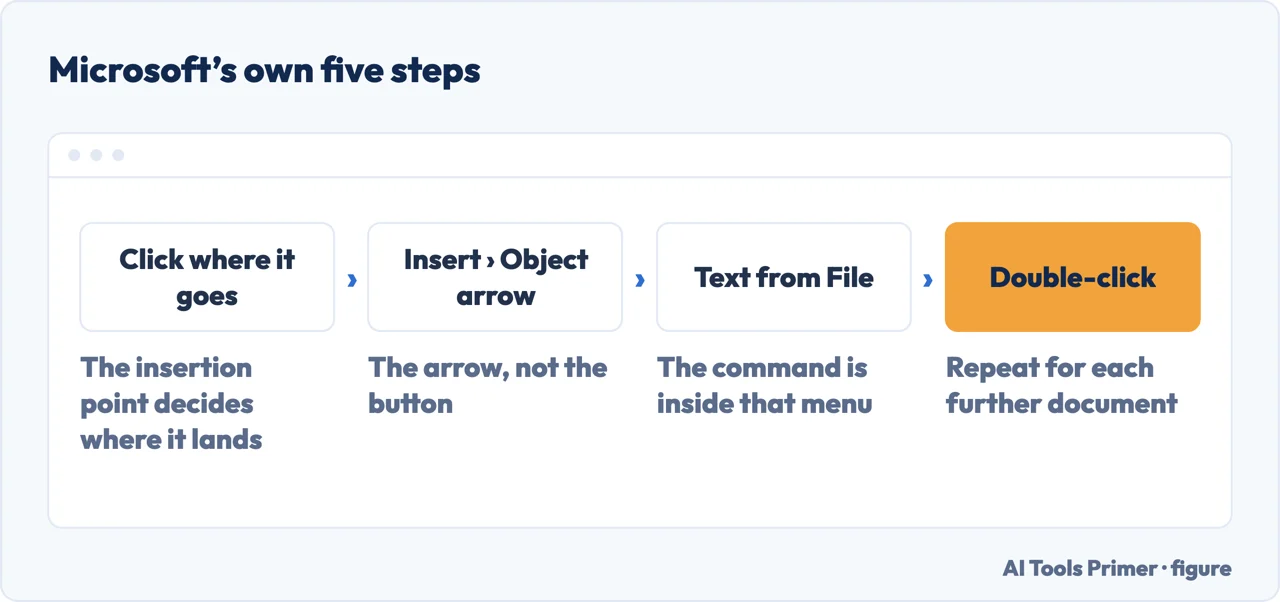
The built-in way, in five steps
Microsoft’s own instructions, read 21 August 2026. Nothing is uploaded and nothing is installed.
- “Click or tap where you want to insert the content of the existing document.”
- “Go to Insert and select the arrow next to Object.”
- “Select Text from File.”
- “Locate the file that you want and then double-click it.”
- “To add in the contents of additional Word documents, repeat the above steps as needed.”
That is the whole feature. It is hidden behind a small arrow next to a button labelled Object, which is why almost nobody finds it and why the first page of results is full of websites offering to do it for you.
The feature that sounds right and is not
Word has a command called Combine, at Review → Compare → Combine, and searching for this question will lead you to it. It does something else. Microsoft describes its purpose plainly: “After you send a document out for review, you might get a lot of copies back—with suggestions and revisions you don’t want to miss.”
The dialog asks for an Original document and a Revised document — two versions of the same file, not two different files. It merges tracked changes, not chapters. If you point it at two unrelated documents you get a marked-up mess rather than a longer document.
That confusion is not the reader’s fault — it is created by the search results themselves. One of the Microsoft pages people land on for this is the one about combining revisions, so people arrive at a genuinely official page that answers a genuinely different question.
The thing that goes wrong, and Microsoft’s own fix
Merged documents usually break in the same place: headers, footers and page numbering from the second document either vanish or overwrite the first. Microsoft flags this as an Important note on the same page:
“If you want to insert the header and footer also, be sure to insert the text from the file in a new section so that the header and footer are applied to only those pages.”
So the order is: insert a section break where the join will be, then insert the text from the file after it. Doing it the other way round is what produces the document where every page suddenly carries the wrong title.
The other thing that breaks: styles. When you insert one document into another, the incoming text takes on the styles of the document it lands in — which is usually what you want and occasionally a disaster, if the two documents defined “Heading 1” differently. The reliable habit is to insert first and fix the headings afterwards, using the style pane rather than manual formatting, because manual formatting is what makes the next merge worse.
If you want a contents page over the whole thing, build it after merging rather than before. An automatic table of contents reads the heading styles, so it will only be correct once all the headings are in the same document and using the same styles.
Why not to use an online merge tool for this. It works, and it costs you something worth naming: you have uploaded a complete document to a company whose retention terms you have not read, in order to perform an operation your word processor already does offline. For a shopping list that is a shrug. For a contract, a dissertation, a set of client notes or anything with names in it, it is a decision — and it is one worth making deliberately rather than because a search result made it convenient.
If you are not using Word. The same operation exists elsewhere under different names — the insert-a-file command is common to most word processors, and the guides below cover what works without a subscription. What is not a good substitute is copying and pasting the text, which carries formatting inconsistently, loses footnotes and section settings, and produces exactly the document that will need fixing later.
The order that avoids most of the trouble. Open the document that will be first. Put the cursor at the end. Insert a section break. Insert the text from the next file. Repeat. Then fix the headings, then build the contents page, then check the headers on each section. Doing it in that order takes a few minutes; doing it in any other order takes an evening.
The steps and the header warning on this page are quoted from Microsoft’s own support documentation on the date it was read. The advice about styles, contents pages and ordering is ours, and is marked as such rather than presented as Microsoft’s.
Where to start
Four ways in.
- “I just need them in one file.”
- The five steps above — then after the merge
- “The headers went wrong.”
- That is the red box — after the merge
- “I found Review → Combine.”
- Different feature — see reviewing and versions
- “I do not have Word.”
- Go to without word
After the merge
A merged document is longer but not yet finished. Headings, numbering and contents all need one pass afterwards.
Reviewing and versions
Combining revisions and combining documents are separate jobs with separate tools, and Word uses similar words for both.
Without Word
The same operation exists elsewhere, and the free options do it without a subscription or an upload.
If they are PDFs
Merging PDFs is a different operation with different tools, and the same question about uploads applies.
Not covered here. It will not send you to a merge website. Word does this offline in five clicks, and Microsoft publishes the steps.
It will not tell you Review → Combine is the answer. It is a real feature for a different job, and the search results are what put it in front of you.
And it will not skip the header problem, which is the part that actually costs people an evening. What holds instead is simple: the steps and the header warning are quoted from Microsoft’s own support documentation, with the date it was read.
Editing a document other people will read
Marks that are meant to be seen by whoever opens the file next.
- The same job, in the other places it comes up
- How to strikethrough on Google Docs, and take it off
- How to track changes in Word, and how to get rid of them
- How to add a watermark in Word, and what it will not do
Sources
- Microsoft Support — Insert a document in Word, including the Text from File steps and the note about inserting into a new section to preserve headers and footers — support.microsoft.com, read 21 August 2026.
- Microsoft Support — Combine document revisions, on the Review → Compare → Combine command and what it is actually for — support.microsoft.com, read 21 August 2026.
- LibreOffice Help — Inserting an Entire Text Document (the three steps of placing the cursor where the file should go, choosing Insert - Text from File, and locating the document; that the contents are embedded into the current document and are NOT updated if the source file changes; and the separate route for content that should update itself — Insert - Section with the Link box ticked and the file named, after which LibreOffice updates the section whenever the source document changes, with Tools - Update - Update All to refresh it by hand) — help.libreoffice.org, read 5 September 2026.
Written by Alberto Gulotta
Founder and editor of AI Tools Primer, writing from Palermo, Italy. Thirty-five years of taking computers apart, starting with a Commodore 64 — the long version is on the about page.
Something wrong on this page? Write to aitoolsprimer@gmail.com and it gets fixed.
Written on 21 August 2026 · last checked 5 September 2026.
Independence and limits
No affiliate links and no paid placements anywhere on this site. Nobody pays to appear here, and no company has seen this page before you did.
This is general information, not professional advice. Where a page touches money, health, safety or the law, it names its source and the date it was read — and your situation may still differ. See the privacy page and the cookie policy.