To remove formatting in Word, select the text and choose Home › Clear All Formatting. Microsoft’s first step is about the selection: “Select the text that you want to return to its default formatting.” From the keyboard there is no single command — Ctrl+Spacebar clears the characters, Ctrl+Q clears the paragraph, and each leaves the other alone.
Where the command is, and what it is called, in the three places Microsoft documents
Where you are working
What the command is called
Microsoft’s own instruction
Word or Publisher on Windows
Clear All Formatting
“On the Home tab, select Clear All Formatting in the Font group.”
Word on a Mac
Clear All Formatting
The same tab and the same group, under a heading of its own, Clear formatting from text
Word in a browser
Clear Formatting, without the “All”
“you may have to select More (...) to see the additional buttons”
Outlook classic, writing a message
Clear All Formatting
“On the Message tab, Clear All Formatting in the Basic Text group”
Any of them, from the keyboard
It has no single shortcut
The shortcut list carries “Remove manual character formatting. Ctrl+Spacebar” and “Remove paragraph formatting. Ctrl+Q”
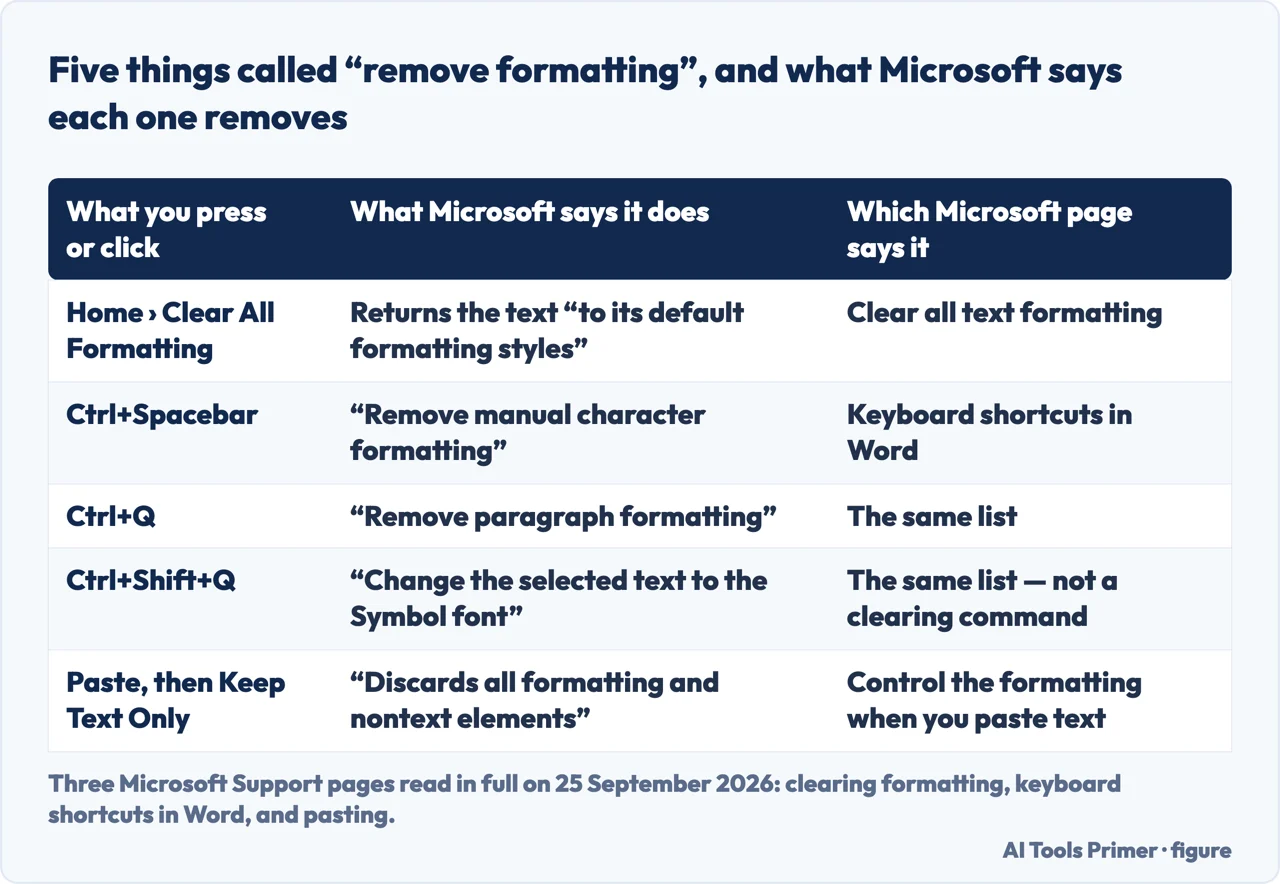
Five commands, five different jobs — and the sentence Microsoft prints for each. Figure drawn by AI Tools Primer from three Microsoft Support pages, read in full on 25 September 2026.
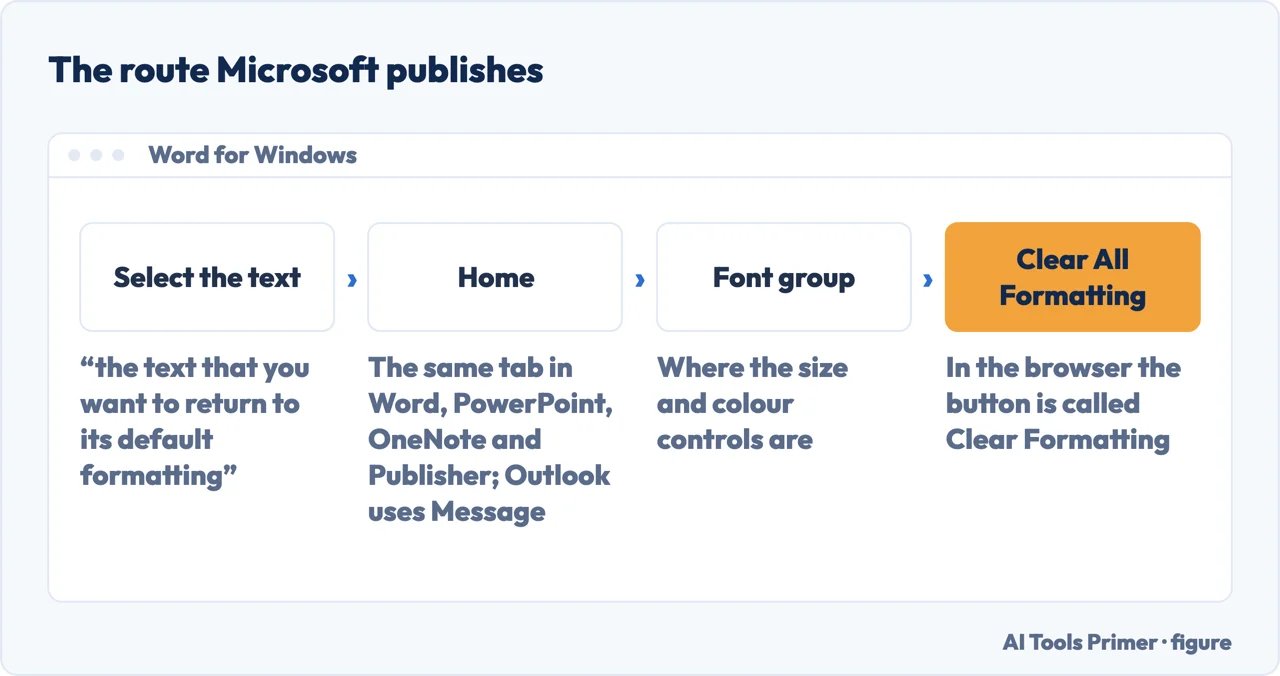
Select the text first, and select all of it. Microsoft’s step one is about
the selection rather than the button: the text you want returned to its default formatting.
On the Home tab, choose Clear All Formatting. It sits in the Font group, beside the
size and colour controls. That single command covers “bold, underline, italics, color,
superscript, subscript, and more”.
If you are in a browser, look for Clear Formatting instead. The name loses a word,
and on a narrow window the button hides behind “More (...)”.
From the keyboard, use both shortcuts, not one. Ctrl+Spacebar is
“Remove manual character formatting” and Ctrl+Q is “Remove paragraph
formatting”. Pressing one and not the other leaves half the job standing.
If the text arrived from a browser or another document, clean it on the way in. Paste
and pick Keep Text Only, which “discards all formatting and nontext elements such as
pictures or tables”. To make that the default, go to File, Options, Advanced, and set
the four “Cut, copy, and paste” choices.
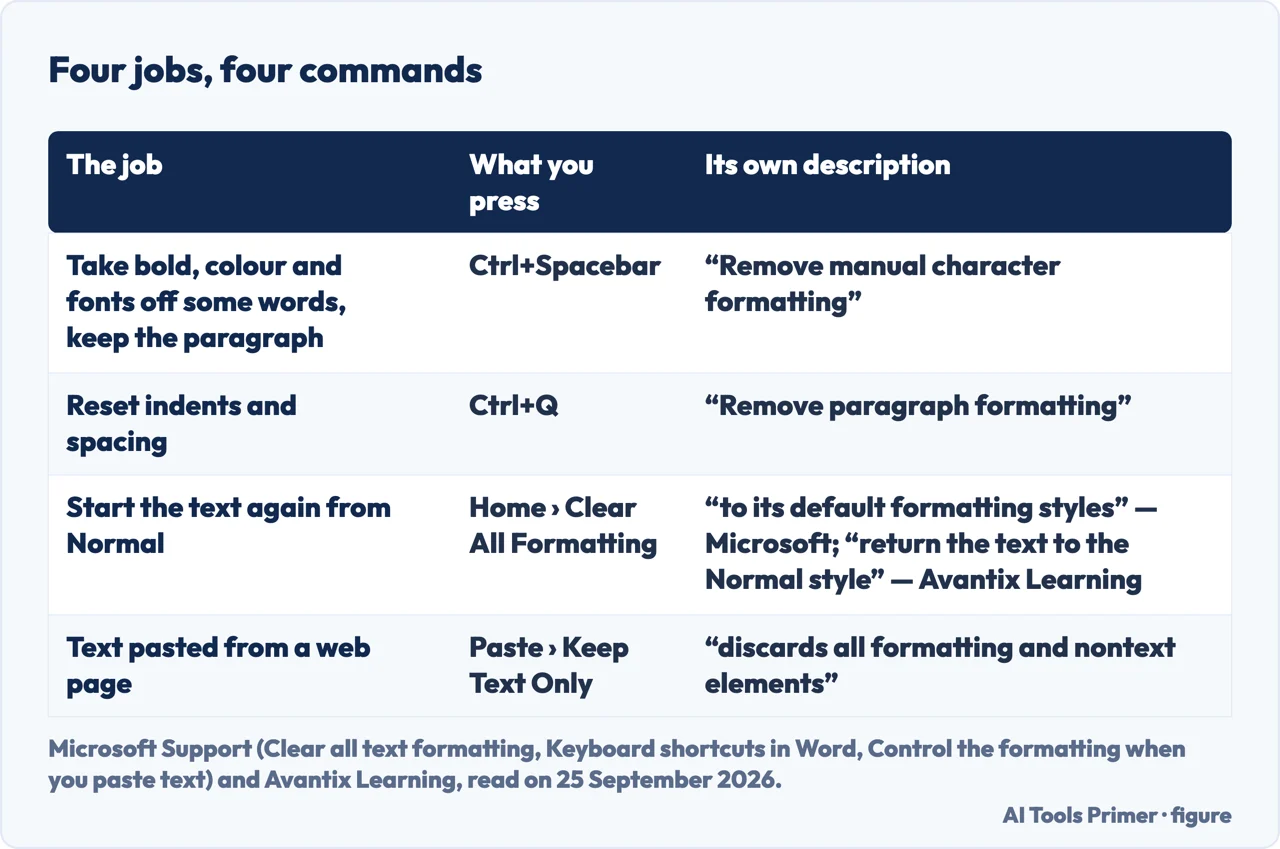
If the text was a heading, expect it to stop being one. Microsoft says the button returns text “to its default formatting styles”, and Avantix Learning’s guide for Word on Windows puts it plainly: it will “return the text to the Normal style”. To clean the words and keep the heading, use Ctrl+Spacebar instead.
The route Microsoft publishes — and in a browser the last box has a shorter name. Figure drawn by AI Tools Primer.
The button is not in Microsoft’s shortcut list, and the two shortcuts that are do half a job each
“Remove manual character formatting. Ctrl+Spacebar” — and, in a different
block of the same list, “Remove paragraph formatting. Ctrl+Q”.
Microsoft’s Keyboard shortcuts in Word was read in full and counted on
25 September 2026: nearly 10,000 words of shortcuts, and “Clear All Formatting” not once. The command every guide points at has no entry
in the list of shortcuts, and the two entries that come closest are split down the middle
— one for characters, one for paragraphs.
That does not mean Ctrl+Spacebar fails to clean anything. It means Microsoft, when it
names that key, calls what it removes “manual character formatting”: manual, and
character. An indent is neither. A heading style is neither. A university IT guide read the
same day, from Southern Illinois University Edwardsville, offers them as the same thing
— “Home > Clear All Formatting (the eraser icon) or press Ctrl+Spacebar”
— and that is exactly where a reader decides the command is broken.
One more entry from the same list is worth knowing before you guess at a shortcut:
Ctrl+Shift+Q is not a clearing command at all. Microsoft’s line for it is
“Change the selected text to the Symbol font”, which turns a paragraph into Greek letters and symbols.
Four jobs, and the command whose own description matches each one. Figure drawn by AI Tools Primer.
What the button will not touch
“This action applies only to formatting that you have added or modified. It
doesn’t apply to default page layout styles, such as slide headers or bullet styles,
that you haven’t modified.”
Its examples, slide headers and bullet styles, are PowerPoint’s. For Word, the sentence to go by is the one at the top of the same page: the text goes back to its default formatting styles, and on a heading that means Normal.
Keep Text Only eats the tables
It is the cleanest paste and the most destructive one: “Graphical elements are
discarded, and tables are converted to a series of paragraphs.”
If the thing you pasted was a table you wanted, Merge Formatting is the middle option: it
“discards most formatting that was applied directly to the copied text” and
keeps bold and italic where they carry emphasis.
Set it once instead of every time
By Microsoft’s own account Word keeps the original formatting unless you tell it
otherwise, and that default is a setting: File, Options, Advanced, under “Cut, copy,
and paste”.
There are four of them, not one — pasting inside a document, between documents,
between documents when the styles clash, and from other programs.
There is a third route, and it is the one to use on a document somebody else formatted. SIUE’s guide sends you from the Styles dialog box launcher to Word’s Style Inspector, where you “Examine the formatting information and remove unwanted formatting” with its Clear buttons. That is slower than the button, and it is the only one of the three that lets you look before anything is removed.
Six sentences from the documentation, and what each one settles
Three Microsoft Support pages and one university IT guide, all read in full on 25 September 2026.
What the button removes
Bold, underline, italics, colour, superscript, subscript “and more”, returning
the text to its default formatting styles.
What it does to a heading
Microsoft: the text goes back to its default formatting styles. Avantix Learning: to the Normal style. A heading stops being one.
The two shortcuts
“Remove manual character formatting. Ctrl+Spacebar” and “Remove
paragraph formatting. Ctrl+Q”. Two commands, two halves of the job.
The shortcut that is not one
“Change the selected text to the Symbol font. Ctrl+Shift+Q”. It is one key
away from Ctrl+Q and does something entirely different.
The cleanest paste
Keep Text Only “discards all formatting and nontext elements”, and the
consequence is in the same paragraph: “tables are converted to a series of
paragraphs”.
Where the guides and the list part company
SIUE’s IT guide: “Home > Clear All Formatting (the eraser icon) or press
Ctrl+Spacebar”. Microsoft’s list calls the same key “Remove manual
character formatting”, which is narrower than the button.
Where this answer stops. The three Microsoft pages are not written for the same set of products, and the difference matters if you are not on a Windows desktop. “Clear all text formatting” covers Word, Outlook, PowerPoint, OneNote and Publisher, but only two Mac versions of Word: Word for Microsoft 365 for Mac and Word 2019 for Mac. “Control the formatting when you paste text” names five products, all of them Windows, and no Mac at all. The shortcut list is the widest of the three: it declares Word for iPad, Word for iPhone and Word for Android alongside the desktops.
Microsoft’s shortcut list, nearly 10,000 words long, does not contain the words Clear All Formatting: what it has is Ctrl+Spacebar for characters and Ctrl+Q for paragraphs.
Not covered here. It does not cover removing formatting in Google Docs.
It does not cover Find and Replace on formatting, which is how you change one font everywhere rather than strip it.
And it does not cover the tracked changes a clean-up leaves behind: if the document is being reviewed, clearing formatting is itself a change somebody will see. What holds instead is simple: the count on this page was made on the day it names, on the page read from top to bottom, and where a guide and the documentation disagree both sentences are printed with the name of each.
Sources
Microsoft Support — Clear all text formatting: the description of what the command removes, the Home tab route for Windows and for the Mac, the note that it applies only to formatting you have added or modified, and the browser tab where the button is called Clear Formatting and may be hidden behind More. Applies to Word, Outlook, PowerPoint, OneNote and Publisher for Microsoft 365, Word for Microsoft 365 for Mac, the 2024, 2021, 2019 and 2016 versions, and Word 2019 for Mac — support.microsoft.com, read September 2026.
Microsoft Support — Keyboard shortcuts in Word: read in full and counted here on 25 September 2026, nearly 10,000 words of article text and no occurrence of “Clear All Formatting”; the source of Ctrl+Spacebar for manual character formatting, Ctrl+Q for paragraph formatting, and Ctrl+Shift+Q for the Symbol font. Applies to the desktop versions and also to Word for iPad, iPhone and Android — support.microsoft.com, read September 2026.
Microsoft Support — Control the formatting when you paste text: Keep Text Only, Merge Formatting and Keep Source Formatting described one by one, the sentence about tables becoming a series of paragraphs, and the four default paste settings under File, Options, Advanced. Applies to Word for Microsoft 365, Word 2024, 2021, 2019 and 2016 — no Mac version is named — support.microsoft.com, read September 2026.
Southern Illinois University Edwardsville, ITS knowledge base — Microsoft Word: Fixing Formatting Issues: an independent guide that offers the button and Ctrl+Spacebar as the same route, and the Style Inspector method for telling a style apart from direct formatting. Read in full on 25 September 2026 — kb.siue.edu, read September 2026.
Avantix Learning — How to Clear Formatting in Word (4 Ways with Shortcuts): a second independent guide, and the one that says in plain words what the button does to a heading — it will “return the text to the Normal style”. Read in full on 25 September 2026. Applies to Word 2016, 2019, 2021, 2024 and 365 for Windows; no Mac version is named — www.avantixlearning.ca, read September 2026.
AG
Written by Alberto Gulotta
Founder and editor of AI Tools Primer, writing from Palermo, Italy. Thirty-five years of
taking computers apart, starting with a Commodore 64 — the long version is on the
about page.
No affiliate links and no paid placements anywhere on this site. Nobody pays to appear here,
and no company has seen this page before you did.
This is general information, not professional advice. Where a page touches money, health,
safety or the law, it names its source and the date it was read — and your situation may
still differ. See the privacy page and the
cookie policy.