Three different things are called a signature in Word — and signing a PDF is a fourth thing again. How to insert a signature in word has a different answer for each. Two of the first eight results for this question are companies that sell electronic signature services, which is worth knowing when you read them. Microsoft documents all three itself, and its own wording is the clearest guide to what each one is worth.
A picture of your handwriting
proves nothing by itself
Microsoft’s own description is careful, and worth noticing: “Your handwritten signature gives your
document a personal touch.” Not authenticity — a personal touch.
Write it on paper, scan it, save it as .bmp, .jpg or .png, open it in Word, crop it on the
Picture Format tab, then right-click and Save as Picture to keep the trimmed version.
Afterwards it goes in with Insert › Pictures.
It is an image in a document anybody can copy out and paste into another document. Which is the
whole of what it is.
A signature line
marks where to sign
Microsoft: “Use the Signature Line command to insert a signature line with an X by it to
show where to sign a document.”
Insert › Signature Line › Microsoft Office Signature Line. The Signature Setup box takes a
Suggested signer and a Suggested signer’s title, which is what makes it useful — the
document arrives saying who is expected to sign and in what capacity.
This is a request, not a signature. Its job is to stop a document coming back unsigned or signed
by the wrong person.
A digital signature
binds a person to a file
Microsoft: an invisible digital signature “assures the authenticity, integrity, and origin
of a document”. And where a visible one is used: “a digital signature is added at the same time to
authenticate the signer’s identity”.
File › Info › Protect Document › Add a Digital Signature. Word asks for a Commitment Type
and a purpose, and signed files carry a Signatures button at the bottom.
“A digitally-signed document becomes read-only to prevent modifications.”
Microsoft marks this Important, and it is the mechanism rather than a side effect. A digital
signature covers the file as it stood at the moment of signing. That is why the document locks:
if the contents could still change, the signature would be attesting to something that no longer
exists. It is also the practical catch — sign it and you cannot go back and fix the typo without
signing again.
So the question to settle first is what the signature has to survive. If it is a covering letter or an internal memo, the picture is right and everything else is ceremony. If the document goes to somebody who must know it came from you and has not been altered since, only the third option does that, and it does it by making the file read-only. The middle one is not a signature at all — it is a labelled space, and it belongs on documents you are sending out to be signed.
The reusable version, which almost nobody knows about
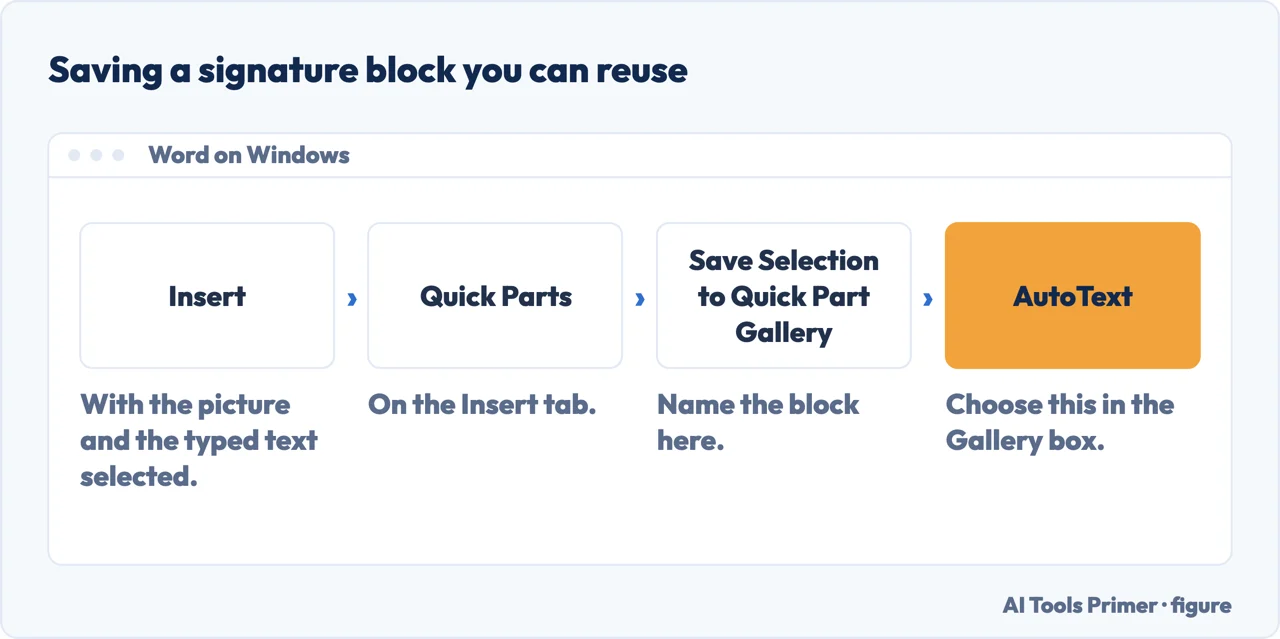
If you sign the same kind of document repeatedly, Word will store the image and the
text under it as one item you can drop in.
“Type the text you want under the inserted picture” — job title, telephone, email.
Select the picture and the typed text together.
Insert › Quick Parts › Save Selection to Quick Part Gallery.
Name it, and in the Gallery box choose AutoText.
From then on: Insert › Quick Parts › AutoText, then the name of your signature block.
The reusable route: the picture and the typed details stored together as one AutoText entry. Figure drawn by AI Tools Primer.
Add or insert, the same thing. How to add a signature in word and how to insert a signature in word reach the same place — and knowing what Word calls it saves the hunt: there is no menu item named signature. What you are looking for is Insert › Signature Line for the third kind, and plain Insert › Pictures for the first.
What this page will not tell you is whether a particular signature satisfies a particular law. That depends on where you are, what kind of document it is, and sometimes on what the parties agreed beforehand — a scanned image is accepted for a great many everyday purposes and refused for some specific ones. What is worth carrying away is the technical difference: an image is a picture, and a digital signature is a cryptographic claim about a file and a person. Anybody deciding whether one is enough should be told which of the two they are looking at.
One practical note about the image route. Crop the scan tightly and save the cropped version as a separate file — Microsoft’s Save as Picture step — rather than cropping it fresh in every document. Word’s crop hides the rest of the image without removing it, so an uncropped scan carries the whole page of paper along inside every file you paste it into.
And one about where the image lives. A picture of your signature is a small file that is easy to copy, and it sits in every document you have ever put it in. That is not a reason to avoid it — it is a reason to keep the source file somewhere sensible rather than in a shared folder, and to think for a second before emailing a signed document to a list.
A second word processor documents the same mechanism, and says two things Microsoft does not. LibreOffice explains what a digital signature is made of — “a kind of checksum is computed from the document’s content plus your personal key” — and what undoes it: “whenever someone changes something in the document, this change breaks the digital signature”. Then the part that matters for a Word file specifically, because .docx is an OOXML file: “when you sign an OOXML document, then the signature will be always marked with only parts of the document are signed”, since “metadata of OOXML files are never signed, to be compatible with Microsoft Office”. And a warning about the reassuring icon that no vendor is obliged to print about its own product: “do not trust the icon. Inspect and verify the certificates”, because “the validation of a signature is not a legally binding guarantee of any kind”.
The three routes, the AutoText steps and the statements about what a digital signature assures are quoted from Microsoft’s own documentation, read on 22 August 2026 and listed below. The ordering by what each proves, and the notes on cropping and on where the image ends up, are ours.
Not covered here. It will not treat the three as one feature. They prove three different amounts and Microsoft describes each differently.
It will not tell you whether a signature is legally sufficient. That depends on where you are and what the document is, and this guide says what each option technically does instead.
And it will not steer you towards an e-signature service. Plenty of tools sell one; all three routes here are already in Word. What holds instead is simple: the three routes and the statements about what each kind of signature does are quoted from Microsoft’s own documentation, with the date each page was read.
Sources
Microsoft Support — Insert a signature in a Word document, including the scanned handwritten signature route, the crop and Save as Picture steps, the AutoText reusable signature block and the Signature Line command with Suggested signer — support.microsoft.com, read 22 August 2026.
Microsoft Support — Add or remove a digital signature for Microsoft 365 files, including the statement that a digital signature assures the authenticity, integrity and origin of a document, that it authenticates the signer’s identity, and that a digitally-signed document becomes read-only — support.microsoft.com, read 22 August 2026.
LibreOffice Help — About Digital Signatures (that applying a digital signature computes a checksum from the document content plus the personal key, which is stored with the document together with the public key; that any later change to the document breaks the signature; that a signed OOXML document is always marked as having only parts of the document signed because the metadata of OOXML files are never signed, for compatibility with Microsoft Office; and that a valid-signature icon should not be trusted on its own, since the validation of a signature is not a legally binding guarantee of any kind) — help.libreoffice.org, read 5 September 2026.
AG
Written by Alberto Gulotta
Founder and editor of AI Tools Primer, writing from Palermo, Italy. Thirty-five years of
taking computers apart, starting with a Commodore 64 — the long version is on the
about page.
Written on 22 August 2026 · last checked 5 September 2026.
§
Independence and limits
No affiliate links and no paid placements anywhere on this site. Nobody pays to appear here,
and no company has seen this page before you did.
This is general information, not professional advice. Where a page touches money, health,
safety or the law, it names its source and the date it was read — and your situation may
still differ. See the privacy page and the
cookie policy.