
Docs · guide
How to make a fillable form in Word, and lock it
By Alberto Gulotta · Updated · 8 min read
Every guide to how to make a fillable form in word covers adding the boxes. Rather fewer cover the step after, which is the one that decides whether you have built a form or simply a document that has some boxes in it — and Microsoft puts that step under a heading near the bottom of its page.
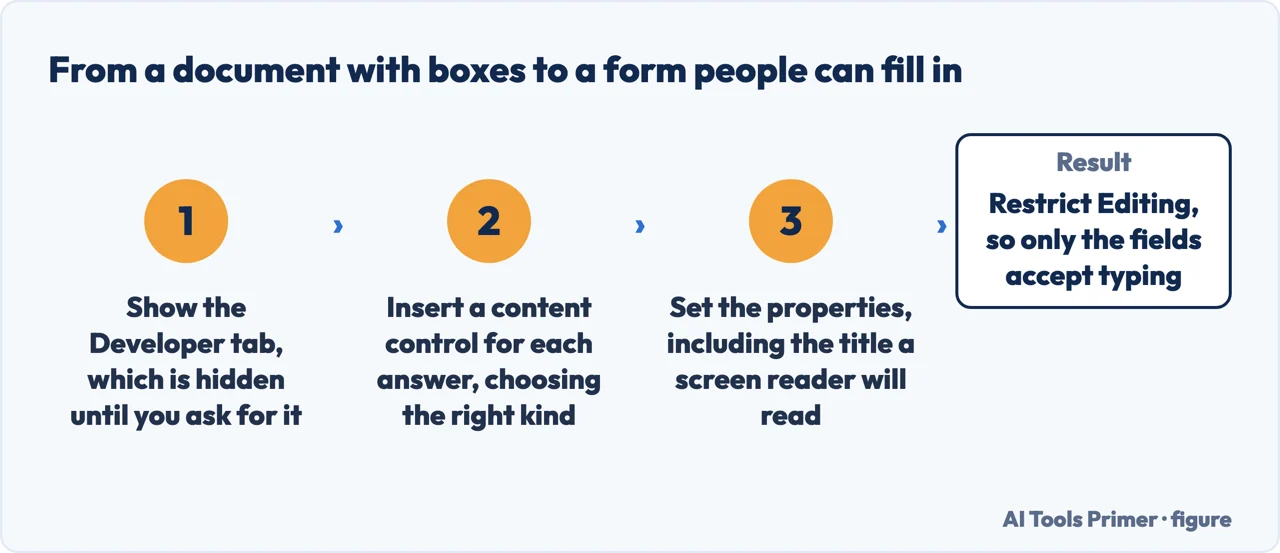
Four steps, and the fourth is the one that matters
Microsoft’s own sequence. Skip the last one and what you have made is a document with boxes in it.
- Show the Developer tab. It is hidden by default, and nothing here works without it.
- Start from a template — File › New, search for Forms — or from a blank document.
- On the Developer tab, in the Controls section, add the controls. Microsoft’s tip: “hover over any icon therein to see what control type it represents”. To remove one: right-click, then Remove content control.
- Add protection. “Select Developer › Restrict Editing. After selecting restrictions, select Yes, Start Enforcing Protection.”
“If you want to limit how much others can edit or format a form, use the Restrict Editing command.”
Microsoft, read 22 August 2026, under a heading near the foot of the page. Until you do this, the person filling in your form can also rewrite it. They can delete a question, retype a label so it asks something else, change the wording of the thing they are agreeing to — and the copy that comes back looks like a completed form, because it is one.
There is a more careful version for documents that are partly form and partly text. Microsoft’s advanced tip: “If you want to protect only parts of the document, separate the document into sections and only protect the sections you want. To do this, choose Select Sections in the Restrict Editing panel.”
Which control, and one decision inside it
The Controls section offers several. The choice that has consequences is the first one.
- Rich text
- Microsoft: it “enables users to format text (e.g., bold, italic) and type multiple paragraphs”. Right for a free-text answer where the shape of the reply is up to them.
- Plain text
- “To limit these capabilities, use the plain text content control.” This is the one you want for anything you will later read in bulk — a name, a reference, a date — because it cannot arrive carrying somebody’s pasted formatting.
- Date picker
- Has its own properties, including “options for the format you want to use to display the date” — which is how you stop receiving the same date written five different ways.
- Drop-down and combo box
- A fixed list of answers. The difference is that a combo box also lets people type their own.
- Picture
- “most often used for templates, but you can also add a picture control to a form.”
A note about printing, because it surprises people. Microsoft: “You can print a form that was created via content controls. However, the boxes around the content controls will not print.” So a form designed on screen prints as a page of labels with blank space beside them — which is fine if the space is wide enough, and useless if you sized the boxes to fit the words. If the form has to work on paper as well, print a test copy before you send it anywhere.
What this kind of form is genuinely good at is a document that must look like a document: a contract with fields, a booking sheet, an internal request that ends up printed and filed. The formatting is yours, the layout is fixed, and the result is a Word file that anybody can open.
What it is not good at is collecting answers. Forty completed forms are forty files to open and read by hand. Nothing totals a column, nothing filters, and nothing tells you who has not replied. If the point of the exercise is the data rather than the document, a form that writes into a spreadsheet does in one step what this does in forty — and the guides below cover that route.
One habit worth adopting. Keep an unprotected master copy under a different name. Protection is fiddly to remove and keeps no record of the settings you chose, and the version you distribute should never be the version you edit. The same discipline applies as to any template: the thing people receive is a copy, not the original.
The limit nobody selling the feature mentions: a Word form is not accessible. The University of Washington’s accessible technology guide is blunt about it — “it is currently impossible to create an accessible interactive form using Microsoft Word. Word can be used to create a form template, but must then be exported to PDF and interactive form controls added using Acrobat Pro.” Its general rules are worth reading whatever you build in: every field needs a label “so screen reader users know what each field is asking for”, the tab order “must be logical”, and error messages must be reachable too. If the form goes to the public or to colleagues, that is a requirement rather than a refinement.
The four steps, the Restrict Editing instruction, the section-level protection tip, the rich-text and plain-text distinction and the note about printing are quoted from Microsoft’s own Word documentation, read on 22 August 2026 and listed below. The argument about when this is the wrong tool, and the master-copy habit, are ours.
Where to start
Four ways in.
- “I need boxes people can type in.”
- Four steps, above — the four steps
- “They keep editing my questions.”
- That is the fourth step — locking it
- “Which box for which answer?”
- One choice has consequences — choosing the controls
- “I need to total the replies.”
- Then not this — when you need the data
The four steps
A hidden tab, a set of controls, and a final step filed under a heading of its own.
Locking it
Until protection is enforced, whoever fills the form in can also rewrite what it asks.
Choosing the controls
Rich text or plain text is the one decision here with consequences downstream, and Microsoft states the difference.
When you need the data
Forty returned documents are forty documents. If the replies have to be counted, the tool is a different one.
Not covered here. It will not stop at adding the boxes. Without the last step you have a document people can rewrite while they fill it in.
It will not pretend a Word form collects data. Forty replies are forty files, and nothing adds them up.
And it will not recommend a form-building product for something Word does on one tab. What holds instead is simple: what locks the form is Microsoft’s own Restrict Editing instruction, quoted with the control types from its Word documentation.
Collecting answers from people
Four ways to put a form in front of somebody and get it back filled in.
- The same job, in the other places it comes up
- How to make a Google Form, and what it records about people
- How to make a QR code for a Google Form, and why it breaks
- How to fill out a PDF form, and what to do when it will not let you
Sources
- Microsoft Support — Create a form in Word that users can complete or print, including the Developer tab requirement, the form templates, the control types, the rich-text and plain-text distinction, the note that control boxes do not print, and Restrict Editing with Start Enforcing Protection and Select Sections — support.microsoft.com, read 22 August 2026.
- University of Washington Accessible Technology — Forms: the statement that an accessible interactive form cannot be built in Word alone, and the four rules any electronic form has to meet — www.washington.edu, read 4 September 2026.
Written by Alberto Gulotta
Founder and editor of AI Tools Primer, writing from Palermo, Italy. Thirty-five years of taking computers apart, starting with a Commodore 64 — the long version is on the about page.
Something wrong on this page? Write to aitoolsprimer@gmail.com and it gets fixed.
Written on 22 August 2026 · last checked 23 September 2026.
Independence and limits
No affiliate links and no paid placements anywhere on this site. Nobody pays to appear here, and no company has seen this page before you did.
This is general information, not professional advice. Where a page touches money, health, safety or the law, it names its source and the date it was read — and your situation may still differ. See the privacy page and the cookie policy.