
Docs · guide
How to insert a checkbox in Excel, and what it really is
By Alberto Gulotta · Updated · 11 min read
How to insert a checkbox in Excel: select the cells, then Insert, then Checkbox. For years the answer was longer — a hidden Developer tab, a drawn form control, a cell linked by hand. Current Excel has a checkbox on the Insert menu, and it behaves differently in a way that matters.
| Program | Where the command is | What the cell holds | Source |
|---|---|---|---|
| Excel for Microsoft 365, Windows and Mac | Insert › Checkbox | TRUE when ticked, FALSE when not | Microsoft |
| Older Excel, and Excel with no Checkbox entry | The Developer tab, as a form control linked to a cell by hand | Whatever cell you linked it to | Microsoft |
| Google Sheets | Insert › Checkbox | TRUE or FALSE, or your own two values via Data › Data validation |
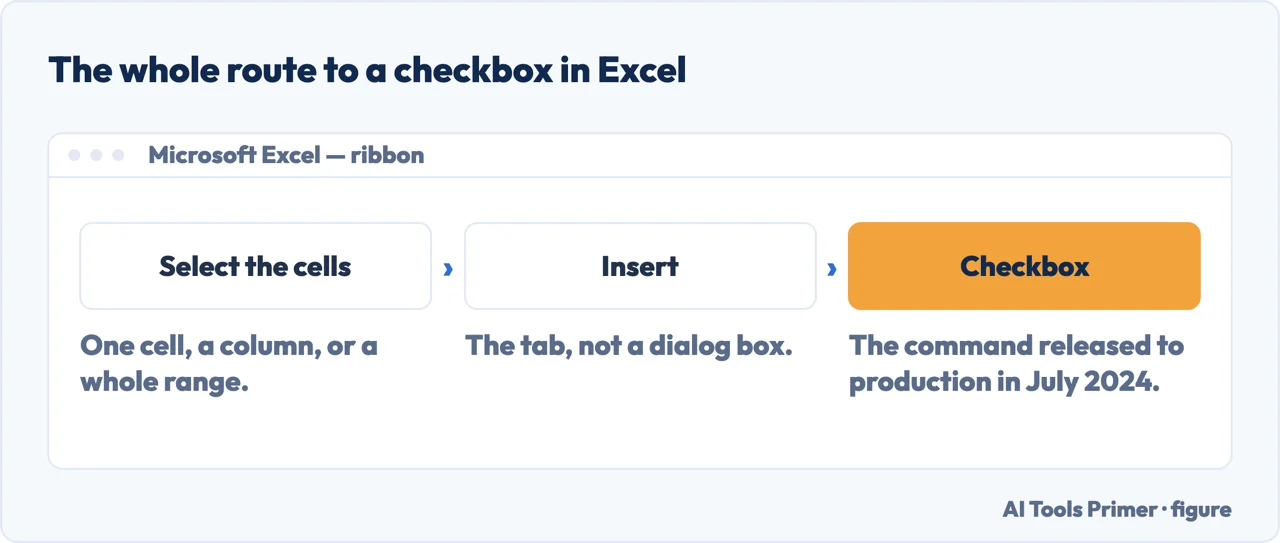
- Select the range where you want check boxes. A single cell, or the whole column of a checklist at once — the command works on a range.
- Select Insert, then Checkbox. That is the entire route in current Excel. No Developer tab, no drawing, no linking.
- Click a box to tick it, or select several and press the spacebar. Microsoft documents both; the spacebar is the one that turns a column of boxes into a few seconds of work.
- Use the cell in a formula as if it were a word. “If you reference a check box cell with
a formula, TRUE or FALSE will be passed along to that formula” — for example
=IF(A1, "Checked", "Unchecked"). - To remove them, press Delete twice. “If all of the check boxes were unchecked, they will be removed, otherwise they will become unchecked (now you can select Delete again to remove them).” To keep the values and lose only the boxes, use Home › Clear › Clear Formats.
“A check box is composed of the values TRUE and FALSE with checkbox formatting. A checked check box has the value TRUE. An unchecked check box has the value FALSE.”
Microsoft, read 22 August 2026, and it is the sentence that makes this feature worth having.
The checkbox is not an object sitting on top of the cell — it is the cell’s value, wearing a
tick. Which means everything Excel can do to a value, it can do to your ticks. Microsoft spells
out the consequence: “If you reference a check box cell with a formula, TRUE or FALSE will be passed
along to that formula”, with its own example — =IF(A1, "Checked", "Unchecked").
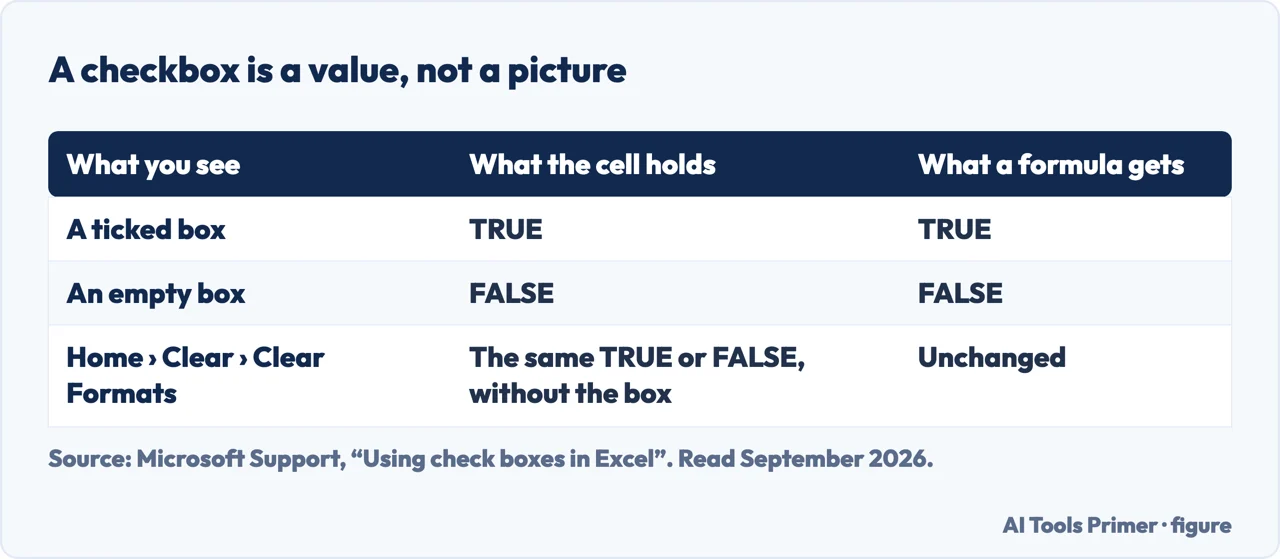
Compare that with the same feature in Word, where a ticked box is a mark on a page and nothing counts it. Here the ticks are data from the moment you make them. COUNTIF over the column tells you how many are done, a filter shows only the outstanding rows, conditional formatting can grey out the completed ones, and none of it needs the boxes to be linked to anything, because there is nothing to link — the box and the value are the same cell.
The four things you will want to do
- Insert
- “Select the range where you want check boxes”, then Insert › Checkbox. A whole column at once — no copying and pasting one at a time.
- Tick
- Click it. Or, better for a list: “select one or more check boxes and select Spacebar” — which ticks a whole selection in one press.
- Keep the answers, drop the boxes
- To remove the appearance while keeping the data: Home › Clear › Clear Formats. Microsoft notes this clears “all other formatting” too, so do it on a copy.
- Remove entirely
- The Delete key — but read the next section first, because it does something you would not predict.
Why pressing Delete appears to do nothing
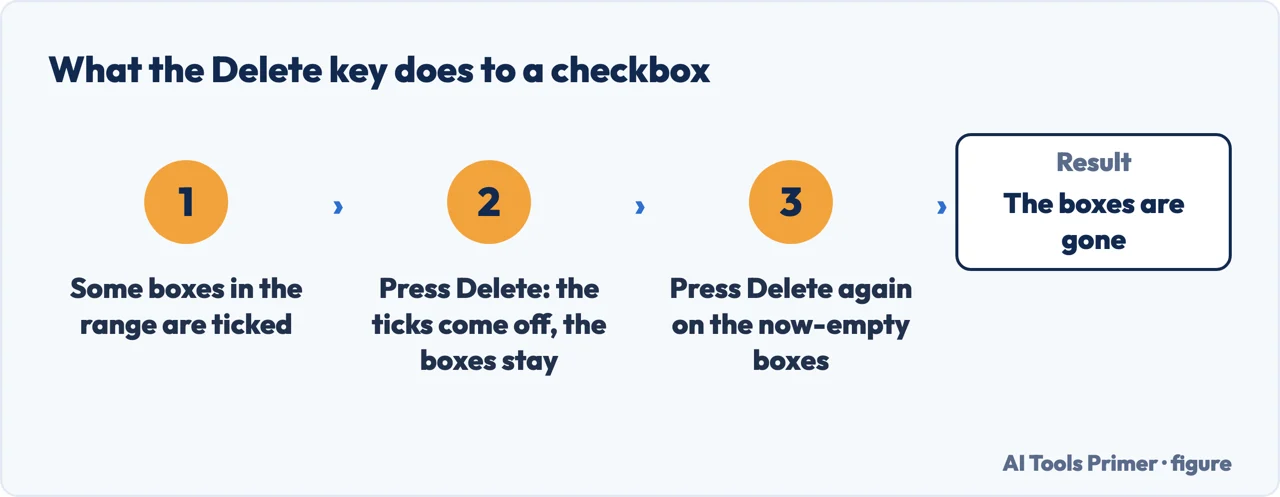
Microsoft documents this: “Select the Delete key. If all of the check boxes were unchecked, they will be removed, otherwise they will become unchecked (now you can select Delete again to remove them).”
So on a column of ticked boxes, the first Delete unticks them and the second removes them. Press it once, watch the ticks vanish but the boxes stay, and the natural conclusion is that the feature is broken. It is not — you are halfway through.
It is also, on reflection, the safer behaviour: one keystroke cannot destroy a column of answers. But it is only obvious once somebody tells you, and few guides do.
The useful comparison is with Word. There you still need the hidden Developer tab; in current Excel you do not. Anyone who learned this in Word and goes looking for Developer here is looking in the wrong place — it is on the ordinary Insert menu.
And the same command exists in Google Sheets, with the same result and one extra option. Google’s route is also Insert › Checkbox, and its help page adds something Excel does not offer: under Data › Data validation you can “Use custom cell values”, so a ticked box can put “Yes” in the cell instead of TRUE. A file moved between the two keeps the boxes; the custom values are Sheets’ own idea.
One thing to check before you rely on it. Microsoft lists this feature as applying to Excel for Microsoft 365 and Excel for Microsoft 365 for Mac. If your Insert menu has no Checkbox entry, that is the reason, and it is also why so much of the advice online still walks you through the Developer tab — those pages were right when they were written, and the route they describe still works.
And one thing to check before you send the file to somebody else. A workbook full of these boxes opened in an older version of Excel will show something, but you should not assume what. If the sheet is going to a client, a colleague on an older licence, or into a system that reads the file rather than opens it, the safe form is the underlying values — and Clear Formats gives you exactly that: a column of TRUE and FALSE that every version of Excel has understood for decades.
Which is the quiet argument for this feature over the old one. The Developer-tab control was a drawing that hovered over the grid, kept its own position, and had to be told which cell to write to. Sort the rows and the drawings stayed where they were while the data moved underneath them. A checkbox that is the cell cannot come apart from its row, because it never was a separate thing.
The insert route, the TRUE and FALSE behaviour, the Spacebar shortcut, the Clear Formats route and the two-press Delete are quoted from Microsoft’s own Excel documentation, read on 22 August 2026 and listed below. The comparison with the older form control, and the advice about sending the file on, are ours.
Where to start
Four ways in.
- “I just want tick boxes in a column.”
- Insert › Checkbox — the four actions
- “I need to count the ticked ones.”
- They already are data — the box is the value
- “Delete is not removing them.”
- It takes two presses — the four actions
- “There is no Checkbox on my Insert menu.”
- A version question — older versions
The box is the value
A ticked box is the value TRUE in that cell. Everything Excel does to a value, it does to your ticks.
The four actions
Insert, tick, keep the values, remove. Two of them have a shortcut worth knowing and one has a surprise.
Older versions
The one-step route is recent. The older method still works and is what most of the advice online describes.
Sending it on
A workbook that leaves your machine meets other versions and other software. The underlying values travel better than the appearance.
Questions people also ask
How do I insert a checkbox in Excel without the Developer tab?
In current Excel you do not need it: select the range and choose Insert › Checkbox. Microsoft lists the feature for Excel for Microsoft 365 on Windows and Mac. If the Insert tab has no Checkbox entry, your version predates it, and the Developer tab route is what is left.
When did checkboxes arrive in Excel?
Microsoft announced them in the Excel blog for July 2024: “Checkboxes have released to production in Excel for Windows and Mac.” Guides written before that date describe the Developer tab because it was the only way at the time.
Why does Delete seem to do nothing to a checkbox?
Because the first press acts on the tick, not the box. Microsoft: “If all of the check boxes were unchecked, they will be removed, otherwise they will become unchecked (now you can select Delete again to remove them).” Press it twice.
What does a checkbox actually put in the cell?
A value. “A check box is composed of the values TRUE and FALSE with checkbox formatting” — so COUNTIF, filters and conditional formatting all work on it directly, with nothing linked to anything. Google Sheets does the same, and also lets you set your own pair of values instead of TRUE and FALSE.
Not covered here. It will not send you to the Developer tab first. Current Excel puts a checkbox on the Insert menu, and it behaves better than the old control.
It will not describe the box as an object on top of the cell. Microsoft says it is the cell’s value, and that is why the ticks can be counted.
And it will not leave you pressing Delete twice without knowing why. What holds instead is simple: the insert route and the two-press Delete are quoted from Microsoft’s own Excel documentation, read on the date this page names.
Step 19 of 21 in half an hour in a spreadsheet
The order the work actually happens in: the data arrives, it gets cleaned, it gets counted, it gets a chart, and then somebody else opens it.
- Before this
- How to make a drop down list in Excel, and make it hold
- After this
- How to lock cells in Excel, and why it seems not to work
Sources
- Microsoft Support — Using check boxes in Excel, including the Insert › Checkbox route, the TRUE and FALSE values, referencing a check box in a formula, the Spacebar shortcut, Clear Formats and the behaviour of the Delete key — support.microsoft.com, read 3 September 2026.
- Microsoft 365 Insider blog, What’s New in Excel (July 2024) — the announcement that checkboxes had released to production in Excel for Windows and Mac — techcommunity.microsoft.com, read 3 September 2026.
- Google Docs Editors Help — Add and use checkboxes: the same command in Google Sheets, and the custom checked and unchecked values Excel does not offer — support.google.com, read 3 September 2026.
Written by Alberto Gulotta
Founder and editor of AI Tools Primer, writing from Palermo, Italy. Thirty-five years of taking computers apart, starting with a Commodore 64 — the long version is on the about page.
Something wrong on this page? Write to aitoolsprimer@gmail.com and it gets fixed.
Written on 22 August 2026 · last checked 23 September 2026.
Independence and limits
No affiliate links and no paid placements anywhere on this site. Nobody pays to appear here, and no company has seen this page before you did.
This is general information, not professional advice. Where a page touches money, health, safety or the law, it names its source and the date it was read — and your situation may still differ. See the privacy page and the cookie policy.