
Docs · guide
How to freeze a row in Excel, and the rule behind it
By Alberto Gulotta · Updated · 9 min read
Almost every guide to how to freeze a row in excel gives you a menu path and stops. The menu path works for the simplest case and leaves you stuck the moment you want anything else — which is why so many of the answers you find are forum threads from people asking about the harder cases.
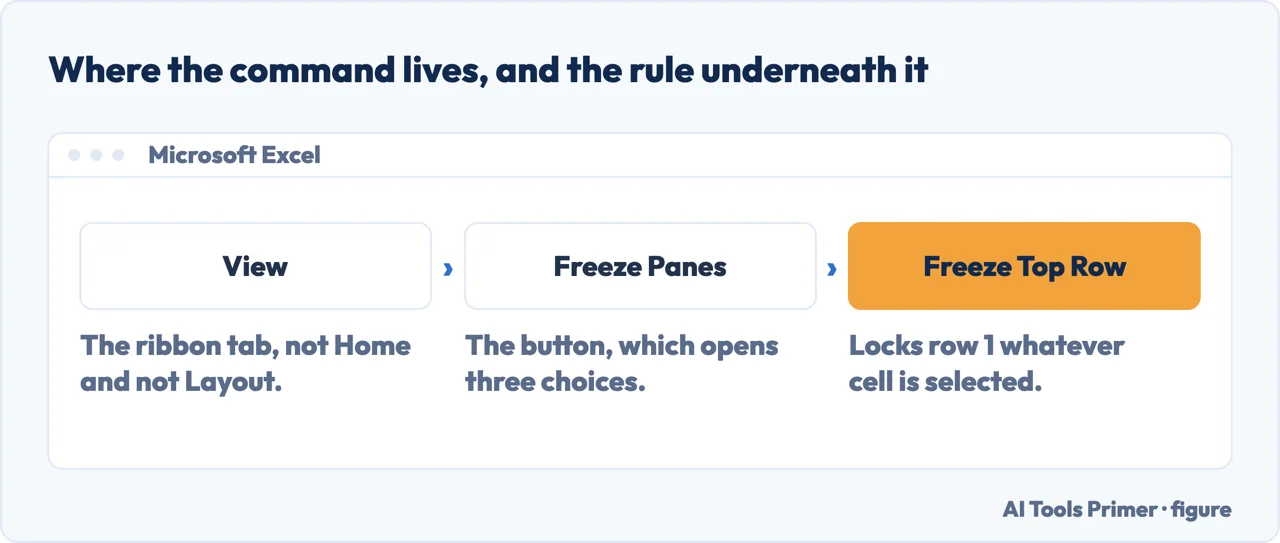
There is one sentence in Microsoft’s documentation that makes all of them obvious.
“Freeze Panes freezes the rows above and the columns left of the selected cell.”
Microsoft’s own documentation, read 22 August 2026. That one sentence answers every version of this question, and it is a single line in the middle of a longer page — which is why the search results for it include two forum threads from people who could not work out the harder cases.
Every case, worked from that one rule
You are not choosing what to freeze. You are choosing the cell whose top-left corner marks the boundary — everything above and to the left of it stays put.
| What you want frozen | What to select first |
|---|---|
| The top row only | Cell A2 |
| The first column only | Cell B1 |
| The first three rows | Cell A4 |
| The first two columns Microsoft’s own example: “Select the third column.” | Column C |
| Two rows and one column together | Cell B3 |
Then, in every case: View → Freeze Panes → Freeze Panes. Microsoft’s phrasing for the combined case is worth memorising because it restates the rule — “select the cell below the rows and to the right of the columns you want to keep visible”.
Why it goes wrong, almost always in the same way
People select the row they want frozen. That is the natural thing to do and it produces the wrong result, because the rule counts what is above the selection. Selecting row 1 freezes everything above row 1, which is nothing.
The habit that fixes it permanently: click the cell just below and just right of the corner you want to keep, then freeze. If you only want the top row, that is cell A2 — and the shortcut menu has a Freeze Top Row option that does it without the arithmetic.
To undo it: View → Freeze Panes → Unfreeze Panes. And if there is no View tab at all, Microsoft notes the likely reason — “it’s likely that you are using Excel Starter. Not all features are supported in Excel Starter.”
Freezing keeps the top of the sheet in view while the bottom scrolls. It does nothing for the other version of the problem — comparing row 5 with row 500, where both ends need to move. That is a different command, and Microsoft names it in the same sentence as the first: on the View tab “you can Freeze Panes to lock specific rows and columns in place, or you can Split panes to create separate windows of the same worksheet”.
The distinction is worth holding: freezing pins one region and scrolls the rest; splitting gives you two scrollable views of the same sheet, each moving independently. Neither changes the data, both are on the View tab, and reaching for the wrong one is why people conclude Excel cannot do something it does.
And if the View tab is not there at all, Microsoft names the cause rather than leaving you hunting: “if you don’t see the View tab, it’s likely that you are using Excel Starter. Not all features are supported in Excel Starter.” Undoing any of it is one place: “View tab > Freeze Panes > Unfreeze Panes”.
Freeze Panes and Split are different tools, and the menu puts them together. Freezing locks rows or columns in place while the rest scrolls. Splitting, on the same View tab, creates separate scrollable views of the same sheet — useful when you want to compare row 4 with row 4,000 rather than to keep a header visible. If freezing does not do what you expected, it may be that splitting is the thing you actually wanted.
A freeze is a view setting, not a property of the data. It travels with the file, so a colleague opening your spreadsheet sees the same frozen rows — which is usually helpful and occasionally confusing when somebody wonders why their scrolling behaves oddly. It has no effect on printing, and none on formulas.
If your reason is printing rather than scrolling, freezing is the wrong tool entirely. Repeating a header row at the top of every printed page is a different setting — it lives under Page Layout rather than View — and freezing panes will not do it. That distinction sends a lot of people round in circles, because both are described as “keeping the header visible”.
The habit worth forming, beyond this one question. When a spreadsheet is wide enough or long enough to need freezing, it is usually also long enough to need a real header row — one row, text labels, no merged cells, no blank rows between the header and the data. Freezing that row is then a two-second job, and every other feature that reads headers — sorting, filtering, tables, pivot tables — starts working properly at the same time.
The same job in Google Sheets, under a different menu. Sheets puts it under View rather than in a panes command, and Google’s own page groups it with hiding and grouping rows — the operations that change what you see without changing what is there. Useful for two reasons: a file moved between the two programs keeps the frozen rows, and a colleague who cannot find Freeze Panes may simply be in the other spreadsheet.
Everything quoted here is from Microsoft’s own Excel documentation, read on 22 August 2026. The table of cases is our working-out of Microsoft’s rule rather than a list they publish, which is precisely the step the existing pages leave to the reader.
Where to start
Four ways in.
- “I just want the top row to stay.”
- Cell A2, then View → Freeze Panes — see spreadsheets
- “I want rows and columns together.”
- The table above — spreadsheets
- “I want the header on every printed page.”
- Different setting — go to printing
- “My spreadsheet is a mess.”
- That is the underlying problem
Spreadsheets
The features that all depend on having a clean header row, which is the same row you are trying to freeze.
Printing
Keeping a header visible on screen and on paper are two different settings in two different tabs.
The underlying problem
Merged cells, blank rows and multi-row headers break more than freezing. They break sorting, filtering and every formula that follows.
The rest of Office
The same pattern recurs across these programs: a documented rule buried in a longer page, and a menu that hides the useful command.
Not covered here. It will not give you a menu path and stop. The menu path is the easy half, and the rule underneath it is what answers the cases people actually get stuck on.
It will not confuse freezing with repeating a header when printing. They are different settings in different tabs, and mixing them up is why this question gets asked twice.
And it will not recommend an add-in for something built into the View tab. What holds instead is simple: the rule and the steps are quoted from Microsoft’s own Excel documentation, with the date it was read.
Step 13 of 21 in half an hour in a spreadsheet
The order the work actually happens in: the data arrives, it gets cleaned, it gets counted, it gets a chart, and then somebody else opens it.
- Before this
- How to make a pie chart in Excel that people can read
- After this
- How to wrap text in Excel, and why it sometimes will not
Handing a spreadsheet to someone else
What to do to a sheet before it leaves your hands, and how to undo what arrived.
- The same job, in the other places it comes up
- How to unhide columns in Excel, including column A
- How to unhide all rows in Excel, and why it sometimes fails
- How to lock cells in Excel, and why it seems not to work
Sources
- Microsoft Support — Freeze panes to lock rows and columns, including the rule that Freeze Panes freezes the rows above and the columns left of the selected cell, the combined case, unfreezing, and the note about Excel Starter — support.microsoft.com, read 22 August 2026.
- Google Docs Editors Help — Freeze, group, hide, or merge rows & columns: the same operation in Google Sheets, grouped with the other commands that change what you see — support.google.com, read 4 September 2026.
Written by Alberto Gulotta
Founder and editor of AI Tools Primer, writing from Palermo, Italy. Thirty-five years of taking computers apart, starting with a Commodore 64 — the long version is on the about page.
Something wrong on this page? Write to aitoolsprimer@gmail.com and it gets fixed.
Written on 22 August 2026 · last checked 4 September 2026.
Independence and limits
No affiliate links and no paid placements anywhere on this site. Nobody pays to appear here, and no company has seen this page before you did.
This is general information, not professional advice. Where a page touches money, health, safety or the law, it names its source and the date it was read — and your situation may still differ. See the privacy page and the cookie policy.