
Docs · guide
How to remove blank rows in Excel, and which rows each route takes
By Alberto Gulotta · Updated · 22 min read
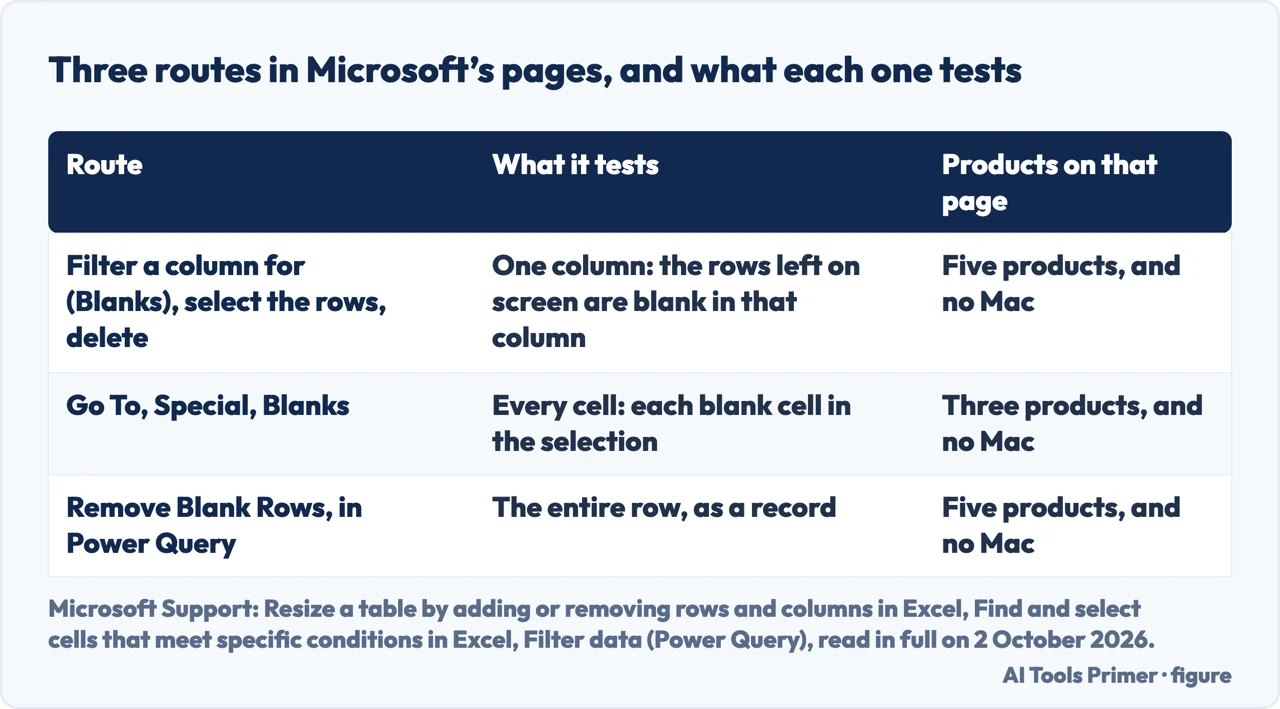
The short answer to how to remove blank rows in Excel: filter one column for (Blanks), select the rows left and delete them. Microsoft prints that procedure for a table, on a Windows tab. Microsoft’s Go To Special page says Blanks selects blank cells, and its Power Query page has a command that examines the entire row.
| Route | What it tests | Products listed on that page | Page read |
|---|---|---|---|
| A filter on (Blanks), then select and delete | One column, filtered for (Blanks) | Five products, and no Mac; the steps are on the Windows tab | Resize a table by adding or removing rows and columns in Excel |
| Go To, Special, Blanks | Each cell: against Blanks the page says “Blank cells.” | Three products, and no Mac | Find and select cells that meet specific conditions in Excel |
| Remove Blank Rows, in Power Query | The entire row, as a record | Five products, and no Mac | Filter data (Power Query) |
| A helper column with COUNTA | Every cell in the range the formula names, D3:F3 in Macabacus’s example; the formula is Macabacus’s, not Microsoft’s | Eight products, on the COUNTA page | COUNTA function; Macabacus |
| The key that deletes | Ctrl+Minus sign on the Windows and Web tabs; Cmd+Hyphen or Ctrl+Hyphen on the macOS tab | Thirteen products, five tabs | Keyboard shortcuts in Excel |
- Turn on the filter for the range. Microsoft’s page Filter data in a range or table gives the command tab by tab: Data, then Filter on the Windows tab; Filter on the Data tab on the Web tab; Filter on the Data toolbar in the macOS tab’s section on blank cells. In a table, its Windows tab says, the filter controls are already in the headers.
- In one column, clear (Select All) and select (Blanks). That is the table procedure, which puts (Blanks) at the bottom of the list of values and adds: “The (Blanks) check box is available only if the range of cells or table column contains at least one blank cell.” On the filter page (Blanks) is named on the macOS tab alone, under Filter blank cells; its Windows and Web tabs do not name it.
- Read across the rows that are left before you select any. The filter looked at one column: what stays on screen is every row that is blank there, and such a row can hold data in the others. Microsoft’s step says only to select the blank rows; this check is ours. If filled rows show, filter a second column for (Blanks) too: the filter page calls filters additive.
- Select those rows and delete them. Microsoft’s step for a table, on its Windows tab: “Select the blank rows in the table, and then press CTRL+- (hyphen).” The page does not say what happens to the rows the filter hides; the procedure only works if they are left alone, and that reading is ours. So keep a copy first; Microsoft’s page on cleaning data: “Create a backup copy of the original data in a separate workbook.”
- Clear the filter. Microsoft’s page Clear or remove a filter, for five products and no Mac: “Click the Data tab, and then click Clear.” The rows that stay close up, by this guide’s reading: the page on deleting rows says that the others shift up automatically on its Web tab.
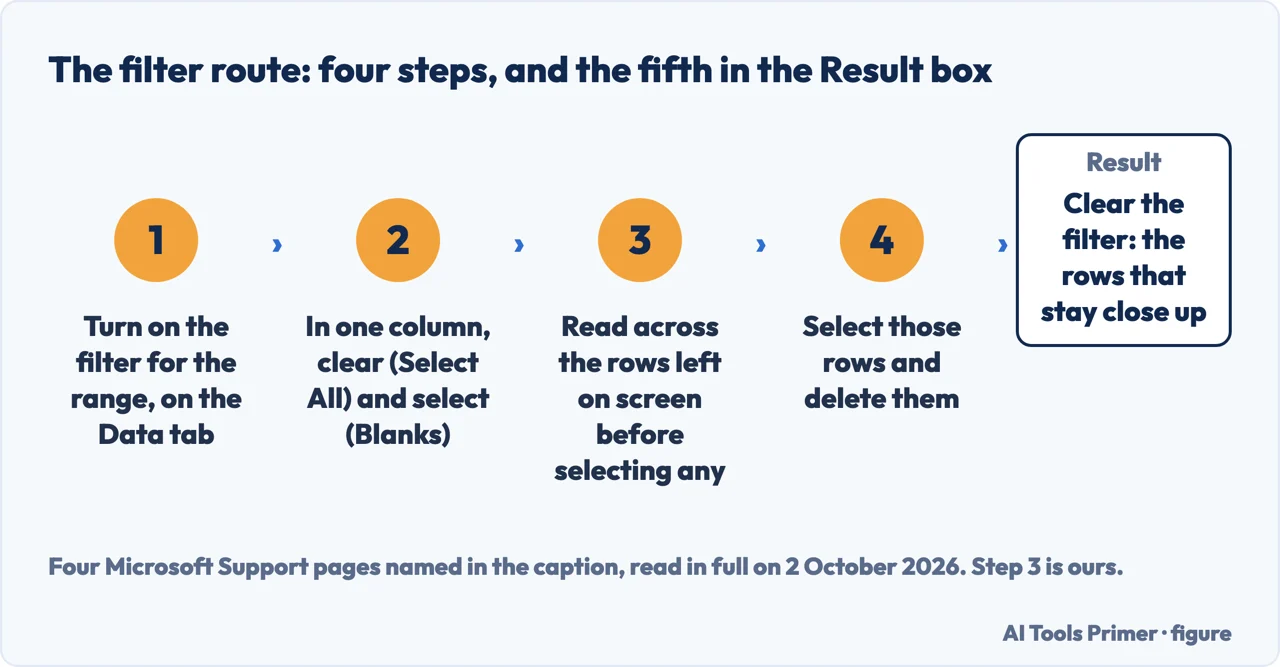
A table, and then a worksheet. The five steps are Microsoft’s section Remove blank rows from a table, on the Windows tab of a page for five products and no Mac, with the check and the clearing added. For a range that is not a table the page has one sentence: “You can use a similar procedure for filtering and removing blank worksheet rows.” It does not write that procedure out. In a table, the same page puts the command at Home, the arrow next to Delete, Delete Table Rows.
Go To Special selects blank cells, not blank rows
“It deletes all rows in selected range which have blank cells.”
That is a reply of 27 September 2024 in Delete Empty Rows Quick?, a thread on Microsoft’s Community Hub: the first search result on 2 October 2026, read for this guide, and the first source of the AI answer Google showed above the results. Its author had given the route in the first reply, in 2021: Find & Select, Go To Special, Blanks, then Delete Sheet Rows.
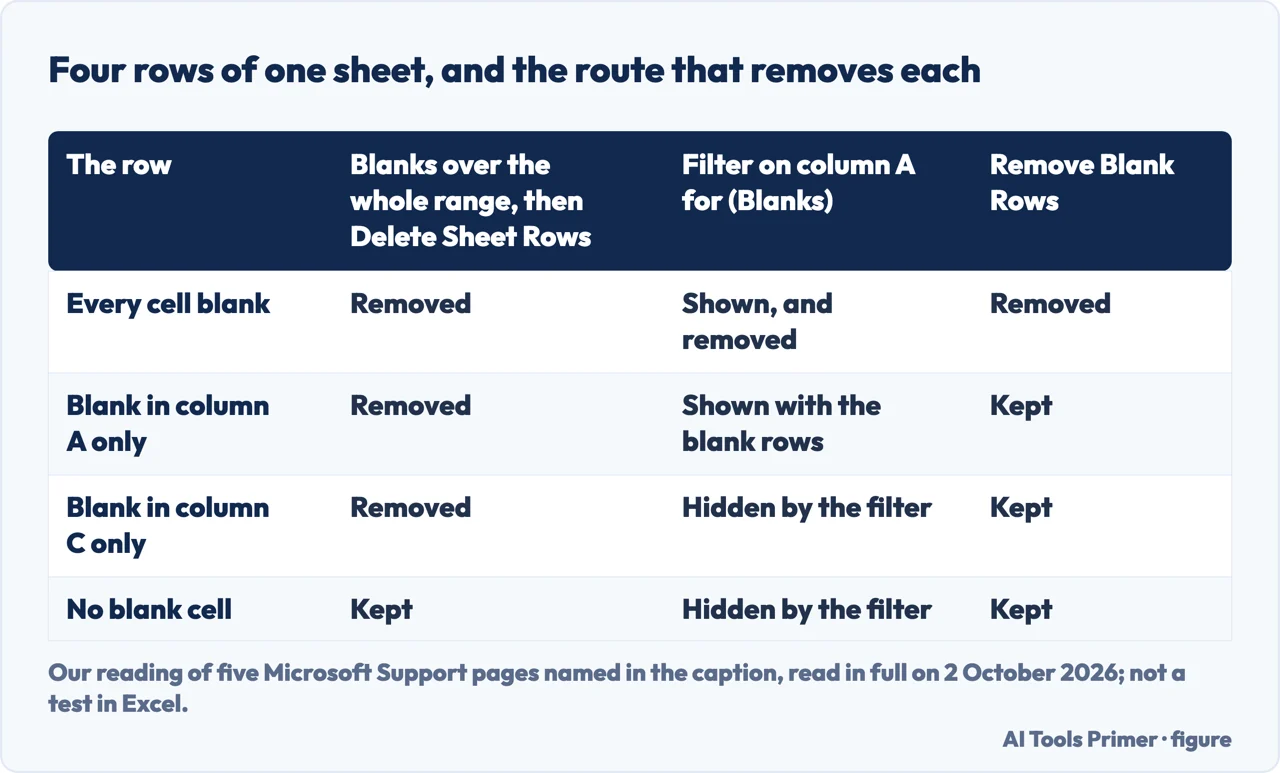
What Microsoft’s own pages say. The page Find and select cells that meet specific conditions lists fifteen options in the Go To Special dialog box, and against Blanks it says “Blank cells.” It does not mention deleting. The page on deleting rows, on its Windows tab, starts from any cell within a row and ends on Delete Sheet Rows. No Microsoft page read for this guide joins the two steps. Joined, every blank cell selected takes its row with it, so a row with one empty cell goes with the empty rows: that conclusion is this guide’s. Two of the 31 replies read in the thread report it. One, on 9 December 2024: “it removes the blank row that i want removed, but ALSO removes the row that has 1 blank cell”. Another, on 8 September 2025, writes that every row had at least one blank cell, and everything was deleted.
Select one column and the test changes. The author’s answer in the thread is to select the range correctly at the start, which the same reply says can be one column or a few. A reply of 14 April 2026 suggests a column that always holds data, such as an id or a date. Blanks then selects only the blank cells of that column: the one-column test of the filter, by this guide’s reading. The same author explains a sheet emptied by this route: with a blank column in the selection, every row has a blank cell.
For Excel for Windows, on the pages read. The Go To Special page begins “In Excel for Windows, use the Go To command” and lists three products, and no Mac. On the shortcuts page the macOS tab has a row for the Go To dialog box, Ctrl+G or F5, and no row that names Go To Special; no page read says whether that dialog has a Special button on a Mac. On the Web tab Ctrl+G is “Go to a specific cell.”
The key that deletes, tab by tab, and what the Delete choices do
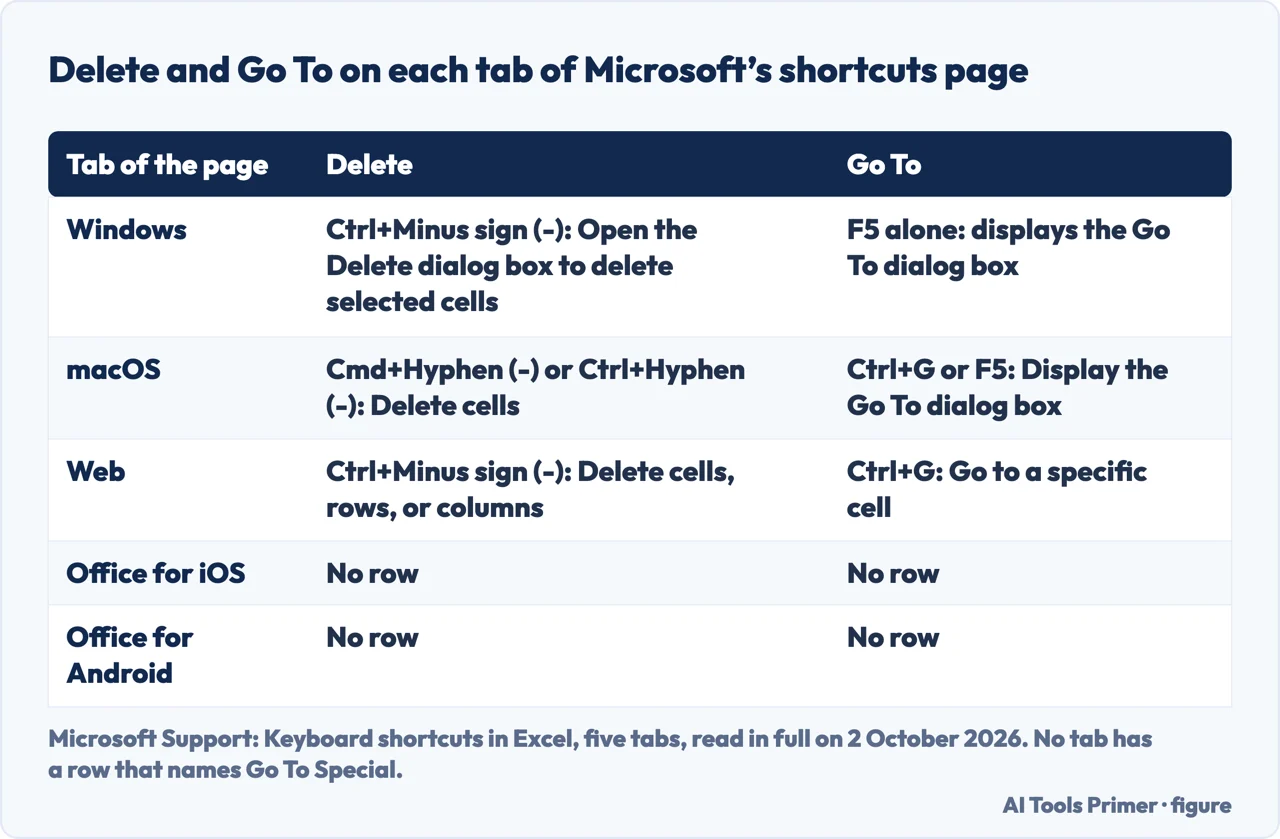
“Open the Delete dialog box to delete selected cells.”
That is the row for Ctrl+Minus sign (-) on the Windows tab of Keyboard shortcuts in Excel. The Web tab prints the same key beside “Delete cells, rows, or columns.” The macOS tab prints Cmd+Hyphen (-) or Ctrl+Hyphen (-) beside Delete cells. The Office for iOS and Office for Android tabs have no row for deleting cells or rows, for a filter or for Go To. Go To itself is F5 on the Windows tab, which prints no Ctrl+G; the Go To Special page prints CTRL+G.
Entire row, or Shift cells up. The Windows pages read do not list what the Delete dialog box offers. The Web tab of the page on deleting rows lists four choices for its right-click Delete: Shift cells up, Shift cells left, Entire row and Entire column. Entire row is the one that removes rows. Shift cells up closes the gap inside a column and leaves the row in place, so the cells below move out of line with their neighbours; that description is ours. It is the job asked for in the fourth search result, read for this guide, Delete blank cells and shift up in Excel on Super User, whose top answer is Blanks, Delete and Shift cells up.
Selecting the rows, and taking it back. Shift+Spacebar selects an entire row on the Windows, macOS and Web tabs. For rows that are not adjacent, Microsoft’s page Select cell contents in Excel, for eight products, says to hold Ctrl and select the row numbers; more is on the page on selecting cells in Excel. And the Web tab of the page on deleting rows: “If you change your mind right after you deleted a cell, row, or column, just press Ctrl + Z to restore it.”
Two ways to test across the row: Power Query, and a helper column
“This method examines the entire row as a record”
That is Microsoft’s page Filter data (Power Query), for five products and no Mac, on
the command it places at Home, Remove Rows, Remove Blank Rows in the Power Query Editor. The
page prints the formula behind it:
Table.SelectRows(#"Changed Type", each not List.IsEmpty(List.RemoveMatchingItems(Record.FieldValues(_), {"", null}))).
Read literally, a row goes only when every field in it is empty text or null; that reading of
the formula is ours. The other method on the same page, Remove empty in a column’s menu,
“examines each value in a column”: the one-column test again. The steps start from
a query already loaded, and the page does not say what happens to the original rows on the
sheet. To take the command back, it says to delete the step under Applied Steps.
A helper column, without Power Query. The third search result, read for this guide, is
by Macabacus, a company that sells financial-modelling software for Excel. It adds a column with
=COUNTA(D3:F3)=0, filled down, which shows TRUE on the rows where nothing is
counted. A reply of 9 September 2025 in the Microsoft thread gives the rest, for a formula of
its own: filter the helper column, delete the rows left, turn the filter off. COUNTA has a
limit, on Microsoft’s page for eight products: “The COUNTA function does not count
empty cells”, but it does count error values and empty text. So a row of formulas that
return empty text is not blank to COUNTA; the inference is ours, and the two counts are on
the page on
counting cells that are not blank.
Empty text, a space, a zero, hidden content
What the pages read say about a cell that looks empty and is not.
- Empty text
- The
""a formula can return. The Power Query formula lists it beside null, so Remove Blank Rows treats it as empty; that is our reading of the formula. Microsoft’s COUNTBLANK page counts such a cell as blank and its COUNTA page counts it as filled. No page read for this guide says whether Blanks in Go To Special, or (Blanks) in a filter, picks it up. - A single space
- No page read for this guide says what Blanks, (Blanks) or Remove Blank Rows does with a cell that holds only a space. Microsoft’s page Top ten ways to clean your data says of space characters that they “can sometimes cause unexpected results when you sort, filter, or search”. In the Power Query formula a space is neither empty text nor null; that such a row stays is our reading. Taking spaces out is on the page on removing spaces in Excel.
- A zero
- “Cells with zero values are not counted.” That is the COUNTBLANK page: it does not count a zero as blank. None of the three route pages says what its route does with a cell that holds a zero.
- Hidden content
- Macabacus warns of rows that look blank and hold formulas or white-coloured text. Rows that are hidden rather than blank are on the page on hidden rows in Excel.
Sorting instead of deleting. A reply of 8 July 2024 in the Microsoft thread sorts the data A to Z, which moves the blank rows below it. Macabacus gives the same route: “The blank rows will now be consolidated at the bottom of the dataset.” The thread’s first replier answers that the original order of the rows is lost, and suggests a helper column of sequential numbers to sort back on. Where blank cells go in a sort is printed on Microsoft’s Mac-only page, whose ascending order ends with blank cells; its page for five products and no Mac does not say. Sorting itself is on the page on sorting alphabetically.
A copy without the blanks, by formula. The second answer to the Super User question uses =FILTER(C4:C30004,NOT(ISBLANK(C4:C30004))), which returns the cells of one column that hold data; its author says it works column by column. Nothing is deleted: the formula writes a copy elsewhere, and that remark is ours. Microsoft’s FILTER function page lists ten products, with neither Excel 2019 nor Excel 2016. TRIMRANGE, on a page that lists Excel for Microsoft 365 alone, trims the edges only: “The TRIMRANGE function excludes all empty rows and/or columns from the outer edges of a range or array.”
On a Mac, in a browser, on a phone. For the Mac, the filter page’s macOS tab has the (Blanks) check box: “This option is available only if the column that you want to filter contains a blank cell.” For deleting, the pages read give the macOS key for Delete cells and no steps: Microsoft’s Mac page on rows has steps for inserting them, which are on the page on adding rows in Excel. In a browser, the Web tabs give Filter on the Data tab, Entire row on the right-click Delete, and Ctrl+Minus sign; no page read gives Go To Special or Power Query for Excel for the web. No page read for this guide prints steps for deleting rows on a phone or tablet.
Where to start
Five ways in.
- “Just give me the steps.”
- Five steps with a filter — the steps with a filter
- “Rows with data vanished too.”
- What Go To Special selects — blank cells are not blank rows
- “Which key deletes the rows?”
- Windows, Mac, the web — the keys on each platform
- “Some of my rows are half empty.”
- Power Query and a helper column — testing the whole row
- “The row looks empty and stays.”
- Empty text, spaces, zeros — cells that only look blank
What a cell holds before you delete its row
Counting the cells that are not blank, taking out stray spaces and removing duplicate rows each have a guide of their own.
Selecting, sorting and grouping
Selecting cells that are not next to each other, sorting a list and grouping rows under an outline each have a guide of their own.
Questions people also ask
How do you delete thousands of blank rows in Excel?
Not one at a time. Microsoft’s table procedure filters a column for (Blanks), which puts every row that is blank in that column on screen at once; the selected rows then go with CTRL+- on its Windows tab. For rows that must be empty all the way across, its Power Query page has Remove Blank Rows.
How do I remove empty rows in Excel?
Filter one column for (Blanks), select the rows that are left and delete them. Microsoft prints those steps for a table, on a Windows tab, and says a similar procedure works on worksheet rows. Read across the rows before deleting: the filter tests one column, and that check is this guide’s advice, not Microsoft’s.
How do I select all blank rows in Excel?
No page read for this guide has a command that selects blank rows. Blanks in Go To Special selects blank cells, on a page written for Excel for Windows. A filter on (Blanks) shows the rows that are blank in one column, and you then select those by their row numbers.
Not covered here. It does not cover Google Sheets. One of the four questions Google listed under People also ask on 2 October 2026 asks about empty rows in Sheets, and no Google page was read for this guide.
It does not cover macros: the Macabacus article prints a VBA routine that deletes the rows where COUNTA finds nothing, and this guide has not tested it. Nor does it cover removing blank columns, beyond the blank column in a selection described above.
Each key and route taken from a Microsoft page carries its tab or its Applies To line.
Sources
- Microsoft Support — Resize a table by adding or removing rows and columns in Excel: on its Windows tab, the section Remove blank rows from a table, with (Select All), (Blanks), the note on when the (Blanks) check box is available, CTRL+- (hyphen), the sentence on a similar procedure for worksheet rows, and Delete Table Rows. Applies to Excel for Microsoft 365, Excel 2024, Excel 2021, Excel 2019 and Excel 2016 — five products, and no Mac — support.microsoft.com, read 2 October 2026.
- Microsoft Support — Find and select cells that meet specific conditions in Excel: the opening on Excel for Windows and CTRL+G, the fifteen options of the Go To Special dialog box, and Blanks as blank cells; no mention of deleting, and no tabs. Applies to Excel for Microsoft 365, Excel 2024 and Excel 2021 — three products, and no Mac — support.microsoft.com, read 2 October 2026.
- Microsoft Support — Insert or delete rows and columns in Excel: on its Windows tab, Delete Sheet Rows from any cell within the row; on its Web tab, the four choices of the right-click Delete, the rows that shift up, and Ctrl + Z to restore. Applies to Excel for Microsoft 365, Excel 2024, Excel 2021, Excel 2019 and Excel 2016 — five products, and no Mac — support.microsoft.com, read 2 October 2026.
- Microsoft Support — Filter data in a range or table in Excel: the Filter command on its Windows, macOS and Web tabs, the filter controls of a table, filters as additive, and the section Filter blank cells with the (Blanks) check box, on the macOS tab alone. Applies to Excel for Microsoft 365 and its Mac version, Excel 2024, Excel 2021, Excel 2019 and Excel 2016 — six products, one of them for Mac — support.microsoft.com, read 2 October 2026.
- Microsoft Support — Filter data (Power Query): Remove Blank Rows under Home, Remove Rows, the sentence that it examines the entire row as a record, its formula, Remove empty and the sentence that it examines each value in a column, the query already loaded, and the step under Applied Steps. Applies to Excel for Microsoft 365, Excel 2024, Excel 2021, Excel 2019 and Excel 2016 — five products, and no Mac — support.microsoft.com, read 2 October 2026.
- Microsoft Support — Keyboard shortcuts in Excel: the rows for Delete, Go To and selecting an entire row on its Windows, macOS and Web tabs, and no rows for Delete, a filter or Go To on its Office for iOS and Office for Android tabs; no row on any tab names Go To Special. Applies to the eight products of the COUNTA page, Excel for iPad, iPhone, Android tablets and Android phones, and Excel Mobile — thirteen products — support.microsoft.com, read 2 October 2026.
- Microsoft Support — Clear or remove a filter: Clear on the Data tab. Applies to Excel for Microsoft 365, Excel 2024, Excel 2021, Excel 2019 and Excel 2016 — five products, and no Mac — support.microsoft.com, read 2 October 2026.
- Microsoft Support — Select cell contents in Excel: Ctrl and the row numbers for rows that are not adjacent. Applies to Excel for Microsoft 365, Excel 2024 and Excel 2021, each with its Mac version, Excel 2019 and Excel 2016 — eight products — support.microsoft.com, read 2 October 2026.
- Microsoft Support — COUNTA function: empty cells not counted, error values and empty text counted. Applies to Excel for Microsoft 365, Excel 2024 and Excel 2021, each with its Mac version, Excel 2019 and Excel 2016 — eight products — support.microsoft.com, read 2 October 2026.
- Microsoft Support — COUNTBLANK function: formulas that return empty text counted as blank, zero values not counted. Applies to Excel for Microsoft 365, Excel 2024 and Excel 2021, each with its Mac version, Excel 2019 and Excel 2016 — eight products — support.microsoft.com, read 2 October 2026.
- Microsoft Support — Top ten ways to clean your data: the backup copy in a separate workbook, and the sentence on space characters. Applies to Excel for Microsoft 365, Excel 2024, Excel 2021, Excel 2019 and Excel 2016 — five products, and no Mac — support.microsoft.com, read 2 October 2026.
- Microsoft Support — Sort a list of data in Excel for Mac: the ascending sort order, which ends with sheet errors and blank cells. Applies to Excel for Microsoft 365 for Mac, Excel 2024 for Mac and Excel 2021 for Mac — Mac only — support.microsoft.com, read 2 October 2026.
- Microsoft Support — Sort data in a range or table in Excel: read for where blank cells go in a sort, which its Windows and Web tabs do not say. Applies to Excel for Microsoft 365, Excel 2024, Excel 2021, Excel 2019 and Excel 2016 — five products, and no Mac — support.microsoft.com, read 2 October 2026.
- Microsoft Support — Insert one or more rows, columns, or cells in Excel for Mac: steps for inserting, none for deleting. Applies to four products: Excel for Microsoft 365 for Mac, Excel 2024, Excel 2024 for Mac and Excel 2021 for Mac — support.microsoft.com, read 2 October 2026.
- Microsoft Support — FILTER function: the function used in the Super User answer, read for the products it lists. Applies to Excel for Microsoft 365, Excel 2024 and Excel 2021, each with its Mac version, and Excel for iPad, iPhone, Android tablets and Android phones — ten products, with neither Excel 2019 nor Excel 2016 — support.microsoft.com, read 2 October 2026.
- Microsoft Support — TRIMRANGE function: empty rows and columns excluded from the outer edges of a range. Applies to Excel for Microsoft 365 alone — support.microsoft.com, read 2 October 2026.
- Microsoft Community Hub — Delete Empty Rows Quick?, a thread opened on 19 March 2021: the route through Go To Special in its first reply, the replies of 27 September 2024, 9 December 2024, 8 September 2025, 9 September 2025 and 14 April 2026, and the reply on sorting of 8 July 2024 with its answer. A users’ forum hosted by Microsoft, with no Applies To line; the page declares 37 replies, and the question and 31 replies were delivered and read — techcommunity.microsoft.com, read 2 October 2026.
- Macabacus — How to Find and Remove Blank Rows in Excel, the third search result on 2 October 2026, read for this guide: the helper column =COUNTA(D3:F3)=0, the sort that moves blank rows to the bottom, the warning on rows that only look blank, and a VBA routine. An independent company that sells financial-modelling software for Excel, with no Applies To line of its own — macabacus.com, read 2 October 2026.
- Super User — Delete blank cells and shift up in Excel, the fourth search result on 2 October 2026, read for this guide: a question of 5 June 2024, its top answer with Blanks, Delete and Shift cells up, and a second answer with the FILTER formula. A question-and-answer site, with no Applies To line — superuser.com, read 2 October 2026.
Written by Alberto Gulotta
Founder and editor of AI Tools Primer, writing from Palermo, Italy. Thirty-five years of taking computers apart, starting with a Commodore 64 — the long version is on the about page.
Something wrong on this page? Write to aitoolsprimer@gmail.com and it gets fixed.
Written on 2 October 2026.
Independence and limits
No affiliate links and no paid placements anywhere on this site. Nobody pays to appear here, and no company has seen this page before you did.
This is general information, not professional advice. Where a page touches money, health, safety or the law, it names its source and the date it was read — and your situation may still differ. See the privacy page and the cookie policy.