To select multiple cells in Excel, click the first one and drag across the rest. For cells that do not touch, Microsoft’s instruction is one line: “To select non-adjacent cells and cell ranges, hold Ctrl and select the cells.” The keyboard can do all of it, and one move is impossible on one Microsoft page and easy on another.
Five keyboard routes for selecting, and how each one ends
What you press
What Excel does
How it stops
Shift and the arrow keys
Extends the selection out from the cell you are on
Let go of Shift
F8
Extends the selection with the arrow keys, without holding anything down
“press F8 again”
Shift and F8
Adds another block to the selection, one press at a time
“press SHIFT+F8 again”
Ctrl and A
Selects the current region, and the whole sheet on a second press
Click any single cell
Ctrl, Shift and End
Extends the selection to the last used cell, bottom right
Click any single cell
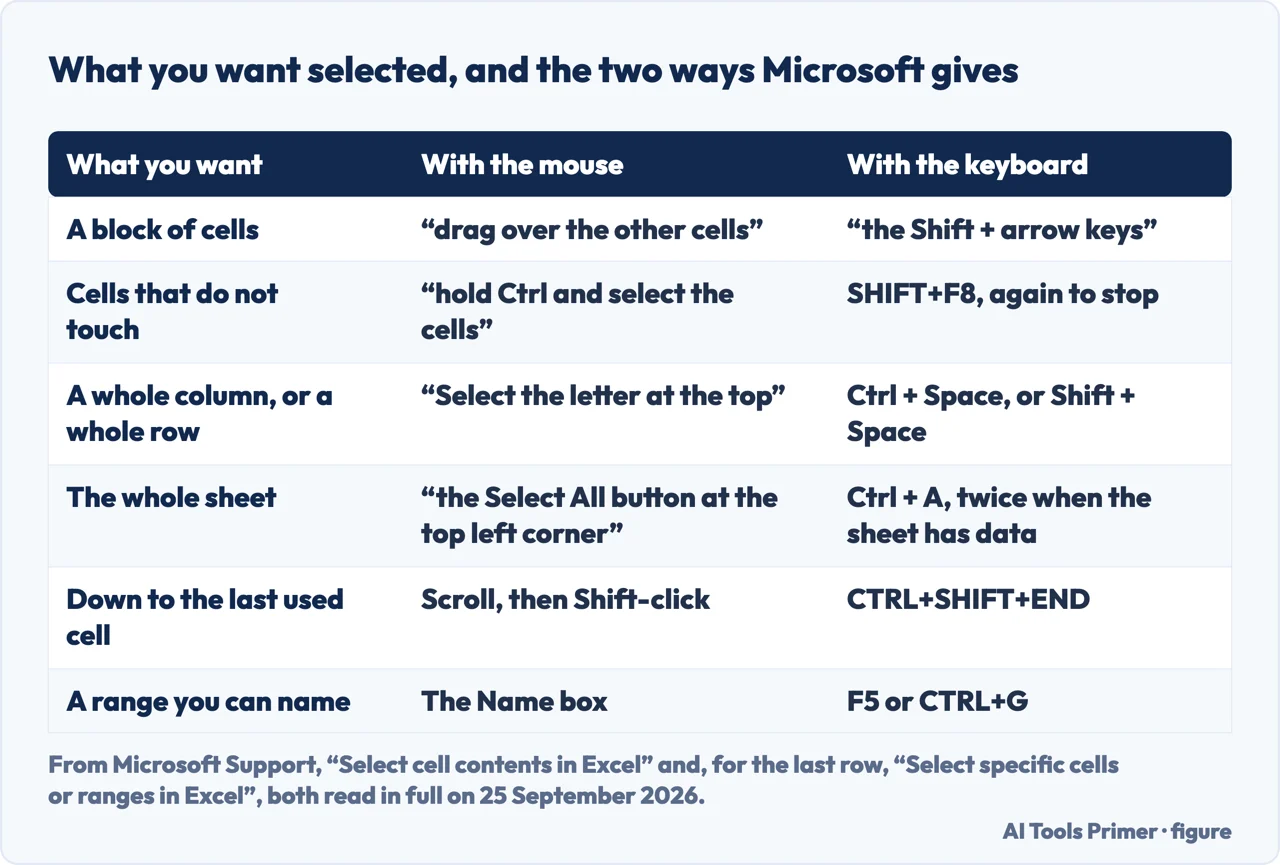
Six things to select, and the two routes Microsoft publishes for each one. Figure drawn by AI Tools Primer from the two Microsoft Support pages on selecting cells, read in full on 25 September 2026.
Click the first cell, or drag across the first block. That is Microsoft’s
route for a plain range: one cell, left button down, drag over the rest.
For cells that do not touch, hold Ctrl and click each one. “To select
non-adjacent cells and cell ranges, hold Ctrl and select the cells.” Whole rows and
columns work the same way: “To select non-adjacent rows or columns, hold Ctrl and
select the row or column numbers.”
For a long stretch, click the first cell and Shift-click the last. Microsoft adds
the part that makes it useful: you can scroll to bring the last cell into view before you
Shift-click it. That beats dragging through a thousand rows.
To do it without holding Ctrl, press Shift and F8. That turns on the mode that adds
another block to the selection, and the same keys turn it off. Exceljet gives the Mac form,
fn + Shift + F8, which Microsoft’s page does not.
For a whole column or row, use the heading or the space bar. Microsoft gives both:
the column letter or Ctrl + Space from any cell in it, the row number or Shift + Space from
any cell in the row.
If nothing selects at all, look at whether the sheet is protected. Microsoft puts
this before the instructions, not after: “If a worksheet has been protected, you might
not be able to select cells or their contents on a worksheet.”
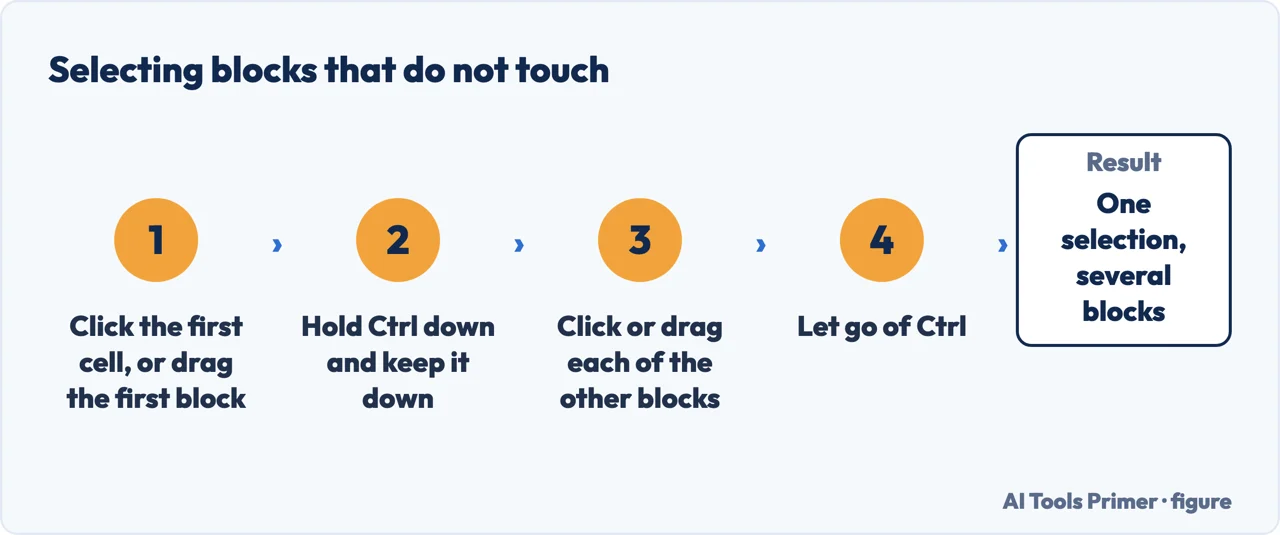
The route for blocks that do not touch — and Ctrl stays down until the last one. Figure drawn by AI Tools Primer.
Can you drop one cell back out of a Ctrl-selection? The two pages disagree
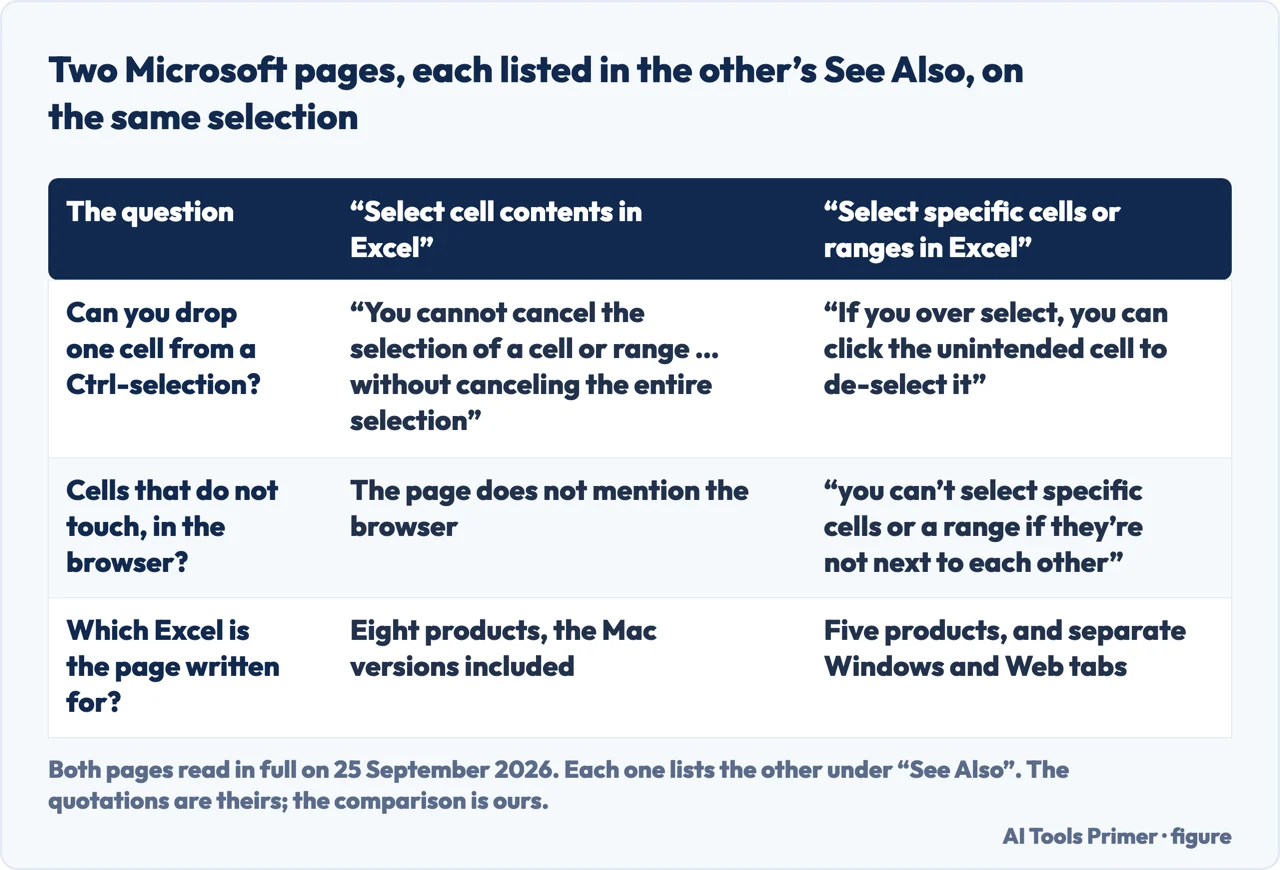
“You cannot cancel the selection of a cell or range of cells in a nonadjacent
selection without canceling the entire selection.”
That is the note inside the options table of Microsoft’s Select cell contents in
Excel. Now the other page, Select specific cells or ranges in Excel,
under the heading Select nonadjacent cells or ranges: “Hold down the
Ctrl key and left click each cell or range you want to include. If you over select, you can
click the unintended cell to de-select it.” Each page is listed in the
other’s See Also.
This page does not pick a winner, because picking one would mean testing it and saying so.
What it can tell you is where the two sit and how to settle it on your own copy in two
seconds: make a Ctrl-selection of three separate cells, then Ctrl-click one of them again. If it drops out, your Excel does what the second page says. If it stays selected, the first page’s note applies, and the way out is to start the selection again.
The scope lines are not the same either. Select cell contents in Excel declares eight products, the Mac versions
among them: Excel for Microsoft 365, Excel for Microsoft 365 for Mac, Excel 2024, Excel 2024
for Mac, Excel 2021, Excel 2021 for Mac, Excel 2019 and Excel 2016. Select specific
cells or ranges in Excel declares five, all Windows, and answers for the browser in a
separate tab.
Two Microsoft pages, each in the other’s See Also, on the same three questions. Figure drawn by AI Tools Primer.
The browser cannot do it at all
“You can select adjacent cells in Excel for the web by selecting a cell and
dragging to extend the range. However, you can’t select specific cells or a range if
they’re not next to each other.”
Microsoft’s own way out is the desktop app: open the same workbook there and
“select non-adjacent cells by selecting them while holding down the Ctrl key”.
Two cells light up when you click one
“In some cases, selecting a cell may result in the selection of multiple adjacent
cells as well.” That is all the page says on it, read in full on 25 September 2026,
and it sends the rest to a community thread it names in a note.
One cause is already in the table above: F8 left on keeps extending the selection until it is pressed again.
Ctrl and A twice, not once
“If the worksheet contains data, CTRL+A selects the current region.” The
second press is the one that takes the whole sheet.
The arrow shortcuts double up the same way: Ctrl+Shift+arrow goes to the last used cell,
and again to the end of the row or column.
The Name box selects what you cannot reach. It is the box to the left of the formula bar, and Microsoft describes it as the quick way to locate and select cells or ranges by name or by reference. Type an address and press Enter — B1:B3 for three cells, A1:A2000 for two thousand. For a long column that is a few keystrokes against a very long drag.
Six sentences from Microsoft, and what each one settles
All read in full on 25 September 2026, on the two Microsoft pages under Sources.
Cells that do not touch
Microsoft’s sentence covers cells and ranges together, so Ctrl works block by block,
not only cell by cell.
Keyboard instead of Ctrl
“press SHIFT+F8 to add another nonadjacent cell or range to the selection”.
It is a mode, so it stays on until the same keys turn it off.
A whole column
The letter at the top, or Ctrl + Space from any cell in the column. A row works the same
way with Shift + Space.
When nothing can be selected
“If a worksheet has been protected, you might not be able to select cells or their
contents on a worksheet.” That is the first note on the page, above every
instruction.
Selecting by address
“You can select multiple cells or ranges by entering them in the Reference box
separated by commas.” The Reference box is in the Go To dialog, which opens with
“F5 or CTRL+G”.
Selecting by rule
The Special button in the Go To window selects by rule instead of by position: every cell
holding a formula, or only the visible ones, or the last cell that carries data or
formatting.
Where this answer stops. Neither Microsoft page is written for every Excel. Select cell contents in Excel names eight products including the Mac versions; Select specific cells or ranges in Excel names five, all of them Windows, and keeps the browser in a tab of its own. If you are working in a browser, the second page is the one that answers you — and its answer for cells that do not touch is that you cannot.
Five keys do the whole job, and two of them, F8 and Shift+F8, are modes: they stay on until the same key turns them off, which is why a sheet sometimes keeps selecting after you stop.
The Name box and the Go To dialog both take an address or a name, Go To takes several separated by commas, and Go To Special selects by rule rather than by position.
Not covered here. It does not cover selecting cells across two sheets at once.
It does not cover what a selection does to the cells once you act on it: copying, formatting and deleting a multiple selection each have their own rules.
And it does not cover selecting inside a PivotTable, where the shapes you can pick are the report’s, not the sheet’s. What holds instead is simple: where two pages of the same documentation say opposite things, this page prints both sentences with the name of the page that carries each, and tells you how to settle it on your own copy.
Sources
Microsoft Support — Select cell contents in Excel: the Ctrl route for cells that do not touch, Ctrl + Space and Shift + Space, Ctrl + A twice, F8 and SHIFT+F8, CTRL+SHIFT+END, the note that a protected worksheet may block selection, and the note that one click can select several adjacent cells. Applies to Excel for Microsoft 365 and its Mac version, Excel 2024 and its Mac version, Excel 2021 and its Mac version, Excel 2019 and Excel 2016 — support.microsoft.com, read September 2026.
Microsoft Support — Select specific cells or ranges in Excel: the Name box, the Go To dialog on F5 or CTRL+G, several ranges separated by commas in the Reference box, Go To Special, the sentence that a wrongly picked cell can be clicked again to de-select it, and the tab that says Excel for the web cannot select cells that are not next to each other. Applies to Excel for Microsoft 365, Excel 2024, Excel 2021, Excel 2019 and Excel 2016 — support.microsoft.com, read September 2026.
Exceljet — Excel Shortcut: Toggle add to selection mode: the same SHIFT+F8 mode, with the Mac form of the key that Microsoft’s page does not give, fn + Shift + F8, and one line on what the mode is for. Read in full on 25 September 2026 — exceljet.net, read September 2026.
AG
Written by Alberto Gulotta
Founder and editor of AI Tools Primer, writing from Palermo, Italy. Thirty-five years of
taking computers apart, starting with a Commodore 64 — the long version is on the
about page.
No affiliate links and no paid placements anywhere on this site. Nobody pays to appear here,
and no company has seen this page before you did.
This is general information, not professional advice. Where a page touches money, health,
safety or the law, it names its source and the date it was read — and your situation may
still differ. See the privacy page and the
cookie policy.