Excel combine text from 2 cells with =A2&" "&B2 or =CONCAT(A2," ",B2) in a third cell, then fill it down. Microsoft’s page stops there, which is half the job: what you get is a formula that dies the moment you delete the two columns it points at. Copy the new column and paste it back over itself as values.
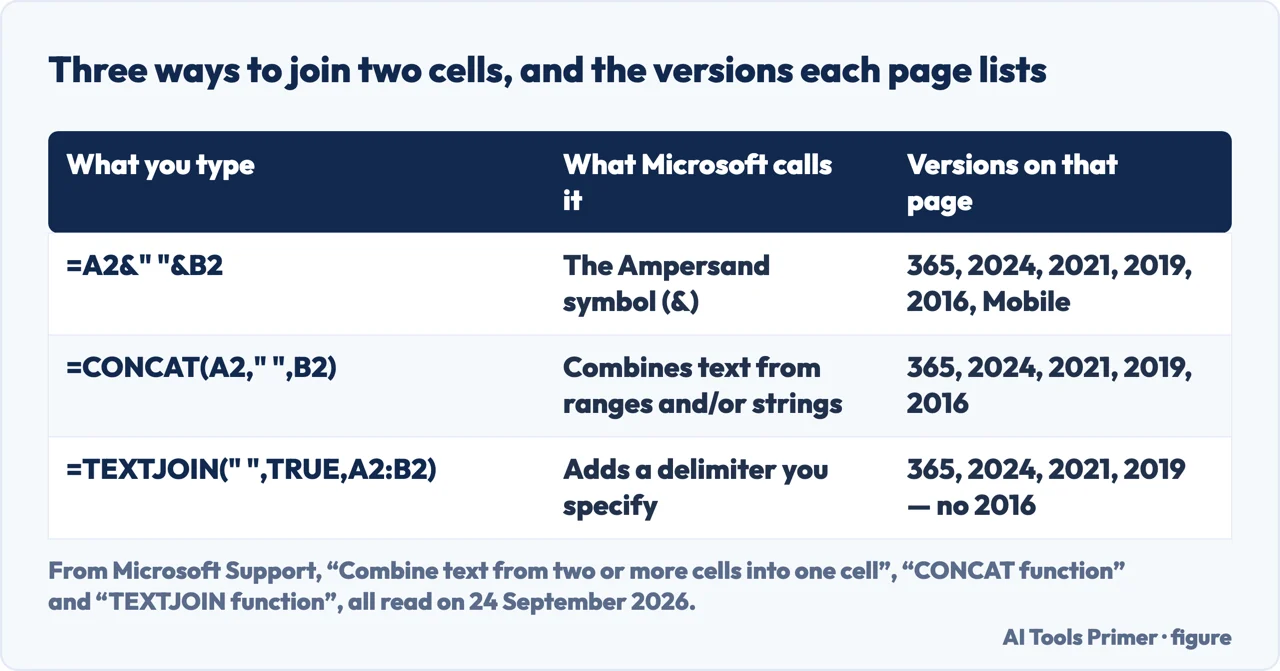
The three ways to join two cells, and what Microsoft lists for each
What you type
What it gives you
Versions Microsoft lists
=A2&" "&B2
The two cells with a space between them
Every edition on the page, Excel Mobile included
=CONCAT(A2," ",B2)
The same, in a function that also takes ranges
365, 2024, 2021, 2019, 2016 — with a note about Office 2019
=TEXTJOIN(" ",TRUE,A2:B2)
The same, plus one separator for the whole range
365, 2024, 2021, 2019, Microsoft365.com — not 2016
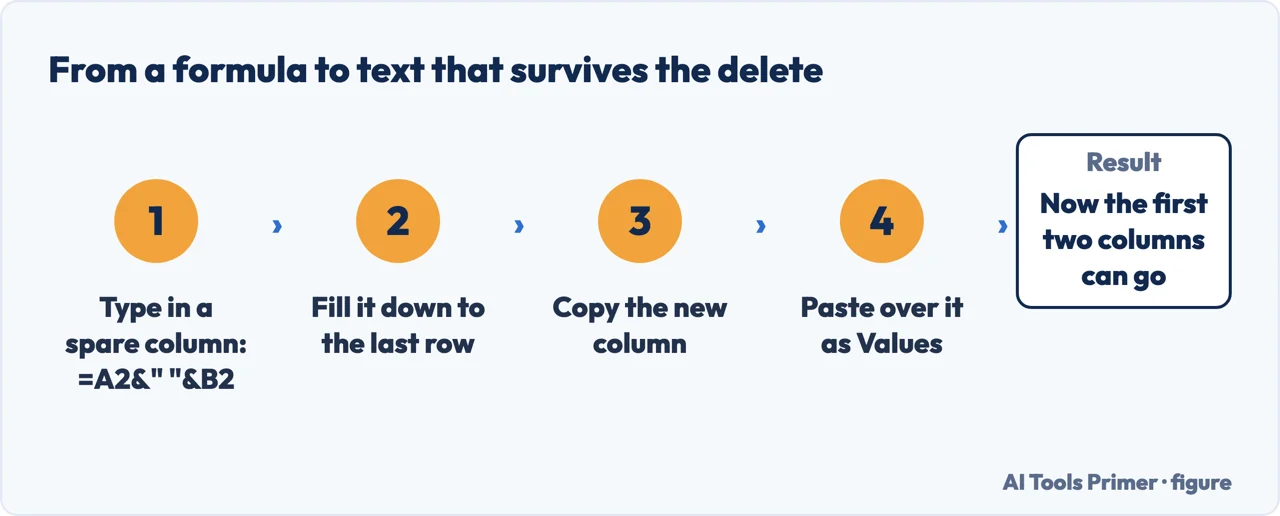
Paste › Values, afterwards
Text that no longer points at anything
The step neither the how-to page nor Contextures mentions
Three ways to write the same join, and the version list that is not the same for all three. Figure drawn by AI Tools Primer from three Microsoft Support pages, read on 24 September 2026.
The step that is not on the page you land on
“You can avoid this error by pasting the resulting values of formulas, without
the formula, in destination cells.”
That sentence is Microsoft’s, and it is not on the page that teaches you to combine
text. It is on How to avoid broken formulas in Excel, which the combine page links only
under “See also”. The combine page itself is about 200 words long once the navigation is stripped away: two procedures and one opening line.
Why it matters here. When a first-name column and a surname column are joined so that the two originals can go, deleting them is exactly the move that empties the new one.
Microsoft describes the trap in the same paragraph: “you might want to delete the values
that you used in a formula after you copied the resulting value to another cell on the
worksheet. Both of these actions cause an invalid cell reference error (#REF!) to appear in
the destination cell”.
Neither the combine page nor Contextures’ guide uses the word paste anywhere. Both answers stop at the formula.
The order of the six steps below is the point. The two source columns go only after the last one, when the column of results has been pasted back over itself as text. The same step ends the procedure on changing the case of text, for the same reason: both jobs put a formula where a person expects a word.
Click the cell where the joined text should appear. Microsoft’s first step for
both of its methods is the same: pick the destination before you type anything.
Type the formula. Either =A2&" "&B2, which is Microsoft’s own
example, or =CONCAT(A2, " ", B2). The pair of quotation marks with a space inside is
what keeps the two words apart; leave it out and you get SmithJane.
Fill it down the column. Select the cell and double-click the small square in its
lower-right corner, or drag it to the last row.
Read the column before you do anything else. Every cell in it is a result, not text.
Microsoft’s words for what happens next: “you’ll see the #REF! error if a
formula refers to cells that have been deleted or replaced with other data”.
Select the new column and copy it with Ctrl+C.
Paste it back over itself as values. Home › Clipboard › Paste ›
Paste Values, or, in Microsoft’s own shorthand, “press Alt > E > S
> V > Enter for Windows, or Option > Command > V > V > Enter on a
Mac”. Only now are the two original columns safe to delete.
The fourth move is the one that lets you delete the columns you started from. Figure drawn by AI Tools Primer.
The ampersand: fewest moving parts
Contextures calls & “the concatenation operator”, and it is the
one method that works in every edition Microsoft lists on the page, Excel Mobile included.
Every separator has to be typed again between each pair of pieces, so the formula grows with every cell you add.
CONCAT: the same job, with ranges
Microsoft’s line: it “combines the text from multiple ranges and/or strings,
but it doesn’t provide delimiter or IgnoreEmpty arguments”. So a range works,
but each separator is still yours to type.
It is the replacement for CONCATENATE, which Microsoft keeps “available for
compatibility with earlier versions of Excel”. Old files keep working; new formulas
do not need it.
TEXTJOIN: one separator for the lot
The only one of the three that takes a delimiter once and applies it between every value,
which is what you want for a range of twenty cells.
Two catches, both from Microsoft’s page: ignore_empty is required, not
optional, and the version list leaves out Excel 2016, where the other two work.
Which of the three you type depends on how many pieces there are and which Excel you are sitting in front of. For two cells and a space, the ampersand is shorter than the function and works everywhere Microsoft lists. For a range of twenty cells that all need the same comma between them, TEXTJOIN is the only one that takes the separator once. CONCAT sits in between, and its real use is a mixture of ranges and typed text. The choice that costs something is TEXTJOIN on a copy of Excel 2016, which is the one edition its page leaves out.
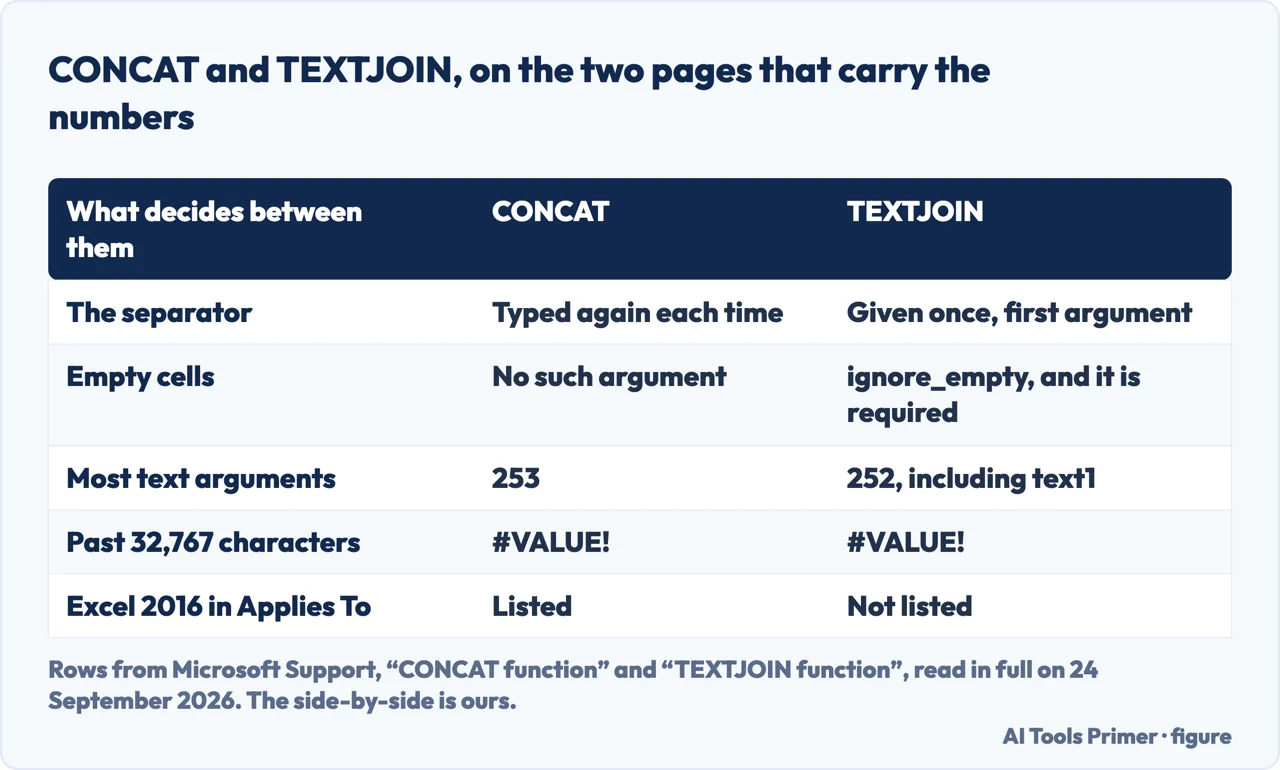
The numbers on the function pages, and not on the how-to page
All four lines are Microsoft’s, read in full on 24 September 2026, and none of them is on the how-to page.
The cell ceiling
Microsoft puts it at 32,767 characters — the cell limit — and says that past it CONCAT returns the #VALUE! error. The TEXTJOIN page carries the same sentence with its own name in it.
How many pieces
CONCAT: “There can be a maximum of 253 text arguments for the text
items.” TEXTJOIN: “a maximum of 252 text arguments for the text items,
including text1”. A range counts as one argument, which is the way round the limit.
The argument that is not optional
TEXTJOIN’s second argument, ignore_empty, is marked “(required)”:
“If TRUE, ignores empty cells.” With FALSE, a blank cell in the middle of the
range still gets its separator, and you get two commas in a row.
Two version lists that disagree
The how-to page applies to “Excel 2016” and to “Excel Mobile”. The
CONCAT page also lists Excel 2016, then notes that the function “is available on
Windows or Mac if you have Office 2019, or if you have an Office 365 subscription”. The
TEXTJOIN page does not list Excel 2016 at all. Read the three together before telling somebody
on an old copy to use TEXTJOIN.
Two function pages, side by side: the numbers are Microsoft’s, the comparison is ours. Figure drawn by AI Tools Primer.
Combining is not merging, and Excel uses both words for different things. Contextures puts the distinction in two lines: to combine is to “combine the contents of two or more different cells, to display in another cell, by using a formula”; to merge is that “you can merge two or more adjacent cells into one larger single cell”, where “only the contents of the top left cell are kept”. If what you wanted was one wide cell for a heading, that is merging cells, and it keeps only what was in the top left cell. If what you wanted was one cell holding both names, it is this page.
One habit worth taking from Contextures, because Microsoft’s page does not mention it. A join does not have to be on one line: =B2 & CHAR(10) & A2 puts a line break between the two pieces, which is what you want for an address block. The catch comes in the same breath — “After you add a line break in an Excel formula, be sure to turn on the Wrap Text setting” — because without it the cell shows one long line and the break is invisible. That setting has its own failure modes.
A joined column is a column of results. Deleting the cells it points at is the move that empties it, and Microsoft documents both the error and the way out.
How can I combine text from multiple cells into one string in Excel?
Type =CONCAT(A2," ",B2) for a handful of cells, or =TEXTJOIN(" ",TRUE,A2:F2) for a whole range with the same separator. Then copy the column and paste it as values, or the string disappears with the cells it came from.
How do I concatenate text in Excel?
The same three ways: the ampersand operator, CONCAT, or TEXTJOIN. Microsoft’s note is that “CONCAT replaces the CONCATENATE function”, and that CONCATENATE “will stay available for compatibility with earlier versions of Excel”.
How do I merge multiple cells and keep all text?
You cannot: merging keeps “only the contents of the top left cell”. Combine the text with a formula first, paste the result as values, and merge afterwards if you still want one wide cell.
Why did my joined column turn into #REF! when I deleted the originals?
Because it was a column of formulas pointing at them. Microsoft: “you’ll see the #REF! error if a formula refers to cells that have been deleted or replaced with other data”. Paste as values before deleting, not after.
What is the difference between CONCAT and CONCATENATE?
CONCAT is the one Microsoft now documents: it “combines the text from multiple ranges and/or strings”. CONCATENATE is kept for older files, so old workbooks still calculate.
Is there a limit to how much text I can join?
Yes, two. Microsoft gives 32,767 characters per cell, past which CONCAT and TEXTJOIN return #VALUE!, and a maximum of 253 text arguments for CONCAT, 252 for TEXTJOIN. A range counts as one argument.
Not covered here. It does not cover Power Query, the third of Excel Campus’s three ways, or Flash Fill, the first of Excel University’s. Power Query is a tool for a file that arrives the same way every month, not for two columns you are joining once.
It does not cover Google Sheets, where CONCAT is not the same function: Google’s page gives it as “the concatenation of two values”.
And it does not cover splitting a cell back into two, which is the opposite job and a different Microsoft page. What holds instead is simple: every formula, limit and version list here is quoted from the Microsoft page that publishes it, with the date it was read.
Sources
Microsoft Support — Combine text from two or more cells into one cell in Microsoft Excel: the ampersand and CONCAT procedures, quoted in the steps above. Applies to Excel for Microsoft 365 and Mac, 2024, 2024 for Mac, 2021, 2021 for Mac, 2019, 2016 and Excel Mobile — not Excel for the web — support.microsoft.com, read September 2026.
Microsoft Support — CONCAT function: that it takes ranges but has no delimiter or IgnoreEmpty argument, that it replaces CONCATENATE, the maximum of 253 text arguments and the 32,767-character cell limit. Its Applies To lists Excel 2016, and its own note adds Office 2019 or a subscription — support.microsoft.com, read September 2026.
Microsoft Support — TEXTJOIN function: the delimiter, the required ignore_empty argument, the maximum of 252 text arguments and the same cell limit. Applies to Excel for Microsoft 365 and Mac, 2024, 2024 for Mac, 2021, 2021 for Mac, 2019 and Microsoft365.com, with no Excel 2016 — support.microsoft.com, read September 2026.
Microsoft Support — How to avoid broken formulas in Excel: the #REF! error when a formula refers to deleted cells, and the Paste Values route with the keystrokes for Windows and for a Mac. It is linked from the combine page only under See also — support.microsoft.com, read September 2026.
Google Docs Editors Help — CONCAT: “Returns the concatenation of two values”, cited here only for what this page leaves out, because in Google Sheets CONCAT is not the Excel function of the same name — support.google.com, read September 2026.
Contextures — Combine Text in Excel Multiple Cells Formula Examples, by Debra Dalgleish, last updated 19 April 2026: the ampersand as the concatenation operator, the combine-versus-merge glossary quoted above, and CHAR(10) with Wrap Text for a line break inside the cell — www.contextures.com, read September 2026.
Excel Campus — 3 Ways to Combine Text in Excel – Formulas, Functions & Power Query, by Jon Acampora, 15 June 2021, updated 24 January 2026: the three ways, the third of them Power Query, cited here only for what this page leaves out — www.excelcampus.com, read September 2026.
Excel University — Excel How To Join or Combine Text (3 ways), by Jeff Lenning, 3 October 2023: Flash Fill as the first of its three methods, cited here only for what this page leaves out — www.excel-university.com, read September 2026.
AG
Written by Alberto Gulotta
Founder and editor of AI Tools Primer, writing from Palermo, Italy. Thirty-five years of
taking computers apart, starting with a Commodore 64 — the long version is on the
about page.
No affiliate links and no paid placements anywhere on this site. Nobody pays to appear here,
and no company has seen this page before you did.
This is general information, not professional advice. Where a page touches money, health,
safety or the law, it names its source and the date it was read — and your situation may
still differ. See the privacy page and the
cookie policy.