Change case for Excel means a formula, not a button: =UPPER(), =LOWER() or =PROPER() in a spare column, then paste the results back over the original as values. Microsoft says so in its first line, and the keyboard shortcut people try instead does something else entirely in Excel.
The three functions, and what each one does to the same line of text
Function
“the SMITH-jones ACCOUNT” becomes
Use it when
=UPPER(A2)
THE SMITH-JONES ACCOUNT
Codes, reference numbers, anything that is shouted on purpose
=LOWER(A2)
the smith-jones account
Email addresses and anything you are about to compare or match
=PROPER(A2)
The Smith-Jones Account
Names and places — with the caveat further down this page
Flash Fill, Ctrl+E
Whatever you showed it in the first cell
A one-off tidy-up where the result never has to update again
The key exists everywhere. It only changes case in one of these places. Figure drawn by AI Tools Primer from three Microsoft Support pages, read on 24 September 2026.
The key you are looking for belongs to Word
“Unlike Microsoft Word, Microsoft Excel doesn’t have a Change Case button
for changing capitalization.”
That is Microsoft’s first sentence on the subject, and it settles the button. It does not
settle the key, and the key is a separate question with three separate answers. In Word,
Microsoft writes: “To
use a keyboard shortcut to change between lowercase, UPPERCASE, and Capitalize Each Word, select
the text and press SHIFT + F3 until the case you want is applied.” On a Mac the
same page gives fn+SHIFT+F3.
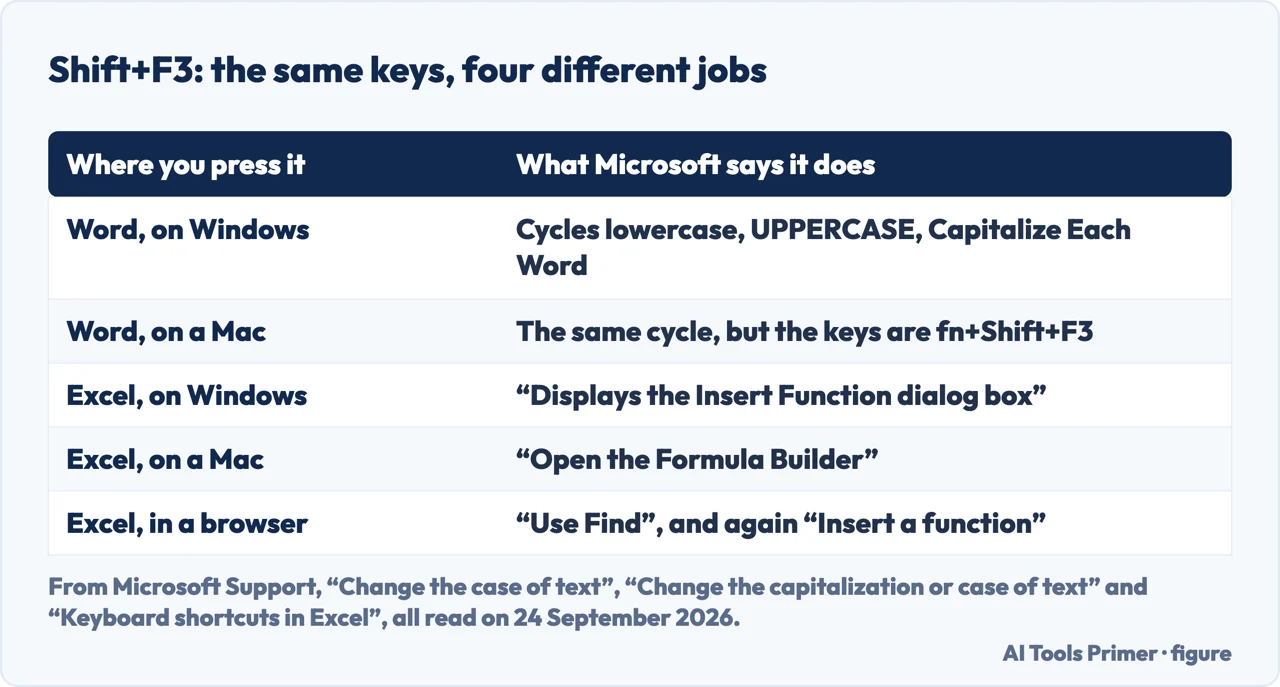
In Excel that key is already taken, three times over. Microsoft’s keyboard
shortcuts page lists it for each platform: on Windows, “F3 alone: displays the Paste
Name dialog box … Shift+F3: displays the Insert Function dialog box”; on a
Mac, “Open the Formula Builder. Shift+F3”; and Excel for the web lists it
twice, for “Use Find” and for “Insert a function”.
Nothing happens to your capitals because something else is happening instead.
So the honest answer to “what is Shift+F3 in Excel” is that it is not the case key: it is the same keys doing other jobs — and the case key
does not exist in Excel at all. What exists is three functions, and a way of making their results permanent.
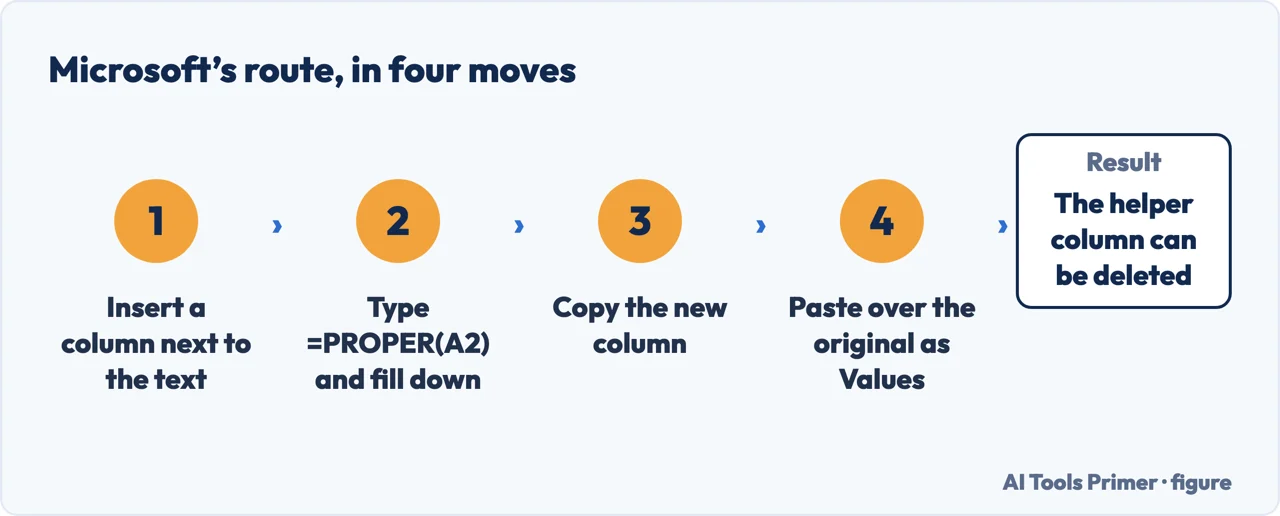
The method Microsoft publishes is six steps, and the fifth is the one that does the real work. Converting the text is one line: the formulas do that much on their own. The second half is that a column of =PROPER(A2) is not text at all. It is a column of results pointing at the column you are about to delete, and when the original goes the converted names go with it. Paste as values first and they stop depending on anything.
Insert a temporary column next to the one you want to convert.
Microsoft’s example adds a column B to the right of the names in column A.
In the first cell of the new column, type the function and press Enter.=PROPER(A2) for names, =LOWER(A2) or =UPPER(A2) for the other two.
Fill it down. Microsoft’s quick way: select the cell, then double-click the
small black square in its lower-right corner. If the data is in an Excel table you can skip
this — “a calculated column is automatically created with values filled down for
you when you enter the formula”.
Select the new column and copy it with Ctrl+C. The values on screen are results of a
formula that points at the original; they cannot outlive it.
Right-click the first original cell, choose Paste, and then Values. This is the step
that matters. Microsoft spells out why: it “enables you to paste just the names and not
the underlying formulas, which you don’t need to keep”.
Delete the temporary column. Only now — it is no longer needed, and the
converted text is real text sitting in the original column.
Microsoft’s route; pasting as values is the step that makes it last. Figure drawn by AI Tools Primer.
Formulas: the one that keeps working
UPPER, LOWER and PROPER recalculate whenever the source changes, which is what you want
in a sheet that other people keep adding to.
The cost is the helper column: keep it while the results must follow the source, or paste them
over the original as values and delete it once the job is done.
Flash Fill: the one that is quicker and forgets
Type the first line the way you want it, then Data › Flash Fill, or Ctrl+E,
which Microsoft lists as “Invoke Flash Fill to automatically recognize patterns in
adjacent columns and fill the current column”.
Excel University’s warning is the useful one: “Flash Fill provides static
values, and doesn’t automatically update the results if the data changes.” And
if your sample happens to match the original, it will not see a pattern — it
“simply copies the original format”, and the fix is to give it a second
sample.
Power Query: the one for a job you repeat
Excel University’s third method, for a file that arrives the same way every month.
The transformation is saved with the query and runs again on refresh.
It is more setup than either of the others, and it is the only one of the three that
survives the data being replaced wholesale.
Which of the three you want depends on one question: will this data change again? If a colleague is going to keep adding rows, the formulas are the only method that keeps up, because Flash Fill writes fixed text and Power Query only refreshes when you ask it to. If this is a list somebody sent you once and you are cleaning it before you file it, Flash Fill is two keystrokes and it is over. The trap is using Flash Fill on a live sheet and assuming it will catch the next row.
What PROPER actually promises, which is narrower than “proper case”
Microsoft’s definition, read in full on 24 September 2026, and what follows
from it.
The rule
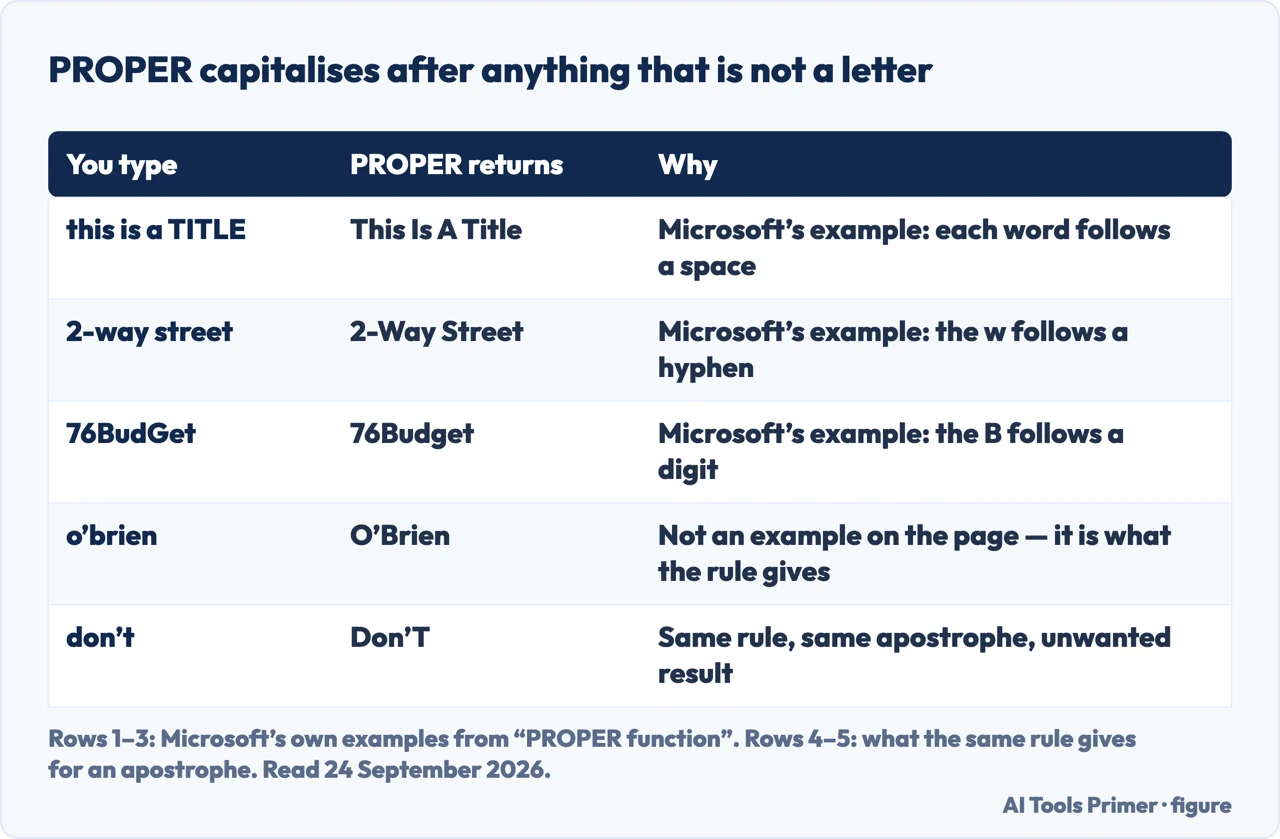
“Capitalizes the first letter in a text string and any other letters in text that
follow any character other than a letter. Converts all other letters to lowercase
letters.”
Hyphens
Microsoft’s own example: 2-way street becomes 2-Way Street. Usually
what you wanted.
Digits
Another of its examples: 76BudGet becomes 76Budget. The B follows a digit
and survives; the rest is lowercased.
Apostrophes
Microsoft does not show this one, but an apostrophe is a character other than a letter, so
the rule covers it: o’brien becomes O’Brien, which is right, and
don’t becomes Don’T, which is not. On a column of surnames this is
a feature; on a column of sentences it is a defect, and it is the reason to look at the
output rather than trust it.
Numbers and dates
Exceljet is blunter than Microsoft here: “If a numeric value is given to PROPER,
number formatting is removed” — a date can come back as its serial number in
text form.
Only the first word
PROPER capitalises every word, with no option. Exceljet gives the formula for sentence
case instead: =REPLACE(A1,1,1,UPPER(LEFT(A1))), which lifts the first letter and
leaves the rest exactly as typed.
The first three rows are Microsoft’s examples; the last two are what its rule gives. Figure drawn by AI Tools Primer.
None of the three functions is a proper-noun detector, and PROPER is the one that looks most like one. It follows a mechanical rule about characters, and that rule does most of what a person means by proper case and then keeps going: it will lowercase NASA to Nasa and IBM to Ibm, because the rule says all other letters become lowercase, and it will capitalise the letter after every apostrophe whether that is a surname or a contraction. On a column of names this is close enough to be useful. On a column of prose it will be wrong on nearly every line, and the reason to know the rule is to know which of the two you have in front of you.
One more place the same question lands, because the answer is different there. If the text is in a Word document rather than a sheet, the button does exist: Home, then Change Case, with Sentence case, lowercase, UPPERCASE, Capitalize Each Word and tOGGLE cASE. Microsoft adds a detail worth carrying: “Word for the web doesn’t support changing case” — you have to open the document in the desktop application — while PowerPoint for the web does. So the feature that Excel never had is also the feature Word gives up in a browser.
Not the case key. Microsoft lists it three ways: on Windows “Shift+F3: displays the Insert Function dialog box”, on a Mac “Open the Formula Builder”, and in Excel for the web both “Use Find” and “Insert a function”. The case version of the shortcut belongs to Word.
How to get change case icon in Excel?
There is no icon to get. Microsoft’s line is that Excel, unlike Word, has no Change Case button, and its page offers the three functions instead. The nearest equivalents are the three functions and Flash Fill.
How do I capitalize all text in Excel?
=UPPER(A2) in a spare column, fill it down, copy the column, then right-click the first original cell and choose Paste › Values. Delete the spare column afterwards, not before.
How do I convert a lowercase letter to uppercase in Excel?
For a whole cell, =UPPER(). For only the first letter, Exceljet’s formula does it without touching the rest: =REPLACE(A1,1,1,UPPER(LEFT(A1))).
Why did PROPER turn “don’t” into “Don’T”?
Because Microsoft’s rule capitalises “any other letters in text that follow any character other than a letter”, and an apostrophe is one of those characters. The same rule is what gives you O’Brien correctly.
Does Flash Fill update when the data changes?
No. Excel University states it plainly: “Flash Fill provides static values, and doesn’t automatically update the results if the data changes.” Use the functions if the sheet is still growing.
Not covered here. It does not cover Google Sheets, where the same three functions exist under the same names and the menus around them are different.
It does not cover changing case in a Word document beyond naming the button: that is a different program with a different answer, and Microsoft documents it on its own page.
And it does not recommend an add-in to put a Change Case button on the ribbon. Everything here is a function or a menu that ships with Excel. What holds instead is simple: every rule and every keystroke here is quoted from the Microsoft page that publishes it, with the date it was read.
Sources
Microsoft Support — Change the case of text: the sentence that Excel has no Change Case button, and the six-step helper-column route including Paste Values. Applies to Excel for Microsoft 365 and Mac, 2024, 2021, 2019, 2016, iPad, iPhone, Android and Excel Mobile — support.microsoft.com, read September 2026.
Microsoft Support — PROPER function: the definition that capitalises any letter following a character other than a letter, and the three worked examples. A narrower Applies To than the page above: no mobile editions — support.microsoft.com, read September 2026.
Microsoft Support — Keyboard shortcuts in Excel: Shift+F3 for the Insert Function dialog on Windows, for the Formula Builder on a Mac, and for both Find and Insert a function in the browser, and Ctrl+E for Flash Fill — support.microsoft.com, read September 2026.
Microsoft Support — Change the capitalization or case of text: the Word button this page keeps being confused with, SHIFT+F3 and fn+SHIFT+F3, and the line that Word for the web does not support changing case — support.microsoft.com, read September 2026.
Exceljet — Excel PROPER function, by Dave Bruns: what PROPER does to numbers and date formatting, and the REPLACE formula for capitalising only the first word — exceljet.net, read September 2026.
Excel University — UPPER lower Proper Case (3 ways), by Jeff Lenning, 5 December 2023: the Flash Fill route, the case where Flash Fill sees no pattern, and the warning that its values are static — www.excel-university.com, read September 2026.
AG
Written by Alberto Gulotta
Founder and editor of AI Tools Primer, writing from Palermo, Italy. Thirty-five years of
taking computers apart, starting with a Commodore 64 — the long version is on the
about page.
No affiliate links and no paid placements anywhere on this site. Nobody pays to appear here,
and no company has seen this page before you did.
This is general information, not professional advice. Where a page touches money, health,
safety or the law, it names its source and the date it was read — and your situation may
still differ. See the privacy page and the
cookie policy.