
Docs · guide
How to remove duplicates in Excel, and what counts as one
By Alberto Gulotta · Updated · 12 min read
The command for how to remove duplicates in excel is easy to find, and Microsoft advises a copy of the data before you run it. So this guide gives the three tools in the order a careful person uses them, and then the definition of “duplicate” that Excel is actually working to — which is not the everyday one.
| What you want | Where it is | What happens | Source |
|---|---|---|---|
| See which rows repeat | Home › Conditional Formatting › Highlight Cells Rules › Duplicate Values | They are coloured; nothing is removed | Microsoft |
| Show only the unique ones | Data › Sort & Filter › Advanced | “The duplicate values are only hidden temporarily” | Microsoft |
| Delete the repeats | Data › Data Tools › Remove Duplicates | “The duplicate data is permanently deleted” | Microsoft |
| The same job in Google Sheets | Data › Data cleanup › Remove duplicates | Deletes; and counts differently — see below |
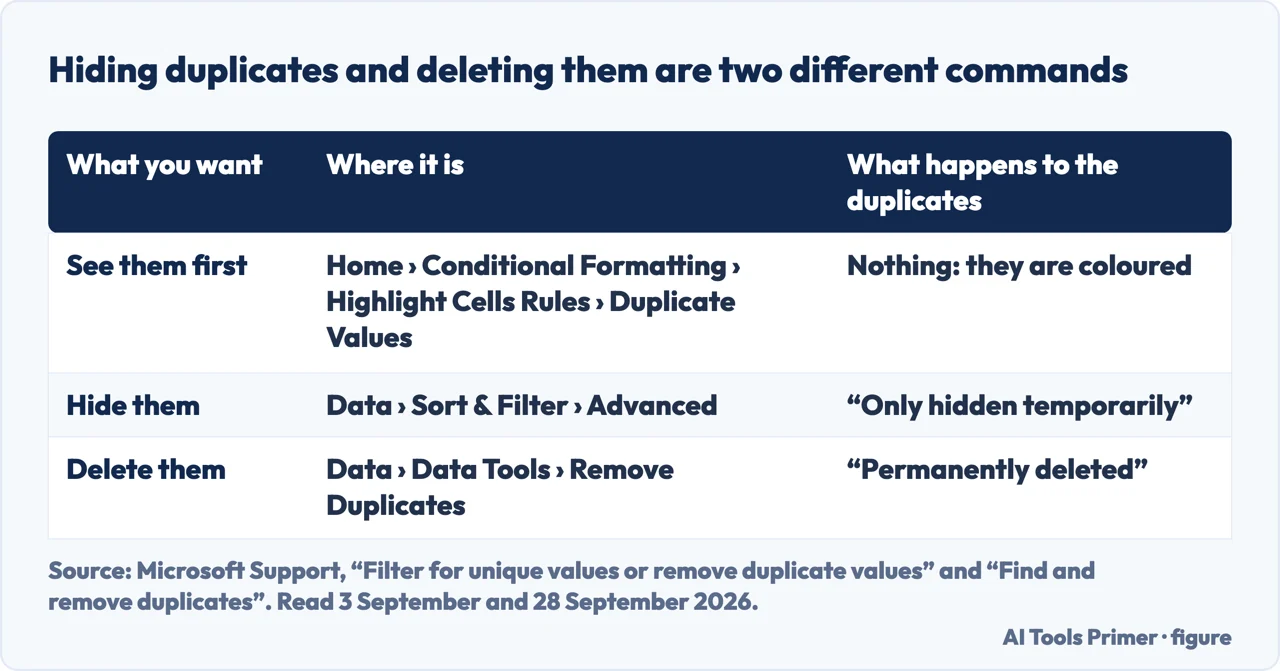
Three different tools, and only one of them deletes anything
Microsoft lists all three on the same page, side by side. The difference between them is the whole subject.
- Highlight them — Home → Conditional Formatting Colours the duplicates so you can look at them. Changes no data at all. This is where to start, every time.
- Filter for unique values —
Data → Sort & Filter → AdvancedShows you the list as it would be without duplicates. Microsoft is precise about what this does: “the duplicate values are only hidden temporarily”. - Remove Duplicates —
Data → Data Tools → Remove Duplicates“Removing duplicate values means that you are permanently deleting duplicate values.”
The third is the one that deletes, and the first two are what to use before it. It reports how many duplicate values it removed after it has removed them.
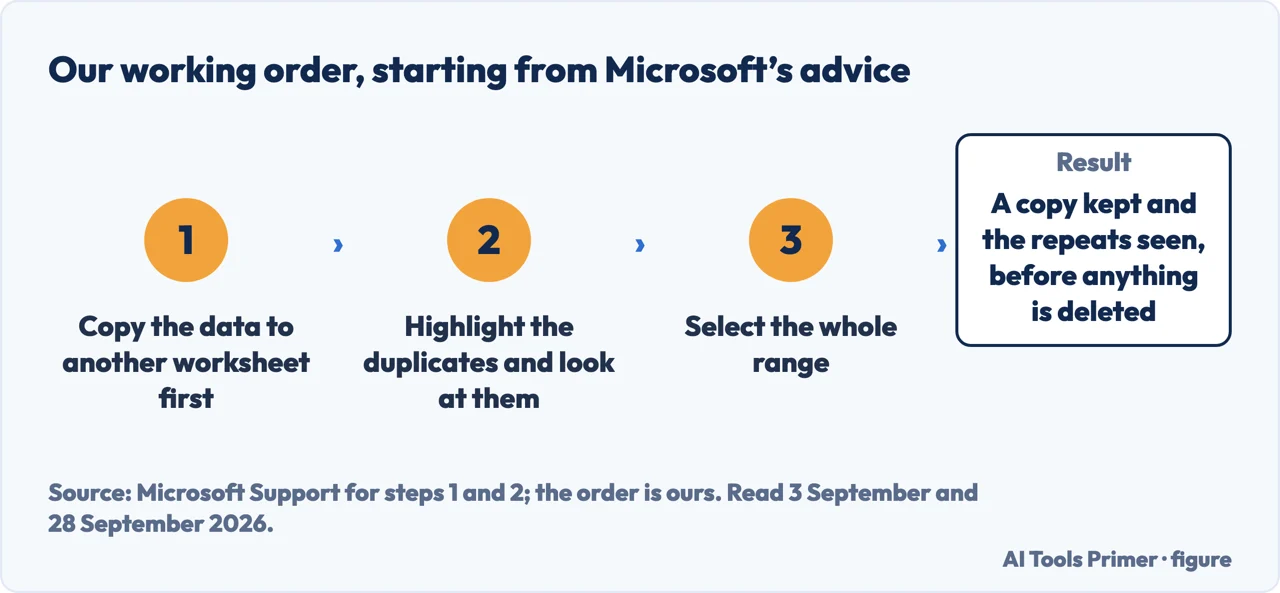
- Copy the data to another worksheet first. Microsoft gives this as advice rather than a step: “before you delete the duplicates, it’s a good idea to move or copy the original data to another worksheet so you don’t accidentally lose any information.” It also names Undo as the way back, on Windows: “Undo the change by select Undo (or pressing Ctrl+Z on the keyboard).”
- Look at them before you touch them. Home › Conditional Formatting › Highlight Cells Rules › Duplicate Values colours the repeats and changes nothing else.
- Select the whole range. Selecting one column of a range and deleting its repeats is how rows come apart: Microsoft says “Other values outside the range of cells or table will not change or move.”
- Data › Data Tools › Remove Duplicates, then choose the columns that define a duplicate. A row counts as a repeat only when every ticked column matches.
- Read the count it reports, and compare it with what you expected. If the two disagree, the definition of duplicate is the thing to check next, not the command.
“A comparison of duplicate values depends on what appears in the cell—not the underlying value stored in the cell. For example, if you have the same date value in different cells, one formatted as ‘3/8/2006’ and the other as ‘Mar 8, 2006’, the values are unique.”
Microsoft’s own documentation. Formatting decides what counts as a duplicate. The same date, the same number, the same amount of money — if two cells display them differently, Excel treats them as different, and Remove Duplicates will leave both.
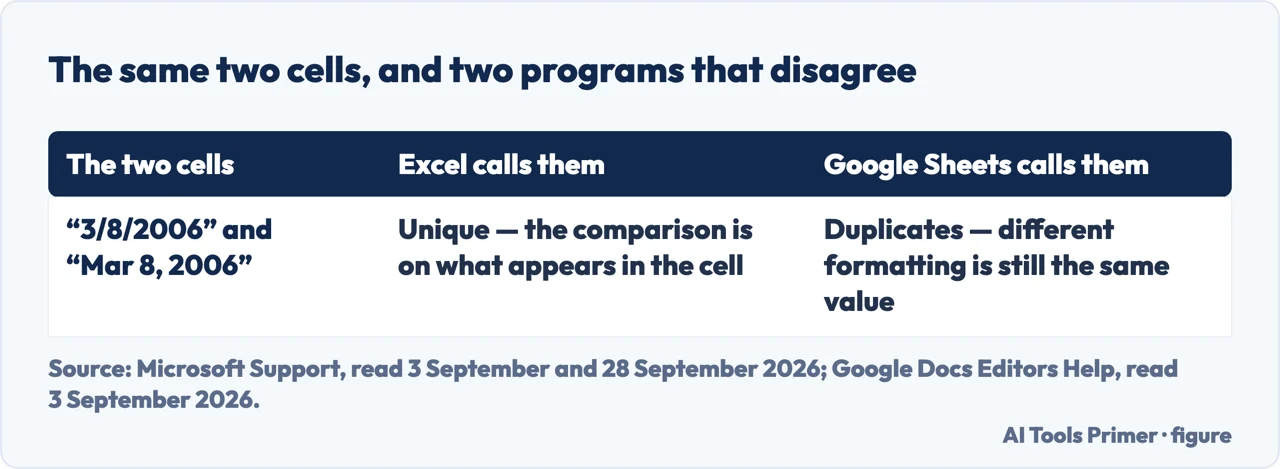
That single paragraph explains one case where Remove Duplicates seems not to work: a list of dates imported from two systems, shown in two formats, is not a list of duplicates to Excel.
And the same file gives a different answer in Google Sheets. Google’s rule on formatting is the reverse of Excel’s: “cells with identical values but different letter cases, formatting, or formulas are considered to be duplicates.” So a column of dates that Excel leaves alone, because one row says 3/8/2006 and another says Mar 8, 2006, is a column Sheets will thin out. Neither is wrong; they are answering different questions about what a value is.
The fix that follows from Microsoft’s rule is ours: make the display consistent before you compare — apply the same number or date format to the whole column, and clean up stray spaces, then look for duplicates. On the counts, Microsoft adds: “The counts of duplicate and unique values given after removal might include empty cells, spaces, etc.”
Microsoft’s own warning
“Before removing duplicate values, it’s a good idea to first try to filter on—or conditionally format on—unique values to confirm that you achieve the results you expect.”
The reason this matters more than it sounds: a duplicate is defined across the columns you tick in the dialog, not across the row as a whole. Microsoft’s note is explicit: if you select Column1 and Column2 but not Column3, “then the ‘key’ used to find duplicates is the value of BOTH Column1 & Column2. If a duplicate is found in those columns, then the entire row will be removed, including other columns in the table or range.” So if you tick only Name and Email, two rows that differ in every other column are duplicates as far as the tool is concerned, and one of them goes.
Which one goes is not a judgement Excel makes: “the first occurrence of the value in the list is kept”. If the second row was the more complete or more recent one, that is the one you have just lost.
In short. Make a copy of the sheet first — the whole thing. Highlight duplicates with conditional formatting and actually look at them. Decide deliberately which columns define a duplicate for your purpose. Then run Remove Duplicates on the copy, and compare the row counts before and after.
That last step is worth doing every time, because Remove Duplicates tells you how many it removed, and that number is the evidence to check. If it removed far more than you expected, you have just learned something about your data — on a copy, which is the point. And if Excel shut before that copy was ever saved, the recovery routes start with AutoRecover.
When not to delete at all. If the spreadsheet is a record of something — transactions, submissions, applications — duplicate-looking rows are not always errors. Two payments of the same amount on the same day from the same customer can both be real. Deleting one because it looks like a copy is a data-loss event that nothing will flag, and it is the argument for filtering rather than removing whenever the sheet is a record rather than a working list.
The version that never destroys anything. Newer versions of Excel have a UNIQUE function, which produces a de-duplicated list in a new place while leaving the original untouched. Where it is available, it is the better habit for anything you will need to re-check later — the original stays, the clean list updates itself, and there is nothing to undo.
Every quotation from a document here is from Microsoft’s Excel documentation or Google’s Sheets documentation, read on the dates in the Sources. The working order and the point about records are ours.
Where to start
Four ways in.
- “I just want them gone.”
- Do the five steps in order — see the steps
- “It says there are no duplicates and there are.”
- That is the formatting rule — when it does not work
- “I need to keep the original.”
- Use UNIQUE, or copy first — the version that never destroys anything
- “The sheet is a record of something.”
- Records need care — when not to delete at all
Related guides
Freezing rows, comparing values, backups and how long to keep records.
When formatting gets in the way
What a PDF conversion brings in, and formatting done by hand in Word.
Spreadsheets as records
A working list and a record are different documents with different rules, and treating one as the other is where data goes missing.
More Office guides
Page numbers, double spacing and margins in Word.
Questions people also ask
How do I remove duplicates in Excel?
Select the range, then Data › Data Tools › Remove Duplicates, and tick the columns that define a repeat. Copy the sheet first: Microsoft warns that “when you use the Remove Duplicates feature, the duplicate data is permanently deleted.”
How do I keep one of each instead of deleting them all?
That is what Remove Duplicates already does — it keeps the first occurrence and removes the rest. If you want to keep the originals untouched and see the unique list somewhere else, use Data › Sort & Filter › Advanced, where “the duplicate values are only hidden temporarily”.
Why did Remove Duplicates leave rows that look identical?
Because Excel compares what the cell shows, not what it holds: “a comparison of duplicate values depends on what appears in the cell—not the underlying value stored in the cell.” The same date as “3/8/2006” and “Mar 8, 2006” counts as two different values.
Does Google Sheets count duplicates the same way?
No, and it is worth knowing if the file moves between them. Google’s rule on formatting is the opposite: “cells with identical values but different letter cases, formatting, or formulas are considered to be duplicates.” For the same date shown as “3/8/2006” and as “Mar 8, 2006”, Excel keeps both and Sheets keeps one.
Not covered here. It will not send you straight to Remove Duplicates. Microsoft itself says to check with filtering or conditional formatting first, and that sentence is quoted above.
It will not pretend the tool understands your data. It compares what the cells display, across the columns you tick, and keeps whichever row came first.
And it will not recommend an add-in for something that is three built-in commands on the Data and Home tabs. What holds instead is simple: what Excel counts as a duplicate, and the warning Microsoft attaches to removing one, are quoted from its own documentation.
Step 2 of 21 in half an hour in a spreadsheet
The order the work actually happens in: the data arrives, it gets cleaned, it gets counted, it gets a chart, and then somebody else opens it.
- Before this
- PDF to Excel: why it is the hardest one
- After this
- How to alphabetize in Excel, without scrambling your rows
Getting an answer out of a spreadsheet
Four jobs that all end with a number somebody asked you for.
- The same job, in the other places it comes up
- How to use vlookup in excel, and the argument to always type
- How to create a pivot table in excel, starting with the data
- How to compare two Excel files, with or without the tool
Sources
- Microsoft Support — Filter for unique values or remove duplicate values, including the critical difference between filtering and removing, the definition of a duplicate value, the advice to check before removing, that Undo reverses the removal, and the note that the ticked columns form the key — support.microsoft.com, read 3 September and 28 September 2026.
- Microsoft Support — Find and remove duplicates, including the warning that Remove Duplicates deletes permanently, the advice to copy the data first, and the note that the counts after removal might include empty cells and spaces — support.microsoft.com, read 3 September and 28 September 2026.
- Microsoft Support — UNIQUE function, including that it returns a list of unique values in a list or range, and the products it applies to: Excel for Microsoft 365, Excel for Microsoft 365 for Mac, Excel 2024, Excel 2024 for Mac, Excel 2021, Excel 2021 for Mac, Microsoft365.com, Excel for iPad, Excel for iPhone, Excel for Android tablets and Excel for Android phones — support.microsoft.com, read 28 September 2026.
- Google Docs Editors Help — Split text, remove duplicates, or trim whitespace: the same job in Sheets, and the opposite rule about formatting — support.google.com, read 3 September 2026.
Written by Alberto Gulotta
Founder and editor of AI Tools Primer, writing from Palermo, Italy. Thirty-five years of taking computers apart, starting with a Commodore 64 — the long version is on the about page.
Something wrong on this page? Write to aitoolsprimer@gmail.com and it gets fixed.
Written on 22 August 2026 · last checked 30 September 2026.
Independence and limits
No affiliate links and no paid placements anywhere on this site. Nobody pays to appear here, and no company has seen this page before you did.
This is general information, not professional advice. Where a page touches money, health, safety or the law, it names its source and the date it was read — and your situation may still differ. See the privacy page and the cookie policy.