
Docs · guide
Remove spaces in Excel, and the one TRIM does not touch
By Alberto Gulotta · Updated · 20 min read
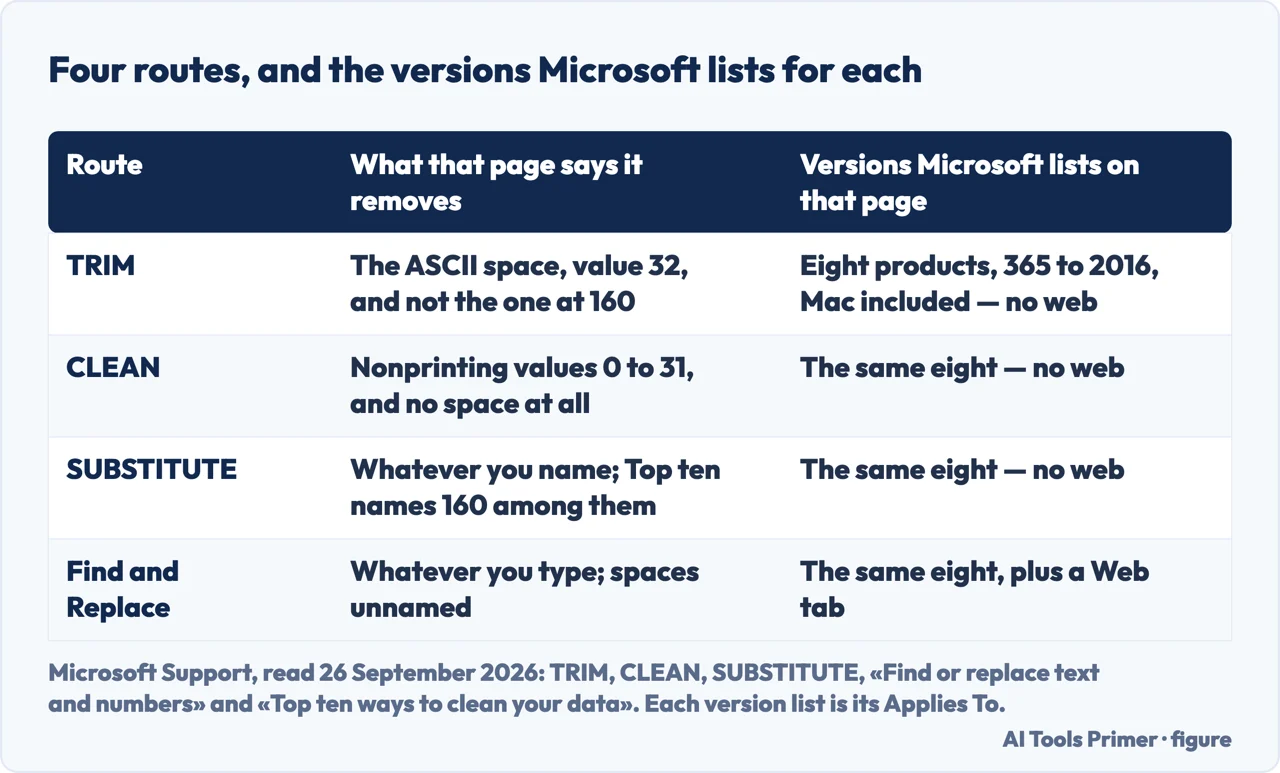
To remove spaces in Excel, put =TRIM(A2) in a new column B beside the data, fill it down, paste that column over itself as values, and only then delete the original column A. TRIM was designed for the ASCII space, value 32. Text copied from a web page can carry the nonbreaking space at 160, and Microsoft says TRIM alone leaves it.
| Route | What its page says it removes | Applies To, on that page | Read from |
|---|---|---|---|
| TRIM | The 7-bit ASCII space, value 32 — not the one at 160 | 365, 365 for Mac, 2024, 2024 for Mac, 2021, 2021 for Mac, 2019, 2016 — no web entry | TRIM function |
| CLEAN | Nonprinting values 0 to 31. No space: the space is 32 | The same eight — no web entry | CLEAN function; the 32 from TRIM |
| SUBSTITUTE | Whatever you name; every one unless you number it. The value 160 is named on Top ten, not on this page | The same eight — no web entry | SUBSTITUTE function, and Top ten for the 160 |
| Find and Replace | Whatever you type into Find what. It never names a space, on the page read on 26 September 2026 | The same eight — and the page carries a Web tab | Find or replace text and numbers |
| Clean Data | Suggests removing “extra leading spaces, trailing spaces, and between-values spaces” | 365 and Excel 2021, while its own note says the web and Windows, for Copilot users | Clean Data in Excel |
| REGEXREPLACE | Every match of a pattern by default, PCRE2 flavour. No space example | Excel for Microsoft 365 and its Mac version, nothing else | REGEXREPLACE function |
Why TRIM runs and the spaces are still there
“The TRIM function was designed to trim the 7-bit ASCII space character (value 32) from text.”
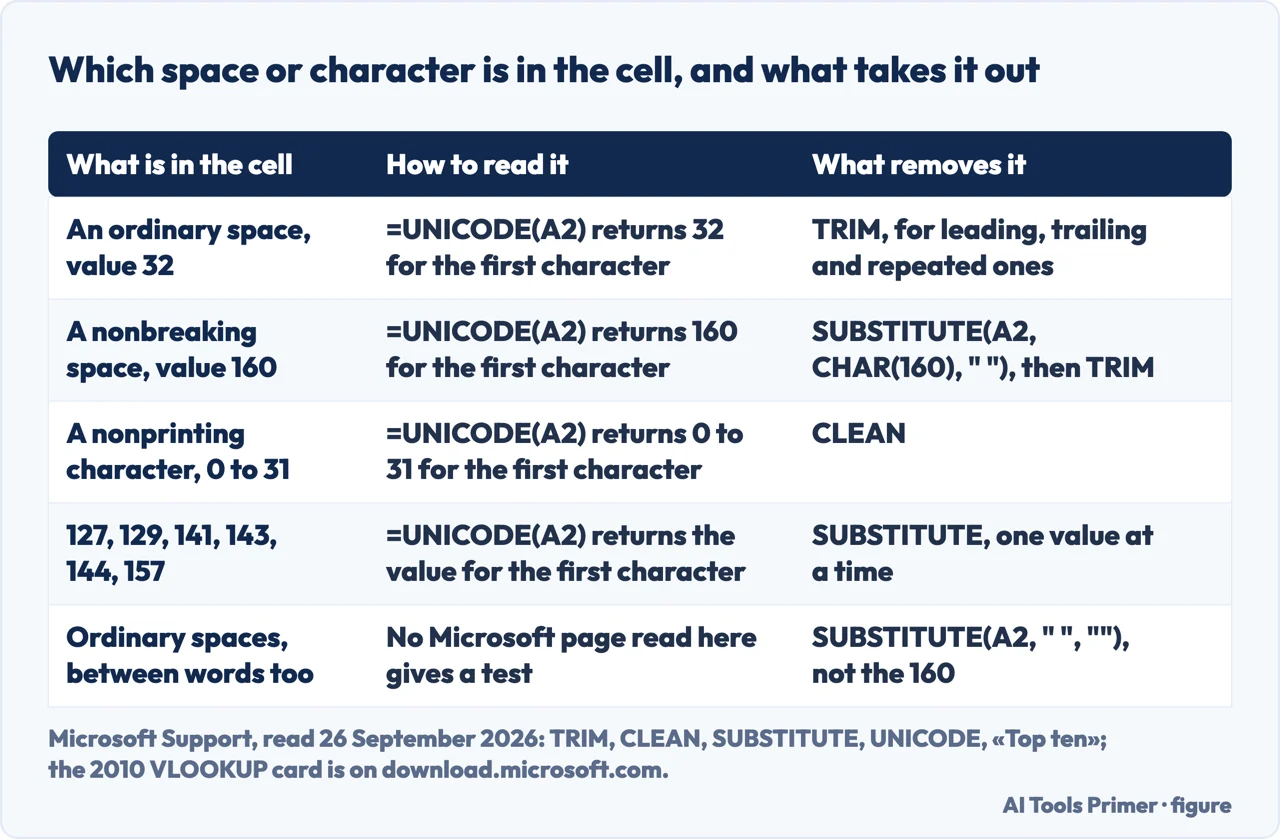
That sentence is in the Important box of Microsoft’s TRIM page. The next names a second character — a nonbreaking space with a decimal value of 160, which the page calls common in web pages and then fails to print, showing two pairs of asterisks where the entity name should be. Then: “By itself, the TRIM function does not remove this nonbreaking space character.” A cleaning pass can run down a column, report nothing, and change nothing.
The remedy is a wrapper, not another function, and the sentence that says so is not on this
page: Top ten ways to clean your data is where Microsoft writes
“To remove these unwanted characters, you
can use a combination of the TRIM, CLEAN, and SUBSTITUTE functions.”
The worked example Microsoft promises is not on the page Microsoft links to. The TRIM and
CLEAN pages both send
readers to Top ten ways to clean your data, where the retired article on spaces and nonprinting
characters now lands too — and that page carries no formula at all. The only worked one on
a Microsoft page read here is
=TRIM(CLEAN(SUBSTITUTE(A2,CHAR(160)," "))), in a VLOOKUP quick reference card marked
“© 2010 by Microsoft Corporation.” That card is blunt:
“TRIM won’t work here, at least not on its own.” Outside Microsoft the same three
functions are printed around A1 by datacamp.com, which calls the wrapper its gold-standard
formula.
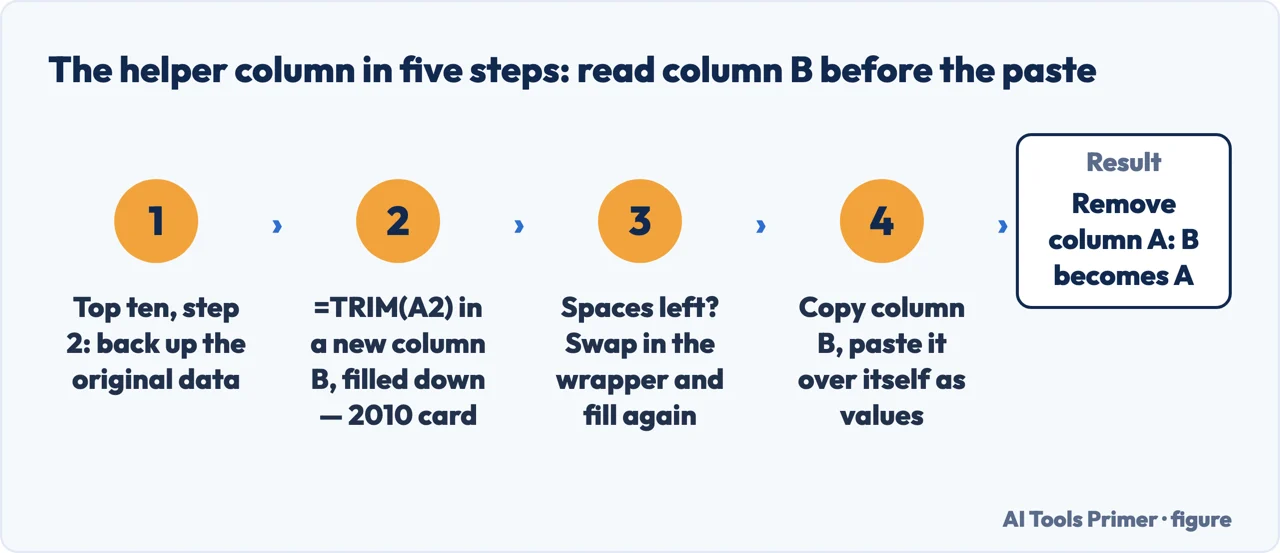
- Back up the original data. On Top ten ways to clean your data the backup is not the opening move but the second of the basic steps, straight after importing the data from an external source: copy the original into a separate workbook. Step 5 below deletes the column you started from.
- Put the formula in a new column beside the data. Insert a new column next to
column A, type
=TRIM(A2)in cell B2, press Enter, and fill the column down. Microsoft writes those moves more than once, and never with the same detail. Top ten puts them in prose first, then numbers them, and prints no formula either time: insert a new column B beside the original column A, add a formula at the top of B that transforms the data, fill it down. The 2010 VLOOKUP card writes the same moves out in prose as well, and it is the card — not Top ten — that names the formula, the cell B2 and the ENTER key. - Read the new column before anything is pasted over it. This is the last point at which
the formula exists, and so the last at which it can be changed. If the spaces are still there,
one documented reason is that the character is not the one TRIM was built for, and the formula
that takes that one too is
=TRIM(CLEAN(SUBSTITUTE(A2,CHAR(160)," "))): SUBSTITUTE turns CHAR(160) into an ordinary space, CLEAN removes nonprinting values 0 to 31, and TRIM the extra spaces. Put it in B2 instead and fill down again. The formula is the 2010 card’s; looking before pasting is this guide’s order, and no page read for it tells you to look: the 2010 card only pastes “After the spaces are gone”. On a Mac, note the gap: the Excel for Mac errors page sends readers to that same card, while the CODE page says its codes come from the Macintosh character set on a Mac and ANSI on Windows — and nothing read here says what CHAR(160) returns on a Mac. - Paste the new column over itself as values, not formulas. A formula column still points at the untidy one, so the formulas have to go and the results have to stay. Top ten’s step keeps everything inside column B: select the new column, copy it, and paste as values into that same new column, and the original is still there, untouched, until the next step. The 2010 card goes the other way: paste the clean data from column B over the data in column A, values and not the formula, and then delete column B. Both end with the cleaned data under the letter A; the route here is Top ten’s, and step five is the one that deletes. The Paste Special path is the Home tab, the arrow below Paste, then Paste Special and Values, or Ctrl + Shift + V — printed on the Windows tab of Convert numbers stored as text and again on its Web tab, a page that has no Mac tab at all.
- Remove the original column A. Now, and not before, the untidy column goes. Microsoft says what that does to the letters and stops there: with column A removed, the new column converts from B to A, so the cleaned data ends up under the letter the untidy data had. No page read for this guide says what the deletion does to formulas that pointed at either column.
Five inputs, and what Microsoft documents for each
A cleaning formula is filled down a whole column, so it can meet any of the five. TRIM, CLEAN, SUBSTITUTE, UNICHAR and UNICODE all apply to the same eight products: Excel for Microsoft 365 down to Excel 2016, Mac included, no web entry. Where a page says nothing, this list says so.
- An empty cell
- Not documented. TRIM calls its argument a string in quotes or a cell reference, CLEAN calls it “Any worksheet information from which you want to remove nonprintable characters”, SUBSTITUTE text or a cell holding text. None says what comes back from an empty cell.
- Empty text,
"" - Not documented either. Microsoft’s first TRIM example passes a literal string in
quotation marks,
=TRIM(" Sales report "), and nothing on the page covers an empty pair. - A single space
- Not documented as a case. What is published is TRIM’s definition, on TRIM’s own page: “Removes all spaces from text except for single spaces between words.” With no words either side there is nothing to be between, and no result is printed.
- A zero
- Not documented for TRIM, CLEAN or SUBSTITUTE — all three name their argument text. One rule for zero read here belongs elsewhere: “If number is zero (0), UNICHAR returns the #VALUE! error value.” UNICHAR returns a character from a number, so that rule is about its own argument, not about a cell being cleaned. It is not the only zero rule read for this guide either: the Excel for Mac errors page carries one, and that one is about dividing by zero.
- An error value
- Not named for the three. One rule read here is on the #N/A page, and it is about the cells a formula points at: where an #N/A has been entered by hand, “formulas that refer to these cells can’t calculate a value and will return the #N/A error instead.” It names no function, and the TRIM, CLEAN and SUBSTITUTE pages say nothing. UNICODE prints one about its own argument: “If text contains partial surrogates or data types that are not valid, UNICODE returns the #VALUE! error value.”
Find and Replace can close the gaps between words as well. Microsoft’s page opens Replace with Ctrl+H on its Windows and Web tabs and with Control + H on its macOS tab, each through its own Home path — and, on the copy read on 26 September 2026, it never names a space. Nothing on it tells you to type one into Find what, or how to type a nonbreaking one; removing text by “finding instances of that text and then replacing it with no text” is on Top ten ways to clean your data. The pairing is named once more, on the 2010 VLOOKUP card, for unnecessary leading or trailing spaces, or extra spaces between words, in the first column or the lookup value: they can be removed by hand or with the find and replace feature — and the card prints no keystroke for that either. The steps the card leaves out are on datacamp.com: type one or two spaces into Find what, leave Replace with empty and select Replace All, which “removes spaces directly in the selected cells”. With a single space typed, the gaps between words go too — our reading, which datacamp does not state; the option that sounds closest to sparing them is Match entire cell contents, and Find or replace text and numbers publishes it as a way to “search for cells that contain only the characters that you typed in the Find what box” — so it skips every cell holding anything else, which is not the same job as sparing a space inside a cell. It is not the page’s only narrowing option — Match case, the Within box and Format sit beside it — and none of the four names a space, on the copy read on 26 September 2026. The formulas separate the two: SUBSTITUTE with an empty replacement removes every ordinary space, value 32, because “Otherwise, every occurrence of old_text in text is changed to new_text”, while TRIM keeps one by definition.
A space that survives is not cosmetic.
Top ten ways to clean your data gives the consequence in one line: “These characters can
sometimes cause unexpected
results when you sort, filter, or search.” The #N/A page lists “There is extra spacing
in the cells” as a named cause and answers it by nesting the cleaning inside the lookup,
=VLOOKUP(D2,TRIM(A2:B7),2,FALSE). The condition the page prints for pressing Enter
instead is narrow: a current version of Microsoft 365 that is also on the Insiders Fast release
channel. Otherwise you select the output range, put the formula in its top-left cell and confirm
with Ctrl+Shift+Enter — printed with no platform named, on a page whose Applies To includes
Mac, iPad and Excel Web App. The INDEX/MATCH page splits the job correctly, “To remove
unexpected characters or hidden spaces, use the CLEAN or TRIM function, respectively”.
The VLOOKUP and COUNTIF pages offer the pair without splitting it. VLOOKUP sends readers to
CLEAN or TRIM for trailing spaces, and COUNTIF offers the same two for counting text;
CLEAN’s own page covers values 0 to 31 and TRIM’s puts the space at 32, so of that pair
only TRIM reaches a space. A lookup returning #N/A is one way the
leftover space announces itself.
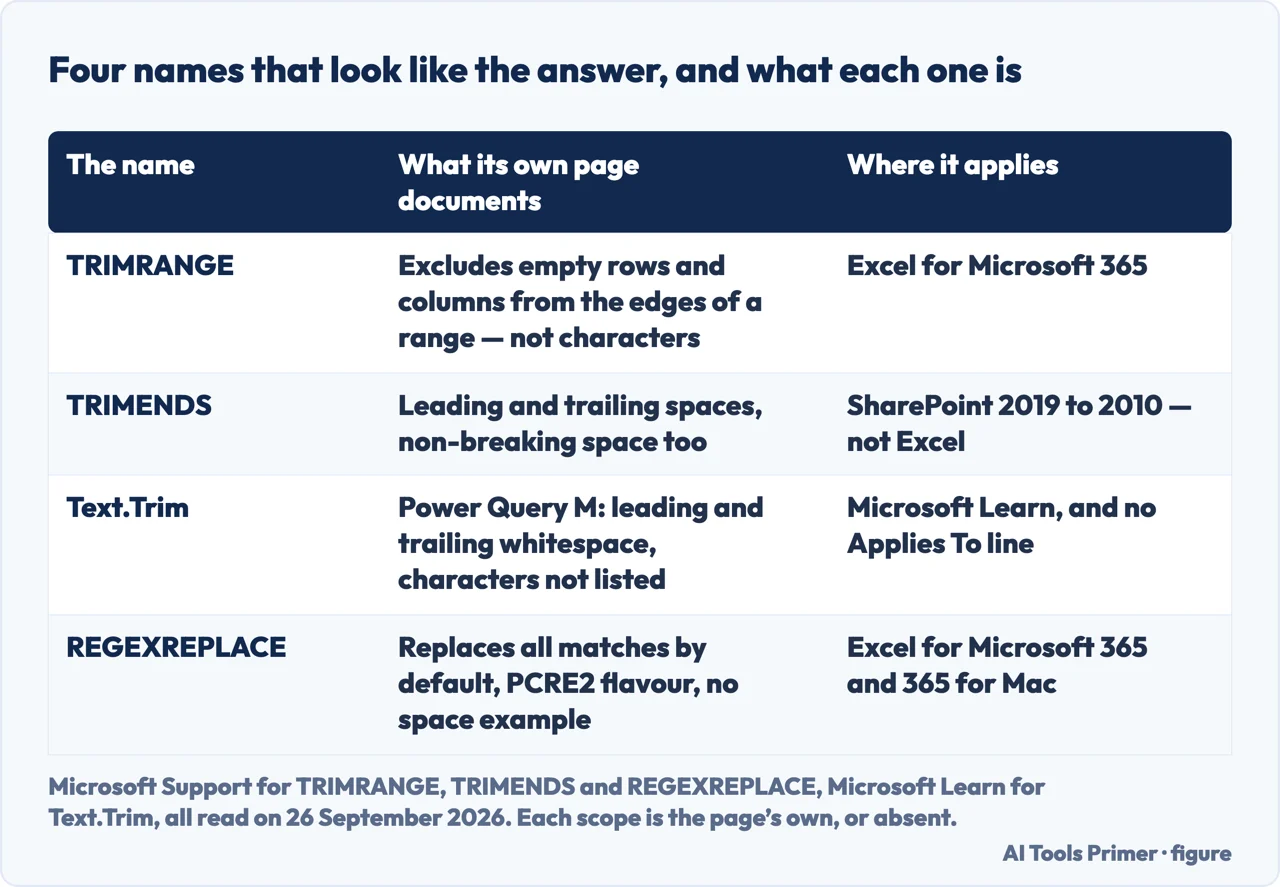
Four names look like the answer, and none of them is documented for spaces in Excel on any page read for this guide. TRIMRANGE “excludes all empty rows and/or columns from the outer edges of a range or array” — rows, not characters — on Excel for Microsoft 365 alone. TRIMENDS removes “leading and trailing spaces, such as whitespace and non-breaking space before and after the text” — the only one of the four to name it — but it is a SharePoint function, listed from SharePoint Server 2019 down to SharePoint Foundation 2010, with no Excel. Text.Trim is Power Query M on Microsoft Learn, where “By default, all the leading and trailing whitespace characters are removed” without listing which characters count; that page has no Applies To line. REGEXREPLACE is real and is in Excel — “By default, occurrence is 0, which replaces all instances” — but it stops at Excel for Microsoft 365 and its Mac version, and the page read for this guide publishes no pattern for a space.
Where this answer stops. Every code, version list and quoted sentence above is read from the page named beside it, on 26 September 2026 — a Microsoft page in every case but two, the wrapper around A1 and the Find and Replace steps, both credited to datacamp.com where they appear. Where a page says nothing, the list above names the gap instead of filling it.
Where to start
Five ways in.
- “Just give me the formula.”
- Five steps, in order — the helper column route
- “TRIM ran, and nothing moved.”
- Why TRIM stops there — the nonbreaking space at 160
- “Which space is even in the cell?”
- Read it first — which space is in the cell
- “Can I just use Find and Replace?”
- What it also takes — the gaps between words
- “What happens on an empty cell?”
- Five inputs — the five cases
Why TRIM runs and the spaces are still there
Microsoft built TRIM for the space at value 32, and says on the same page that it leaves the one at 160.
A column beside the data, then values
Five steps, and the last of them deletes the column you started from.
Four names that look like the answer
TRIMRANGE, TRIMENDS, Text.Trim and REGEXREPLACE, and the scope each declares — or its absence.
Questions people also ask
How do I get rid of gaps in Excel?
It depends which gap. For extra spaces inside a text cell, put =TRIM(A2) in a helper column B, fill it down, paste that column over itself as values, and delete the original column A last. For empty rows and columns at the edges of a range, Microsoft documents a different function, TRIMRANGE, on Excel for Microsoft 365 only.
How do I remove 4 characters from the left in Excel?
Not with a space function. The Find and Replace page names SUBSTITUTE and REPLACE as formula routes without saying which does what; the SUBSTITUTE page sends text in a specific location to REPLACE, whose page was not read here, so no syntax is given. On Top ten, the link labelled Remove characters from text leads to splitting text into columns.
Why is Trim not removing spaces in Excel?
One documented reason: the character is not the one TRIM was built for. Microsoft states TRIM was designed for the 7-bit ASCII space, value 32, and by itself leaves the nonbreaking space at 160, which the TRIM page calls common in web pages. The 2010 card’s wrapper converts it; what CHAR(160) returns on a Mac is stated nowhere read here.
How do I remove extra spaces between text?
TRIM keeps one space between words and removes the rest, by its published definition, so a run inside a sentence collapses to one. No space at all is a different instruction: =SUBSTITUTE(A2," ","") removes every ordinary space, value 32, since no instance number is given. The 2010 card writes a nonbreaking one as CHAR(160); the Mac value is not stated.
Not covered here. It does not teach the Power Query ribbon: the only Power Query page read here is the Microsoft Learn reference for Text.Trim, which does not list what counts as whitespace.
It does not cover splitting a column into several, which is a different job; the opposite direction is combining text in Excel, and the case rules are in changing case in Excel.
And it does not cover Google Sheets. What holds instead is simple: the codes and version lists here are read from the page named beside each one, Microsoft except the A1 wrapper and the Find and Replace steps credited to datacamp.com, and where a page says nothing this one says so.
Sources
- Microsoft Support — TRIM function: the ASCII space at 32, the nonbreaking one at 160, and that TRIM alone leaves it. Eight products, no web — support.microsoft.com, read September 2026.
- Microsoft Support — CLEAN function: values 0 through 31 only, and the six higher ones it leaves. Same eight — support.microsoft.com, read September 2026.
- Microsoft Support — SUBSTITUTE function: the optional instance number, and what happens without it — support.microsoft.com, read September 2026.
- Microsoft Support — Top ten ways to clean your data: the character values, the consequence for sorting, the combination in prose with no formula, and the helper-column steps. No Mac and no web — support.microsoft.com, read September 2026.
- Microsoft Support — Find or replace text and numbers on a worksheet: Replace on the Windows, macOS and Web tabs. It never names a space, on the copy read on 26 September 2026 — support.microsoft.com, read September 2026.
- Microsoft file — Quick Reference Card: VLOOKUP troubleshooting tips, marked 2010: the only worked CHAR(160) formula on a Microsoft page here, the helper-column moves in prose with the cell B2 and the ENTER key, its own paste — column B over column A, then column B deleted — and Find and Replace named for spaces — download.microsoft.com, read September 2026.
- Microsoft Support — Convert numbers stored as text to numbers in Excel: the Paste Special and Values path. Its Applies To includes Excel Web App — support.microsoft.com, read September 2026.
- Microsoft Support — UNICHAR function: a zero returns #VALUE!, and 32 is the space character — support.microsoft.com, read September 2026.
- Microsoft Support — UNICODE function: the code point of the first character, and #VALUE! for invalid types — support.microsoft.com, read September 2026.
- Microsoft Support — CODE function: the Macintosh character set on a Mac, ANSI on Windows — support.microsoft.com, read September 2026.
- Microsoft Support — TRIMRANGE function: empty rows and columns, not characters. Excel for Microsoft 365 alone — support.microsoft.com, read September 2026.
- Microsoft Support — TRIMENDS function: the non-breaking space named, on SharePoint 2019 down to 2010 and no Excel — support.microsoft.com, read September 2026.
- Microsoft Support — REGEXREPLACE function: all instances by default, PCRE2, no space example. Two products — support.microsoft.com, read September 2026.
- Microsoft Learn — Text.Trim, Power Query M: whitespace unlisted, and no Applies To line — learn.microsoft.com, read September 2026.
- Microsoft Support — Clean Data in Excel: the space suggestion, and the note naming the web and Windows for Copilot customers — support.microsoft.com, read September 2026.
- Microsoft Support — How to correct a #N/A error: extra spacing as a cause, and TRIM nested inside VLOOKUP — support.microsoft.com, read September 2026.
- Microsoft Support — How to correct a #N/A error in INDEX/MATCH functions: CLEAN for characters, TRIM for spaces — support.microsoft.com, read September 2026.
- Microsoft Support — VLOOKUP function: the sentence offering CLEAN for trailing spaces, which the CLEAN page’s 0 to 31 range does not cover — support.microsoft.com, read September 2026.
- Microsoft Support — Use the COUNTIF function in Microsoft Excel: the same warning for counting text — support.microsoft.com, read September 2026.
- Microsoft Support — How to fix formula errors in Excel for Mac: it sends Mac readers to the 2010 card — support.microsoft.com, read September 2026.
- datacamp.com — How to Remove Spaces in Excel, updated 4 March 2026: the same TRIM/CLEAN/SUBSTITUTE wrapper around A1, which it calls gold-standard, and the Find and Replace steps with Replace with left empty. No Applies To of any kind — www.datacamp.com, read September 2026.
Written by Alberto Gulotta
Founder and editor of AI Tools Primer, writing from Palermo, Italy. Thirty-five years of taking computers apart, starting with a Commodore 64 — the long version is on the about page.
Something wrong on this page? Write to aitoolsprimer@gmail.com and it gets fixed.
Written on 29 September 2026.
Independence and limits
No affiliate links and no paid placements anywhere on this site. Nobody pays to appear here, and no company has seen this page before you did.
This is general information, not professional advice. Where a page touches money, health, safety or the law, it names its source and the date it was read — and your situation may still differ. See the privacy page and the cookie policy.