
Docs · guide
How to copy a formula in Excel, on Windows and on Mac
By Alberto Gulotta · Updated · 15 min read
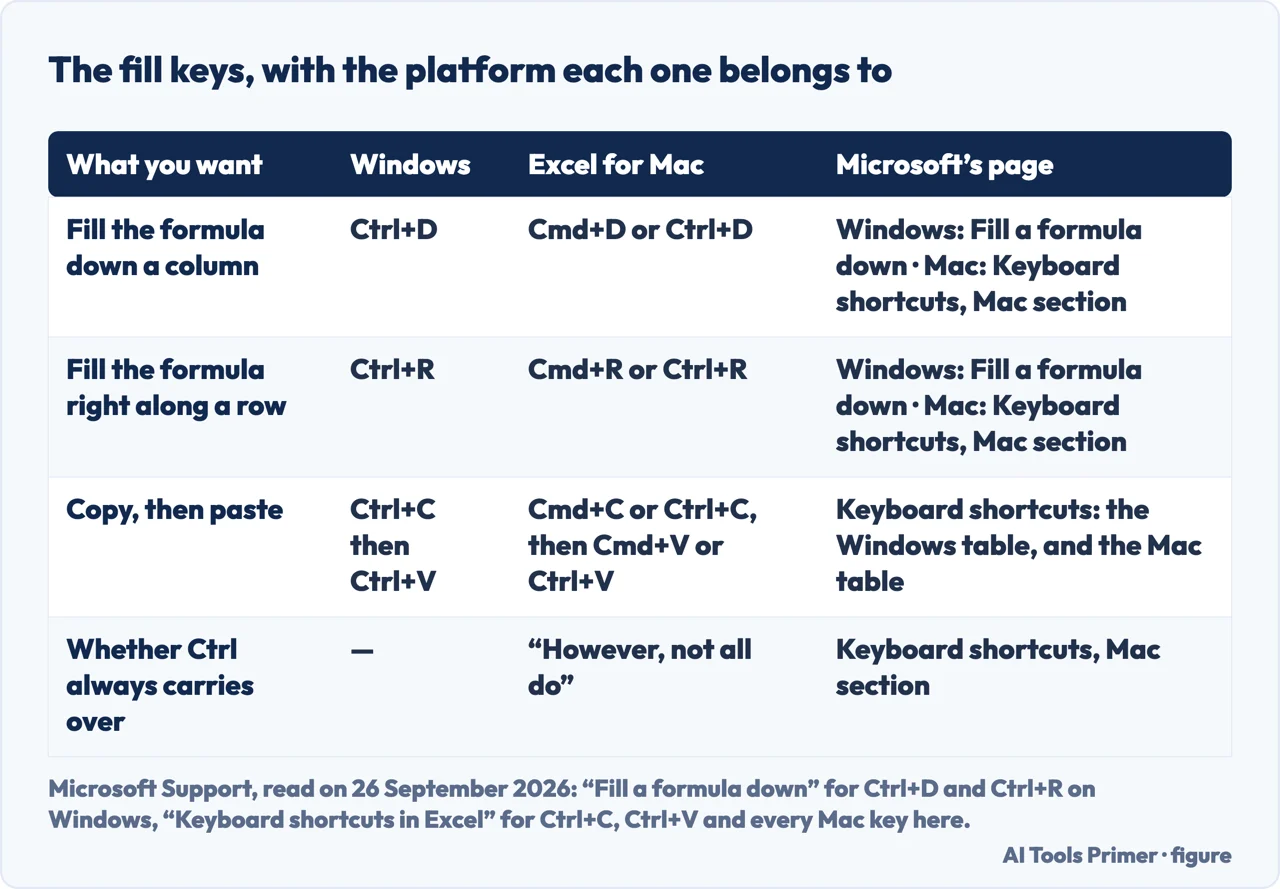
To copy a formula in Excel down a column, select the cell that has it together with the cells below and press Ctrl+D on Windows or Cmd+D in Excel for Mac — or double-click the little marker at the cell’s bottom-right corner, which needs only the formula cell selected, no range. Along a row the key is Ctrl+R, or Cmd+R. Copying changes the relative references; moving the same formula does not.
| What you want | Windows | Excel for Mac | The Microsoft page it comes from |
|---|---|---|---|
| Fill the formula down a column | Ctrl+D | Cmd+D or Ctrl+D | Fill a formula down for Windows; the Excel for Mac section of Keyboard shortcuts in Excel for the Mac |
| Fill the formula right along a row | Ctrl+R | Cmd+R or Ctrl+R | Fill a formula down for Windows; the Excel for Mac section of Keyboard shortcuts in Excel for the Mac |
| Fill from the ribbon | Home › Fill › Down, Right, Up or Left | Not given on the Mac pages read here | Fill a formula down, to Excel 2016 |
| Fill down without keys or menus | Double-click the fill handle on the cell that has the formula — and on Windows the page that documents it lists Excel 2024 alone | Double-click the fill handle, documented for 365 for Mac, 2024 for Mac and 2021 for Mac | Enter a formula, whose Applies To is narrower than this guide: 365 for Mac, 2024, 2024 for Mac, 2021 for Mac |
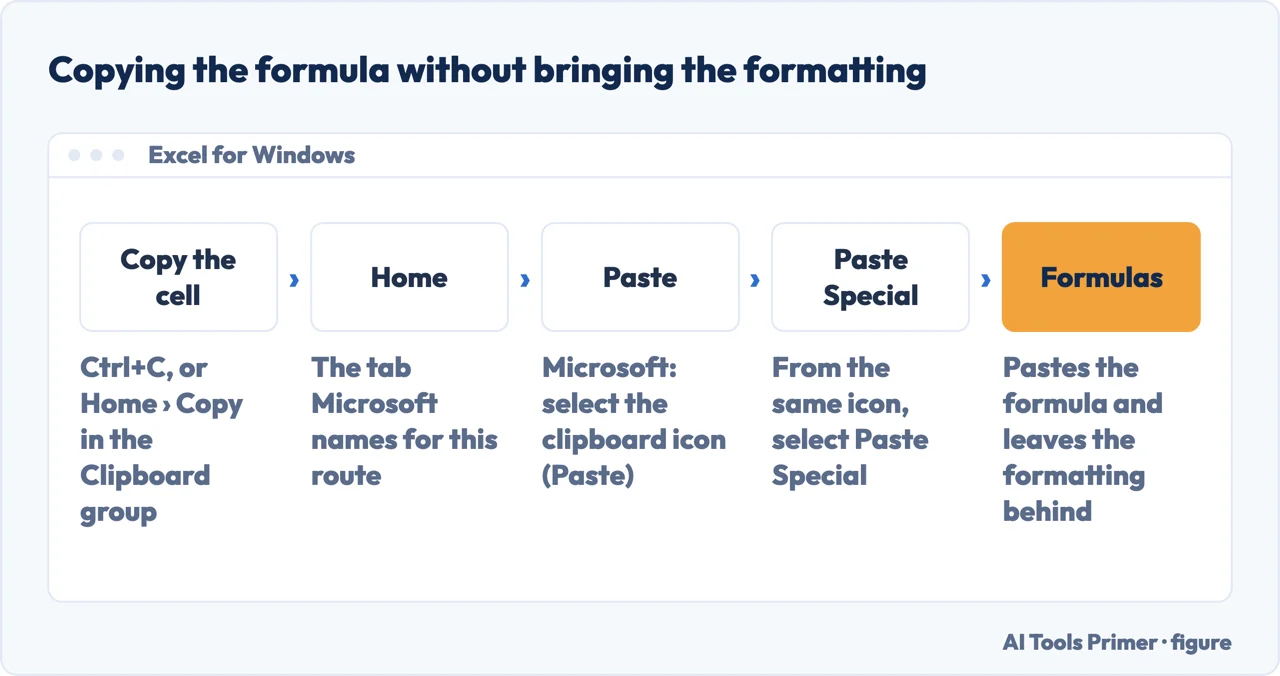
| Copy the formula only | Ctrl+C, then Paste Special › Formulas | ⌘+C, then the arrow beside Paste › Formulas | Keyboard shortcuts in Excel for Ctrl+C and Paste options for the Paste Special route on Windows; Copy and paste a formula to another cell or worksheet in Excel for Mac for the Mac |
- Select the cell that already has the formula. It is the one cell that is right, and everything below follows from it.
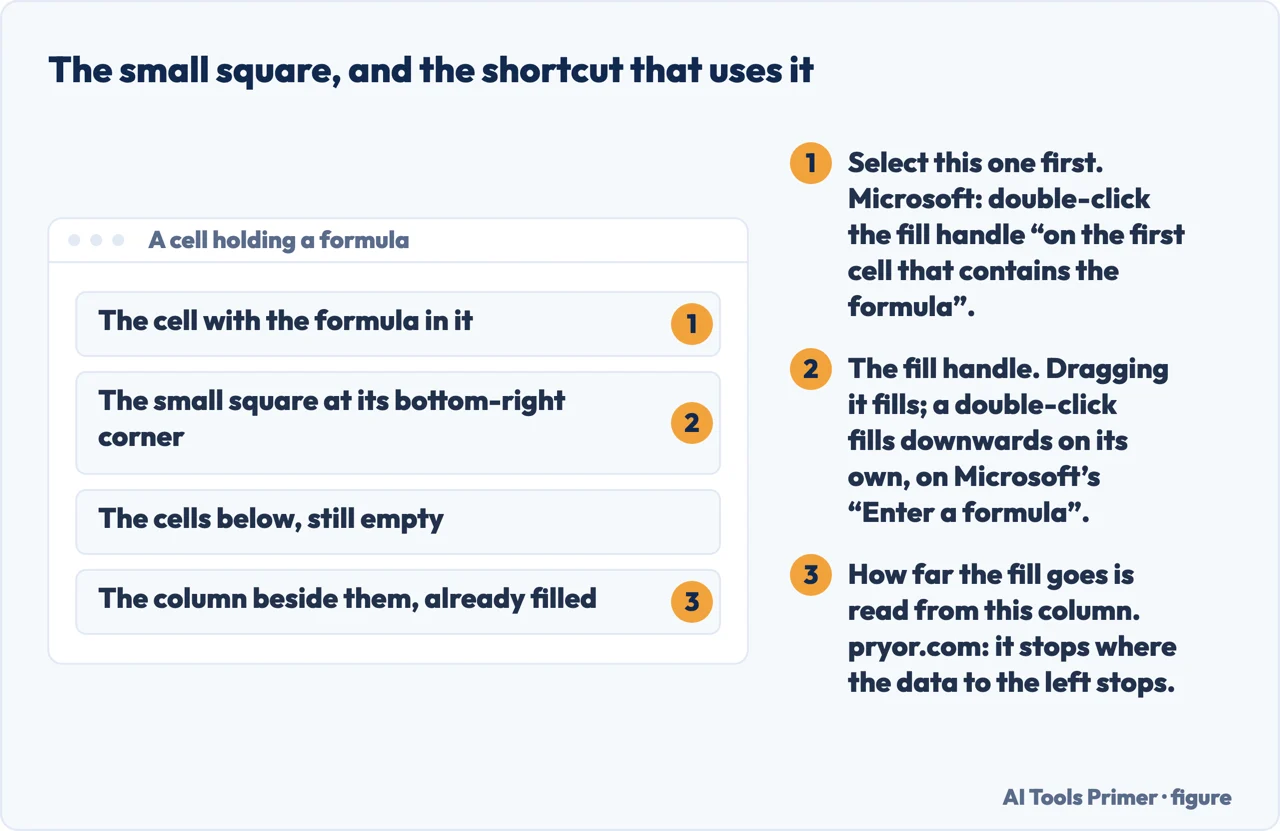
- Double-click that little marker at its bottom-right corner. Microsoft calls it the fill handle: double-click it “on the first cell that contains the formula” and Excel fills the column downwards on its own.
- If you prefer the keyboard, select that cell and the cells below it together. Then press Ctrl+D on Windows, or Cmd+D in Excel for Mac. The selection matters: Fill Down copies “the topmost cell of a selected range into the cells below”, so the formula cell is the top of what you select. For a row, the key is Ctrl+R or Cmd+R and the selection runs sideways.
- On Windows, if you prefer the ribbon, it is Home › Fill. Microsoft’s two lines are “Select the cell with the formula and the adjacent cells you want to fill” and “Select Home > Fill, and choose either Down, Right, Up, or Left”.
- Check what the references did. A copied formula changes its relative references; a moved one does not. This is the step that decides whether the numbers below are right.
- If nothing recalculates, check this setting first. Microsoft: “Formulas won’t recalculate when you fill cells if automatic workbook calculation isn’t enabled.” On a Mac the switch is Excel menu › Preferences › Calculation › Automatic; on Windows it is File › Options › Formulas › Workbook Calculation › Automatic.
Moving a formula and copying one do different things to the references
“Moving a formula: When you move a formula, the cell references within the formula stay the same, no matter what type of cell reference you use. Copying a formula: When you copy a formula, relative cell references change.”
Those two sentences sit next to each other on one Microsoft page, and between them they
explain why a filled column’s references shift. Fill a formula down with the fill handle and =A1*B1 becomes =A2*B2 on the next row. Cut the same formula and paste it a row down and it still reads
=A1*B1.
If one part of the formula has to stay put while the rest moves, that is what the dollar signs are for — and Microsoft’s page includes the table of what each reference type becomes when a formula is copied two cells down and two to the right.
Where the fill stops. Double-clicking the fill handle fills downwards on its own, and pryor.com suggests it for a long column: there is no range to select and nothing to drag. What it cannot do is guess how far you meant to go. Pryor, the one secondary source read for this page, describes the behaviour: the double-click “can copy the formula down as far as Excel finds data to the left”, and “the fill stops when Excel sees that you have no headers or data to the left”. So a gap in the neighbouring column ends the fill there, and the rows below stay empty. In that case a keyboard fill avoids the gap, because you select the last row yourself.
Four things Microsoft states that explain the usual failures
Each one is on a Microsoft Support page read in full on 26 September 2026.
- Not every Windows key carries over
- In the Excel for Mac section of the shortcuts page: “Many of the shortcuts that use the Ctrl key on a Windows keyboard also work with the Control key in Excel for Mac. However, not all do.” It is the reason to read the Mac column rather than assume it.
- The fill handle can be switched off
- On Windows it is on by default, and it lives in File › Options › Advanced, under Editing options, as the “Enable fill handle and cell drag-and-drop” check box. On a Mac, Microsoft’s route is Excel menu › Preferences › Edit › Edit Options, and the box is “Allow fill handle and cell dragging and dropping”. If the marker is not there, that box is the first place to look.
- Formulas and Values are different pastes
- On the Paste options page, in its Windows tab, Formulas is “Formula(s), without formatting or comments” and Values is “Formula results, without formatting or comments”. One keeps the calculation, the other freezes the answer.
- The double-click has a narrower scope than this page
- Microsoft documents it on Enter a formula, whose Applies To line reads Excel for Microsoft 365 for Mac, Excel 2024, Excel 2024 for Mac and Excel 2021 for Mac. The Fill command and the Ctrl+D shortcut are documented on a page that reaches Excel 2016, so the two halves of this guide do not cover the same list of products.
Where this answer stops. The Windows fill keys come from Microsoft’s Fill a formula down page, Ctrl+C and Ctrl+V from the Windows section of its Keyboard shortcuts in Excel page, and the Mac keys from the Excel for Mac section of that same page and from Copy and paste a formula to another cell or worksheet in Excel for Mac: neither platform is assumed from the other, and the version list for each page is given beside it in the notes. The claims that are not Microsoft’s — where the double-click stops, and that it suits a long column — come from pryor.com and are attributed where they are made. Nothing here covers Excel on iPad, iPhone or Android, which Microsoft documents on a separate page with a different set of gestures, and nothing here covers Google Sheets. Nor does this page teach the formulas themselves — only what happens to one when it is copied.
Where to start
Four ways in.
- “Just give me the key.”
- Six steps, both platforms — the six steps on both platforms
- “My references changed.”
- Copying does that — what copying does to the references
- “There is no marker to click.”
- Check the setting first — the fill handle setting
- “The fill stopped halfway.”
- It reads the column beside, pryor.com says — where the fill stops
How to copy a formula down a column
Four routes Microsoft documents: the fill handle, the fill keys, the Home menu, and Paste Special for the formula on its own.
Moving a formula and copying one do different things to the references
Microsoft writes both rules in consecutive sentences: a moved formula keeps its references, a copied one changes the relative ones.
Four things Microsoft states that explain the usual failures
Not every Windows shortcut works on a Mac, the fill handle is a setting that can be off, Formulas and Values are different pastes, and the double-click is documented for fewer products than the Fill a formula down and Keyboard shortcuts pages.
Where the fill stops on a double-click
According to pryor.com, the double-click takes its length from the data to the left, so a gap there ends the fill early.
Questions people also ask
How do I apply the same formula to multiple cells in Excel?
Select the cell that has the formula together with the cells you want to fill, then press Ctrl+D on Windows or Cmd+D in Excel for Mac. On Windows the ribbon route for the same job is Home › Fill › Down.
How do I repeat the same formula in Excel?
Fill it rather than retype it. Double-clicking the fill handle repeats it down the column for as far as Excel finds data to the left, as pryor.com describes; Ctrl+D or Cmd+D repeats it into the selected cells below it.
How do I copy a formula down in Excel?
Three routes fill it in place, all Microsoft’s: double-click the fill handle at the corner of the cell; select the cell and the ones below and press Ctrl+D, or Cmd+D on a Mac; or, on Windows, select the same range and choose Home › Fill › Down. A fourth, Paste Special › Formulas, brings the formula without the formatting.
How do I copy a formula in Excel and change the cell reference?
Copying already changes relative references: that is what Microsoft says happens. To stop a reference changing, make it absolute with dollar signs before you copy. To keep every reference exactly as written, move the formula instead of copying it.
Not covered here. It does not teach the formulas themselves, only what happens to one when it is copied, filled or moved.
It does not cover Excel on iPad, iPhone or Android, which Microsoft documents separately with its own gestures.
And it does not cover Google Sheets, or copying a formula between two different workbooks. What holds instead is simple: the keys and quoted sentences come from the Microsoft pages listed under Sources, each with the platform that page documents, except the two sentences and claims taken from pryor.com, which say so where they are made.
Sources
- Microsoft Support — Fill a formula down into adjacent cells: the Home › Fill route, the Ctrl+D and Ctrl+R shortcuts in Microsoft’s own words, and the note that formulas will not recalculate when automatic workbook calculation is off. Applies to Excel for Microsoft 365, Excel 2024, Excel 2021, Excel 2019 and Excel 2016 — support.microsoft.com, read September 2026.
- Microsoft Support — Keyboard shortcuts in Excel: the Excel for Mac section, which gives Cmd+D and Cmd+R for filling down and right and carries the warning that not all Ctrl shortcuts from a Windows keyboard work on a Mac, and the Windows section, which describes Fill Down as copying the topmost cell of a selected range into the cells below; Ctrl+C and Ctrl+V in its Windows section, Cmd+C and Cmd+V in its Excel for Mac section. Applies to Excel for Microsoft 365 and its Mac version, Excel 2024 and its Mac version, Excel 2021 and its Mac version, Excel 2019, Excel 2016, Excel for iPad, iPhone, Android tablets and phones, and Excel Mobile — support.microsoft.com, read September 2026.
- Microsoft Support — Move or copy a formula: the two consecutive sentences on what moving and copying each do to the cell references, and the table of how each reference type updates when a formula is copied two cells down and two to the right. Applies to Excel for Microsoft 365, Excel 2024 and Excel 2021 — support.microsoft.com, read September 2026.
- Microsoft Support — Enter a formula: the sentence documenting the double-click on the fill handle. Applies to Excel for Microsoft 365 for Mac, Excel 2024, Excel 2024 for Mac and Excel 2021 for Mac, which is a narrower list than this guide covers — support.microsoft.com, read September 2026.
- Microsoft Support — Paste options: the Paste menu descriptions of Formulas and of Values, quoted above, and the route to the Paste Special box. Applies to Excel for Microsoft 365, Excel 2024, Excel 2021, Excel 2019 and Excel 2016 — support.microsoft.com, read September 2026.
- Microsoft Support — Copy and paste a formula to another cell or worksheet in Excel for Mac: the Mac route, with ⌘+C and the arrow beside Paste for Formulas. Applies to Excel for Microsoft 365 for Mac, Excel 2024, Excel 2024 for Mac and Excel 2021 for Mac — support.microsoft.com, read September 2026.
- Microsoft Support — Copy a formula by dragging the fill handle in Excel for Mac: the Mac route to the fill-handle setting (Excel menu, Preferences, Edit) and to automatic calculation, and the instruction to select the formula cell and the cells underneath it before pressing Ctrl+D. Applies to Excel for Microsoft 365 for Mac, Excel 2024, Excel 2024 for Mac and Excel 2021 for Mac — support.microsoft.com, read September 2026.
- Microsoft Support — Display or hide the fill handle: the Advanced setting that turns the fill handle on and off, and the alert before overwriting cells. Applies to Excel for Microsoft 365, Excel 2024, Excel 2021, Excel 2019 and Excel 2016 — support.microsoft.com, read September 2026.
- pryor.com — How to Copy a Formula Down a Column in Excel, read in full on 26 September 2026; it gives Ctrl+D and the double-click on the fill handle, and names no Mac key — www.pryor.com, read September 2026.
Written by Alberto Gulotta
Founder and editor of AI Tools Primer, writing from Palermo, Italy. Thirty-five years of taking computers apart, starting with a Commodore 64 — the long version is on the about page.
Something wrong on this page? Write to aitoolsprimer@gmail.com and it gets fixed.
Written on 26 September 2026.
Independence and limits
No affiliate links and no paid placements anywhere on this site. Nobody pays to appear here, and no company has seen this page before you did.
This is general information, not professional advice. Where a page touches money, health, safety or the law, it names its source and the date it was read — and your situation may still differ. See the privacy page and the cookie policy.