
Docs · guide
How to subtract in Excel, and six kinds of cell to check
By Alberto Gulotta · Updated · 24 min read
The answer to how to subtract in Excel is a minus sign: click an empty cell, type =A2-A3, press Enter or Return, and the cell shows A2 minus A3. There is no SUBTRACT function. The rest is which key each Microsoft page names, which cell goes first, and what a blank, a space or text does to the result.
| Way in | What that page says | Products listed on that page | Page read |
|---|---|---|---|
=A2-A3, the minus sign between two cells |
Its example puts 15,000 in A2 and 9,000 in A3 and gives 6,000: the first cell minus the second | Excel for Microsoft 365, Excel 2024, Excel 2021, Excel 2019, Excel 2016 — no Mac | Subtract numbers in Excel |
=50-10-5-3, several numbers in one cell |
Numbers separated by minus signs, then RETURN: 32. With cells, C1-D1 with 5 and 3 gives 2 |
Excel for Microsoft 365 for Mac, Excel 2024 for Mac, Excel 2021 for Mac — Mac only | Add and subtract numbers |
=SUM(100,-32,15,-6), negatives inside SUM |
“There is no SUBTRACT function in Excel.” The example returns 77; SUM takes up to 255 numbers | The same five; the SUM page lists eight, Mac included, no web version | Subtract numbers in Excel; SUM function |
| Paste Special, Operation: Subtract | Windows tab: “Subtracts the copied data from the data in the destination cell or range of cells.” Mac page: “Subtract the values in the copy area from the values in the paste area.” | The five Windows products, with a Web tab that has no Paste Special box; the Mac page, the three Mac products | Paste options; Copy and paste specific cell content in Excel for Mac |
=MINUS(A2,A3) |
Google Sheets, not Excel: “Returns the difference of two numbers”, equivalent to the minus operator; no Microsoft page read here lists it | No product line on the Google page | MINUS function, Google Docs Editors Help |
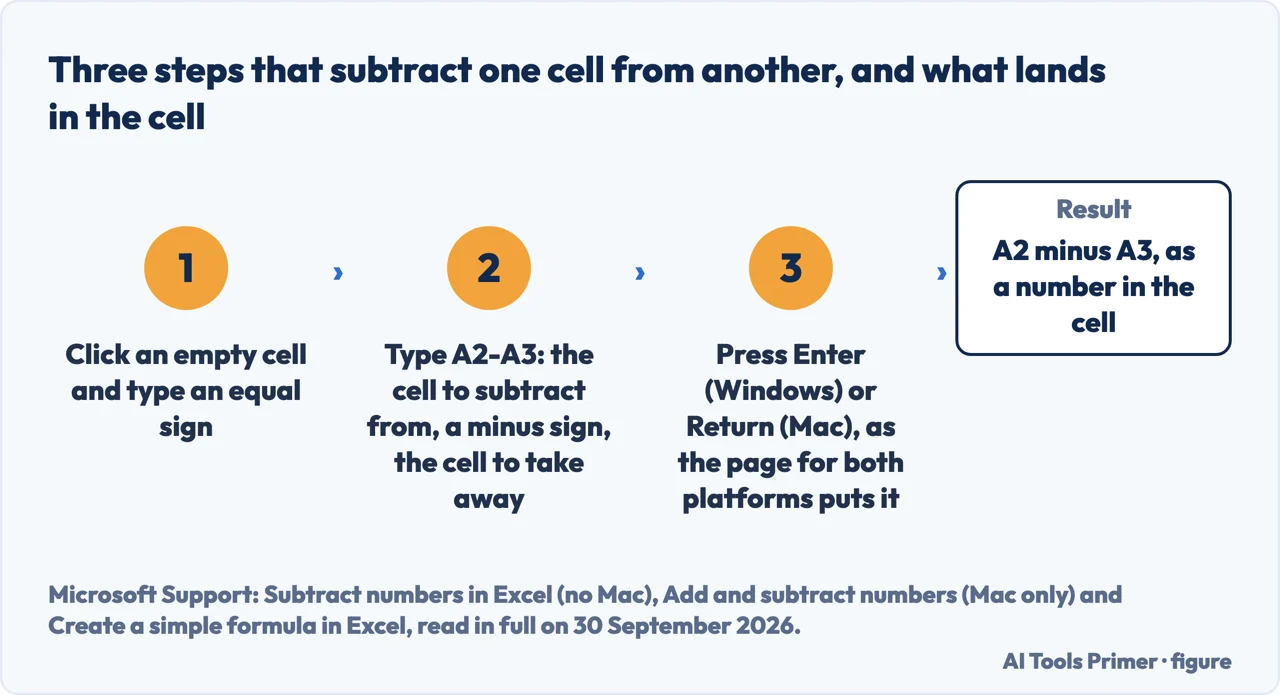
- Click the cell where the answer goes and type an equal sign. The Mac page opens with “Click any blank cell, and then type an equal sign”; the page that covers both platforms says a simple formula always starts that way and allows up to 8192 characters after it.
- Type the cell to subtract from, a minus sign, then the cell to take away:
A2-A3. Clicking the cells works too, the both-platform page says. The Mac page’s example is 5 in C1, 3 in D1 andC1-D1, result 2. Which cell is which has its own section below, because Microsoft’s wording disagrees with itself. - Press Enter on Windows, or Return on a Mac. The both-platform page prints it as
“Press Enter (Windows) or Return (Mac).” The Mac-only page prints RETURN six
times and never Enter, and the Windows page that documents
=10-5prints no key for entering the formula. - Read what landed in the cell. A date instead of a number is a symptom the Mac page names, with its fix: select the cell and, on the Home tab, choose General. No Windows page read for this guide describes it, so the fix is reported for the Mac only. The formula text showing instead of a result has its own page on why Excel shows the formula.
- Take more than one number away by chaining minus signs, or hand the job to SUM. The
Mac page’s example is
=50-10-5-3, result 32; the Windows page that treats Excel as a calculator mixes the signs in=8-3+2-4+12. The Windows page on subtracting numbers offers SUM with negatives instead,=SUM(100,-32,15,-6)returning 77, because “Adding a negative number is identical to subtracting one number from another.” - To see the formulas instead of the results, press Ctrl and the grave accent. The Windows page on subtracting numbers prints that key, with the Show Formulas button on the Formulas tab as the alternative; the Mac page on showing formulas prints the same key and adds “Keyboard shortcuts may vary depending on your Mac keyboard layout and language settings.” In the browser it is not there: the Web tab of Microsoft’s Show and print formulas page says you can “switch formulas on in cells and print in the Excel desktop app”.
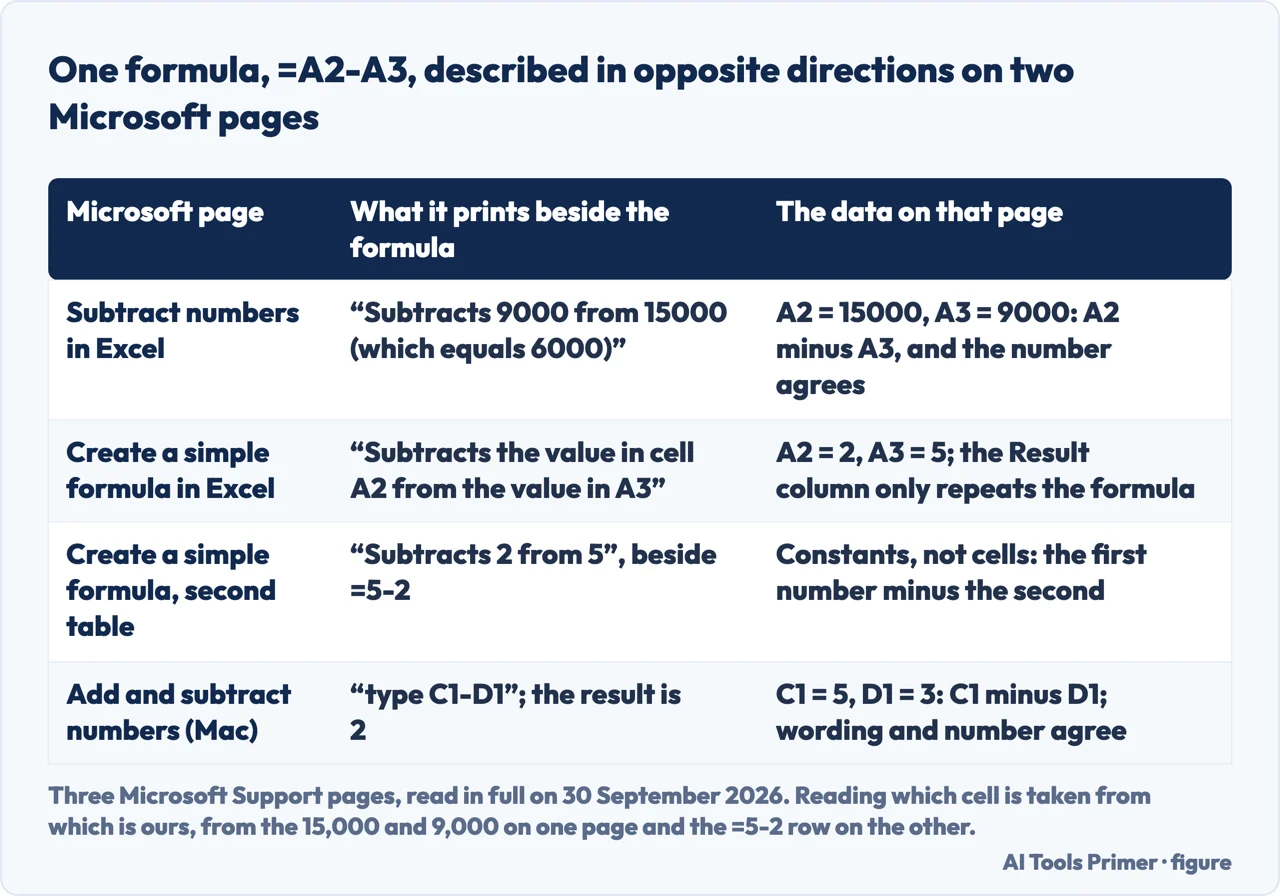
The same formula, described in opposite directions on two Microsoft pages
“Subtracts the value in cell A2 from the value in A3”
That is the page that covers both platforms, beside =A2-A3. Its data is 2 in A2
and 5 in A3, and its Result column repeats the formula instead of printing a number, so
nothing in that table settles the direction. Its second table does: beside =5-2
it prints “Subtracts 2 from 5”, the first number minus the second.
The Windows page on subtracting numbers describes the same formula the other way round, with 15,000 in A2 and 9,000 in A3: it subtracts 9,000 from 15,000, which equals 6,000. Two Microsoft pages describe the same formula, =A2-A3, in opposite directions; what settles which cell is taken from which is the 15,000 and 9,000 on one page and the =5-2 row on the other. The reading, the cell before the sign minus the cell after it, is this guide’s, taken from those two.
The sign on the operators page is not the key on the keyboard. Microsoft’s
page on calculation operators prints its minus-sign examples as =3–1 for
subtraction and =–1 for negation, with an en dash, U+2013, a different character from the hyphen-minus
the key produces. No page read for this guide says what Excel does with an en dash typed into
a formula, so type the key. The same page ranks the operators: the reference operators first, then
negation, percent, exponentiation, multiplication and division, then addition and subtraction; the both-platform page puts it in one sentence: multiplication and division before
addition and subtraction. The comparison operators on the
same page, does not equal in Excel among them, return
TRUE or FALSE rather than a number.
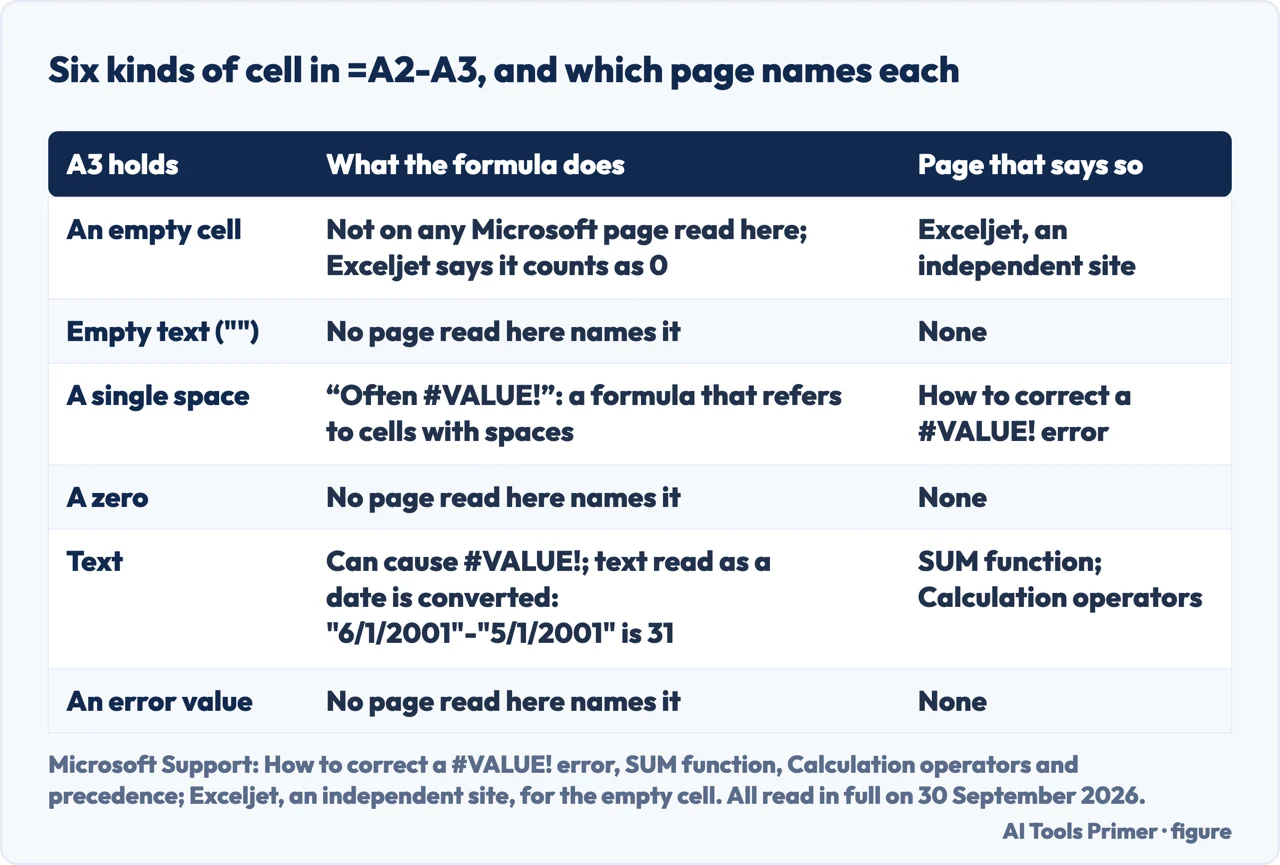
An empty cell, empty text, a space, a zero, a text, an error
What =A2-A3 does when A3 holds each, from the pages read for this
guide on 30 September 2026; where no page read here names a case, the line says so.
- An empty cell
- No Microsoft page read for this guide names an empty cell in a subtraction. The one source read here that does is Exceljet, an independent site, in its lesson on subtraction: “Blank values do not cause an error, because Excel evaluates them as "0."” That sentence is Exceljet’s alone, here and in the figure above.
- Empty text
- No page read for this guide names a cell holding empty text, the
""a formula can return, inside a subtraction. The page on counting cells that are not blank shows one function counting it as filled and another as blank; for the minus sign, nothing read here says. - A single space
- The page on correcting #VALUE!: “Often #VALUE! occurs because your formula refers to other cells that contain spaces, or even trickier: hidden spaces.” Like the two sentences on text below, it does not name the minus sign. Such a cell looks blank and is not. Its fix is Find & Select, Replace, a space in Find what and nothing in Replace with; Replace All, the page says, is for when every space in the column should go; otherwise Find next and Replace go one space at a time. The functions that take spaces out one cell at a time are on the page on removing spaces in Excel.
- A zero
- No page read for this guide names a zero in a subtraction.
- Text
- Two Microsoft pages tie text to #VALUE!, and a third makes an exception. The SUM page says it for the plus formulas
=A1+B1+C1and=A1+A2+A3: “Your formula can break if there are any non-numeric (text) values in the referenced cells, which will return a #VALUE! error.” The #VALUE! page says it for a cell in general: “Text or special characters within a cell can cause the #VALUE! error.” Neither sentence names the minus sign. The exception is on the operators page, and its example is a subtraction:="6/1/2001"-"5/1/2001"gives 31, because “Excel interprets the text as a date in the mm/dd/yyyy format, converts the dates to serial numbers, and then calculates the difference between them.” A number that arrived as text sits left-aligned in its cell, which is the test the #VALUE! page gives. - An error value
- No page read for this guide names an error value in one of the two cells. What the #VALUE! page says is about wrapping the formula: IFERROR hides every error, not only #VALUE!. The page on percentage increase in Excel lists the seven errors that wrapper swallows.
#VALUE! on Windows from a formula as plain as =B1-A1. The #VALUE! page keeps a section for it: on Windows even the most basic subtraction can return #VALUE!, and its test is 2 in A1, 4 in B1 and =B1-A1 in C1 of a new workbook. If that errors, the cause it names is in the Region control panel: “If the List separator is set to the minus sign, change it to something else.” The routes it prints are for Windows 10, 8 and 7; none is printed for Windows 11, and the page’s Applies To lists eleven products, Mac versions and Excel Web App among them, for a fix that lives in a Windows control panel. Afterwards each cell with the error is edited, commas put back to minus signs, and ENTER.
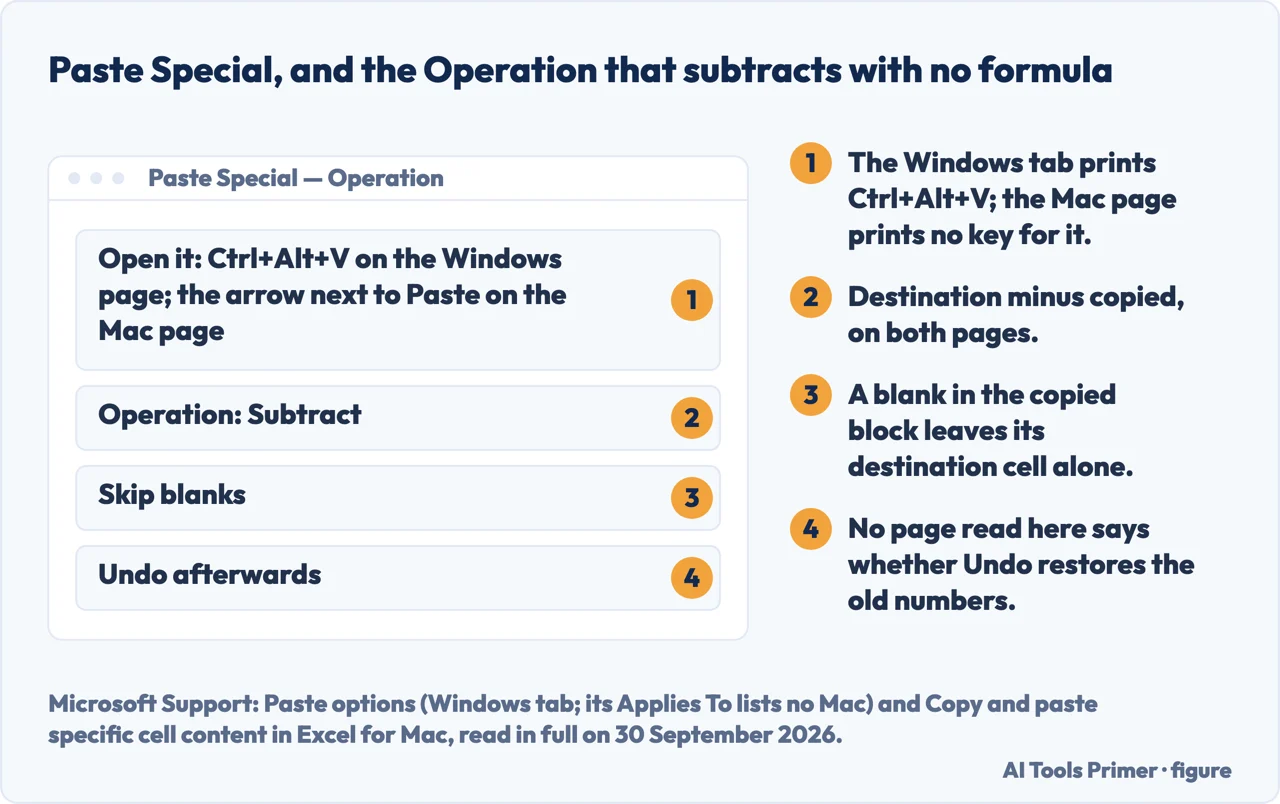
Paste Special, and the operation that subtracts with no formula
“Keyboard Shortcut: Press Ctrl+Alt+V.”
That is the Windows tab of Microsoft’s page on paste options, whose Applies To lists the five Windows products and no Mac. By mouse: Home, the Paste icon, Paste Special; under Operation, Subtract does what the table at the top quotes, destination minus copied. So: copy the cell with the number to take away, select the cells to take it from, open Paste Special and choose Subtract. The Mac page gives the arrow next to Paste on the Home tab and prints no key for Paste Special; its note on custom shortcuts mentions a combination that opens the dialog without saying which.
Two things neither page says, and one box that protects a cell. Neither says whether Undo restores the old numbers. The Web tab of the paste options page lists five entries, Paste, Paste Formulas, Paste Values, Paste Formatting and Paste Transpose, and no Paste Special box, so no page read for this guide documents this route in the browser. Skip blanks, on the Windows tab: “Avoids replacing values in your paste area when blank cells occur in the copy area when you select this check box.”
The other way to take one number off a whole column keeps the formula. Put the number
in one cell, say E2, write =B2-$E$2 beside the first value and copy it down. The
dollar signs hold E2 still: the paste options page prints how each kind of reference changes
when a formula copied from A1 is pasted two cells down and to the right, and there
$A$1, absolute in both column and row, stays $A$1 while A1 becomes C3. The
formula is this guide’s; the reference table is Microsoft’s. The routes for
copying it down are on the page on copying a formula in
Excel.
Dates, times and percentages use the same sign. The #VALUE! page subtracts dates the same way, start date in D10, end date in E10, =E10-D10 in F10. The SUM page subtracts times as end minus start and multiplies by 24, because Excel keeps a time as a fraction of a day. A percentage change is a subtraction divided by the old value, on the pages on percentages in Excel and percentage increase in Excel.
When the answer is 0.899999999999999. The Microsoft Learn page on floating-point arithmetic, last updated on 30 March 2026 and listing Excel for Microsoft 365, its Mac version, Excel 2024, 2021 and 2016, works =(43.1-43.2)+1 with the cell formatted Scientific to 15 decimal places: “Instead of displaying 0.9, Excel displays 0.899999999999999.” Its reason: 0.1 has no exact binary form, and of the numbers Excel stores “it can only do so within 15 digits of precision”. Two remedies, ROUND around the formula and the workbook option Set precision as displayed, which it warns cannot be undone once the file is saved; and since Excel 97 a result at or very close to zero is compensated for the binary error. The three search results for how to subtract in excel that could be read on 30 September 2026 do not name any of this: the words floating and precision appear on none of them.
Where to start
Five ways in.
- “Just give me the formula.”
- Six steps with the minus sign — the steps that write the formula
- “Which cell gets taken from which?”
- Two Microsoft pages, opposite wording — which cell is taken from which
- “My cell shows #VALUE!”
- A space or text in one of the two cells — six kinds of cell in the formula
- “I want one number off a whole column.”
- No formula, or a fixed reference — paste special and the subtract operation
- “The result is 0.899999999999999.”
- Fifteen digits — rounding and the fifteen digits
The formula, and the pages that copy it or show it
Copying =A2-A3 down a column, a sheet that shows formulas instead of results, and selecting the cells a formula uses each have a guide of their own.
What a cell holds, and what it does to the result
Removing spaces, counting cells that are not blank, and averaging a column each have a guide of their own.
The same sign inside other calculations
A percentage change is a subtraction divided by the old value, and the not-equal operator sits on the same Microsoft page as the minus sign.
Questions people also ask
How do I subtract multiple cells in Excel?
Chain the minus signs, as the Mac page does with =50-10-5-3, result 32, or with cell references in the same shape. Or give SUM the numbers to take away as negatives: the Windows page’s example =SUM(100,-32,15,-6) returns 77, on the page that says Excel has no SUBTRACT function.
What is the formula for subtraction?
An equal sign, the cell to subtract from, a minus sign, the cell to take away: =A2-A3. Microsoft’s Windows page shows it with 15,000 in A2 and 9,000 in A3, giving 6,000. There is no SUBTRACT function in Excel; MINUS exists in Google Sheets, where Google calls it equivalent to the minus operator.
How do I subtract two columns in Excel?
Write =A2-B2 in a third column and copy it down: Microsoft’s page on simple formulas says a copied formula adjusts to its new location, so row 3 gets =A3-B3. To put the difference in the first column, copy the second, select the first and use Paste Special, Subtract, printed for Windows and the Mac but not the browser.
How do I subtract two numbers in Excel?
Type an equal sign, the two numbers with a minus sign between them, and press Enter on Windows or Return on a Mac. Microsoft’s Windows page uses =10-5, which displays 5; its Mac page uses 50-10-5-3 after the equal sign, which gives 32.
Not covered here. It does not cover subtracting dates and times beyond =E10-D10 and the end-minus-start rule above.
It does not cover IMSUB, which Microsoft describes as returning the difference of two complex numbers in x + yi or x + yj text format, and whose page sends anyone with ordinary numbers back to the page on subtracting numbers.
And it does not cover Google Sheets beyond the one line on MINUS, nor Excel on iPhone, iPad or Android: the only page read for this guide that lists those products is the one on operators, and it prints no steps for them. Each key and route on this page carries the platform of the page it comes from.
Sources
- Microsoft Support — Subtract numbers in Excel: the minus sign as the operator, the example =10-5 displaying 5, the note that there is no SUBTRACT function with SUM(100,-32,15,-6) returning 77, the sentence that adding a negative number is identical to subtracting, the worked table with 15,000 in A2 and 9,000 in A3 described as subtracting the second from the first, which equals 6,000, and the Ctrl and grave accent key with the Show Formulas button as the alternative. Applies to Excel for Microsoft 365, Excel 2024, Excel 2021, Excel 2019 and Excel 2016 — five products, and no Mac — support.microsoft.com, read 30 September 2026.
- Microsoft Support — Add and subtract numbers: the Mac steps, the opening instruction to click a blank cell and type an equal sign, the example 50-10-5-3 giving 32, the cell example C1-D1 giving 2, the RETURN key, printed six times, and the note that a date showing instead of the result is fixed with General on the Home tab. Applies to Excel for Microsoft 365 for Mac, Excel 2024 for Mac and Excel 2021 for Mac — Mac only — support.microsoft.com, read 30 September 2026.
- Microsoft Support — Create a simple formula in Excel: the equal sign as the start of every simple formula, the limit of 8192 characters, the line that cells can be selected with the operators entered in between, the key printed as Enter on Windows or Return on a Mac, the sentence on the standard order of operations, the table that describes =A2-A3 as subtracting A2 from A3 with 2 and 5 as its data and the formula repeated in its Result column, the second table with “Subtracts 2 from 5” beside =5-2, and the line that a copied formula adjusts to its new location. Applies to Excel for Microsoft 365 and its Mac version, Excel 2024 and its Mac version, Excel 2021 and its Mac version, Excel 2019 and Excel 2016 — support.microsoft.com, read 30 September 2026.
- Microsoft Support — Use Excel as your calculator: the line that there is a SUM function and no SUBTRACT function, the mixed example =8-3+2-4+12, and ENTER as the key it names. Applies to Excel for Microsoft 365, Excel 2024, Excel 2021, Excel 2019 and Excel 2016 — no Mac — support.microsoft.com, read 30 September 2026.
- Microsoft Support — Calculation operators and precedence in Excel: the minus sign as both subtraction and negation, the examples printed with an en dash, the order of precedence, reference operators first and negation next, with addition and subtraction after multiplication and division, the left-to-right rule at equal rank, the conversion of text that looks like a number, and the example "6/1/2001"-"5/1/2001" giving 31 with its explanation. Applies to twelve products: Excel for Microsoft 365 and its Mac version, Excel 2024 and its Mac version, Excel 2021 and its Mac version, Excel for iPad, Excel Web App, Excel for iPhone, Excel for Android tablets, Excel for Android phones and Excel Mobile — support.microsoft.com, read 30 September 2026.
- Microsoft Support — SUM function: the syntax with up to 255 numbers, the sentence that a plus formula breaks on non-numeric text in the referenced cells and returns #VALUE!, and the answer on subtracting times as end minus start multiplied by 24 because Excel calculates times as a fraction of a day. Applies to Excel for Microsoft 365 and its Mac version, Excel 2024 and its Mac version, Excel 2021 and its Mac version, Excel 2019 and Excel 2016 — eight products, and no web version — support.microsoft.com, read 30 September 2026.
- Microsoft Support — How to correct a #VALUE! error: the basic subtraction =D2-E2, the Windows section on #VALUE! from a plain subtraction with its 2-and-4 test and the List separator in the Region control panel, the routes printed for Windows 10, 8 and 7, the sentence on spaces and hidden spaces, the Find and Replace fix with Replace All, the sentence on text and special characters, the line on math operations with plus and multiply as examples, the left-aligned test for a date stored as text, the date example =E10-D10, and the warning that IFERROR hides all errors. Applies to eleven products: Excel for Microsoft 365 and its Mac version, Excel 2024 and its Mac version, Excel 2021 and its Mac version, Excel 2019 and its Mac version, Excel 2016 and its Mac version, and Excel Web App — support.microsoft.com, read 30 September 2026.
- Microsoft Support — Paste options: on its Windows tab, the route to Paste Special, the shortcut Ctrl+Alt+V, the Subtract row of the Operation table, the Skip blanks sentence, and the table of how each reference type changes when a copied formula is pasted two cells down and to the right; on its Web tab, five paste entries and no Paste Special box. Applies to Excel for Microsoft 365, Excel 2024, Excel 2021, Excel 2019 and Excel 2016 — five products, and no Mac — support.microsoft.com, read 30 September 2026.
- Microsoft Support — Copy and paste specific cell content in Excel for Mac: the arrow next to Paste on the Home tab as the route to Paste Special, the Subtract row of its Operation table, Skip Blanks, and the note on custom shortcuts that mentions a key combination for the dialog without printing it. Applies to Excel for Microsoft 365 for Mac, Excel 2024 for Mac and Excel 2021 for Mac — Mac only — support.microsoft.com, read 30 September 2026.
- Microsoft Support — Show and print formulas: on its Windows tab, the Ctrl and grave accent key and the Show Formulas button in the Formula Auditing group; on its Web tab, the sentence that formulas are switched on in cells in the desktop app. Applies to Excel for Microsoft 365, Excel 2024, Excel 2021, Excel 2019 and Excel 2016 — no Mac — support.microsoft.com, read 30 September 2026.
- Microsoft Support — Show and print formulas in Excel for Mac: the same key, and the tip that keyboard shortcuts may vary with the Mac keyboard layout and language settings. Applies to Excel for Microsoft 365 for Mac, Excel 2024 for Mac and Excel 2021 for Mac — Mac only — support.microsoft.com, read 30 September 2026.
- Microsoft Support — IMSUB function: the description of what it returns, the difference of two complex numbers in x + yi or x + yj text format, and the line that sends anyone subtracting ordinary numbers to the Subtract numbers page. Named only in the closing paragraph. Applies to Excel for Microsoft 365 and its Mac version, Excel 2024 and its Mac version, Excel 2021 and its Mac version, Excel 2019 and Excel 2016 — support.microsoft.com, read 30 September 2026.
- Microsoft Learn — Floating-point arithmetic may give inaccurate results in Excel: the 15 digits of precision, the example =(43.1-43.2)+1 displaying 0.899999999999999, the ROUND function and the Set precision as displayed option with its warning that the lost data cannot be recovered, and the compensation since Excel 97 for results at or very close to zero. Applies to Excel for Microsoft 365, Excel for Mac for Microsoft 365, Excel 2024, Excel 2021 and Excel 2016; last updated on 30 March 2026 — learn.microsoft.com, read 30 September 2026.
- Google Docs Editors Help — MINUS function: the description that it returns the difference of two numbers and is equivalent to the minus operator, with the syntax MINUS(value1, value2). A Google Sheets page, cited to say that the function is not Excel’s; it carries no product line — support.google.com, read 30 September 2026.
- Exceljet — How to use subtraction in a formula, the transcript of a video lesson, read in full on 30 September 2026: the only source read for this guide that states what a blank cell does in a subtraction, and the line that text in a referenced cell can return a VALUE error. An independent site, with no Applies To line of its own — exceljet.net, read 30 September 2026.
Written by Alberto Gulotta
Founder and editor of AI Tools Primer, writing from Palermo, Italy. Thirty-five years of taking computers apart, starting with a Commodore 64 — the long version is on the about page.
Something wrong on this page? Write to aitoolsprimer@gmail.com and it gets fixed.
Written on 1 October 2026.
Independence and limits
No affiliate links and no paid placements anywhere on this site. Nobody pays to appear here, and no company has seen this page before you did.
This is general information, not professional advice. Where a page touches money, health, safety or the law, it names its source and the date it was read — and your situation may still differ. See the privacy page and the cookie policy.