
Docs · guide
How to calculate mean in Excel, and what it ignores
By Alberto Gulotta · Updated · 23 min read
Two answers to how to calculate mean in Excel, both documented by Microsoft. With nothing to type: select the cells and read Average on the status bar. With a formula: type =AVERAGE(A2:A7) and press Enter, or RETURN on the Mac page. The divisor is the number of numeric cells: text, logical values and empty cells are ignored, zeros are not.
| Way in | What that page says it gives you | Products listed on that page | Page read |
|---|---|---|---|
| Status bar, on the desktop | Average, on by default, “calculated from selected cells that contain numerical values”. Nothing is typed | Excel for Microsoft 365, Excel 2024, Excel 2021 — and no Mac | Excel status bar options |
| Status bar, in the browser | Select two or more cells with numeric data and the average, count and sum appear; select one to copy it | No Applies To line at all; the text names Excel for the web | View summary data on the status bar |
| AutoSum > Average | Writes an AVERAGE formula into the cell. The Windows page routes through the Home tab, the Mac page through the Formulas tab, and the AutoSum page says the button itself sits in both | Windows page: 365, 2024, 2021, 2019, 2016. Mac page: 365 for Mac, 2024 for Mac, 2021 for Mac | Calculate the average of a group of numbers; Calculate an average |
=AVERAGE(A2:A7) |
“Returns the average (arithmetic mean) of the arguments”; the page caps the additional ones at 255 | 365, 365 for Mac, 2024, 2024 for Mac, 2021, 2021 for Mac, 2019, 2016 — no web version listed | AVERAGE function |
=AVERAGEA(A2:A7) |
Differs on text in a reference (one line says zero, another ignored), TRUE and FALSE (1 and 0), empty text (0 on one AVERAGEA line; not named on the AVERAGE page), and logical values or numbers-as-text typed straight into the arguments (counted) — see below | The same eight products as AVERAGE | AVERAGEA function |
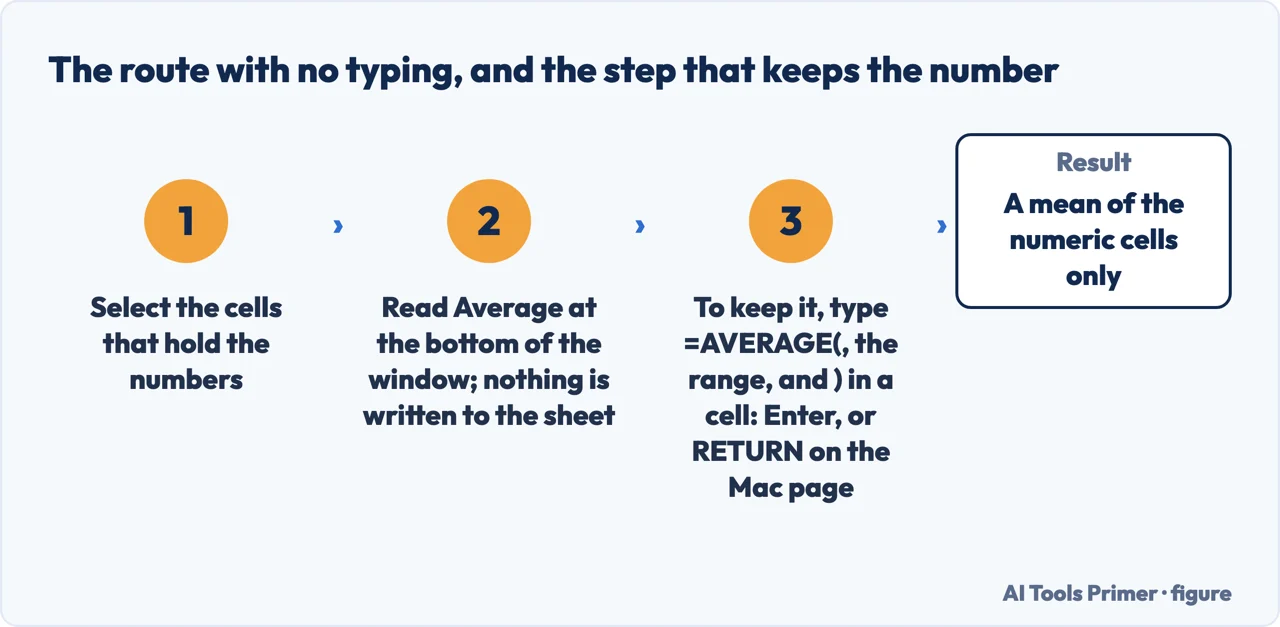
- Click the cell where the answer goes. Microsoft’s Windows page starts there: “Click a cell below, or to the right, of the numbers for which you want to find the average.”
- Type an equal sign, then the function name and an open bracket:
=AVERAGE(. The equal sign is the part that makes it a formula rather than a label, and Microsoft’s starting page puts it before anything else: “Pick a cell, and then type an equal sign (=).” The published syntax after it isAVERAGE(number1, [number2], ...), and the first argument is required: a number, a cell reference or a range. - Select the numbers. A range such as
A2:A7goes in as one argument, and the AVERAGE page caps the additional arguments at a maximum of 255; reading that as 255 arguments in total is Exceljet’s wording; the AVERAGEA page words its own limit the same way, “1 to 255”. Blocks that are not next to each other are a job of their own — see selecting multiple cells in Excel. - Close the bracket and press Enter — RETURN on the Mac page. What comes back is the total of the numeric cells divided by how many numeric cells there were, which is the measure Microsoft calls the arithmetic mean — unless the range holds an error value or no numbers at all, and both of those are below.
- Or let AutoSum write the formula. The Windows page gives the route as the Home tab, Editing group, the arrow beside AutoSum, then Average, and then Enter; the Mac page gives the Formulas tab, the arrow beside AutoSum, then Average, and then RETURN. The AutoSum page, which covers both platforms, says only that the button sits in two places, Home and Formulas. The Mac page shows what lands in the cell: “The formula is displayed in the formula bar, =AVERAGE(A2:A7) if you’re using the sample data.”
- Read the range before you trust the number. The AVERAGE page states the rule in one sentence: “If a range or cell reference argument contains text, logical values, or empty cells, those values are ignored; however, cells with the value zero are included.” The table further down takes that sentence apart, cell by cell.
The mean with no formula at all, and the products each page lists for it
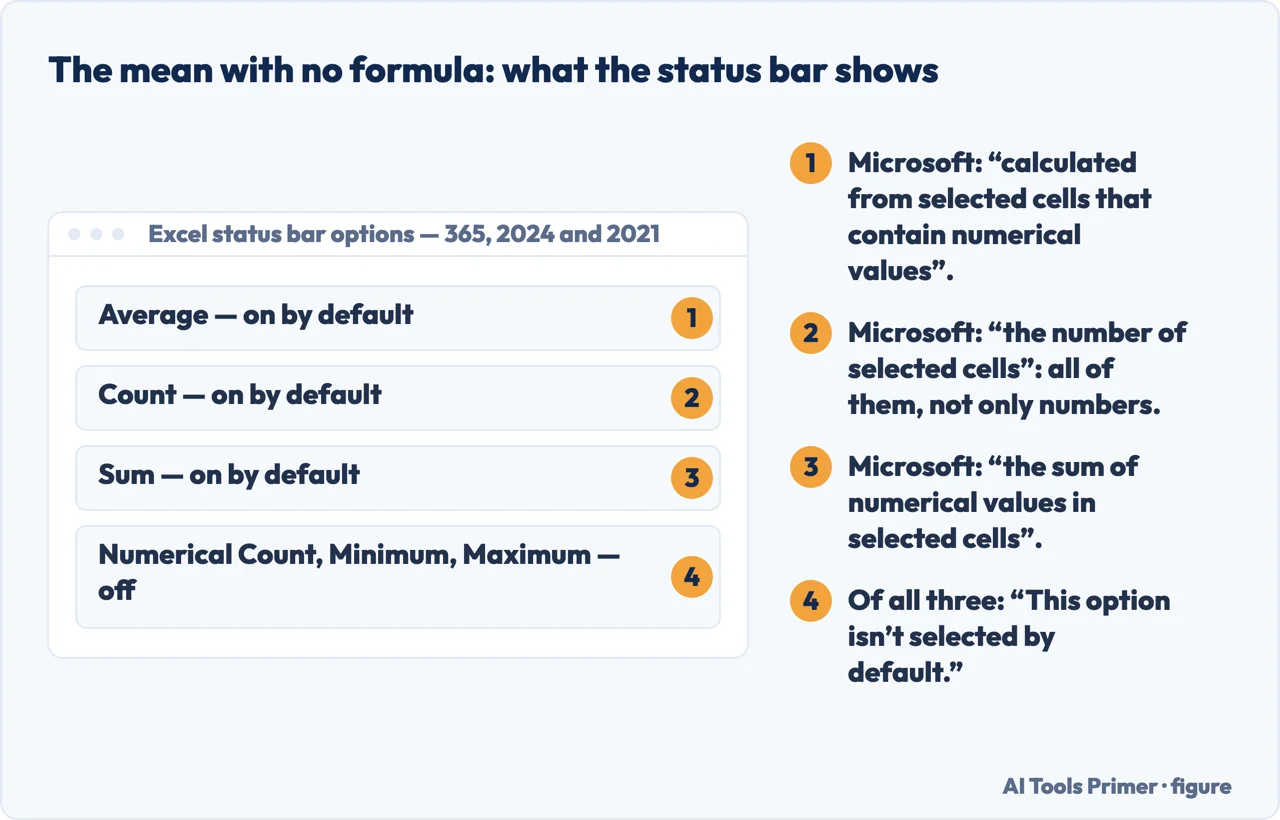
“When you select two or more cells that have numeric data, Excel for the web automatically summarizes that data and shows the average, count, and sum on the status bar.”
That is the browser page, and it carries no Applies To line: the product is named inside the sentence. It adds that the figures redraw as the selection changes, and that “Select a summary value on the status bar, such as Average, Count, or Sum, to copy it to the clipboard.” — which is also the answer to where the number lives: on the bar, until you paste it somewhere.
On the desktop the same bar is documented on a different page, and that one does carry an Applies To line: Excel for Microsoft 365, Excel 2024 and Excel 2021, and it stops there. There, Average and Sum are on by default, and so is Count — but Count is “the number of selected cells”, all of them, while Average is calculated from the numeric ones only. Numerical Count, Minimum and Maximum are the three summary entries that are off until you switch them on: “To customize the status bar, right-click it, and then select the options that you want.” In the browser the list is opened from the arrow beside the last entry on the bar instead, and it is a shorter list: six entries, average, count, numerical count, min, max and sum.
Two gaps, stated rather than filled. No Microsoft page read for this guide describes the status-bar average in Excel for Mac, so this guide does not claim it is there. And the AutoSum page — the one that lists Windows, Mac, Android and the browser — covers only SUM: it never mentions Average, which is documented instead on the two task pages named in the table above.
Two sentences on one Microsoft page, and they cannot both hold
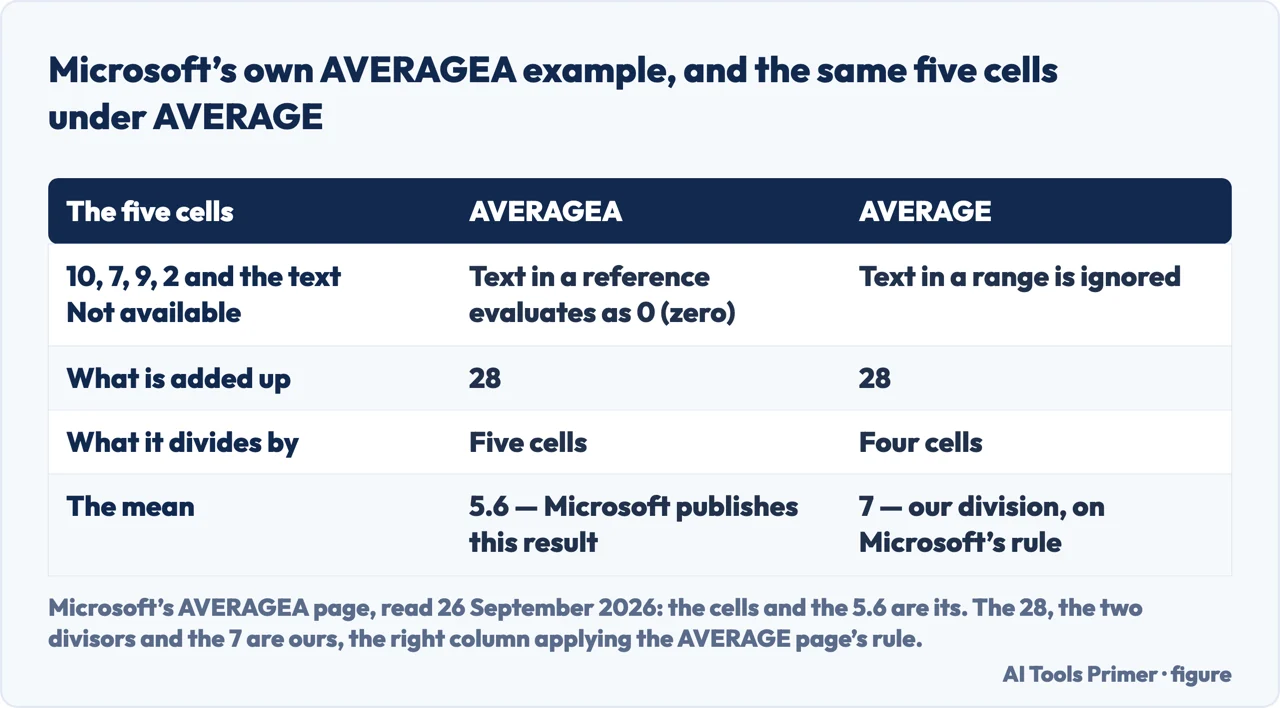
“Array or reference arguments that contain text evaluate as 0 (zero).”
A few lines below, the same AVERAGEA page says the opposite: “Empty cells and text values in the array or reference are ignored.” A cell that counts as zero joins the division; a cell that is ignored does not.
The worked example settles which rule produced the published number. The data on that
page is 10, 7, 9, 2 and the words Not available, and the result printed for
=AVERAGEA(A2:A6) is 5.6. The four numbers add up to 28. Twenty-eight over
five cells is 5.6; over four cells it is 7. So the published 5.6 is the text counted as a
zero. The cells, the 5.6 and the two sentences are Microsoft’s; the 28, the two
divisions and the 7 are ours.
The AVERAGE page says text in a range is ignored, so those five cells give 7 there. Reaching for AVERAGEA because it is the one that includes the text does not put the text into the average: in the example Microsoft publishes it puts a zero in, and on these numbers a zero pulls the mean toward zero, from 7 down to 5.6. The AVERAGEA page also counts TRUE as 1 and FALSE as 0, where the AVERAGE page lists logical values in the same breath as text and empty cells, among the values ignored inside a range. The short description in Microsoft’s own statistical functions reference is the phrasing that makes the swap look free: “Returns the average of its arguments, including numbers, text, and logical values”.
The second published example looks like the answer on the empty cell, and it is not.
=AVERAGEA(A2:A5,A7) is also given as 5.6, labelled there as the average of the
numbers above and the empty cell. But the page says to copy its example data and paste it in
cell A1, and the row below Not available is the heading Formula: pasted that way, A7 holds
that word. Five cells, one of them text, 28 over five, 5.6 — the text-as-zero rule a
second time, and nothing settled about blanks. No copy of Excel was opened for this guide, so
which of the two sentences the program follows is not something this page claims to know.
An empty cell, empty text, a space, a zero, an error
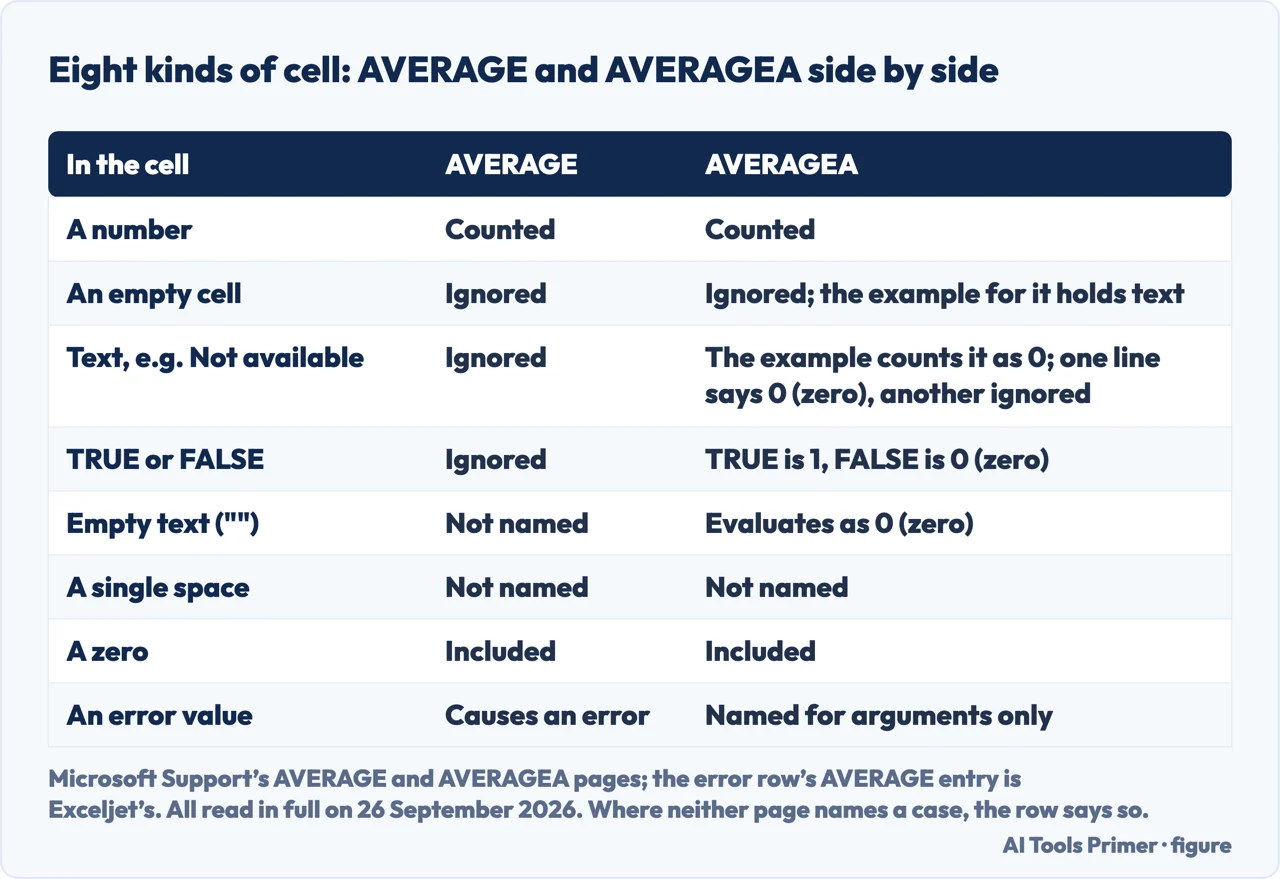
The five cases none of the four web results read on 26 September 2026 puts in one place. Each line names the page that states it, and where no page read states it, that is what the line says.
- An empty cell
- AVERAGE ignores it, on the AVERAGE page’s own rule quoted in step six. The AVERAGEA page says empty cells are ignored as well, and nothing on it tests that: its second worked example is labelled the empty cell, but the cell that example reads holds the heading Formula. Set out above.
- Empty text
- The AVERAGEA page names it: “Empty text ("") evaluates as 0 (zero).”
The AVERAGE page never names empty text; it names text in a range, and says text in a range
is ignored. Whether AVERAGE reads a cell holding
""as text or as a blank is not stated on any page read for this guide, so this guide does not state it either. - A single space
- No page read for this guide names a cell holding one space character. Neither function page says whether AVERAGE or AVERAGEA counts it, ignores it or reads it as text, and this guide will not say it for them.
- A zero
- Counted, and that is where an empty cell and a zero part company. The tip repeated on both function pages ties it to a display setting: “When this option is selected, empty cells are not counted, but zero values are.” The page on displaying and hiding zero values is the one that says what clearing the box does: “To display zero (0) values as blank cells, uncheck the Show a zero in cells that have zero value check box.” A cell showing nothing may therefore still hold a zero. The path to that box, File then Options then Advanced, is printed on the AVERAGE page itself, which places the box in the Excel desktop application without naming a platform; the page on hiding zeros prints the same path and lists no Mac version.
- An error value
- One #VALUE! error in the range is enough. The page on correcting a #VALUE! error in AVERAGE or SUM
functions puts that case in one sentence: “If AVERAGE or SUM refer to cells that
contain #VALUE! errors, the formulas will result in a #VALUE! error.” The AVERAGE
page, in the same list that covers text and empty cells, says: “Arguments that are
error values or text that cannot be translated into numbers cause errors.” Exceljet
states the case of a range directly: “If the values given to AVERAGE contain errors,
AVERAGE returns an error.” The #VALUE! page offers
=AVERAGE(IF(ISERROR(B2:D2),"",B2:D2))and is precise about how to enter it: “So you either need to press ENTER (only if you are using Microsoft 365) or CTRL+SHIFT+ENTER in the formula.” Its Applies To line covers the Mac versions as well, and it names no Mac key anywhere.
And when the range holds no numbers at all. Among the five results read on 26 September 2026, the four that are web pages never mention this case, and the remaining one is a PDF whose deposited text could not be read again. Microsoft does not fill it either: the AVERAGE page never says when AVERAGE itself returns #DIV/0!. The condition is stated only for the conditional versions — “If no cells in the range meet the criteria, AVERAGEIF returns the #DIV/0! error value.” — and the general error page defines the error without naming AVERAGE at all: “Microsoft Excel shows the #DIV/0! error when a number is divided by zero (0).” The sentence that AVERAGE does it too comes from Exceljet, read in full the same day: “if the range contains no numeric values, AVERAGE will return a #DIV/0! error”. Its way round the problem counts first, =IF(COUNT(range)>0,AVERAGE(range),""), and COUNT is the function Microsoft’s statistical reference describes as one that “Counts how many numbers are in the list of arguments”. No Microsoft page read for this guide confirms the Exceljet sentence, and it is marked here as coming from somewhere else for that reason.
Where to start
Five ways in.
- “Just give me the number.”
- The status bar, no formula — the route with no formula
- “I need it in a cell.”
- Six steps with AVERAGE — the steps that write the formula
- “Should I switch to AVERAGEA?”
- What it does to the number — the zero instead of the text
- “My range has blanks, zeros and errors.”
- Cell by cell — a cell by cell list
- “Mine returns #DIV/0!”
- A range with no numbers — a range with no numbers
Reading the mean off the status bar
Select the cells and the average is already at the bottom of the window, on the page Microsoft writes for the browser and on the one it writes for three desktop versions.
AVERAGEA, and the zero that arrives instead of the text
Text inside a reference evaluates as zero on one line of the AVERAGEA page and is ignored on another, and the published result of its own example says which line the number came from.
What AVERAGE does with each kind of cell
One sentence on the AVERAGE page covers text, logical values, empty cells and zeros; empty text and a single space it does not cover, and this guide says so rather than filling the gap.
When the range holds no numbers at all
The AVERAGE page never states the #DIV/0! condition for AVERAGE, the conditional pages state it for themselves, and the sentence that closes the gap comes from outside Microsoft.
Questions people also ask
Is average in Excel the same as mean?
On Microsoft’s pages the two words name one measure: the AVERAGE function returns the arithmetic mean, and the note repeated across those pages defines Average as the arithmetic mean, calculated by adding a group of numbers and then dividing by how many there are. Median and mode are the other two measures it names.
What do the formulas mean in Excel?
A formula starts with an equal sign and runs a calculation. Microsoft’s starting page says to pick a cell and type an equal sign: “That tells Excel that this cell will contain a formula.” After it come numbers and calculation operators, as in =4/2, or a function name with its arguments, as in =AVERAGE(A2:A7).
How to calculate SE mean in Excel?
SE mean is the standard error of the mean. No Microsoft page read for this guide publishes a formula for it: the only standard error in its statistical functions reference is STEYX, described there as the standard error of the predicted y-value for each x in a regression. For the spread itself, see standard deviation in Excel.
How to calculate the mean?
On Microsoft’s page Calculate the average of a group of numbers, the arithmetic mean is “calculated by adding a group of numbers and then dividing by the count of those numbers.” The AVERAGE, AVERAGEA and AVERAGEIF pages repeat it with a different opening. Its example: 2, 3, 3, 5, 7 and 10 make 30, divided by 6, which is 5.
Not covered here. It does not cover the median or the mode, the two other measures Microsoft names beside the mean in the same note: the median is the middle number of a group of numbers, the mode the most frequently occurring one, and that note adds that for a symmetrical distribution the three are all the same, while for a skewed one they can be different.
It does not cover conditional averages, where a criterion decides which cells count and AVERAGEIF and AVERAGEIFS take over, nor the weighted average that Microsoft builds from SUMPRODUCT and SUM, nor standard deviation in Excel.
And it does not cover Google Sheets. What holds instead is simple: every route here is printed with the products Microsoft lists for it, and where no page read for this guide says what happens, the page says that instead of guessing.
Sources
- Microsoft Support — AVERAGE function: the sentence that it returns the arithmetic mean, the rule for text, logical values, empty cells and zeros inside a range, the line in that same list that arguments which are error values cause errors, the maximum of 255 additional arguments, the tip about the display setting for zeros and the File then Options then Advanced path to it. Applies to Excel for Microsoft 365 and its Mac version, Excel 2024 and its Mac version, Excel 2021 and its Mac version, Excel 2019 and Excel 2016 — eight products, and no web version — support.microsoft.com, read September 2026.
- Microsoft Support — AVERAGEA function: the line that text in an array or reference evaluates as zero, the line a few rows below that empty cells and text values in a reference are ignored, the line that empty text evaluates as zero, the line that TRUE evaluates as 1 and FALSE as 0, the line that arguments which are error values cause errors, its own “1 to 255” wording for the argument limit, and the two worked examples that both print 5.6. Applies to the same eight products as AVERAGE — support.microsoft.com, read September 2026.
- Microsoft Support — Excel status bar options: Average, Count and Sum selected by default, Numerical Count, Minimum and Maximum not selected by default, and the right-click that changes them. Applies to Excel for Microsoft 365, Excel 2024 and Excel 2021 — three products, and no Mac — support.microsoft.com, read September 2026.
- Microsoft Support — View summary data on the status bar: two or more numeric cells produce an average, a count and a sum; the values update as the selection changes; a summary value can be copied to the clipboard; six entries can be shown. The page carries no Applies To line and names Excel for the web in its own text — support.microsoft.com, read September 2026.
- Microsoft Support — Calculate the average of a group of numbers: the first step of the click route, the Home tab and Editing group path to the AutoSum arrow, the Enter key it names at the end of that route, and the one-line definition of the arithmetic mean quoted in the questions above — the only page read for this guide whose sentence opens “This is the arithmetic mean”, where the AVERAGE, AVERAGEA, AVERAGEIF and AVERAGEIFS pages open it “Average, which is” or “Average which is”. Applies to Excel for Microsoft 365, Excel 2024, Excel 2021, Excel 2019 and Excel 2016 — Windows only — support.microsoft.com, read September 2026.
- Microsoft Support — Calculate an average: the Mac route, on the Formulas tab, the RETURN key it names at the end of that route, and the sentence showing the formula AutoSum writes into the cell. Applies to Excel for Microsoft 365 for Mac, Excel 2024 for Mac and Excel 2021 for Mac — Mac only — support.microsoft.com, read September 2026.
- Microsoft Support — How to correct a #VALUE! error in AVERAGE or SUM functions: the sentence that one #VALUE! error in the referenced cells becomes the result, the ISERROR formula offered instead with the line that it “will not only work for #VALUE!, but also for #N/A, #NULL, #DIV/0!, and others”, and the two ways of entering it, neither of which names a Mac key. Applies to Excel for Microsoft 365 and its Mac version, Excel 2024 and its Mac version, Excel 2021 and its Mac version, Excel 2019 and Excel 2016 — support.microsoft.com, read September 2026.
- Microsoft Support — AVERAGEIF function: the #DIV/0! condition when no cell in the range meets the criteria, quoted above because the AVERAGE page states no such condition for itself. Applies to the eight products of AVERAGE plus Excel Web App — support.microsoft.com, read September 2026.
- Microsoft Support — AVERAGEIFS function: the second of the two conditional pages that state a #DIV/0! condition for themselves — here when no cells meet all the criteria — where the AVERAGE page states none for AVERAGE. Named in the closing section with AVERAGEIF. Applies to the eight products of AVERAGE plus Excel Web App — support.microsoft.com, read September 2026.
- Microsoft Support — How to correct a #DIV/0! error: the general definition of the error, on a page that never mentions AVERAGE. Applies to fifteen products, from Excel for Microsoft 365 to Excel Web App and the phone versions — support.microsoft.com, read September 2026.
- Microsoft Support — Statistical functions (reference): the one-line description of AVERAGEA that says it includes text and logical values, the one-line description of COUNT, and STEYX as the only standard error in the list. Applies to the same eight products as AVERAGE — support.microsoft.com, read September 2026.
- Microsoft Support — Basic tasks in Excel: the instruction to pick a cell and type an equal sign, the sentence that this is what tells Excel a cell will contain a formula, and the examples of what follows it. Applies to Excel for Microsoft 365, Excel 2024, Excel 2021, Excel 2019 and Excel 2016 — support.microsoft.com, read September 2026.
- Microsoft Support — Use AutoSum to sum numbers in Excel: read in full on 26 September 2026 and cited here for the one line that puts AutoSum in two places, Home and Formulas, and for what it does not contain — the word Average appears nowhere on it, although it lists Windows, Mac, Android and browser routes. Applies to twelve products, including Excel for iPad, iPhone and Android — support.microsoft.com, read September 2026.
- Microsoft Support — Display or hide zero values: the sentence that unchecking the box displays zero values as blank cells, and the same File then Options then Advanced path the function pages print. Applies to Excel for Microsoft 365, Excel 2024, Excel 2021, Excel 2019 and Excel 2016 — five products, and no Mac — support.microsoft.com, read September 2026.
- Exceljet — AVERAGE function, read in full on 26 September 2026: the only source read for this guide that states what AVERAGE returns when the range holds no numeric values; also cited for the COUNT test it offers to avoid it, the line that AVERAGE returns an error when the values given to it contain errors, and the wording that reads the limit as 255 total arguments. An independent site, with no Applies To line of its own — exceljet.net, read September 2026.
Written by Alberto Gulotta
Founder and editor of AI Tools Primer, writing from Palermo, Italy. Thirty-five years of taking computers apart, starting with a Commodore 64 — the long version is on the about page.
Something wrong on this page? Write to aitoolsprimer@gmail.com and it gets fixed.
Written on 29 September 2026.
Independence and limits
No affiliate links and no paid placements anywhere on this site. Nobody pays to appear here, and no company has seen this page before you did.
This is general information, not professional advice. Where a page touches money, health, safety or the law, it names its source and the date it was read — and your situation may still differ. See the privacy page and the cookie policy.