
Docs · guide
How to calculate percentage in Excel, and the format trap
By Alberto Gulotta · Updated · 11 min read
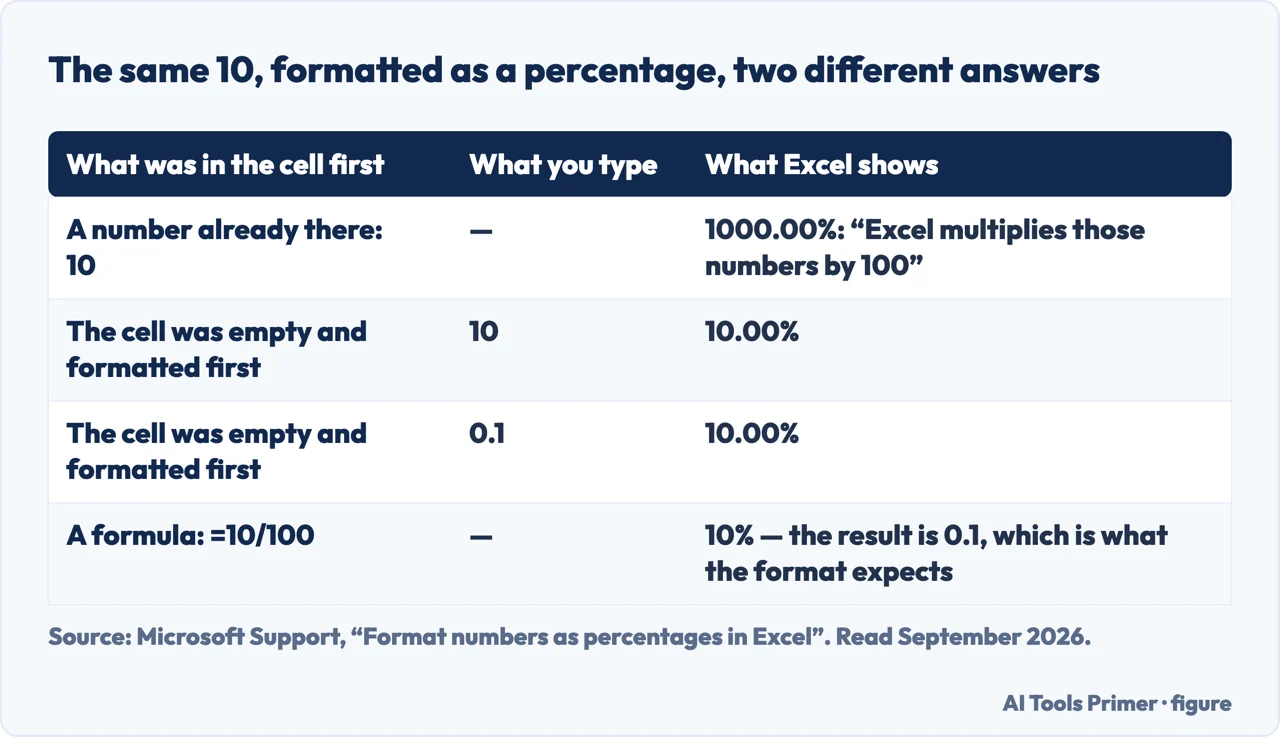
To get a percentage of a number in Excel you need two halves, and the second is where the wrong answers come from. The formulas are the easy half. The percentage format does something different depending on when you apply it, and that is documented on another page entirely.
| What was in the cell first | What you type | What Excel shows | Source |
|---|---|---|---|
A number already there: 10 | — | 1000.00% — “Excel multiplies those numbers by 100” | Microsoft |
| An empty cell, formatted first | 10 | 10.00% | Microsoft |
| An empty cell, formatted first | 0.1 | 10.00% | Microsoft |
A formula: =10/100 | — | 10% — the result is 0.1, which is what the format expects | Microsoft |
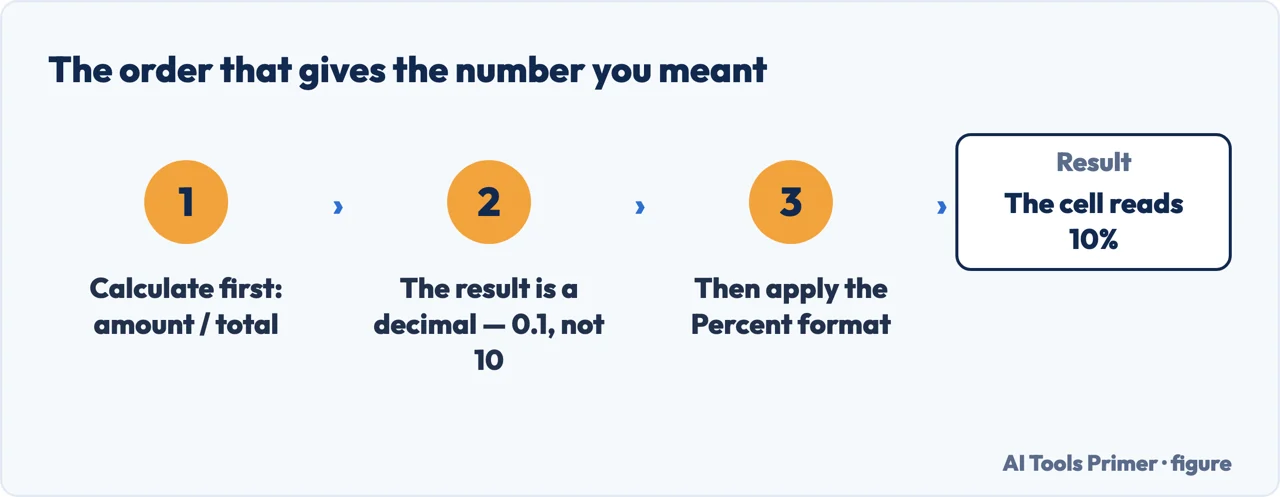
- Calculate before you format. Microsoft gives the equation:
amount / total =
    percentage
. A cell holding=10/100contains 0.1. - Leave the result as a decimal for a moment. 0.1 is not a mistake: it is what the percentage format is built to read.
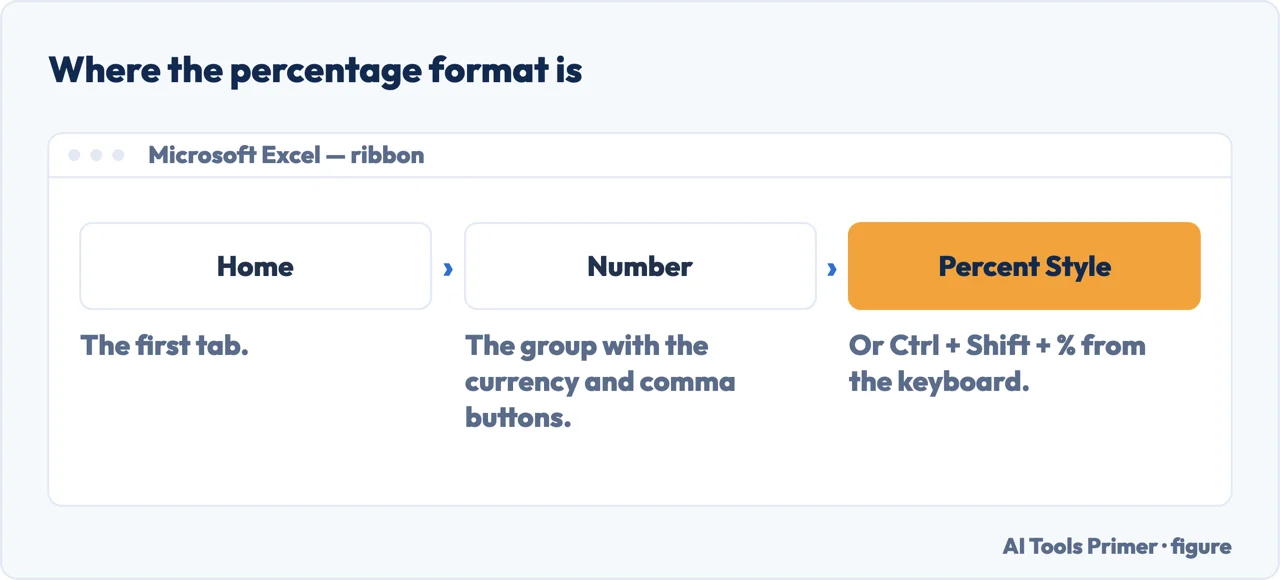
- Select the cells and apply Percent Style. Home tab, Number group — or Ctrl + Shift + %.
- Check what you got. 0.1 becomes 10%. If you see 1000%, the cell held a number that was already a percentage and the format multiplied it by a hundred.
- If you must format first, know the other rule. In cells formatted before you type, “numbers equal to and larger than 1 are converted to percentages by default; and numbers smaller than 1 are multiplied by 100”, so 10 and 0.1 both give 10.00%.
The four formulas, with Microsoft’s own worked numbers
Type the formula, press Return, then apply the percentage format to the result. In every case the calculation comes first and the format second — which is not an accident, as the next section explains.
=42/50
=(2500-2342)/2342
=(2425-2500)/2500
=15/0.75
Why typing 10 sometimes means 10% and sometimes means 1000%
Microsoft states the cause plainly: the result “may vary, depending on whether the numbers already exist in your workbook”. Two different behaviours, same keystroke.
The cell already had a number in it
“If you apply the Percentage format to existing numbers in a workbook, Excel multiplies those
numbers by 100 … if a cell contains the number 10, Excel multiplies that number by
100, which means that you will see 1000.00% after you apply the Percentage format.” Microsoft
adds the understatement of the page: “This may not be what you expected.”
The cell was empty and you formatted it first
“the behavior is different. Numbers equal to and larger than 1 are converted to percentages by
default; and numbers smaller than 1 are multiplied by 100.” So in a pre-formatted cell,
“typing 10 or 0.1 both result in 10.00%”. The same two keystrokes that
would have produced 1000% a moment earlier now produce 10%.
What to hold on to
A percentage in Excel is a decimal wearing a costume. Under 84.00% the cell holds 0.84.
Microsoft gives the equation as amount / total = percentage, and its own example is
exact: =10/100 gives 0.1, and 0.1 formatted as a percentage “will be correctly
displayed as 10%”. Calculate first, format second, and the ambiguity never arises.
And once the number is right, the sentence beside it can still be wrong. The Office for National Statistics keeps the two apart in one line: “A percentage point is the difference between percentages. A value of 10% falling by 1 percentage point becomes 9% (10% has 10 percentage points). A fall of 1% would result in a value of 9.9%.” The same guide asks for “the same number of decimal places for a sequence of percentages”, which is what makes a column read as one measurement instead of several.
This is why a spreadsheet can show a figure that is wrong by a factor of a hundred and look entirely normal. Nothing is flagged. The cell has a value, the value has a per-cent sign, and the sign is doing exactly what it was asked. If a percentage in a sheet you did not build looks implausible, clicking the cell and reading the formula bar tells you in one second what the formatting is hiding.
The shortcut, and one reason to skip it. Ctrl+Shift+% applies the percentage format to the selection immediately, and Percent Style sits in the Number group on the Home tab. It is fast, and on a column that already contains numbers it is the exact keystroke that produces the multiply-by-100 behaviour above. Fast is fine once you know which of the two cases you are in.
Find, calculate or work out — and the word Microsoft uses. How to find percentage in excel and how to calculate percentage in excel are the same four formulas. Worth knowing which term the documentation uses, though, because it decides what you can look up: Microsoft calls the second calculation the percentage of change. Searching its help for percentage difference finds much less, and the arithmetic you almost certainly want is the change one — new minus old, divided by old.
Decimal places. The default format shows two, so a share comes out as 84.00% rather than 84%. Microsoft’s note is that Increase Decimal and Decrease Decimal change it. Worth using deliberately: two decimal places on a percentage calculated from small counts implies a precision the underlying numbers do not have — 42 out of 50 is not accurate to a hundredth of a per cent.
On percentage points. If a rate moves from 4% to 6%, that is a rise of two percentage points and an increase of fifty per cent, and both statements are true. Excel will happily compute either and cannot tell you which one your reader will assume. When the figure is going into a sentence somebody else reads, saying which of the two you mean costs three words and prevents the most common misreading of a number there is.
The formulas, the worked examples and both formatting behaviours above are quoted from Microsoft’s own Excel documentation, read on 22 August 2026 and listed below. The advice about decimal places and the note on percentage points are ours.
Where to start
Four ways in.
- “What is X out of Y?”
- First formula, above. Then read the format trap
- “How much did it go up?”
- Second formula — the formulas
- “My percentages are enormous.”
- That is the format — the format trap
- “The sheet came from somebody else.”
- Check the formula bar — checking somebody else s sheet
The formulas
Four calculations cover almost every percentage question a spreadsheet is asked, and Microsoft publishes worked numbers for each.
The format trap
The percentage format is not a display setting on top of a number. It changes the number, and what it does depends on the order you did things in.
Checking somebody else’s sheet
The formula bar is the only place a spreadsheet tells the truth about itself. Everything else is presentation.
Showing the number
A percentage often ends up in a chart or a document, and each step out of the spreadsheet is a chance to lose its meaning.
Questions people also ask
How do I work out a percentage of a number in Excel?
Divide and then format. Microsoft’s equation is amount / total = percentage: a cell with =10/100 holds 0.1, and applying the Percent format shows it as 10%.
Why did my 10 become 1000%?
Because the number was in the cell before the format. Microsoft: “if you apply the Percentage format to existing numbers in a workbook, Excel multiplies those numbers by 100.” Divide by a hundred first, or type the value again after formatting.
How do I calculate 5% of a number?
Multiply: =A1*5%, or =A1*0.05, which is the same thing. Excel reads the percent sign as a division by a hundred, so both give the same result.
Should I format the cells before or after typing?
Either, as long as you know the rule changes. In cells formatted first, “numbers equal to and larger than 1 are converted to percentages by default; and numbers smaller than 1 are multiplied by 100” — so 10 and 0.1 both come out as 10.00%.
Not covered here. It will not give you the formulas and stop. The formulas are the half that works; the format is the half that produces wrong answers quietly.
It will not describe the percentage format as cosmetic. Microsoft documents two different behaviours for it, and both are quoted here.
And it will not confuse percentage points with per cent, or let a sentence do it by accident. What holds instead is simple: the formulas and both formatting behaviours are quoted from Microsoft’s own Excel documentation, with the date each page was read.
Step 5 of 21 in half an hour in a spreadsheet
The order the work actually happens in: the data arrives, it gets cleaned, it gets counted, it gets a chart, and then somebody else opens it.
- Before this
- How to use vlookup in excel, and the argument to always type
- After this
- How to calculate percentage increase in Excel, and what breaks it
Sources
- Microsoft Support — Calculate percentages, including the worked examples for a share of a total, an increase, a decrease and finding the original price from a discount — support.microsoft.com, read 22 August 2026.
- Microsoft Support — Format numbers as percentages in Excel, including the two different behaviours for existing numbers and for cells formatted before typing, and the amount / total = percentage equation — support.microsoft.com, read 3 September 2026.
- Office for National Statistics — Percentages and percentage points, in the content style guide: the difference between a fall of 1% and a fall of one percentage point, and the rule on decimal places — service-manual.ons.gov.uk, read 3 September 2026.
Written by Alberto Gulotta
Founder and editor of AI Tools Primer, writing from Palermo, Italy. Thirty-five years of taking computers apart, starting with a Commodore 64 — the long version is on the about page.
Something wrong on this page? Write to aitoolsprimer@gmail.com and it gets fixed.
Written on 22 August 2026 · last checked 23 September 2026.
Independence and limits
No affiliate links and no paid placements anywhere on this site. Nobody pays to appear here, and no company has seen this page before you did.
This is general information, not professional advice. Where a page touches money, health, safety or the law, it names its source and the date it was read — and your situation may still differ. See the privacy page and the cookie policy.