
Docs · guide
How to alphabetize in Excel, without scrambling your rows
By Alberto Gulotta · Updated · 9 min read
Learning how to alphabetize in excel takes one click. Learning it without silently destroying the relationship between a name and the row it belongs to takes one extra second of care, and Microsoft puts the whole of that care into the first word of its first step.
“Select a cell in the column you want to sort.”
Microsoft’s first step, read 22 August 2026. A cell — not the column. That one word is the difference between a sorted list and a scrambled one, and it is why the second result on Google for this question is somebody on Reddit asking how to sort alphabetically “so all the rows” stay together.
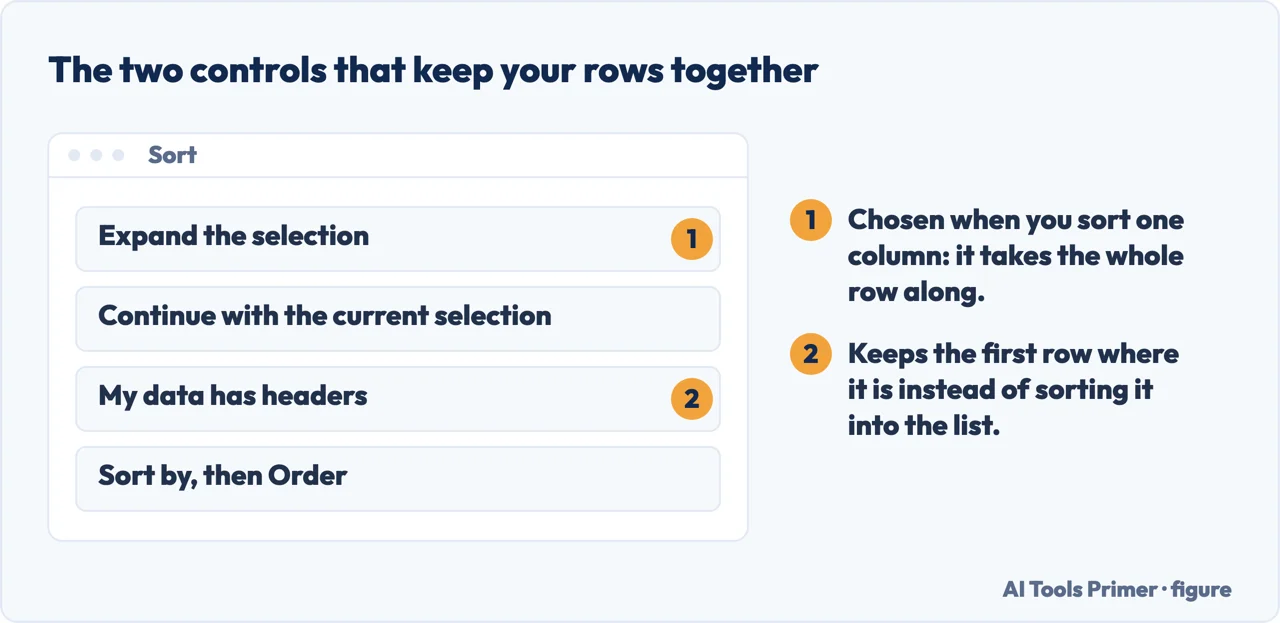
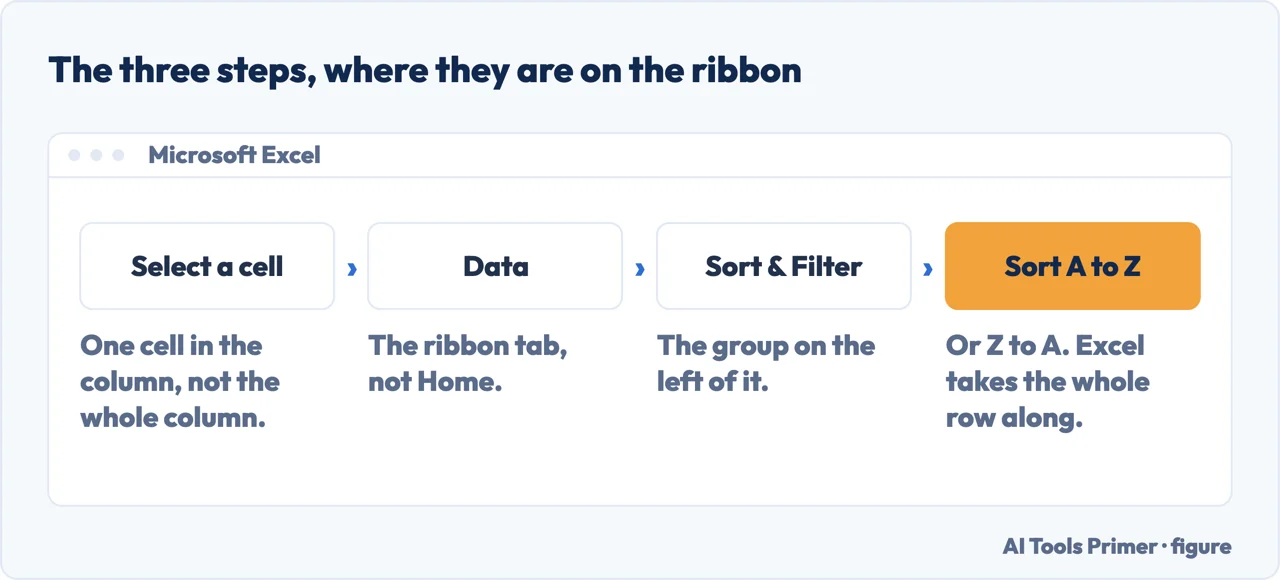
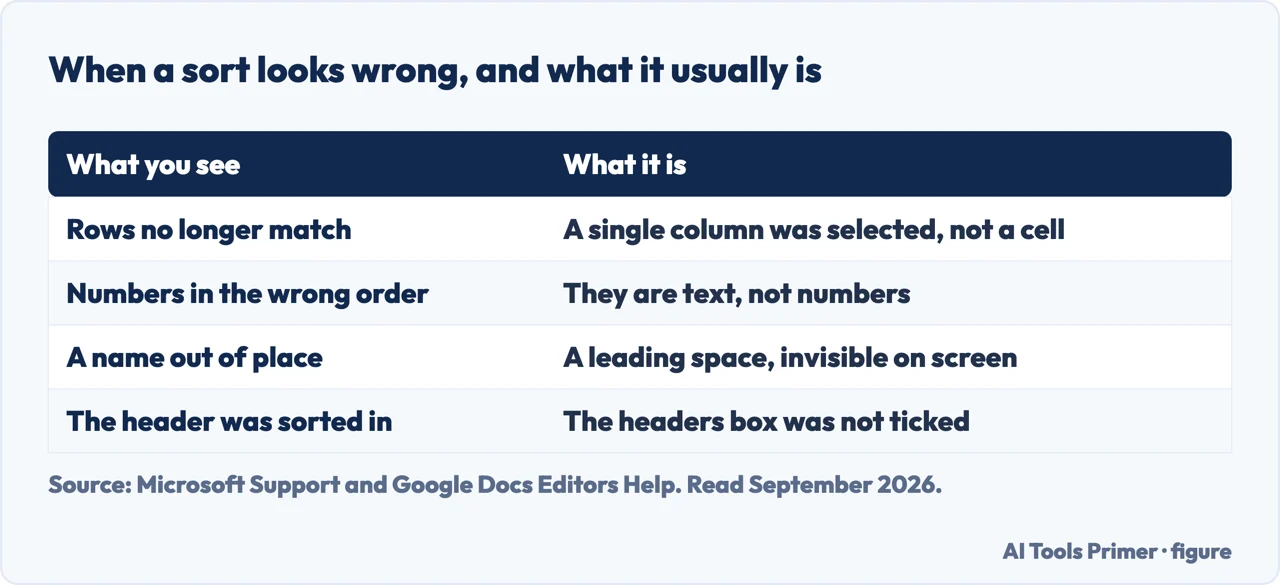
The distinction is this. If you click a single cell, Excel looks around it, works out the block of data it belongs to, and moves whole rows — so each name keeps its address, its total, its date. If you select the column by clicking its letter, you have told Excel that the column is the thing being sorted, and it will reorder that column while everything beside it stays where it was.
The result is a spreadsheet where every row is now wrong, nothing looks broken, and there is no error message. It is the most quietly destructive thing a spreadsheet does, and it is why this guide exists rather than the one-click instruction.
The three steps
- “Select a cell in the column you want to sort.”
- “On the Data tab, in the Sort & Filter group”, choose Sort A to Z for ascending or Sort Z to A for descending.
- Check the row that was next to your first entry is still next to it.
That third step is ours rather than Microsoft’s, and it takes two seconds: before sorting, note what is in the row next to your first entry. After sorting, find that entry and check its neighbour is the same. If it is not, undo immediately — the fix is free for as long as you have not saved and closed.
The two failures Microsoft documents, which are the two that actually happen
Both appear under “Potential Issues” on the same page, and both look like Excel sorting incorrectly when it is sorting exactly what it was given.
- Numbers stored as text “If the column that you want to sort contains numbers stored as numbers and numbers stored as text, you need to format them all as either numbers or text. If you do not apply this format, the numbers stored as numbers are sorted before the numbers stored as text.” This is why an imported column sorts into two separate runs — it is two kinds of data, not one.
- Leading spaces “Data imported from another application might have leading spaces inserted before data. Remove the leading spaces before you sort the data… you can use the TRIM function.” An invisible space sorts before every letter, so those entries all collect at the top and nobody can see why.
Both of those come from the same place, which is data that arrived from somewhere else. A download from a bank, an export from another system, a table copied out of a PDF — all of them produce columns where some values are text and some are numbers, and where invisible spaces are common. If a sort produces an order that makes no sense, the data is telling you something about itself before the sort is telling you anything about the order.
Two things that make sorting reliable from then on. Turn the range into a proper table, which makes the header a header and keeps rows attached whatever you do afterwards. And avoid merged cells entirely, because a merged block is not a row and sorting either refuses or misbehaves — that has its own guide in this section.
Sorting by more than one thing. Alphabetical by surname and then by first name, or by department and then by name, is done through the full Sort dialog rather than the A-to-Z button, which handles one level. The principle is the same and so is the precaution: click one cell inside the data first.
Undo is the real safety net, and it is a short one. A sort can be undone with a keystroke while the file is open and cannot be undone at all once you have saved, closed and reopened. For a spreadsheet that matters, the two-second habit is to make a copy of the sheet before doing anything structural to it — sorting included.
Google Sheets asks the same question in different words. Its sort dialog offers “Data has header row” where Excel offers “My data has headers”, and Google’s instruction adds a step Excel does not: “if your sheet includes a header row, freeze the first row” before sorting. Freezing is what keeps the header out of the sorted range, which is the protection Excel’s tick box provides by a different route. Two programs, one trap, two names for the switch that avoids it.
The steps and both documented failures on this page are quoted from Microsoft’s own Excel documentation, read on 22 August 2026. The explanation of why selecting a whole column scrambles the rows, and the check afterwards, are ours.
Where to start
Four ways in.
- “I just need A to Z.”
- Click one cell first — then when a sort looks wrong
- “The rows came apart.”
- Undo now, then read when a sort looks wrong
- “It sorted in a strange order.”
- That is the data — see imported data
- “It will not sort at all.”
- Probably merged cells — the spreadsheet itself
When a sort looks wrong
Excel almost always sorted exactly what it was given. The question is what it was given.
Imported data
Numbers stored as text and invisible leading spaces are what a file brings with it from somewhere else.
The spreadsheet itself
A clean header row and no merged cells make every other feature start working, sorting included.
The rest of Office
The same pattern each time: one word in the documented instruction carries the whole risk.
Not covered here. It will not hand you a one-click instruction and stop. The one click is fine; the selection you make before it decides whether your data survives.
It will not blame Excel for a strange order. Both common causes are documented by Microsoft as potential issues, and both come from the data rather than the sort.
And it will not suggest an add-in for something on the Data tab. What holds instead is simple: the steps and both documented failures are quoted from Microsoft’s own Excel documentation, with the date it was read.
Step 3 of 21 in half an hour in a spreadsheet
The order the work actually happens in: the data arrives, it gets cleaned, it gets counted, it gets a chart, and then somebody else opens it.
- Before this
- How to remove duplicates in Excel, and what counts as one
- After this
- How to use vlookup in excel, and the argument to always type
The same spreadsheet job, in the other program
You know how it works in one of them. This is where the other one does it differently — and where the difference is written down by the company that made it.
- The same job, in the other places it comes up
- How to sort in Google Sheets, and who else sees your filter
- How to remove duplicates in Google Sheets, and what counts as one
- How to make a drop down list in Google Sheets, and where Excel stops
- How to lock cells in Google Sheets, and what it will not do
- How to create a pivot table in Google Sheets, and what it does alone
- How to unhide columns in Google Sheets, including the first one
- How to make a drop down list in Excel, and make it hold
Sources
- Microsoft Support — Sort data in a range or table in Excel, including the instruction to select a cell in the column, and the potential issues with numbers stored as text and with leading spaces — support.microsoft.com, read 22 August 2026.
- Google Docs Editors Help — Sort & filter your data: the “Data has header row” option and the instruction to freeze the header row first, read as the same trap in the other spreadsheet — support.google.com, read 4 September 2026.
Written by Alberto Gulotta
Founder and editor of AI Tools Primer, writing from Palermo, Italy. Thirty-five years of taking computers apart, starting with a Commodore 64 — the long version is on the about page.
Something wrong on this page? Write to aitoolsprimer@gmail.com and it gets fixed.
Written on 22 August 2026 · last checked 4 September 2026.
Independence and limits
No affiliate links and no paid placements anywhere on this site. Nobody pays to appear here, and no company has seen this page before you did.
This is general information, not professional advice. Where a page touches money, health, safety or the law, it names its source and the date it was read — and your situation may still differ. See the privacy page and the cookie policy.