The switch is on for the sheet, and columns look wider than they were: in Exceljet’s words, “columns are expanded”.
Nothing has happened to the file. It is a view, and one keystroke puts it back.

Docs · guide
By Alberto Gulotta · Updated · 14 min read
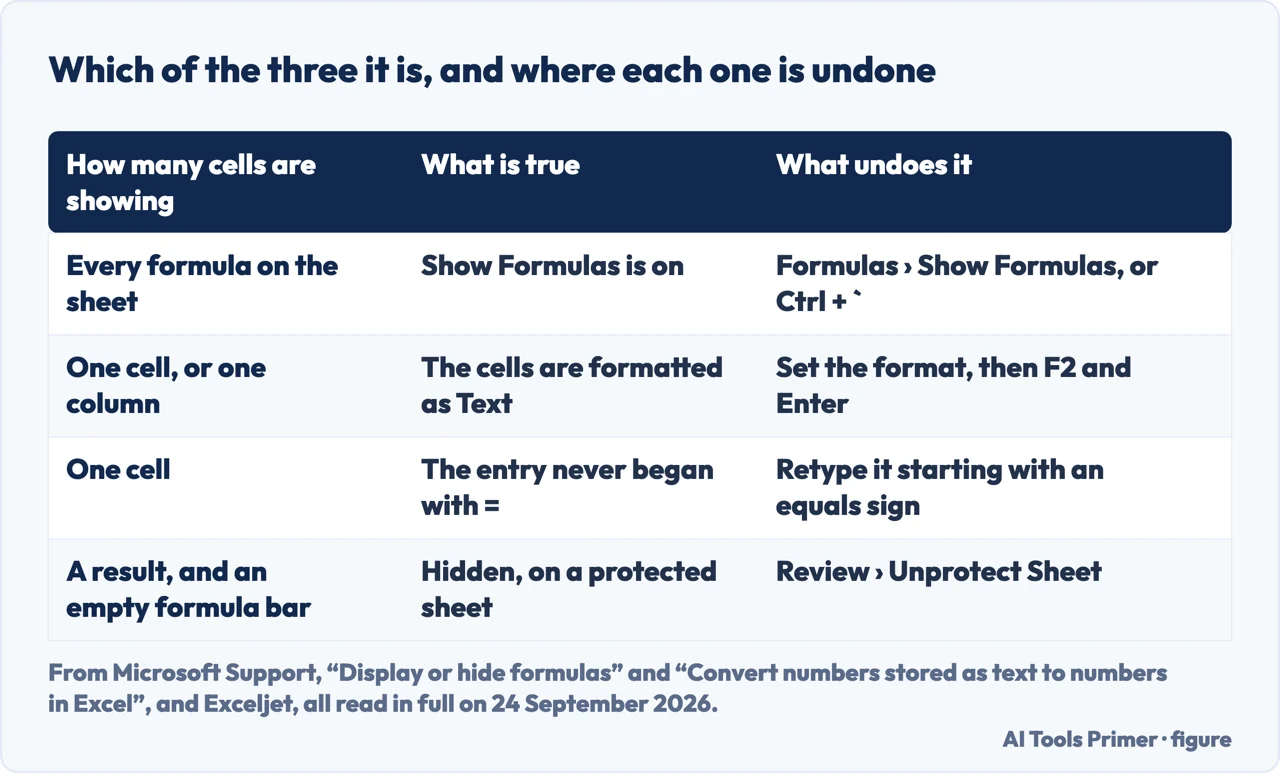
Excel showing formula instead of result has three causes, and the first clue is how many cells it affects. If every formula on the sheet is showing, Show Formulas is on: press Ctrl and the grave accent. If it is a single cell, the cell is formatted as Text or the entry does not start with an equals sign.
| What is true | How you can tell | What undoes it | Source |
|---|---|---|---|
| Show Formulas is on | Every formula on the sheet is showing, and the columns went wide | Formulas › Show Formulas, or Ctrl + ` | Microsoft |
| The cell is formatted as Text | One cell, or one column, and the entry sits on the left | Format the cell, then re-enter the formula | Microsoft |
| The entry is not a formula | No equals sign, a space before it, or the whole thing in quotes | Retype it starting with = | Exceljet |
| The sheet is protected and the cell is Hidden | The cell shows its result, but the formula bar is empty | Review › Unprotect Sheet | Microsoft |
The switch is on for the sheet, and columns look wider than they were: in Exceljet’s words, “columns are expanded”.
Nothing has happened to the file. It is a view, and one keystroke puts it back.
The cells hold text that looks like a formula. Microsoft’s test is visual: numbers stored as text are “left-aligned instead of right-aligned in the cell, and are often marked with an error indicator”.
Here the file did change, and changing the format back is only half the repair: the entry has to be made again.
The key is the grave accent, not the tilde
Microsoft’s instruction names the key twice, as a character and as a word: “Press CTRL + ` (grave accent)”. Its list of Excel shortcuts gives the same key on a Mac, with Control rather than Command.
It is worth being exact because the shortcut also circulates as Ctrl and tilde, and on a US keyboard the tilde is that same key with Shift held down. Microsoft’s list gives that combination a different job: Ctrl, Shift and tilde is “Apply the General number format.” Exceljet, in the same article, gives Control and tilde for setting a cell to General.
And this is how the state gets switched on in the first place. It is not a feature people go looking for. The key sits beside the 1 and the Tab, so it gets hit by accident, and the whole sheet changes at once. Exceljet describes it in the same terms: the feature exists to show all formulas quickly, and it can be triggered by that shortcut without meaning to.
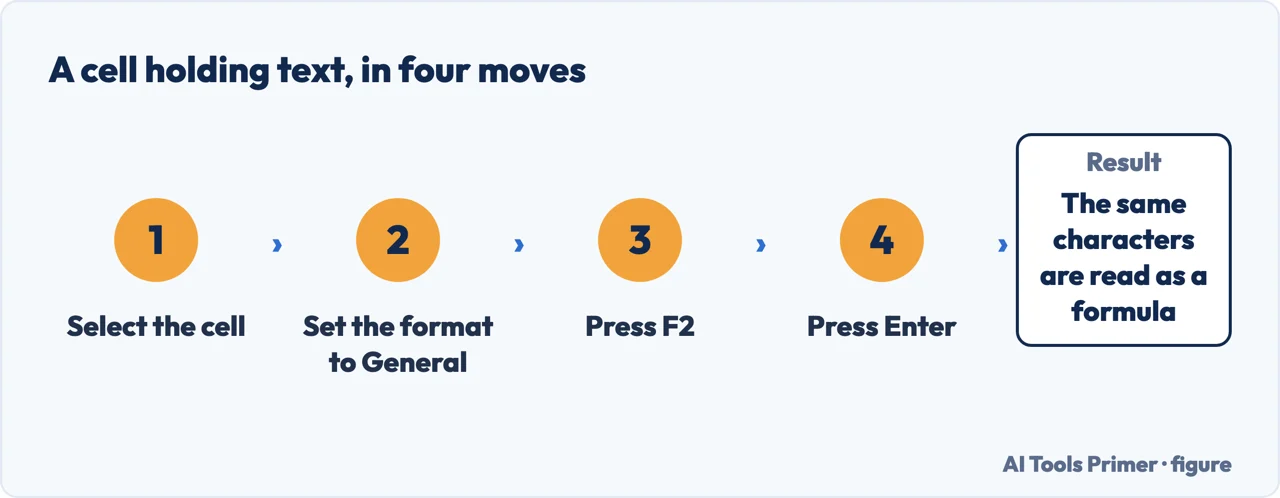
The second cause needs two actions, and that is why it looks unfixable. A cell formatted as Text stores what you typed as characters. Setting the format back to General does not reinterpret what is already in there, so the cell goes on showing its text and the obvious conclusion — that changing the format did not work — is wrong. The format decides how the next entry is read. Press F2 and Enter afterwards, and the same characters are read as a formula.
Microsoft names this exact symptom on the page about numbers kept as text: “Numbers that are stored as text can cause unexpected results, like an uncalculated formula showing instead of a result.” The same page gives the bulk repair for numbers kept as text — select the cells, open the error indicator, choose Convert to Number — and the keyboard route to that menu, Alt, Shift and F10. If the indicator is not there, background error checking has been turned off, and Microsoft gives the switch: File, Options, Formulas, Enable background error checking.
There is a third reason an entry never becomes a formula, and it has nothing to do with cell formats. Excel only treats an entry as a formula if it begins with an equals sign. Exceljet lists the ways that rule gets broken in practice: no equals sign at all, a space before it, or the formula wrapped in quotation marks — and quotes, in Excel, mean a text value, so the formula is never evaluated. A leading apostrophe does the same thing on purpose, which Exceljet suggests as a way to park an unfinished formula without an error. Any of the three produces a cell that shows its own formula, and none of them is a bug.
The case that looks the same and is the opposite
A cell showing its result while the formula bar stays empty is not this problem at all. It is the same Microsoft page, further down, and it is deliberate.
One warning about a Microsoft page that sounds right and is out of date. The support article “Fix text-formatted numbers by applying a number format” walks through three techniques and is worth reading, but its Applies To line says Excel 2013 and nothing else. The observation it opens with holds anyway — text-formatted numbers are “left-aligned instead of right-aligned in the cell, and are often marked with an error indicator” — and that is the part cited here.
If the formula shows and also refuses to calculate elsewhere, the problem may not be display at all. A rule that looks correct and does nothing is the same family of question as conditional formatting with a formula, where a missing equals sign produces a rule Excel quietly turns into text. And if the cells refuse to be edited rather than refusing to calculate, locking and unlocking cells is the page for that: every cell in a new sheet is already locked, and only protection makes it bite.
Two smaller things worth knowing while you are here. Once the formulas do run, does not equal is two characters, written differently in four places. And if the numbers arrived from somewhere else, Microsoft’s 2013 page warns that numbers kept as text can “produce confusing sort orders”, which is where sorting comes in.
The shortcut, the menu routes, the symptom sentence and the protection case are quoted from Microsoft’s own Excel pages, read in full on 24 September 2026 and listed below; the ways an entry ends up as text are from Exceljet. The reading of why changing the format alone does nothing, and the advice to count the cells first, are ours.
Four ways in.
Show Formulas is a view, not a change to the file, and the key that toggles it sits next to the 1.
The format decides how the next entry is read, so changing it is half the repair and re-entering is the other half.
Excel reads an entry as a formula only if it starts with an equals sign, and three small things break that rule.
A cell that shows its result and an empty formula bar is the opposite problem, and it was done on purpose.
If every formula on the sheet is showing, turn Show Formulas off: Formulas › Show Formulas, or Ctrl and the grave accent. If it is one cell, set its format to General, then press F2 and Enter to make the entry again.
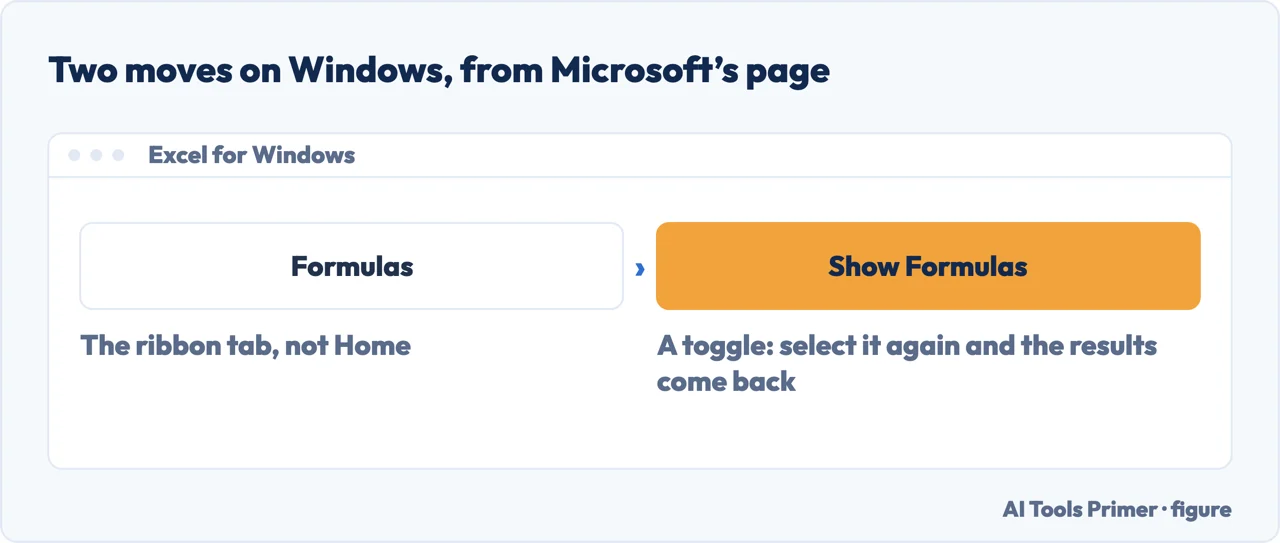
It is a toggle, so the same thing that switched it on switches it off. Microsoft’s instruction is “Press CTRL + ` (grave accent)”, and the ribbon equivalent is Formulas and then Show Formulas.
Because that cell is formatted as Text, so what you typed was stored as characters. Microsoft: numbers kept as text are “left-aligned instead of right-aligned in the cell, and are often marked with an error indicator”.
Microsoft documents it as “CTRL + ` (grave accent)”. On a US keyboard the tilde is the same key with Shift, and Microsoft lists Ctrl, Shift and tilde as the shortcut that applies the General number format.
That is the opposite case: the cell was marked Hidden on the Protection tab and the sheet was then protected. Review › Unprotect Sheet undoes it, and Microsoft warns the same setting also prevents those cells from being edited.
Not covered here. It does not cover Google Sheets, where the same view has a different name and a different menu.
It does not cover a formula that returns an error rather than showing itself: that is a different set of messages, each with its own cause.
And it does not recommend anything to install. Every route here is a ribbon tab or one key in the program the workbook is already open in. What holds instead is simple: the shortcut and the menu routes are quoted from Microsoft’s own Excel pages, with the date each was read.
Written by Alberto Gulotta
Founder and editor of AI Tools Primer, writing from Palermo, Italy. Thirty-five years of taking computers apart, starting with a Commodore 64 — the long version is on the about page.
Something wrong on this page? Write to aitoolsprimer@gmail.com and it gets fixed.
Written on 24 September 2026.
Independence and limits
No affiliate links and no paid placements anywhere on this site. Nobody pays to appear here, and no company has seen this page before you did.
This is general information, not professional advice. Where a page touches money, health, safety or the law, it names its source and the date it was read — and your situation may still differ. See the privacy page and the cookie policy.