If you are reading this because a spreadsheet has just vanished, go straight to the box below that matches your situation and come back afterwards. How to recover unsaved excel file work has two answers, and Microsoft puts the difference in one line: “How you recover something depends on when you saved it.”
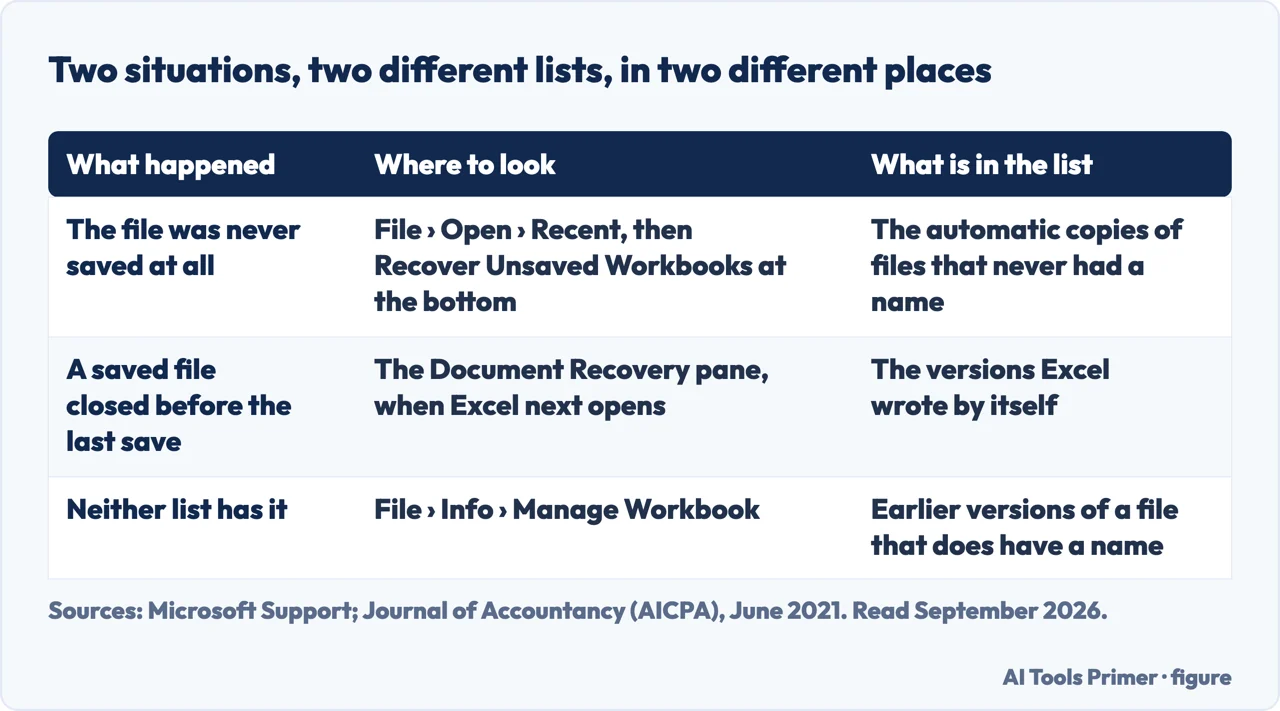
Two situations, two different lists, in two different places
What happened
Where to look
What is in the list
Source
The file was never saved at all
File › Open › Recent, then Recover Unsaved Workbooks at the bottom
The automatic copies of files that never had a name
Microsoft · Journal of Accountancy
A saved file closed before the last save
The Document Recovery pane, the next time Excel opens
The versions Excel wrote by itself
Microsoft
Neither list has it, but the file exists
File › Info › Manage Workbook
Earlier versions of a file that does have a name
Microsoft
Two lists, two places, and neither shows the other’s files. Figure drawn by AI Tools Primer.
you had saved it at least once
Look for the version labelled “when I closed without saving”
Open the file you were working on.
Go to File › Info.
“Under Manage Workbook … select the file labeled (when I closed without saving).”
“In the bar at the top of the file, select Restore to overwrite any previously saved versions.”
you had never saved it at all
Recover Unsaved Workbooks
File › Info › Manage Document › Recover Unsaved Workbooks. Word has the same menu under a different name: recovering an unsaved Word document.
Select the file, then Open.
“In the bar at the top of the file, select Save As to save the file.”
Do not skip that third step. Recovering the workbook puts it on screen; it does not put it
anywhere permanent. Save it before you look at anything else.
Work out which of the two situations you are in. Microsoft states the rule in one line:
“how you recover something depends on when you saved it.”
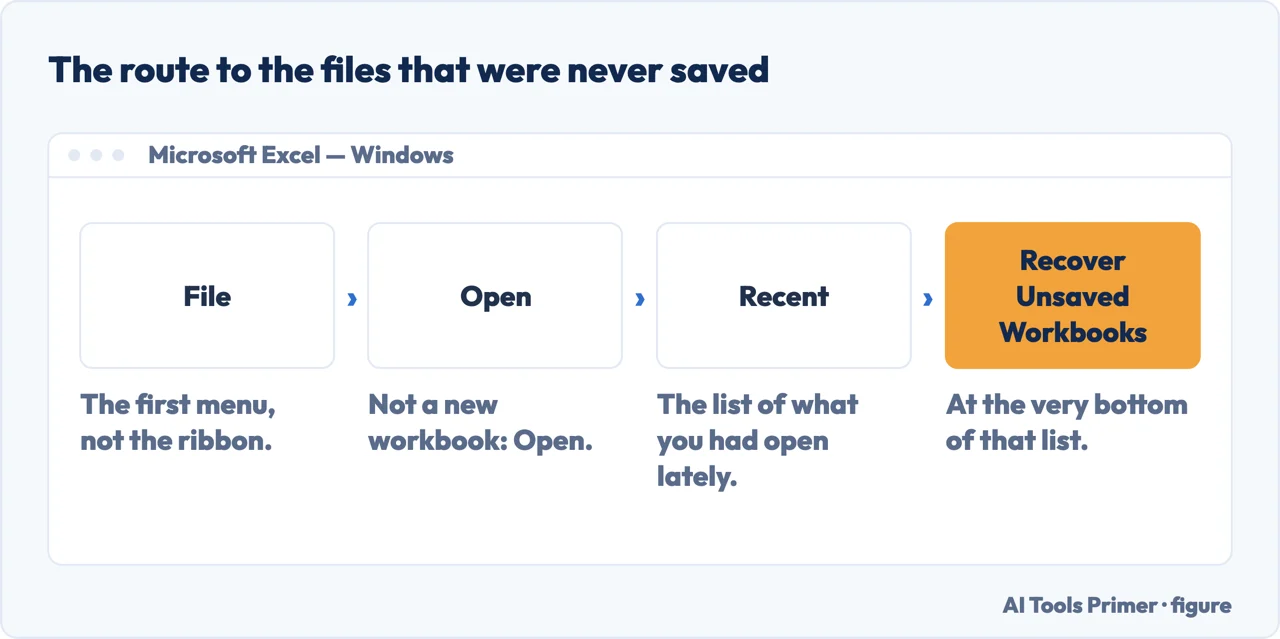
If the file never had a name, open Excel and go File › Open › Recent. Scroll to the
bottom of the list.
Click Recover Unsaved Workbooks. A window opens with the automatic copies; pick yours
and save it at once, with a name.
If the file did have a name, look for the Document Recovery pane. It appears by itself
the next time Excel starts after a crash, listing the versions Excel wrote.
Try the other list anyway. The two are separate places, and a workbook saved once under
a name you no longer remember can sit in the unsaved list while you look in the wrong one.
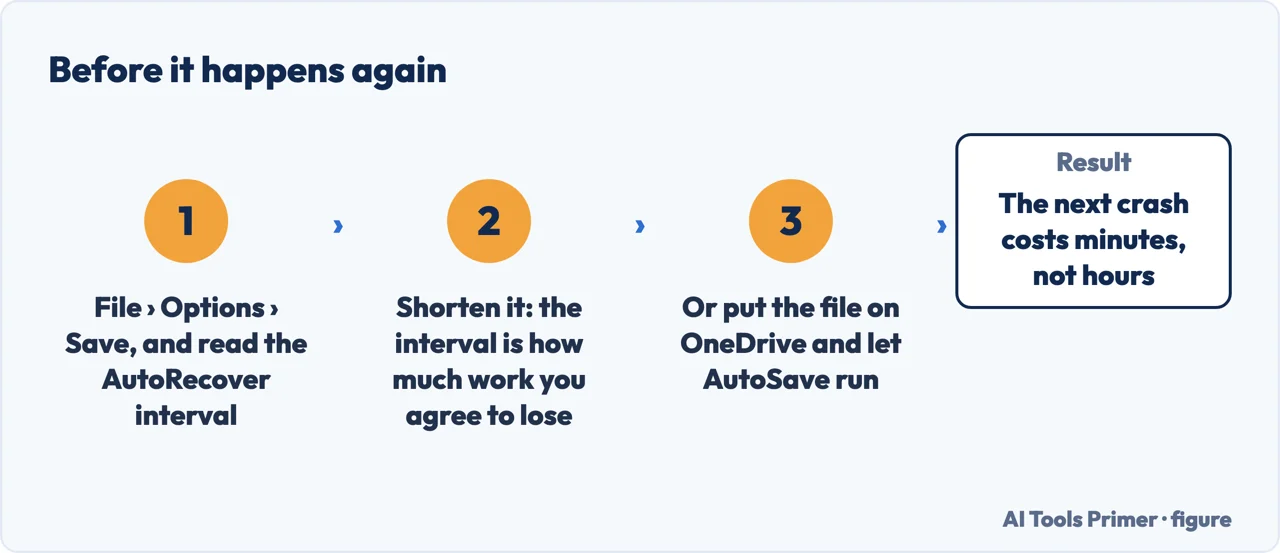
The command is at the bottom of a list nobody scrolls. Figure drawn by AI Tools Primer.The interval is a decision about how much work to lose. Figure drawn by AI Tools Primer.
Try the second route even if you think the first applies. The two lists are separate places, and a workbook you saved once under a name you no longer remember can sit in the unsaved list while you hunt through Manage Workbook for it. Looking in both takes twenty seconds.
“If the recovery file is saved only every 15 minutes, your recovered file won’t contain
your last 14 minutes of work before the power failure or other problem occurred.”
Microsoft, read 22 August 2026, and it is the sentence that sets your expectations correctly before
you open anything. AutoRecover does not save your work — it takes photographs of it at
intervals, and what you get back is the last photograph. Microsoft’s own advice on the same page
is to make the interval small: “enter a small number in the minutes box, like 5 or 10. That way,
you’ll never lose more than 5 or 10 minutes of work.”
The two boxes that decide whether any of this works
File › Options › Save. Worth checking now rather than at the moment you need them.
Save AutoRecover information every x minutes
The interval above. If this is off, there are no photographs to recover from.
Keep the last autorecovered version if I close without saving
This is the one nobody knows about, and it is the one that covers the commonest accident. A crash is not what usually loses a spreadsheet — a person closing it and clicking Don’t Save is. Without this box ticked, that case is not covered at all.
It puts the desk back, not only the file
Microsoft adds one line about AutoRecover that changes what you expect to see after a crash: “AutoRecover saves more than your files. It also saves your
workspace (if it can). Suppose you open several spreadsheets in Excel and the power goes
out. When you restart Excel, AutoRecover tries to open your spreadsheets again, laid out the
way they were before, with the same cells selected.”
So the thing to do after a crash is start Excel and look, before opening anything by hand.
Reopening one file yourself is the move that can leave the others behind.
And the interval is a trade, which Microsoft states in both directions rather than
recommending one: “to be extra safe, enter a small number in the minutes box, like 5 or
10. That way, you’ll never lose more than 5 or 10 minutes of work. On the other hand, if you
want to make Office slightly faster, try entering a larger number in the minutes box,
like 20.” The setting is not about safety alone; it is about how much of the last half hour you
are willing to gamble against how brisk the app feels.
Now the part worth reading once the panic is over. Five of the first seven results Google returns for this question are people asking for help on forums — a Microsoft community post titled a Microsoft community post about a spreadsheet that disappeared, a Reddit thread from somebody who closed a workbook without saving, and three more like them. Microsoft’s own instructions are not on the first page at all. That is a fair measure of how badly this question is served.
The arrangement that makes all of this unnecessary. Microsoft is direct about it: save the file to OneDrive or SharePoint and “use AutoSave to save your changes continuously”. A file in a synced location with AutoSave on is saved as you type, and it keeps a version history you can step back through. That is a different category of protection from AutoRecover, which is a safety net rather than a save.
And Microsoft says the obvious thing twice, so it is worth repeating. “Even if AutoRecover is turned on, you should save the file frequently … to avoid losing data because of an unexpected power failure or other problem.” Ctrl+S remains the only method on this page that loses nothing at all.
The two recovery routes, the AutoRecover settings, the arithmetic of the interval and the advice about AutoSave are quoted from Microsoft’s own Office documentation, read on 22 August 2026 and listed below. The advice to check both lists, and the observation about what Google returns for this question, are ours.
Where to start
Four ways in.
“I closed it and clicked Don’t Save.”
Both boxes above, starting with the first — the two routes
If the file never had a name: File › Open › Recent, then Recover Unsaved Workbooks at the bottom of the list. If it had one and closed before your last save, open Excel and look for the Document Recovery pane.
Where does Excel save unsaved files?
In an automatic-recovery folder that the Recover Unsaved Workbooks command opens for you. The path itself is in File › Options › Save, in the AutoRecover file location box, if you would rather go there directly.
Why is my file in neither list?
Because the two lists cover different accidents, and a third case exists: a file that does have a name and was saved, whose earlier versions live under File › Info › Manage Workbook. Try all three before concluding it is gone.
How do I stop losing work this way?
Shorten the AutoRecover interval in File › Options › Save — it is simply how much work you are agreeing to lose — or keep the file on OneDrive with AutoSave on, which the Journal of Accountancy calls “the best approach to avoid this scenario”.
Not covered here. It will not sell you recovery software. Both routes are inside Excel, and Microsoft documents them on a page Google does not show you.
It will not promise you everything back. AutoRecover saves at an interval, and Microsoft states plainly what that costs you.
And it will not skip the Save As step. A recovered workbook is on screen, not saved, until you save it. What holds instead is simple: both recovery routes and the AutoRecover interval are Microsoft’s own, quoted with the date each page was read.
Step 21 of 21 in half an hour in a spreadsheet
The order the work actually happens in: the data arrives, it gets cleaned, it gets counted, it gets a chart, and then somebody else opens it.
Microsoft Support — Recover an earlier version of an Office file, including the statement that how you recover depends on when you saved, the Manage Workbook route for saved files and the Manage Document › Recover Unsaved Workbooks route for files never saved — support.microsoft.com, read 22 August 2026.
Microsoft Support — Help protect your files in case of a crash, including the two AutoRecover checkboxes, the note about how much work an interval costs and the advice to use AutoSave on OneDrive or SharePoint — support.microsoft.com, read 22 August 2026.
Microsoft Support — Save, back up, and recover a file in Microsoft Office, including the Document Recovery pane and the reminder to save frequently even with AutoRecover on — support.microsoft.com, read 3 September 2026.
Journal of Accountancy (AICPA), June 2021 — Two ways to recover unsaved Excel files: the same two scenarios described for people whose work is other people’s books, and the note that the best approach is autosave — www.journalofaccountancy.com, read 3 September 2026.
AG
Written by Alberto Gulotta
Founder and editor of AI Tools Primer, writing from Palermo, Italy. Thirty-five years of
taking computers apart, starting with a Commodore 64 — the long version is on the
about page.
Written on 22 August 2026 · last checked 23 September 2026.
§
Independence and limits
No affiliate links and no paid placements anywhere on this site. Nobody pays to appear here,
and no company has seen this page before you did.
This is general information, not professional advice. Where a page touches money, health,
safety or the law, it names its source and the date it was read — and your situation may
still differ. See the privacy page and the
cookie policy.