Two words: “Applies to: Office”. Not a version of Office, not a version of Windows, and no build numbers.
The last of its four methods edits the registry, so it is worth seeing how little the heading commits to before you get there.

Docs · guide
By Alberto Gulotta · Updated · 12 min read
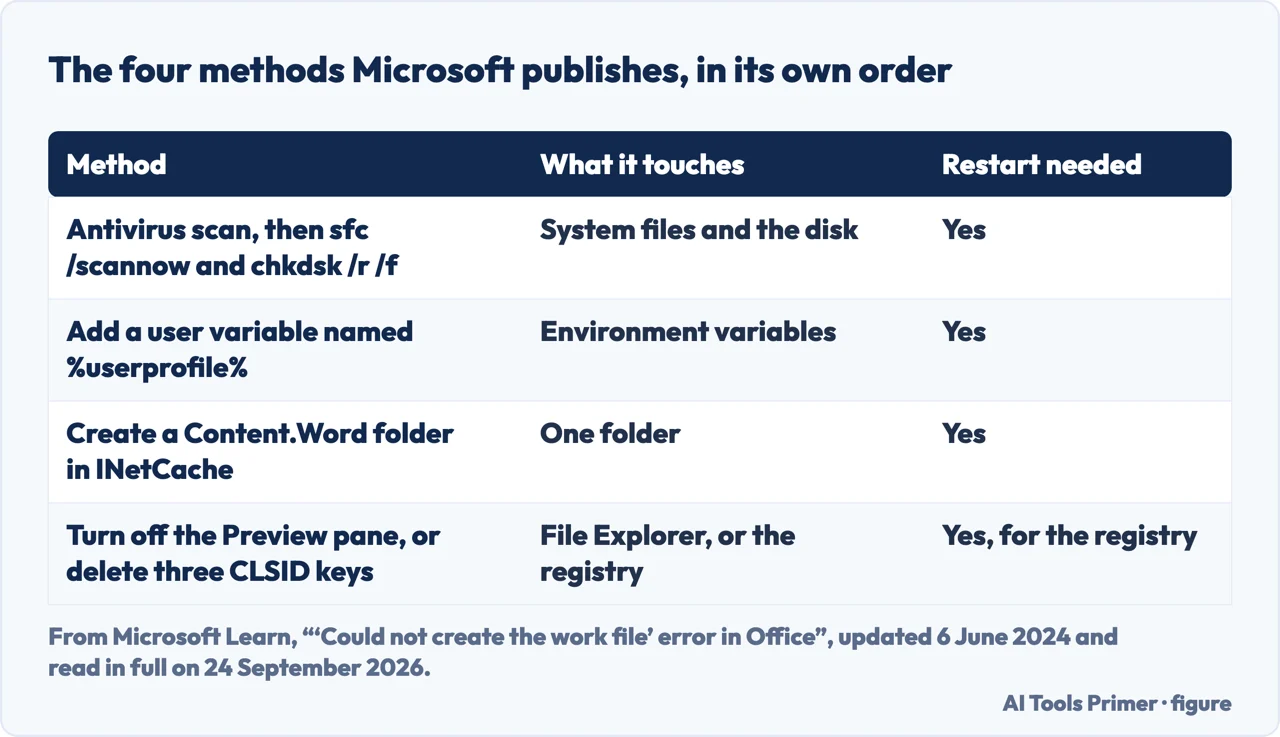
Word could not create the work file names the TEMP variable, but Microsoft’s own page on the error never corrects TEMP. It gives four methods: a malware and disk check, a new user variable, a Content.Word folder, and turning off the File Explorer preview pane or deleting three registry keys.
| Method | What it changes | How reversible |
|---|---|---|
| 1. Antivirus scan, then sfc /scannow and chkdsk /r /f | Repairs corrupted system files and disk errors | Nothing to undo — it only repairs |
| 2. Add a user variable named %userprofile% | Adds one entry under User variables | Delete the variable again |
| 3. Create a Content.Word folder in INetCache | Creates one empty folder | Delete the folder again |
| 4. Turn off the Preview pane, or delete three CLSID keys | A File Explorer setting, or three registry keys | The setting, yes. The keys need a registry backup first |
The message names the wrong thing, and that is why it is confusing
“Word could not create the work file. Check the temp environment variable.”
That is the sentence, quoted from the page Microsoft publishes about it, under the heading Symptoms: “When you try to preview or save a document, Word returns the following error message…”
Read the symptom rather than the message. Microsoft says preview or save, and its fourth method is about the preview: the File Explorer preview pane, and the registry keys behind it.
The message points at the TEMP environment variable, and none of Microsoft’s four methods changes it: only one touches an environment variable, and that one adds a new variable rather than correcting TEMP.
Microsoft has a troubleshooting page on this exact sentence, and it is the source for everything below. It is titled “‘Could not create the work file’ error in Office” and sits on Microsoft Learn, where its address now leads into the previous-versions section; the four methods in the table above are its four sections in its own order. Where a step here goes beyond that page, the page it came from is named in the sentence.
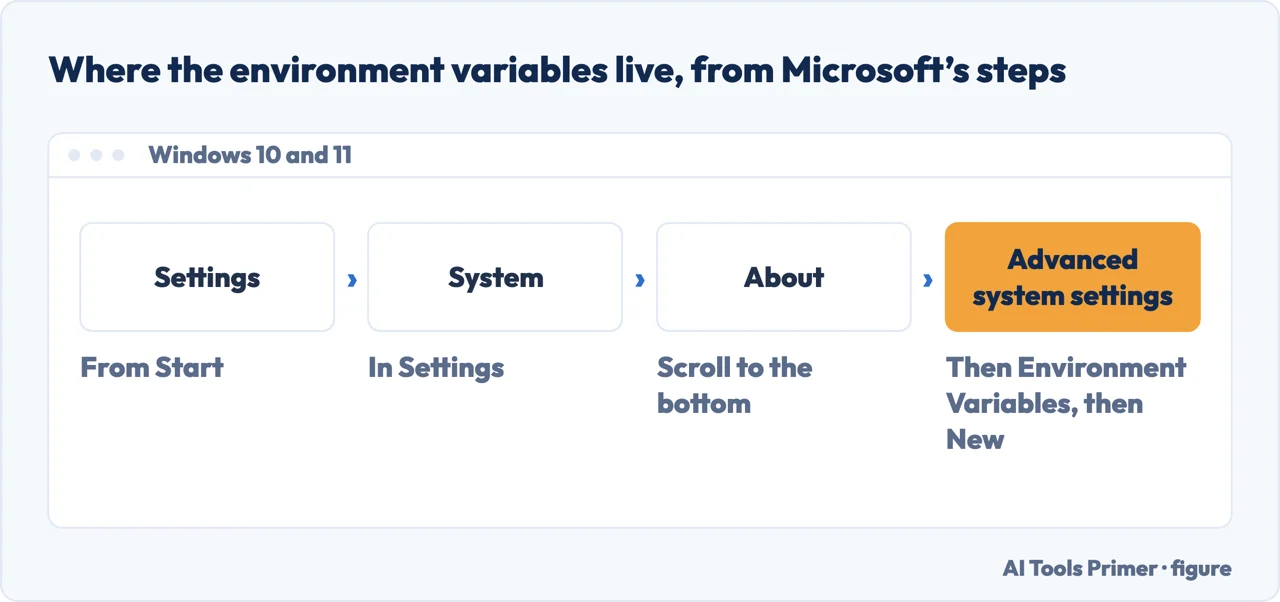
The second method is the one that looks invented, and it is not. Creating a new user variable whose name is %userprofile% reads like a mistake: %userprofile% is already a built-in variable, and putting percent signs in a variable name is not something anyone would think of. Microsoft’s wording is unambiguous: “In the Variable name field, enter %userprofile%. In the Variable value field, enter C:\Users\<username>.” It is step 5 and 6 of its own numbered list. Whether it helps on a given machine is a different question; that it is Microsoft’s instruction and not folklore is settled.
The three registry keys, and what each one is for
From Microsoft’s page, which names them by program: Word Preview, PowerPoint Preview, Excel Preview.
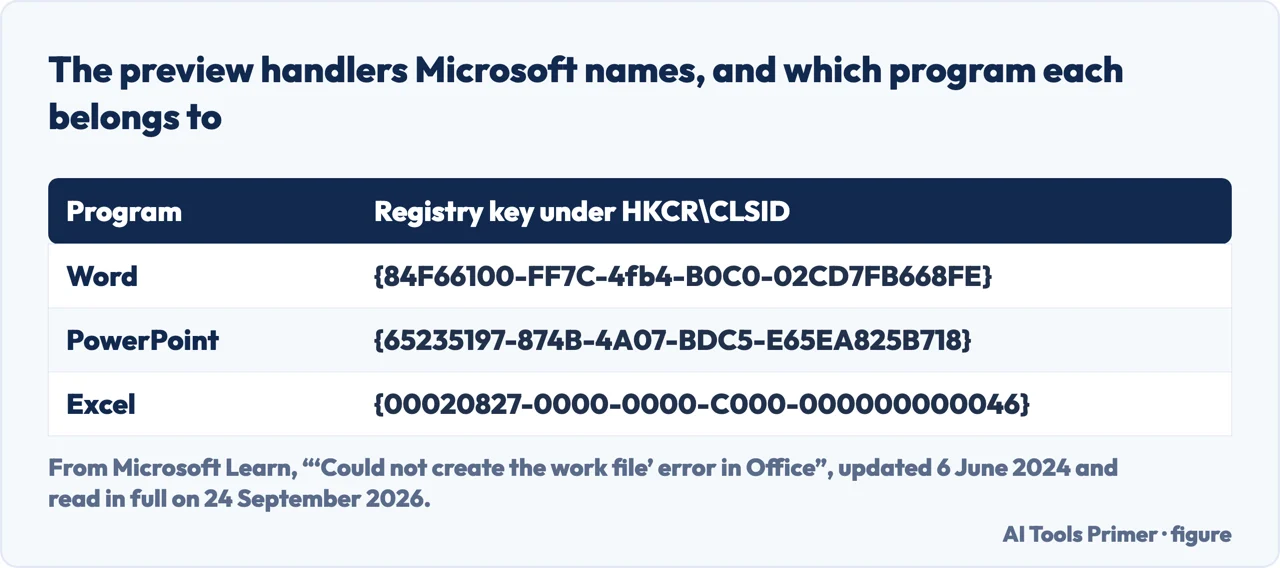
The keys Microsoft has you delete are Word Preview, PowerPoint Preview and Excel Preview, which is as plain a statement as the page makes that the fix is about the preview pane for all three programs, not about Word alone.
One published account is worth adding because it explains the timing. On Super User, the accepted answer begins: “In my case this error message popped up from the Word Preview just by selecting the file in Windows Explorer” — and the fix was the same three keys. If the ding arrives while you are clicking through a folder rather than while you are opening or saving, that is the preview handler, and method 4 is where to start rather than where to finish.
Two words: “Applies to: Office”. Not a version of Office, not a version of Windows, and no build numbers.
The last of its four methods edits the registry, so it is worth seeing how little the heading commits to before you get there.
Start › Settings › System › About › Advanced system settings is the Windows 10 and Windows 11 route.
The scope you can actually rely on comes from reading the instructions, not the heading. On anything older, expect the menus to be somewhere else.
The page carries “Last updated on 2024-06-06” at the foot, which is the only date on it.
We read it in full on 24 September 2026 and the four methods are as described here. If Microsoft revises it, this page is the thing that will be out of date, not that one.
So the honest summary of scope is this. The instructions are Windows 10 and Windows 11 instructions, read off the menus they describe. Microsoft states no Office version on the page we read on 24 September 2026. The preview pane setting is a File Explorer setting rather than an Office one. None of that is a reason not to follow the page; it is a reason to know what you are being told and what you are inferring.
Four ways in.
Microsoft’s symptom says preview or save, and its last method is about the File Explorer preview pane.
Microsoft gives four; the steps here start with the one that costs least, the preview pane, and leave the registry for last.
Word, PowerPoint and Excel each have one on Microsoft’s list.
An Applies To line of two words, on a page whose last method edits the registry.
A work file is a temporary file Word writes while it renders or saves a document. The message means one could not be created. Microsoft lists the symptom as happening “when you try to preview or save a document”, and previewing is the half that surprises people.
Because the File Explorer preview pane asks Word to render the document as soon as it is highlighted. Turning the preview pane off — View › Show › Preview pane — is Microsoft’s own workaround, and it takes one click.
That is what Microsoft’s page says, word for word: “In the Variable name field, enter %userprofile%.” It is method 2 of four, so it is worth trying the preview pane and the system file scan first.
Microsoft prints its standard warning first: “Serious problems might occur if you modify the registry incorrectly. Before you modify it, back up the registry.” Export the keys before deleting them. Microsoft’s alternative, which touches no registry at all, is turning the preview pane off.
No. Every method on Microsoft’s page is a Windows method — Command Prompt, Windows Settings, a Windows folder path and the Windows registry — and the page does not mention the Mac.
It says only “Applies to: Office”, with no version of either. The steps use the Windows 10 and 11 Settings route and the INetCache path, so that is the scope you can read off the instructions. The page was last updated on 6 June 2024.
Not covered here. It does not cover the Mac, where the error message exists but the registry, INetCache and the File Explorer preview pane do not.
It does not cover the case where Word will not start at all, which is a different symptom with a different first step.
And it does not recommend a repair tool. Every method here is a menu, a command prompt or the registry editor already on the machine. What holds instead is simple: the four methods and the three registry keys are quoted from the Microsoft page that publishes them, with the date it was read.
Written by Alberto Gulotta
Founder and editor of AI Tools Primer, writing from Palermo, Italy. Thirty-five years of taking computers apart, starting with a Commodore 64 — the long version is on the about page.
Something wrong on this page? Write to aitoolsprimer@gmail.com and it gets fixed.
Written on 25 September 2026.
Independence and limits
No affiliate links and no paid placements anywhere on this site. Nobody pays to appear here, and no company has seen this page before you did.
This is general information, not professional advice. Where a page touches money, health, safety or the law, it names its source and the date it was read — and your situation may still differ. See the privacy page and the cookie policy.