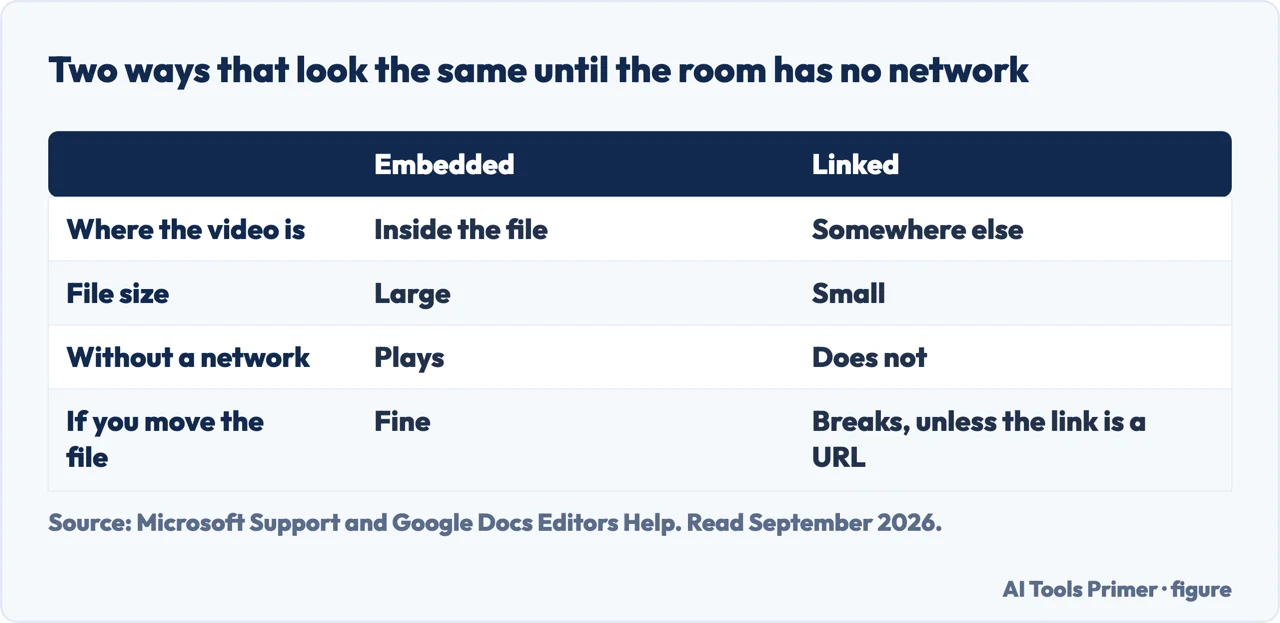
There are two ways to put a video on a slide and they look identical afterwards. One puts the film inside the file; the other leaves it on your disk and points at it. How to embed a video in powerpoint is the first of those, and knowing which one you did is the difference between a presentation that works in somebody else’s meeting room and one that shows a black rectangle.
the file goes inside
Embedded
Microsoft calls this “the default behavior”: Insert tab, the arrow under Video, then
This Device, pick the file, Insert.
“Inserting an embedded video is convenient, but it increases the size of your
presentation.” The video is now part of the file, so the deck can be emailed, copied to a
stick, or opened on any machine and it will still play.
the file stays outside
Linked
Same three steps, but at the end “click the down arrow next to the Insert button, and then
click Link to File”.
“A linked video keeps your presentation file smaller, but links can break.” Microsoft’s own
precaution: “We recommend storing presentations and linked videos in the same folder.”
How to know which one you have — before the room is full
This is the check that prevents a presentation disaster, and Microsoft documents it in a paragraph. A deck that plays perfectly on your machine may have a
video that never left it.
“Go to File › Info. Under Optimize Media Compatibility, there will be information
about all media files in the presentation — whether they are linked or embedded in the file.
If there are any linked videos, PowerPoint gives you a View Links hyperlink. Click it to open
a dialog box that shows the storage location of any linked files.”
Do that before you send the deck anywhere. If it says linked, either re-insert the video as
embedded, or carry the folder rather than the file.
Why almost everybody ends up embedding by accident
The two routes share the same three steps and differ only at the last click — and the one that
chooses linking is hidden under a down arrow beside the Insert button, which looks like part
of the button rather than a menu. Press Insert normally and you have embedded the video, whether or
not that was what you wanted. That is usually the safer accident, because an embedded video
travels; it is only a problem when the file becomes too large to send.
They look identical until the room has no network. Figure drawn by AI Tools Primer.
Which to choose. Embed unless the file becomes unmanageable. A presentation that carries its own video is a single object you can email, copy or open anywhere, and every failure mode of linking disappears with it. Link only when the video is genuinely large — and then follow Microsoft’s instruction to keep the deck and the video in the same folder, and move the folder rather than the file.
Give yourself the best chance with the format. Microsoft is specific: “We recommend that you use .mp4 files encoded with H.264 video (a.k.a. MPEG-4 AVC) and AAC audio.” A video that came off a phone or a camera is usually already this. One that came from an older editor, a screen recorder or a download may not be, and converting it beforehand is far quicker than discovering the problem on the day.
A note about size, since it is the only real argument for linking. Embedding a long video makes a large file, and email limits arrive quickly. But the answer to that is usually not to link — it is to shorten the clip, or to send the deck as a link to a shared folder instead of as an attachment. Both keep the presentation self-contained, which is the property you actually wanted.
And one accessibility gain worth knowing about. Microsoft notes that newer versions “support closed captions and subtitles that are embedded in video files”. If your clip already carries captions, they come with it — which is one more reason to embed rather than link, and one more reason to keep the original file rather than a re-encoded copy that may have dropped them.
The other presentation tool only offers the link, and that is clarifying. Google Slides inserts video by reference — from Drive or from a URL — so the file never travels with the deck and the question this page is about does not arise: on Slides the answer is always “it needs the network”. Read backwards, that is the argument for embedding rather than linking in PowerPoint whenever the room might not have a connection, and the reason to check which of the two you did before you are standing in it.
The two routes, the trade-off between them, the recommended format and the File › Info check are quoted from Microsoft’s own PowerPoint documentation, read on 22 August 2026 and listed below. The advice to embed by default, and the observation about the hidden down arrow, are ours.
Not covered here. It will not treat embedding and linking as the same thing. They differ by one hidden click and by whether the video exists on anybody else’s machine.
It will not let you send a deck without checking. File › Info says whether each video is linked, and Microsoft documents it.
And it will not recommend a presentation add-in for something that is one item on the Insert tab. What holds instead is simple: the difference between embedding and linking is Microsoft’s, and so is the File › Info check that tells you which one you sent.
A video that has to travel with the document
Putting the video in is the easy half. Getting the file to somebody is the other one.
Microsoft Support — Insert and play a video file from your computer, including the difference between an embedded and a linked video, the effect on file size, the Link to File option under the Insert button’s down arrow, the recommended .mp4 with H.264 and AAC, the File › Info check under Optimize Media Compatibility with its View Links dialog, and the note about embedded captions — support.microsoft.com, read 22 August 2026.
Google Docs Editors Help — Insert or delete images & videos: video inserted by reference rather than embedded, and what that means for a deck that has to travel — support.google.com, read 4 September 2026.
AG
Written by Alberto Gulotta
Founder and editor of AI Tools Primer, writing from Palermo, Italy. Thirty-five years of
taking computers apart, starting with a Commodore 64 — the long version is on the
about page.
Written on 22 August 2026 · last checked 23 September 2026.
§
Independence and limits
No affiliate links and no paid placements anywhere on this site. Nobody pays to appear here,
and no company has seen this page before you did.
This is general information, not professional advice. Where a page touches money, health,
safety or the law, it names its source and the date it was read — and your situation may
still differ. See the privacy page and the
cookie policy.