
Video · guide
How to upload a video to YouTube at the right settings
By Alberto Gulotta · Updated · 10 min read
The uploading is a button. The part worth getting right happens before it, in the export dialogue — and YouTube publishes exactly what it wants, in a list you can read off rather than guess at.
What YouTube asks for, in four lines
From its own recommended upload encoding settings. Most editors offer all of these as presets.
- Container
- MP4, with two conditions: “No Edit Lists (or the video might not get processed correctly)” and “moov atom at the front of the file (Fast Start)”.
- Video codec
- H.264 — progressive scan, High Profile, closed GOP at half the frame rate, CABAC, variable bitrate, chroma subsampling 4:2:0.
- Audio codec
- AAC-LC (or Opus, or Eclipsa Audio), stereo or stereo plus 5.1, sample rate 48kHz.
- Aspect ratio
- “The standard aspect ratio for YouTube on a computer is 16:9.” Other shapes are allowed — “the player automatically adapts itself to the size of the video”.
Two items in that list are worth translating, because they sound like jargon and are not. “Fast Start” means the file’s index sits at the beginning rather than the end; most editors offer it as a checkbox with that name. And “No Edit Lists” is the one with a consequence attached in YouTube’s own words — the video “might not get processed correctly” — which is worth knowing if an upload has ever come out wrong for no visible reason.
The rest is a preset. MP4, H.264, AAC-LC is what almost any editor produces when asked for a web export, so it is likely that you already comply and did not know it.
“Content should be encoded and uploaded in the same frame rate it was recorded.”
One line, and it settles a decision that export dialogues invite you to get wrong. Do not convert the frame rate. YouTube lists the common ones — 24, 25, 30, 48, 50, 60 — and adds that others are acceptable, so there is no target to hit; there is only the number the camera used. The single exception it names is interlaced footage: “Interlaced content should be deinterlaced before uploading. For example, 1080i60 content should be deinterlaced to 1080p30.”
That rule is the one most worth carrying away, because it runs against a habit. There is no “YouTube frame rate” to convert to. Footage shot at 25 goes up at 25; footage shot at 60 goes up at 60. Converting between them costs quality and gains nothing, and YouTube asks you not to.
The bitrate to export at
YouTube’s recommended video bitrates for standard dynamic range uploads. Read your resolution across.
| Resolution | 24, 25 or 30 fps | 48, 50 or 60 fps |
|---|---|---|
| 2160p (4K) | 35–45 Mbps | 53–68 Mbps |
| 1440p (2K) | 16 Mbps | 24 Mbps |
| 1080p | 8 Mbps | 12 Mbps |
| 720p | 5 Mbps | 7.5 Mbps |
| 480p | 2.5 Mbps | 4 Mbps |
| 360p | 1 Mbps | 1.5 Mbps |
Audio, separately — and YouTube notes it “is not related to video resolution”: mono 128 kbps · stereo 384 kbps · 5.1 at 512 kbps.
Read that table and the striking figure is 1080p at 8 Mbps. That is a modest number — a ten-minute video at that rate is around six hundred megabytes — and it is what the platform itself recommends. Exporting far above it produces a much larger file that YouTube will re-encode anyway; exporting far below it is where visible loss starts.
It is worth being clear about what the table is and is not. These are upload bitrates: what to hand over. YouTube re-encodes what it receives for delivery, so the number you export at is not the number a viewer receives. The purpose of matching the table is to give the platform enough to work from, not to control what comes out the other end.
If the video is HDR, the numbers change and two rows disappear. YouTube publishes a second table for high dynamic range uploads with higher figures throughout — 1080p goes from 8 to 10 Mbps, 4K from 35–45 to 44–56 — and lists 480p and 360p as “Not supported”. So HDR is not simply a better-looking version of the same upload: below 720p it is not an option at all, and above it the file will be larger for the same resolution.
On shape, YouTube is more relaxed than the old advice suggests. 16:9 is described as the standard on a computer, not as a requirement — and for anything else “the player automatically adapts itself to the size of the video”. So a vertical or square video is a supported case rather than a compromise, and does not need padding into a widescreen frame.
What this page will not do is tell you which editor to use or which preset to click. Those change with every version, and the settings above are the thing to check the preset against — which is more durable than a set of menu instructions and works whatever you are editing in.
Nor will it promise that matching these settings improves how a video performs. These are encoding recommendations, not advice about audiences. What they do is remove one class of problem: a file the platform has to work harder to read, or cannot process correctly.
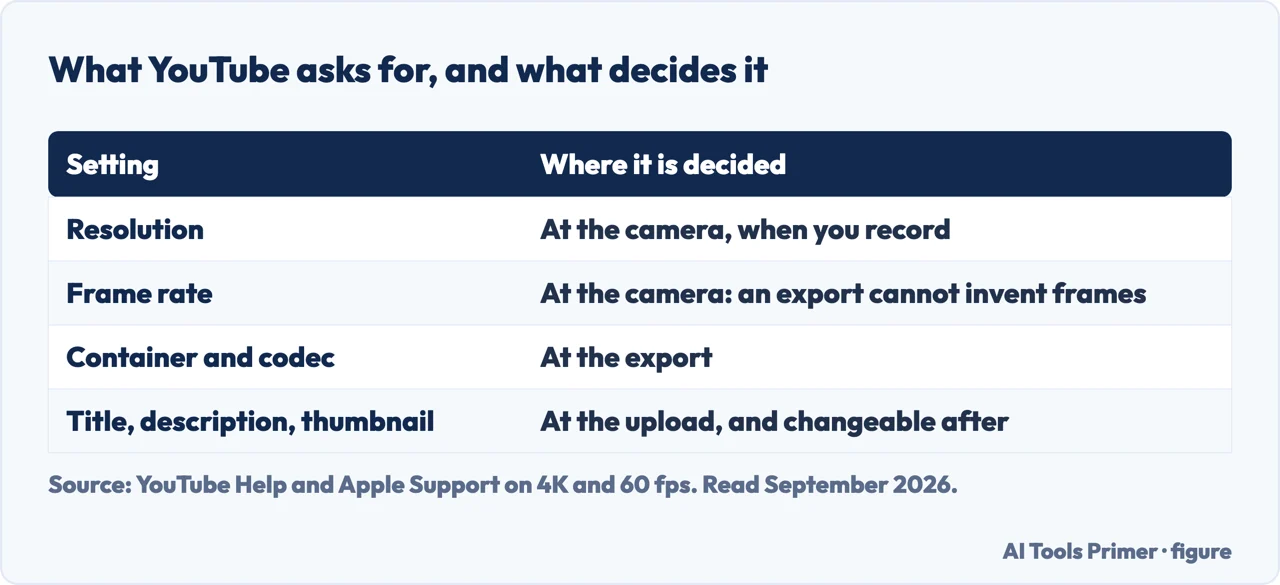
The frame rate is decided at the camera, not at the upload. Apple states the constraint plainly for its own editor: you can work with 4K and 60 frames per second “as long as one of the clips in your project was originally recorded in one of those formats”. Nothing downstream creates frames that were never captured — an upload setting can only choose how to carry what is there. That is why the useful decision is on the camera before you film, and why a project exported at 60 fps from 30 fps footage is 30 fps wearing a label.
The guides below take it three ways: the export itself, the formats it comes out of, and what to do when the file is too large for wherever it is going.
Where to start
Three ways in. If you are staring at an export dialogue, take the first.
- “What settings do I export at?”
- The four lines, then the table — what youtube asks for
- “Should I change the frame rate?”
- No, and YouTube says why — the frame rate rule
- “My file is enormous.”
- That is a different guide — size and format
What YouTube asks for
MP4, H.264, AAC-LC, with two container conditions and a published bitrate for every resolution. Most editors already produce it.
The frame rate rule
Upload at the rate you recorded at. The only exception YouTube names is interlaced footage, which has to be deinterlaced first.
Size and format
A file that will not fit, or will not play. These guides are about the numbers that decide both, and the trades between them.
Not covered here. It will not name an editor or a preset. Those change with every version, and the published settings are what a preset should be checked against.
It will not tell you to convert the frame rate. YouTube asks for the rate the footage was recorded at, and names deinterlacing as the only exception.
And it will not claim these settings help a video perform. They are encoding recommendations, and how a video is received is a different subject entirely. What holds instead is simple: the codec recommendations and the recommended bitrates are YouTube’s own, quoted with its note that audio bitrate is unrelated to video resolution.
Showing somebody what is on your screen
Onto a television, into a file, or up to somebody else. The screen is the easy part; getting it out of the room is the hard part.
- The same job, in the other places it comes up
- How to screen mirror iPhone to TV, or stream to it instead
- How to screen record on iphone: button, sound, black screen
- OBS screen recorder, and the blank scene it opens with
- How to screen record on Windows 11, without installing anything
Sources
- YouTube Help, YouTube recommended upload encoding settings (that the recommended container is MP4 with no Edit Lists, since otherwise the video might not get processed correctly, and with the moov atom at the front of the file for Fast Start; that the recommended audio codec is AAC-LC, Opus or Eclipsa Audio, in stereo or stereo plus 5.1, at a sample rate of 48kHz; that the recommended video codec is H.264 with progressive scan and no interlacing, High Profile, two consecutive B frames, closed GOP at half the frame rate, CABAC, variable bitrate with no required limit, and chroma subsampling of 4:2:0; that content should be encoded and uploaded in the same frame rate it was recorded, with common frame rates of 24, 25, 30, 48, 50 and 60 frames per second and others also acceptable, and that interlaced content should be deinterlaced before uploading, for example 1080i60 deinterlaced to 1080p30; the recommended video bitrates for standard dynamic range uploads of 35–45 Mbps at 2160p, 16 Mbps at 1440p, 8 Mbps at 1080p, 5 Mbps at 720p, 2.5 Mbps at 480p and 1 Mbps at 360p at standard frame rates, with the higher frame rate column giving 53–68, 24, 12, 7.5, 4 and 1.5 Mbps respectively; the higher figures for high dynamic range uploads including 44–56 Mbps at 2160p and 10 Mbps at 1080p, with 480p and 360p listed as not supported; the recommended audio bitrates of 128 kbps for mono, 384 kbps for stereo and 512 kbps for 5.1, with the note that audio playback bitrate is not related to video resolution; and that the standard aspect ratio for YouTube on a computer is 16:9, with the player automatically adapting to other aspect ratios such as vertical or square) — support.google.com, read 22 August 2026.
- Apple Support — Use 4K and 60 frames per second video in iMovie: the rule that the format has to come from the recording, not from the export — support.apple.com, read 4 September 2026.
Written by Alberto Gulotta
Founder and editor of AI Tools Primer, writing from Palermo, Italy. Thirty-five years of taking computers apart, starting with a Commodore 64 — the long version is on the about page.
Something wrong on this page? Write to aitoolsprimer@gmail.com and it gets fixed.
Written on 22 August 2026 · last checked 23 September 2026.
Independence and limits
No affiliate links and no paid placements anywhere on this site. Nobody pays to appear here, and no company has seen this page before you did.
This is general information, not professional advice. Where a page touches money, health, safety or the law, it names its source and the date it was read — and your situation may still differ. See the privacy page and the cookie policy.