Search how to convert mov to mp4 and the first ten results are ten websites that want you to upload the video to them. Some are good. All of them involve sending a file you filmed to a company you have not heard of, waiting, and downloading it back — and none of that is necessary.
Start with the cheapest test there is, because it costs ten seconds and occasionally ends the problem.
Try this before you upload anything
Rename the file — change nothing but the extension, .mov → .mp4
Then open it in the app that was refusing it
This is not a conversion and it is not magic; it changes no data at all. It is worth trying because it
costs nothing and answers immediately: the other program either opens it or does not.
When it works, you are done. When it does not, nothing has been harmed — rename it back and
carry on down this page. What it will never fix is a codec the other program cannot decode,
which is the case the Mac column above is really about.
If that did not work, the next thing to know is which of the two obvious tools actually does this job. One of them does not, and it is the one every article recommends.
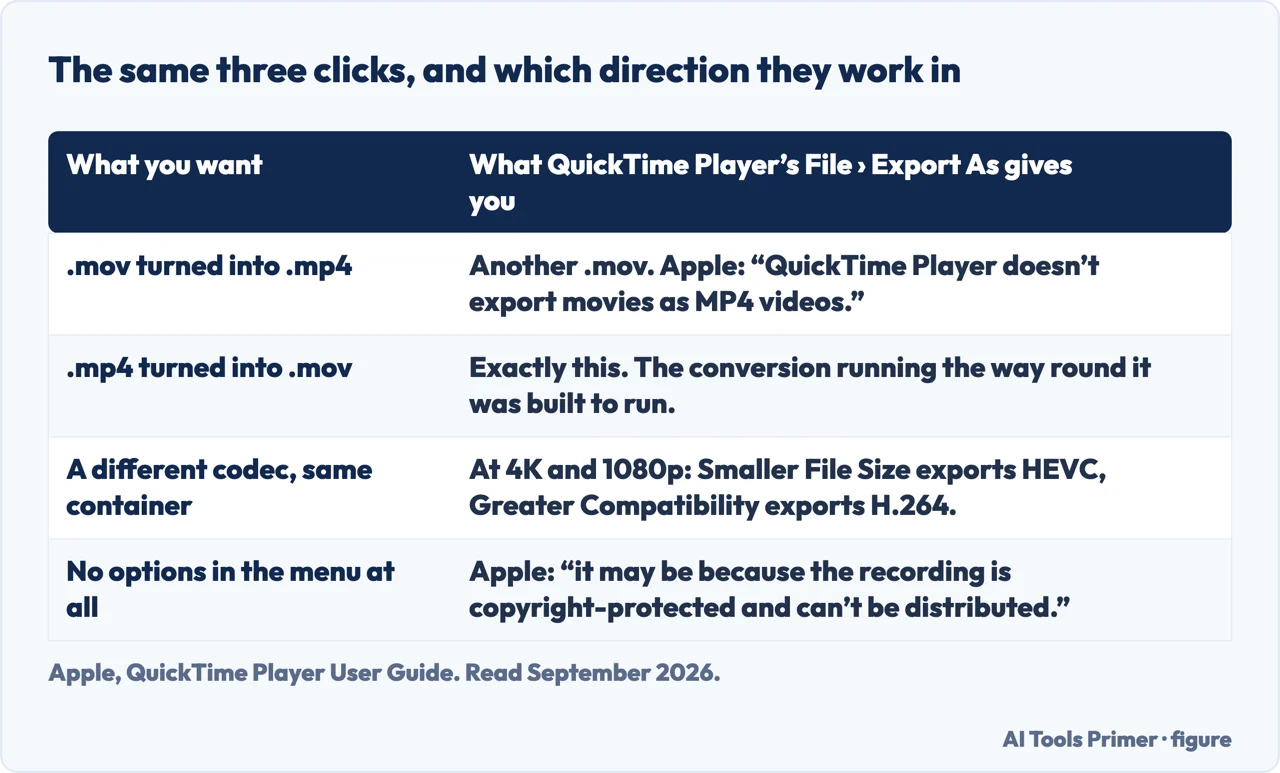
“QuickTime Player doesn’t export movies as MP4 videos.”
Apple, in the QuickTime Player user guide, read 22 August 2026. The same page is explicit about
what you get instead: “Your movie is exported as a QuickTime movie (.mov) using the H.264 or HEVC
codec.” The most repeated piece of advice on this subject is wrong, and Apple says so on its own
documentation page. File › Export As produces another .mov. It always did.
This matters beyond the pedantry, because it explains a specific and common failure. Somebody follows the advice, exports from QuickTime, and gets a file that behaves exactly like the one they started with — because it is one. They conclude the conversion failed, or that their Mac is broken, and go looking for software to buy. Nothing failed. QuickTime did precisely what Apple documents it doing.
On WindowsClipchamp · included with Windows 11
Microsoft’s list of what it will accept begins “MP4, MOV, WEBM, AVI…”, so the .mov goes
straight in. On the way out: “you’ll receive an MPEG-4 (.mp4) video file with a frame rate
of 30fps.”
Read that frame rate twice before using it on a recording made at 60fps — the output is a
genuine MP4, but it is not the same video. Four resolutions are offered: 480p, 720p, 1080p
and 4K.
Produces a real .mp4
On a MacQuickTime Player · File › Export As
Does not do this job, whatever the article told you. What it does give you is control over
the codec: at 4K and 1080p the Format menu offers Smaller File Size, which exports
HEVC, or Greater Compatibility, which exports H.264.
That second choice is often the actual fix. When a file “will not play” somewhere, the
obstacle is usually the codec inside, not the three letters on the end.
Produces another .mov
The same File › Export As, and the direction it actually works in. Quotations from Apple. Figure drawn by AI Tools Primer.
Which leaves the honest summary of the platform difference: on Windows the operating system now ships with something that converts to MP4, and on a Mac the built-in player does not, so a Mac user genuinely does need something else — a video editor, or one of those upload sites, chosen deliberately rather than because it was first on the page.
Before choosing either, it is worth asking whether the conversion is needed at all. The reason this question exists is almost always a second program refusing the file, and a surprising number of those programs do not refuse .mov at all. Microsoft’s own editor lists it as supported input. So does a good deal of the software people are trying to feed these files into. Checking takes a minute and sometimes removes the whole task.
There is a neat consequence hiding in Apple’s sentence, for the smaller group arriving here from the opposite direction. If QuickTime Player’s export always produces a QuickTime movie using H.264 or HEVC, then QuickTime is useless as a mov to mp4 converter and is exactly the right tool for mp4 to mov — the same menu, the same three clicks, the conversion running the way round it was built to run. Which is worth knowing if an Apple application has just refused your MP4.
One more thing worth knowing before you press export anywhere: a conversion is a re-encode, and a re-encode costs quality. It is not visible on one pass through a short clip, and it is visible after three passes through a long one. So convert from the original if you still have it, rather than converting something you already converted. And if the file is precious, keep the .mov.
A last note for anyone who cannot export at all. Apple documents that too: “If you don’t see any options available in the Export menu, it may be because the recording is copyright-protected and can’t be distributed.” An empty menu is not a bug in that case, and no converter will get past it either.
The guides below take it in four parts: what these two file types actually are, doing the job on each system, the upload sites and what to check before using one, and the related conversions people arrive here having confused with this one.
Not covered here. It will not send you to an upload site as the first answer: for this job it is not needed.
It will not repeat the QuickTime advice. Apple documents that QuickTime Player does not export MP4, and a page that tells you otherwise has not checked.
And it will not rank the online converters yet. That verdict needs accounts, a set of files we filmed ourselves, and a published record of what each service did with them afterwards. What holds instead is simple: the export behaviour on this page is quoted from Apple’s QuickTime Player user guide and Microsoft’s Clipchamp documentation, listed below with the dates they were read.
Sources
Apple — QuickTime Player User Guide, Export movies to other file formats and resolutions (the statement that QuickTime Player does not export MP4, the export presets, the HEVC and H.264 choice, and the copyright-protected empty menu) — support.apple.com, read 22 August 2026.
Microsoft Support — What format is my video exported in? (Clipchamp exports MPEG-4 .mp4 at 30fps, and the four output resolutions) — support.microsoft.com, read 22 August 2026.
Microsoft Support — Video file formats supported by Clipchamp (the accepted input list, which includes MOV) — support.microsoft.com, read 22 August 2026.
AG
Written by Alberto Gulotta
Founder and editor of AI Tools Primer, writing from Palermo, Italy. Thirty-five years of
taking computers apart, starting with a Commodore 64 — the long version is on the
about page.
Written on 22 August 2026 · last checked 5 September 2026.
§
Independence and limits
No affiliate links and no paid placements anywhere on this site. Nobody pays to appear here,
and no company has seen this page before you did.
This is general information, not professional advice. Where a page touches money, health,
safety or the law, it names its source and the date it was read — and your situation may
still differ. See the privacy page and the
cookie policy.