
Video · guide
How to screen record on Windows 11, without installing anything
By Alberto Gulotta · Updated · 8 min read
Search how to screen record on windows 11 and four in five results are selling recording software. Windows ships two recorders of its own, both free, and between them they cover almost everything people ask for.
The newer one, and the one that arrived without fanfare
Snipping Tool
Microsoft: this shortcut is the one “to open the Snipping Tool overlay to capture a video clip”. Then “Select the area of the screen you wish to record, then select Start. When you are done, select Stop.”
It records a rectangle you choose, which is what the question is normally after when it is asked showing somebody one window or one form.
The older one, built for games
Xbox Game Bar
Microsoft: “Press the Windows key+G” to show the controls, “Windows key+Alt+R” to start and to stop, and “Windows key+Alt+M” to “toggle the microphone on and off during the recording”.
“You can find the recorded video on your computer under Videos in a folder called Captures as an MP4 file.”
The recording does not end at the file. Microsoft: “at this point you can save the recording as-is or select Edit in Clipchamp to work with it in the Clipchamp video editor” — and that second door is where every audio feature on the page lives. “When you finish recording a video snip, select the Edit in Clipchamp button to add Captions or Audio.”
Two things are documented there and nowhere else in the tool. Captions are generated rather than typed: “navigate to the Captions tab and select the Transcribe media button”, choose a language, and it writes them. And the soundtrack can be pulled back out again: from the Audio tab you can “adjust the volume within a range of 0 to 200%” and, “to download the audio separately, select the Detach audio button”.
Which sharpens the difference on this page rather than blurring it. Snipping Tool records the screen and nothing else; the word microphone does not appear on Microsoft’s page for it, and every audio instruction there is about a track added afterwards in another app. Game Bar records your voice while it happens. If the point of the recording is to talk over what you are doing, that is the one that does it in a single pass.
Which of the two you want
That is the honest answer to the commonest complaint about screen recording on Windows. People try one route, find it cannot do the thing they need, and conclude Windows cannot record the screen. It has two recorders with different strengths, they are both free, and neither is advertised anywhere you would look.
The reason so few pages mention the first one is simply that it is newer. For years the only answer on Windows was the Game Bar, and a great deal of what is written about screen recording still assumes that. If a guide tells you the only built-in option is meant for games, it was written before the shortcut above existed.
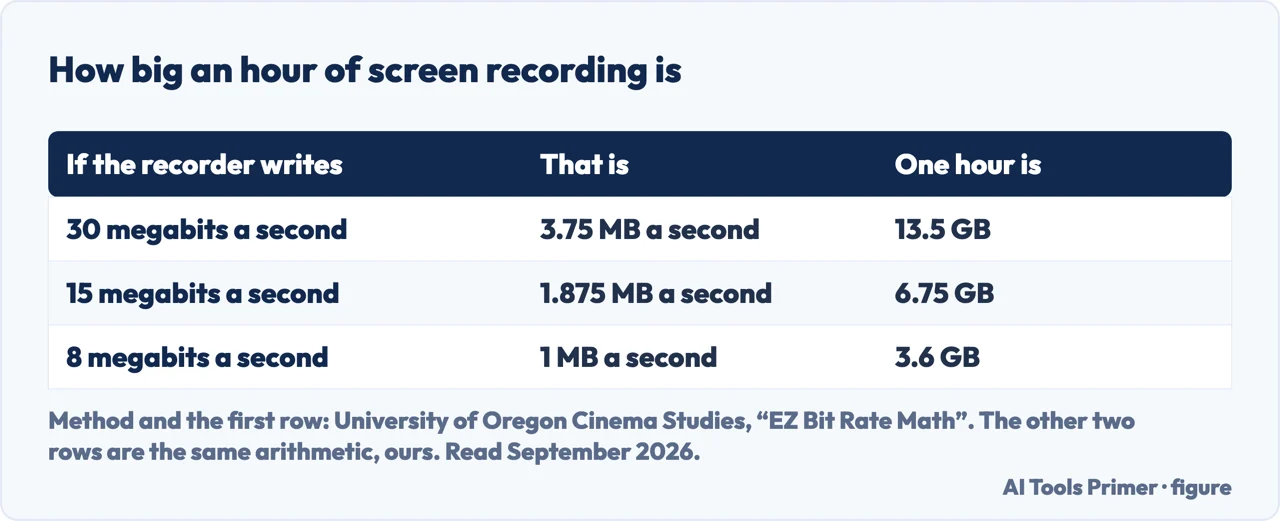
One thing is worth checking before a recording that matters, and Microsoft’s own page does not raise it: where the file lands and how large it becomes. Game Bar recordings go to Videos and then Captures, as an MP4. A long recording of a high-resolution screen is a large file — an hour can be measured in gigabytes — and the moment to discover that is not while you are trying to email it. The guides below cover getting it smaller and cutting it down.
The way this is asked separates two groups. How to record screen on windows 11 and how to screen record on windows are people looking for the method. How to do screen recording on windows tends to come from somebody who has already tried and been stopped by something specific — no sound, a black rectangle, a recording that would not start. Those have causes rather than workarounds, and they have a wing of their own below.
And the same caution belongs here as on any recording page. A screen recording captures the whole rectangle, including a notification arriving mid-sentence, a tab title, an open message. Closing what you are not showing takes ten seconds and is the only reliable way to avoid sending somebody more than you meant to.
Where to start
Four ways in.
- “I just want to record this window.”
- Snipping Tool, above. Then after the recording
- “The file is enormous.”
- That is after the recording
After the recording
The file exists, it is too long and too big, and it has to reach somebody. All three are solvable without extra software.
On other devices
The same job elsewhere. Every current system has this built in, and the routes have nothing in common with each other.
Not covered here. It will not recommend recording software for a job two built-in tools already do.
It will not claim a feature exists because another site says so. Where Microsoft documents something the words are quoted; where Microsoft is silent — as it is about audio in Snipping Tool — the guide says so rather than filling the gap.
And it will not rank the recorders yet. That needs a long recording, a protected app and a machine short of disk space, put through each of them, with the results and the file sizes published. What holds instead is simple: every shortcut on this page is quoted from Microsoft’s own support documentation.
Showing somebody what is on your screen
Onto a television, into a file, or up to somebody else. The screen is the easy part; getting it out of the room is the hard part.
- The same job, in the other places it comes up
- How to screen mirror iPhone to TV, or stream to it instead
- How to screen record on iphone: button, sound, black screen
- OBS screen recorder, and the blank scene it opens with
- How to upload a video to YouTube at the right settings
Sources
- Microsoft Support — Use Snipping Tool to capture screenshots, including the Windows logo key + Shift + R recording shortcut — support.microsoft.com, read 6 September 2026.
- Microsoft Support — Use a screen reader to record your screen with Xbox Game Bar, including the start, stop and microphone shortcuts and where the file is saved — support.microsoft.com, read 21 August 2026.
- University of Oregon, Cinema Studies technology resources — EZ Bit Rate Math, by Mason Kline, for the method that turns a bit rate into gigabytes an hour and the worked example at 30 megabits a second — blogs.uoregon.edu, read 5 September 2026.
Written by Alberto Gulotta
Founder and editor of AI Tools Primer, writing from Palermo, Italy. Thirty-five years of taking computers apart, starting with a Commodore 64 — the long version is on the about page.
Something wrong on this page? Write to aitoolsprimer@gmail.com and it gets fixed.
Written on 21 August 2026 · last checked 5 September 2026.
Independence and limits
No affiliate links and no paid placements anywhere on this site. Nobody pays to appear here, and no company has seen this page before you did.
This is general information, not professional advice. Where a page touches money, health, safety or the law, it names its source and the date it was read — and your situation may still differ. See the privacy page and the cookie policy.