
Software · guide
How to screenshot on Windows: three ways
By Alberto Gulotta · Updated · 11 min read
How to screenshot on Windows: three shortcuts cover it. Windows and Shift and S captures a part of the screen, Windows and Print Screen saves the whole screen as a file, and Print Screen does one of two things, depending on the version and a setting. On Windows 11, Windows and Shift and R also records a clip. Nothing to install.
| Keys | What it captures | Where it goes | Source |
|---|---|---|---|
| ⊞ Win + Shift + S | An area, a window or the whole screen — you choose in the overlay | Windows 11: the clipboard and, by default, the Screenshots folder. Windows 10: the Snipping Tool window | Microsoft |
| ⊞ Win + Shift + R (Windows 11) | A video clip of a rectangular area | Videos › Screen Recordings, as an MP4 by default | Microsoft |
| Print Screen | Windows 11, by default: opens the snipping overlay. With that default turned off, and by default on Windows 10: the entire screen | The clipboard — and, with the overlay on Windows 11, the Screenshots folder by default | Microsoft |
| ⊞ Win + Print Screen | The entire screen, saved without asking | Pictures › Screenshots | Microsoft |
| Fn + ⊞ Win + Space | A screenshot, on a device with no Print Screen key | Pictures › Screenshots, per Microsoft’s print-screen page | Microsoft |
The three shortcuts on Microsoft’s Snipping Tool page
Quoted from the Windows 11 tab of Microsoft’s Snipping Tool page, read 29 September 2026. Nothing to install.
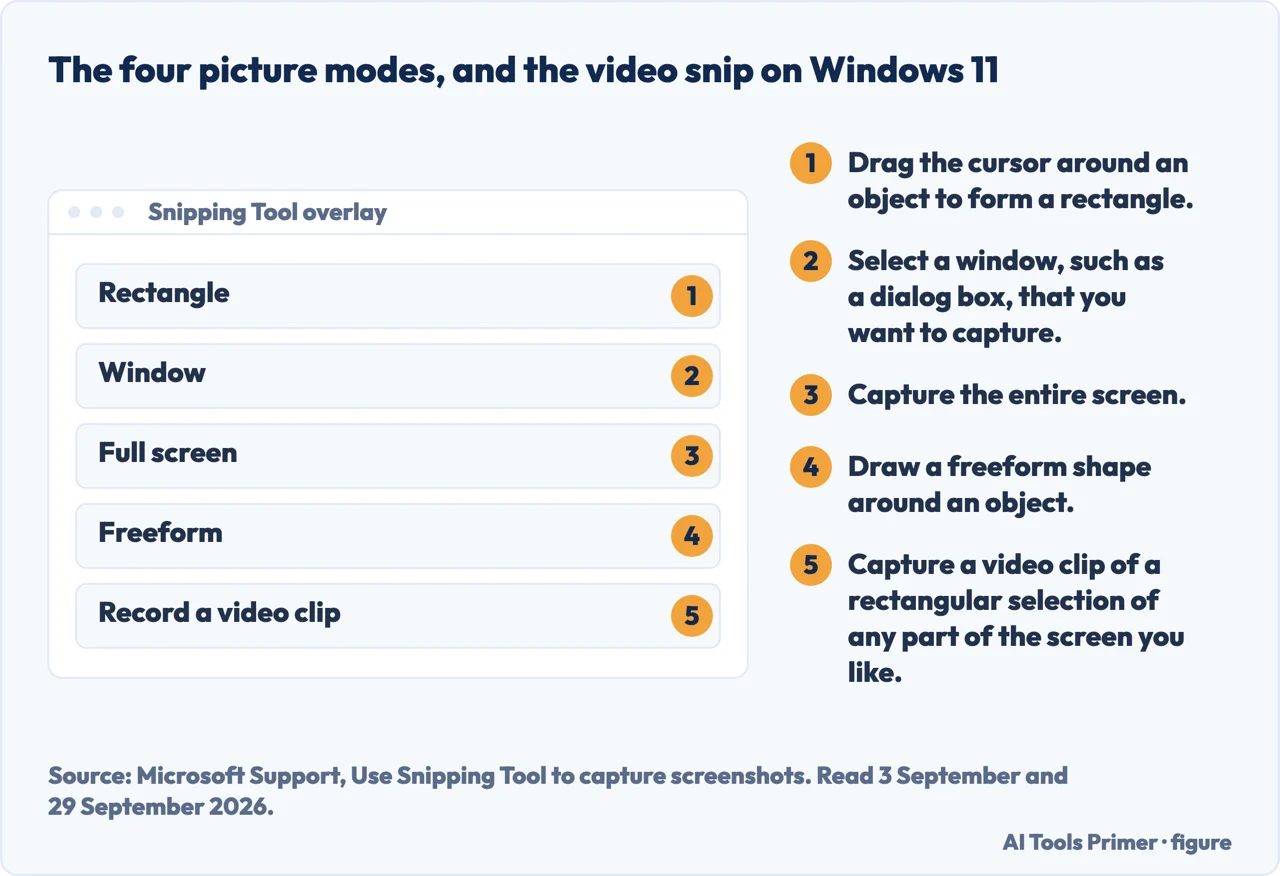
“Press Windows logo key + Shift + S to open the snipping tool overlay to capture an image snapshot.” It lets you pick a rectangle, a window, a freeform shape or the whole screen.
“Press Windows logo key + Shift + R to open the snipping tool overlay to capture a video clip.” On Windows 11 the recording is saved, by default, “as an MP4 file in the Screen Recordings subfolder of your Videos folder”, according to Microsoft’s keyboard-shortcuts page; its Surface page sends Windows 10 users to Clipchamp instead.
“Press Print Screen (PrtSc) for a static image snapshot of your entire screen and place it in your clipboard.” That is the key with a setting. Microsoft’s keyboard-shortcuts page says that on Windows 11 Print Screen lets you “Select a region of the screen to capture a screenshot to the clipboard”, and that “You can turn off this default behavior.” With it turned off, and on Windows 10 by default according to the same page, the whole screen goes to the clipboard, not to a file; the Windows 10 tab of the Snipping Tool page lists Print Screen among the ways to open Snipping Tool.
If Print Screen seems to have done nothing, look in the clipboard before trying again: paste with Ctrl + V.
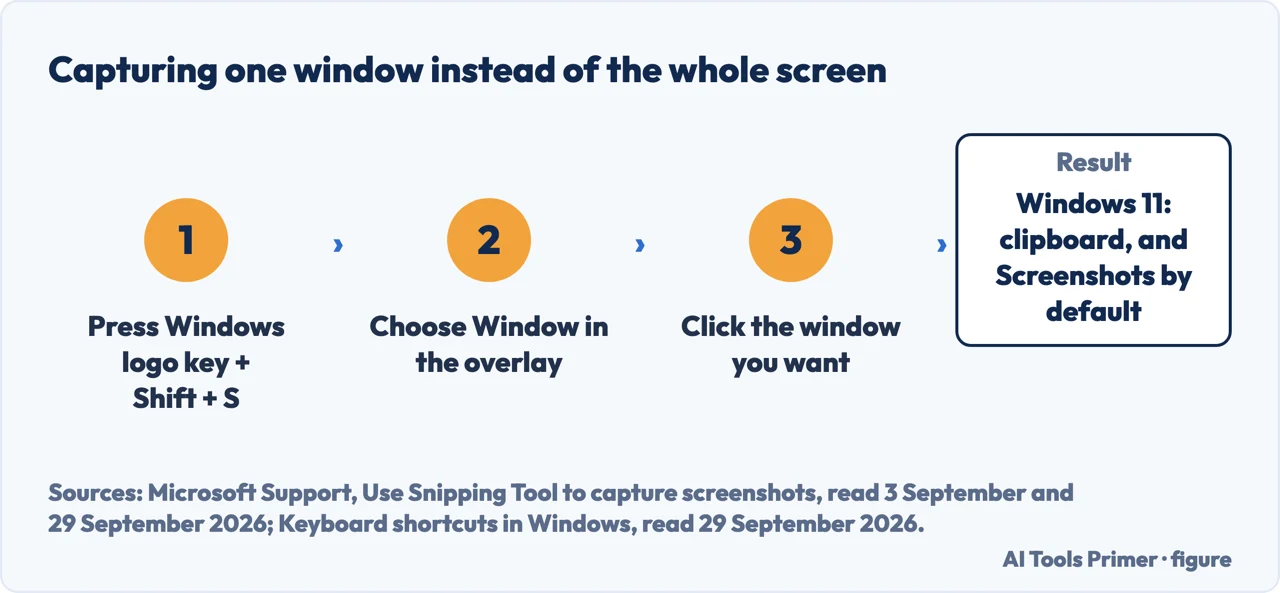
- Press Windows logo key + Shift + S. Microsoft’s wording: this opens “the snipping tool overlay to capture an image snapshot”. Microsoft describes the screen changing “slightly to gray” when Snipping Tool is ready to capture.
- Choose Window. Microsoft lists four modes for pictures — Rectangle, Window, Full screen and Freeform — and says Window “allows you to select a window that you want to capture”.
- Click the window you want.
- On Windows 11, take it out of the clipboard: paste it wherever it is going with Ctrl + V. You do not have to save a file first.
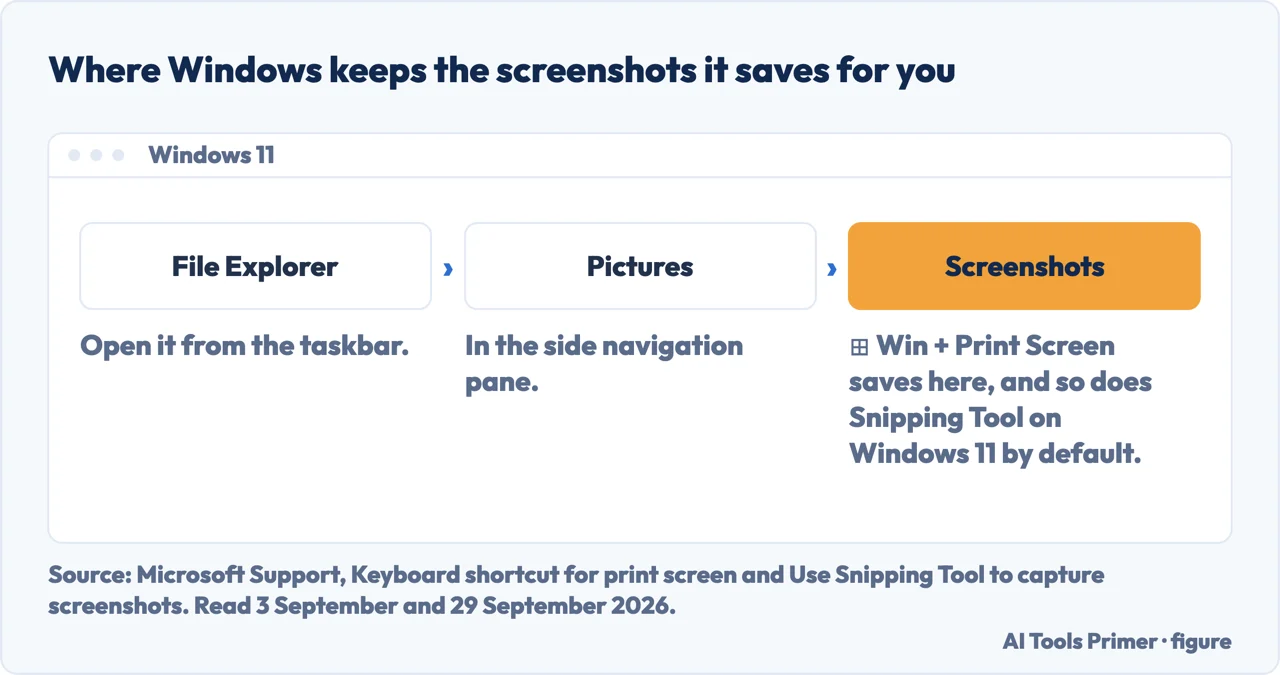
- Or, on Windows 11, find the file Snipping Tool has already written: “After you capture a snip, it is automatically saved to your Screenshots folder.” To change that folder or the automatic saving, open Snipping Tool, then See more and Settings. On Windows 10, the snip is copied to the Snipping Tool window, and Microsoft’s steps save it with the Save Snip button.
The rest of this guide is about where the picture goes, and the keys that seem not to work.
Three combinations, and where each one works
A word about versions, because they are in the wording of the question itself. How to take a screenshot on windows 11 and how to take screenshot on windows 11 name the version explicitly. On Windows 11, ⊞ Win + Shift + S, ⊞ Win + Print Screen and Print Screen all work, and three things differ from Windows 10: Print Screen opens the snipping overlay by default — on Windows 10, Microsoft’s shortcut list makes that an option — Windows and Shift and R records the screen, and Snipping Tool saves each picture snip to the Screenshots folder by default. On Windows 11 the overlay belongs to the new Snipping Tool: Microsoft wrote in 2021 that in Windows 11 “both the classic Snipping Tool and Snip & Sketch apps have been replaced by a new Snipping Tool app”.
Where to start
Three ways in.
- “I pressed the key and nothing happened.”
- Look in the clipboard first — paste before pressing again
- “I want just one window, or one area.”
- The steps are above — one window
- “I am on a laptop with no Print Screen key.”
- It is in the table — the last row
Related guides
A keyboard that will not type, and screen capture on Android.
On other devices
Screenshots on an iPhone and on a Mac.
Questions people also ask
How do you screenshot on a computer keyboard?
Three shortcuts: ⊞ Win + Shift + S for part of the screen, ⊞ Win + Print Screen for the whole screen saved to a file, and Print Screen, which on Windows 11 opens the snipping overlay by default and otherwise copies the whole screen. Without a Print Screen key, Microsoft documents Fn + ⊞ Win + Space.
Why is Ctrl+Shift+S not working for a screenshot?
Because it is not a Windows screenshot shortcut: the Windows one uses the Windows logo key, ⊞ Win + Shift + S. In Microsoft Edge, Ctrl+Shift+S is Edge’s own screenshot command.
How do I get to Screenshots on my PC?
Microsoft’s route: “open File Explorer from the taskbar. On the side navigation pane, select the Pictures folder, and select Screenshots.” ⊞ Win + Print Screen saves there, and so does Snipping Tool on Windows 11 by default. Recordings made with ⊞ Win + Shift + R go to Videos › Screen Recordings by default.
Why does Print Screen open a tool instead of doing nothing?
Because on Windows 11 that is now the default; before, it copied the screen to the clipboard, which can look like nothing. Microsoft announced the change to Canary Channel Insiders in March 2023, and its June 2023 update KB5027303 puts the switch under Settings › Accessibility › Keyboard and keeps a preference you had already set.
Not covered here. It will not send you to download a screenshot tool. Windows takes pictures without anything installed, and on Windows 11 records video too; Microsoft documents the shortcuts on its own support pages.
It will not rank the screenshot apps yet. Naming a best one needs weeks of use, not a feature list.
And one warning that is not technical: before you send a screenshot, check what else is in the frame — a notification, a tab title, a second monitor.
One last thing worth knowing. Microsoft has changed how screenshots work more than once: Print Screen, which copied the whole screen, now opens an overlay by default on Windows 11, the Snipping Tool has been rebuilt, and Windows 11 added a recording shortcut. An old page may describe a version of Windows that is no longer in front of you. What holds instead is simple: the shortcuts here are checked against Microsoft’s own pages, with the date.
Taking a screenshot, whatever you are holding
The same job on the other systems.
- The same job, in the other places it comes up
- How to screenshot on tablet with keyboard, by system
- How to screenshot on Mac: the four ways
- How to screenshot on iPhone, and what changed after you press
- How do you screen capture on an Android — three rungs
Sources
- Microsoft on using Snipping Tool to capture screenshots — the three shortcuts in its Windows 11 tab, the four picture modes and the video snip, the automatic save to the Screenshots folder on Windows 11, the Save Snip button and the Ctrl + PrtSc route for menus on Windows 10, and the Alt + D delay — support.microsoft.com, read 3 September and 29 September 2026.
- Microsoft on the keyboard shortcut for print screen — ⊞ Win + Print Screen, Fn + ⊞ Win + Space on a device with no Print Screen key, and the folder the files land in — support.microsoft.com, read 3 September and 29 September 2026.
- Windows Insider Blog, build 25330 — the Canary Channel build in which Print Screen was set to open Snipping Tool by default, and where the switch is — blogs.windows.com, read 3 September and 29 September 2026 · post published 30 March 2023.
- Microsoft on keyboard shortcuts in Windows — what Print Screen, ⊞ Win + Print Screen, ⊞ Win + Shift + S and ⊞ Win + Shift + R do on Windows 11, what Print Screen and ⊞ Win + Shift + S do on Windows 10, and the Screen Recordings folder — support.microsoft.com, read 29 September 2026.
- Microsoft on the update of 27 June 2023, KB5027303 — Print Screen opening Snipping Tool by default, and a preference already set being kept — support.microsoft.com, read 29 September 2026.
- Microsoft on screenshots and screen recording on Surface — recording on Windows 11, and Clipchamp for Windows 10 — support.microsoft.com, read 29 September 2026.
- Windows Insider Blog, 12 August 2021 — the new Snipping Tool replacing the classic Snipping Tool and Snip & Sketch in Windows 11 — blogs.windows.com, read 29 September 2026.
- Microsoft Learn on the WebCaptureEnabled policy for Microsoft Edge — the Screenshot option and CTRL+SHIFT+S in Edge — learn.microsoft.com, read 29 September 2026.
Written by Alberto Gulotta
Founder and editor of AI Tools Primer, writing from Palermo, Italy. Thirty-five years of taking computers apart, starting with a Commodore 64 — the long version is on the about page.
Something wrong on this page? Write to aitoolsprimer@gmail.com and it gets fixed.
Written on 21 August 2026 · last checked 30 September 2026.
Independence and limits
No affiliate links and no paid placements anywhere on this site. Nobody pays to appear here, and no company has seen this page before you did.
This is general information, not professional advice. Where a page touches money, health, safety or the law, it names its source and the date it was read — and your situation may still differ. See the privacy page and the cookie policy.