How to screenshot on tablet with keyboard has a different answer on each of the three systems, and on one of them the combination you choose decides whether you end up with a file or with nothing but a clipboard. That distinction is published by the manufacturer and almost never carried over into the guides.
Surface, with a Type Cover or Keyboard
windows
A saved file: “Press the Windows logo key + PrtScn or press the Windows logo
key + Snipping key.” Then: “Your screenshots will automatically save to the
Pictures > Screenshots folder in File explorer.”
The snip tool: Microsoft lists “Open Windows screen snip to capture a window
or a section of your desktop” and, against it, “Press the Fn button +
Spacebar at the same time.”
Clipboard only: against “Place a screenshot of your active window into the
Windows clipboard” sits “Press the Fn button + Alt button + Spacebar at
the same time”.
An Android tablet with a keyboard
android
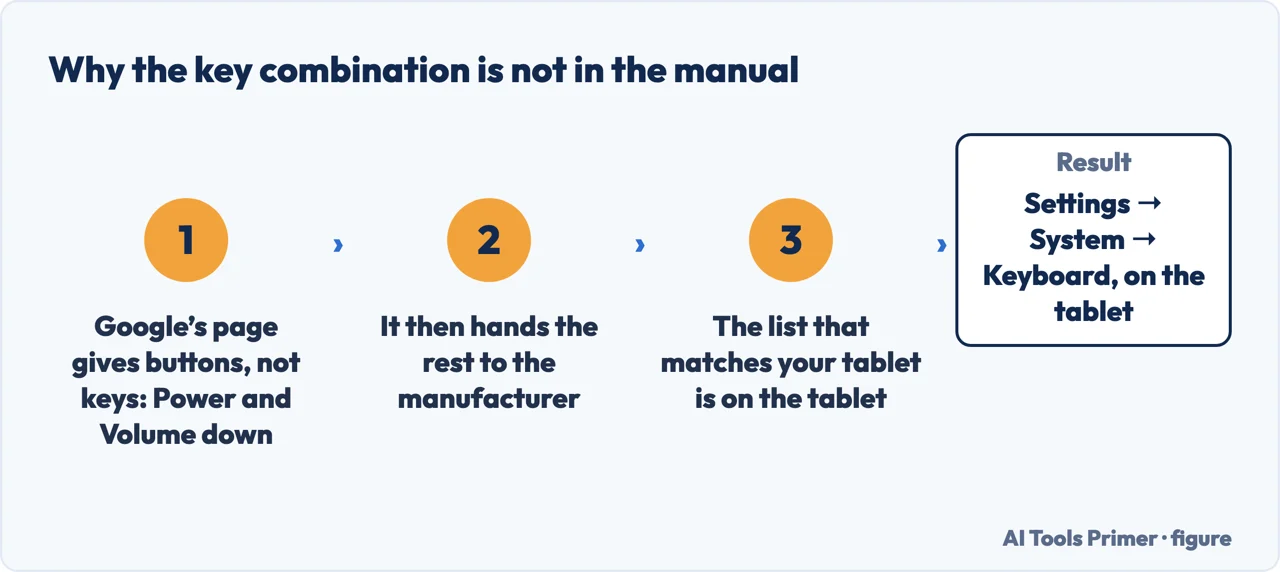
Google’s screenshot page gives buttons, not keys: “Press the Power and
Volume down buttons at the same time.”
And it ends by handing the rest away: “If neither of these work, go to your
phone manufacturer’s support site for help.”
The list your own tablet holds: Settings → System → Keyboard → Physical
keyboard → “Keyboard shortcuts: Tap to display a list of useful keyboard
shortcuts.” Google’s caveat on that page: “Important: Some of these steps
work only on Android 14 and up.”
A ChromeOS detachable
chromeos
“If your Chromebook has it, press the Screenshot key.”
Without one: “Press Shift + Ctrl + Show windows”, and “if your
external keyboard doesn’t have a Show windows key, press Ctrl + Shift +
F5”.
Both open a menu rather than firing: “In the menu at the bottom, select
Screenshot.” You get both outputs — “Screenshots and recordings are
automatically copied to your clipboard” and “Recordings and screenshots
get saved to your ‘Downloads’ folder”.
Read the first column again in the order Microsoft wrote it. Each key combination is listed against a task, and the tasks are different tasks. Only the Windows logo key row is followed by the sentence about a file. The two Fn rows are labelled as opening the snip overlay and as placing an image in the clipboard — which means that if you press one of those, close the app and go looking in Pictures, there is nothing there, and nothing went wrong.
On the Surface side there is a second complication, and it is a genuine disagreement between two of Microsoft’s own pages.
Two Microsoft pages, one missing key, two different answers
The Windows page: “If your device does not have the PrtScn button, you may
use Fn + Windows logo key + Space Bar to take a screenshot, which can then be
printed.”
The Surface page, for the same keyboards: “Press the Fn button + Spacebar at
the same time” — listed against “Open Windows screen snip”.
Both are current, both are Microsoft’s, and they are not the same instruction. One adds
the Windows logo key and describes a screenshot; the other omits it and opens the snip overlay,
which then waits for you to draw a rectangle. On a tablet keyboard with no PrtScn key, which
of the two you happen to read decides what happens when you press.
The practical resolution is to ignore the argument and use the row that names the outcome you
want. Only one combination on the Surface page is followed by the sentence about a file being
written; the other two are labelled, in Microsoft’s own words, as opening the snip tool
and as placing an image in the clipboard.
The list that matches your tablet is on the tablet. Figure drawn by AI Tools Primer.
Neither page is wrong about itself. The Windows page is written for any keyboard missing a PrtScn key and gives a combination that includes the Windows logo key; the Surface page is a table of tasks for Surface covers, and the Fn + Spacebar row is the snip row. The contradiction is only a contradiction if you arrive expecting one canonical shortcut. There is not one: the two pages answer for two different keyboards.
Android is a different situation entirely, and the useful finding there is an absence.
Google’s page about using a physical keyboard with an Android tablet
— the exact hardware combination in this question — never mentions taking a
screenshot at all.
It covers connecting the keyboard, and it points at the device’s own list:
“Keyboard shortcuts: Tap to display a list of useful keyboard shortcuts.” That is
the honest answer for Android: there is no universal documented key combination, the
manufacturer decides, and Google says as much on the screenshot page by ending it with
“go to your phone manufacturer’s support site for help”. An article that gives
you a single Android keystroke for “a tablet” is giving you one manufacturer’s
answer without saying whose.
This is worth stating plainly, because an absence in the documentation is easy to mistake for a gap in our reading. Google documents the screenshot as buttons — “Press the Power and Volume down buttons at the same time” — and its page for physical keyboards on tablets sends you to the shortcut list stored on the device itself. The version and the ownership are both stated: that list is behind Settings and, in Google’s words, some of those steps work “only on Android 14 and up”. Where the tablet is not a Pixel, the menus belong to the manufacturer, and this page has not checked them.
A note on the ChromeOS keys, because the wording matters when a key is missing. Google gives
Ctrl + Shift + F5 as the stand-in for the Show windows key, which is what a detachable
cover without the dedicated key needs. But the shortcut does not capture anything by itself: it
opens the Screen Capture bar, and the actual choice — “Take a full screen
screenshot”, “Take a partial screenshot”, “Take a window screenshot”
— is the step after it. On this platform, unlike the Surface clipboard case, you do not have
to choose between a file and a copy: Google documents both happening.
So the short version, if you want one sentence per system. On a Surface, press the Windows logo key with PrtScn or the Snipping key if you want a file. On a ChromeOS detachable, use Ctrl + Shift + F5 and then pick from the bar that appears. On an Android tablet, open the shortcut list your own device is carrying, because there is no documented universal key.
A word on where this question is usually answered. The first page of results for it is a mix of community threads, a keyboard manufacturer, a general technology magazine and two online safety organisations. Several give a keystroke per platform and stop; none of the ones read for this page distinguishes the combination that writes a file from the combination that only copies, which is the difference a reader discovers ten minutes later in an empty folder.
What this page will not do is give you one keystroke for “Android tablets”. Google does not publish one, the manufacturers differ, and inventing a single answer would be the error the whole page is about.
It will not recommend a screenshot utility. The three systems above all ship the capability, and nothing else here has been tested.
And it will not tell you which shortcut your particular cover has printed on it. Microsoft is explicit that “the keys that appear on your keyboard or type cover” vary by model, so the physical row in front of you is the authority on that.
Where to start
Three ways in. If the screenshot seems to vanish, take the first.
Not covered here. It will not print a single universal Android shortcut. Google does not publish one; the list lives on your device and belongs to whoever made it.
It will not recommend a capture app. All three systems ship this, and recommending software nobody here has tested would be advertising.
It will not flatten the two Microsoft pages into one instruction. They differ, both are official, and knowing which task each row is written against is more useful than a tidy answer.
And it carries no affiliate links, including for tablet keyboards, precisely the product a guide on this subject is usually built to sell. What holds instead is simple: each combination above is quoted from Microsoft or Google with the task it is listed against, and where no shortcut is documented this page says so.
Microsoft, Take a screenshot or record your screen on Surface — Microsoft Support (the instruction to press the Windows logo key + PrtScn, or the Windows logo key + Snipping key, to save a screenshot, and that screenshots automatically save to the Pictures, Screenshots folder in File Explorer; the entry pairing Open Windows screen snip to capture a window or a section of the desktop with pressing the Fn button and Spacebar at the same time; and the entry pairing placing a screenshot of the active window into the Windows clipboard with pressing the Fn button, Alt button and Spacebar at the same time) — support.microsoft.com, read 24 August 2026.
Microsoft, Special keys and function keys for Surface Keyboards or Type Covers — Microsoft Support (that Surface Keyboards and Type Covers have shortcut keys for common tasks, and that the keys which appear on your keyboard or type cover vary and depend on the model you have) — support.microsoft.com, read 6 September 2026.
Microsoft, Keyboard shortcut for print screen — Microsoft Support (that if the device does not have a PrtScn button, Fn + Windows logo key + Space Bar may be used to take a screenshot which can then be printed, and the route to find screenshots through File Explorer, the Pictures folder and then Screenshots) — support.microsoft.com, read 24 August 2026.
Google, Use a physical keyboard with your tablet — Android Help (that the physical keyboard settings are reached through Settings, System, Keyboard and Physical keyboard; that Keyboard shortcuts can be tapped to display a list of useful keyboard shortcuts; the Modifier keys setting for changing the behaviour of keys such as Caps lock, Ctrl and Alt; and the note that some of these steps work only on Android 14 and up) — support.google.com, read 24 August 2026.
Google, Take a screenshot or record your screen on your Android device — Android Help (the instruction to press the Power and Volume down buttons at the same time, and the closing direction to go to your phone manufacturer’s support site for help) — support.google.com, read 24 August 2026.
Google, Take a screenshot or record your screen — Chromebook Help (that if the Chromebook has one you press the screenshot key, the alternative for an external keyboard without a Show windows key, the Screenshot entry in the menu at the bottom, and that screenshots and recordings are automatically copied to the clipboard and saved to the Downloads folder) — support.google.com, read 26 August 2026.
AG
Written by Alberto Gulotta
Founder and editor of AI Tools Primer, writing from Palermo, Italy. Thirty-five years of
taking computers apart, starting with a Commodore 64 — the long version is on the
about page.
Written on 23 August 2026 · last checked 23 September 2026.
§
Independence and limits
No affiliate links and no paid placements anywhere on this site. Nobody pays to appear here,
and no company has seen this page before you did.
This is general information, not professional advice. Where a page touches money, health,
safety or the law, it names its source and the date it was read — and your situation may
still differ. See the privacy page and the
cookie policy.