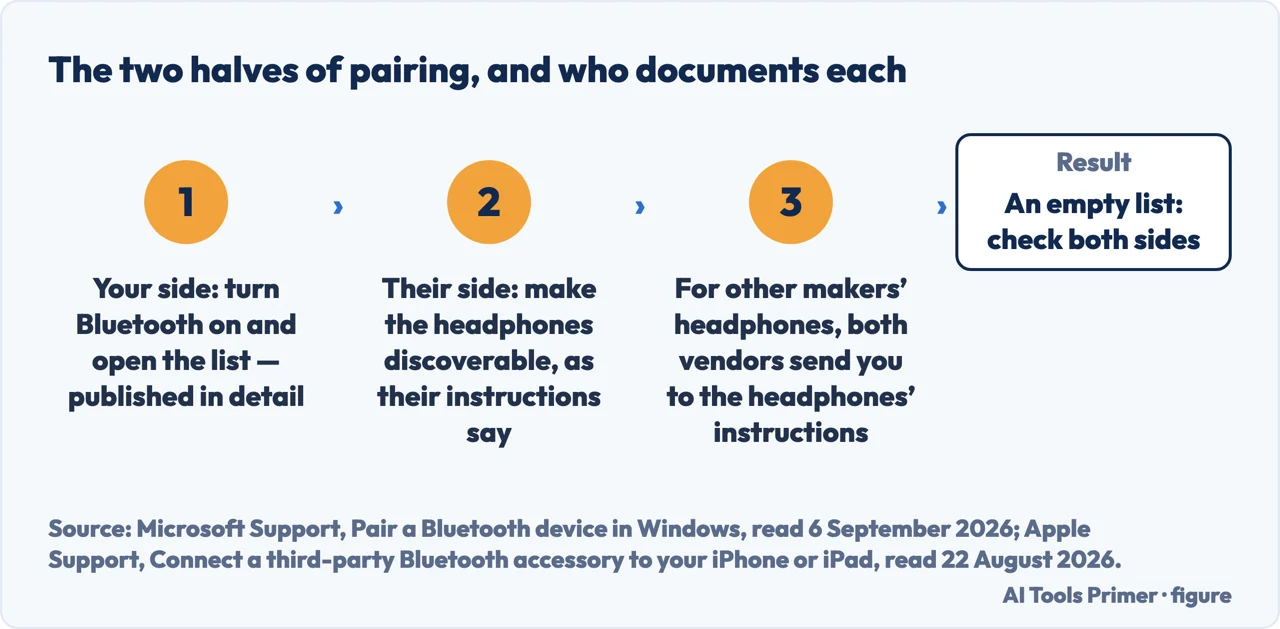
How to pair Bluetooth headphones has two halves, and for other makers’ headphones both vendors document one of them. The published half is short. The other one they hand to somebody else, in writing.
On Windows 11
windows 11
Settings → Bluetooth & devices, and make sure Bluetooth is On.
Make the headphones discoverable — see below.
On the taskbar, select the Network, Sound or Battery icon.
Select the Manage Bluetooth devices chevron, then the device under
New devices. “You might need to scroll through Your devices for New devices to
become available.”
“Follow additional instructions if they appear, then select Done.”
On iPhone or iPad
ios
Settings → Bluetooth, and turn Bluetooth on.
Make the headphones discoverable — see below.
“Under My Devices, look for the accessory that you want to pair.”
“Tap the name of your accessory when it appears. You might need to enter your PIN or
passcode.”
Both vendors stop at the same word, and both say so plainly
Microsoft: “Turn on the Bluetooth device and make it discoverable. The way to make the
Bluetooth device discoverable depends on the device. To learn how… check the device’s
documentation or visit the manufacturer’s website.”
Apple: “If you don’t see it listed, consult the accessory’s manual or online
instructions about how to make a device discoverable in Bluetooth.”
Two companies saying the same thing: making another maker’s headphones discoverable is not theirs to document. Turning Bluetooth on and opening the list is published in detail; how the headphones announce themselves, Microsoft says, “depends on the device” — and a page that gave you one button to press and hold, as though it worked on every pair, would be more confident than either operating system.
The published half is short. The other half is in the headphones’ own instructions. Figure drawn by AI Tools Primer.
That is not evasion, and it changes what to do when this fails. If the headphones never appear in the list, check both sides. On theirs: switched off, not in pairing mode, paired with another device, out of battery, or out of range. On Windows, Microsoft’s own list adds airplane mode, the discovery setting below, and the driver — “An outdated or incompatible driver is one of the most common causes of Bluetooth connection problems.”
“If the Bluetooth device isn’t displayed in the list, the Bluetooth devices discovery
setting might need to be set to Advanced.”
Microsoft’s tip. On Windows 11, the discovery setting has two values: “Default” shows “common Bluetooth devices” and “Advanced” shows “all types of Bluetooth devices”, so a device can be discoverable, in range, and not shown. It is
a setting rather than a fault, and it is worth trying before you conclude the headphones are
broken or the laptop’s Bluetooth is.
Another Windows detail is worth knowing before you blame the headphones.
Reading the Bluetooth tile before you start. On Windows 11
the quick-settings tile says more than on or off. Microsoft: if Bluetooth is off “the tile isn’t
highlighted and might say Off”; if it is on, the tile is highlighted and “either says
Connected, Not connected, or shows the device it’s connected to”. That middle state
is the one to notice — Bluetooth on and nothing attached is a different situation from Bluetooth off. And if the tile is not there at all,
Microsoft says the Bluetooth action may need adding to quick settings.
Once a pairing succeeds on Windows, it is the good kind of boring. Microsoft: “When Bluetooth is turned on, the Bluetooth device and the Windows device automatically connect anytime the two devices are in range of each other.” Pairing is a one-off; connecting afterwards is not something you do.
“When you unpair an accessory, it unpairs on all devices signed in to your Apple
Account.”
Forgetting a device is one of the fixes both vendors list when pairing has gone wrong, and on Apple hardware it is not a local action. Tap Forget this Device on the iPhone, and the iPad and the Mac signed in to the same Apple Account forget it too. Apple states it in one line inside the unpairing steps. Worth knowing before you
use it as a troubleshooting move on the device in your hand — you may be re-pairing three
things afterwards rather than one.
One more practical note from Apple’s page, for anyone who owns more than one pair. You can “repeat these steps to pair multiple Bluetooth accessories”, and where several are paired you can choose which audio source to use rather than unpairing one to reach another.
What this page will not do is tell you which buttons to hold on headphones from other makers. Microsoft and Apple both decline to for those; Apple does print them for its own: on several AirPods models, press and hold the setup button “on the back of the AirPods case for about 5 seconds, or until the status light flashes white”.
It also will not recommend a Bluetooth adapter. Microsoft notes that a USB Bluetooth adapter can add Bluetooth to a Windows device that lacks it, and names no product; neither does this page, because nothing here has been tested.
And it will not diagnose headphones that pair and then keep dropping. That is a different question, and guessing at it here would be padding.
Where to start
Three ways in. If the headphones never appear in the list, take the second.
Not covered here. It will not tell you which buttons to hold on headphones from other makers. Microsoft and Apple both decline to.
It will not recommend a USB Bluetooth adapter. Microsoft says one can be used and names nothing; nothing here has been tested either.
And it will not diagnose headphones that pair and then keep dropping. That is a different question and it does not belong to this page. What holds instead is simple: where the steps stop, the headphones’ own instructions take over, and Microsoft and Apple both say so in their own words.
Sources
Microsoft, Pair a Bluetooth device in Windows — Microsoft Support, applies to Windows 11 and Windows 10 (the kinds of device that can be paired; that the Windows device needs Bluetooth and that a USB Bluetooth adapter can add it; the routes to turn Bluetooth on through Settings and Bluetooth & devices and through the quick setting reached from the Network, Sound or Battery icon; the tile states, unhighlighted and possibly reading Off when Bluetooth is off, and highlighted and reading Connected, Not connected or the connected device when it is on, together with the note that the Bluetooth action might need to be added to quick settings; the pairing steps of turning the device on and making it discoverable, with the statement that how to make a device discoverable depends on the device and the instruction to check the device’s documentation or the manufacturer’s website; selecting the Manage Bluetooth devices chevron on the Bluetooth quick setting and choosing the device under New devices, with the note that it may be necessary to scroll through Your devices; following any additional instructions and selecting Done; the statement that a paired Bluetooth device and the Windows device automatically connect whenever they are in range; and the tip that if the device is not displayed the Bluetooth devices discovery setting might need to be set to Advanced) — support.microsoft.com, read 6 September 2026.
Apple, Connect a third-party Bluetooth accessory to your iPhone or iPad — Apple Support, published 18 December 2025 (the pairing steps of going to Settings, tapping Bluetooth and turning Bluetooth on, looking under My Devices for the accessory, consulting the accessory’s manual or online instructions about how to make it discoverable if it is not listed, and tapping the name of the accessory when it appears, possibly entering a PIN or passcode; the note that the steps can be repeated to pair multiple accessories and that with several paired the audio source can be chosen; the unpairing steps of going to Settings, tapping Bluetooth, tapping the More Info button next to the device and tapping Forget this Device; and the statement that when an accessory is unpaired it unpairs on all devices signed in to the same Apple Account) — support.apple.com, read 22 August 2026.
Microsoft, Fix Bluetooth problems in Windows — Microsoft Support (the checks that the device is on, charged and in range; airplane mode; the Default and Advanced discovery settings of Windows 11; the step to remove the Bluetooth device, then add it again; and that an outdated or incompatible driver is one of the most common causes) — support.microsoft.com, read 28 September 2026.
Apple, If a Bluetooth accessory won’t connect to your iPhone or iPad — Apple Support (the checks that the accessory is on, charged and, if it has not been paired before, in discovery mode; the steps to unpair it, put it back in discovery mode and pair and connect it again; and the step to unpair it from your other devices) — support.apple.com, read 28 September 2026.
Apple, Pair AirPods with a non-Apple device — AirPods User Guide (the setup button on the back of the case, held for about 5 seconds or until the status light flashes white, on several AirPods models) — support.apple.com, read 28 September 2026.
AG
Written by Alberto Gulotta
Founder and editor of AI Tools Primer, writing from Palermo, Italy. Thirty-five years of
taking computers apart, starting with a Commodore 64 — the long version is on the
about page.
Written on 22 August 2026 · last checked 30 September 2026.
§
Independence and limits
No affiliate links and no paid placements anywhere on this site. Nobody pays to appear here,
and no company has seen this page before you did.
This is general information, not professional advice. Where a page touches money, health,
safety or the law, it names its source and the date it was read — and your situation may
still differ. See the privacy page and the
cookie policy.