
iPhone · guide
How to turn off Apple Watch: four different things
By Alberto Gulotta · Updated · 12 min read
The procedure is three actions, and the second one is not visible until the first has happened. But before that, it is worth being clear about which of four things you are trying to do — because a dark watch is usually not an off one.
Four things “off” can mean here
Only the first actually switches the watch off, and Apple documents all four separately.
- Powered off
- The Power Off slider. The watch is off and shows nothing until you hold the side button again.
- The display asleep
- Not off. Apple lists three ways to wake it: raise your wrist, tap the display, or press or turn the Digital Crown. A dark screen is a sleeping one.
- Always On, switched off
- A setting, not a state: Settings → Display & Brightness → Always On. With it off, the face appears only when woken. Apple notes it is unavailable in Low Power Mode.
- Forced to restart
- Not off either — it comes straight back on. For a watch that will not respond, and Apple puts a condition on it.
That first distinction does most of the work. A watch whose screen has gone dark has not turned itself off; it has stopped showing anything, which is what it does when a wrist goes down. Apple names the three ways back — wrist, tap, Digital Crown — and adds a specific diagnostic for the first: “If your Apple Watch doesn’t wake when you raise your wrist, make sure you selected the proper wrist and watch orientation.”
If the intention really is off, here is the sequence.
Turning it off, in Apple’s words
Three actions, and the middle one is the one to watch — the slider is not the first thing you see.
- Press and hold the side button “until the sliders appear”.
- Tap the power icon at the top of the screen.
- Drag the Power Off slider to the right.
Step two is the one worth naming, because step one does not look unfinished. Holding the side button does not produce the Power Off slider directly — it produces a screen of sliders, and the power control has to be tapped before the slider you want appears. Two taps, not one.
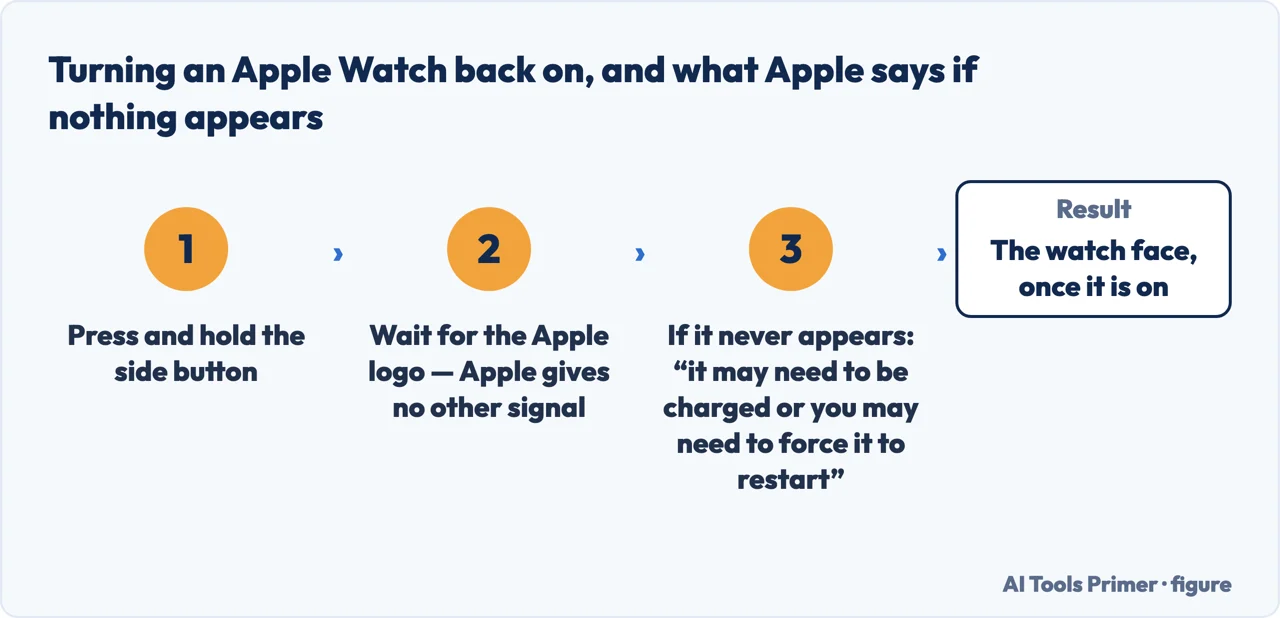
Turning it back on is simpler and Apple states it in one line: hold the side button until the Apple logo appears. If nothing appears, Apple names two possibilities in order — “it may need to be charged or you may need to force it to restart”.
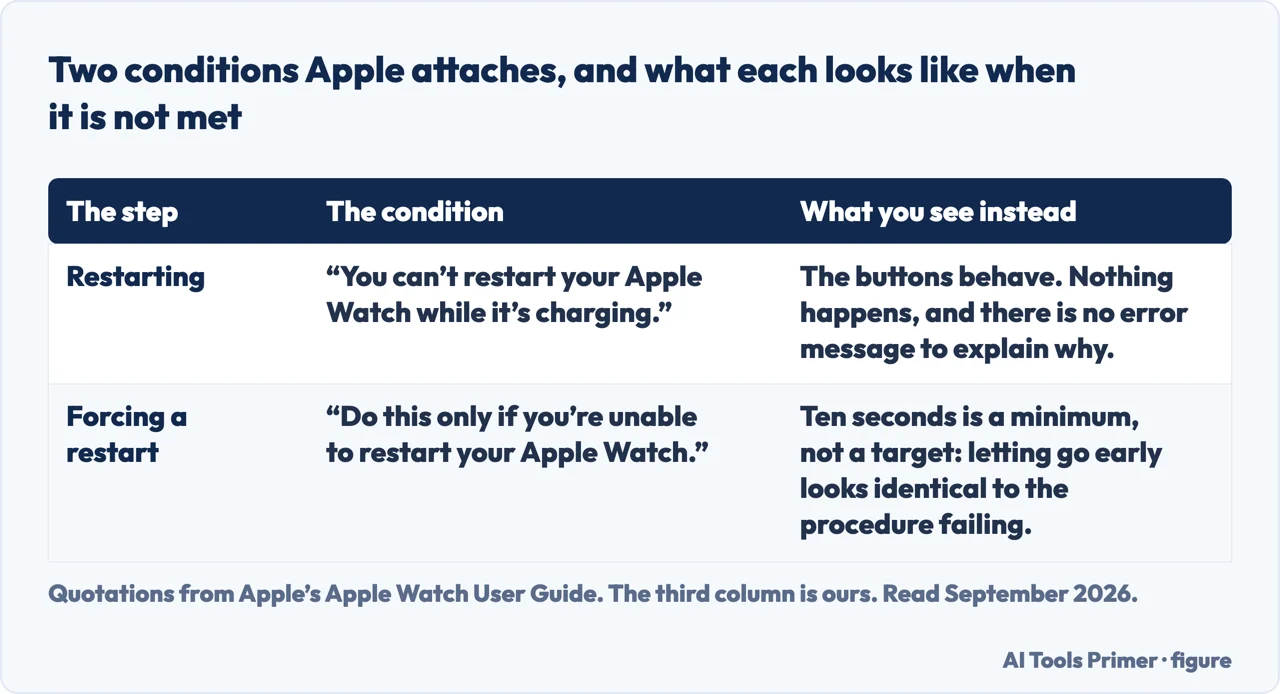
“You can’t restart your Apple Watch while it’s charging.”
Apple states it as a plain limit, and it is the first thing to check when the sliders do not appear or nothing happens. Take the watch off the charger first. It is the sort of condition that turns a working procedure into a broken one without any error message to explain why — the buttons behave, and the outcome simply does not arrive.
“If you can’t turn off your Apple Watch or if the problem continues, you may need to force your Apple Watch to restart. Do this only if you’re unable to restart your Apple Watch.”
The force restart is hold the side button and the Digital Crown at the same time for at least 10 seconds, until the Apple logo appears. Apple gives it a condition rather than presenting it as an alternative: it is what you do when the ordinary route has already failed. Read in order, the page is a ladder — restart normally, and only then force it — and the ten seconds are a minimum rather than a target, which matters because letting go early looks identical to the procedure not working.
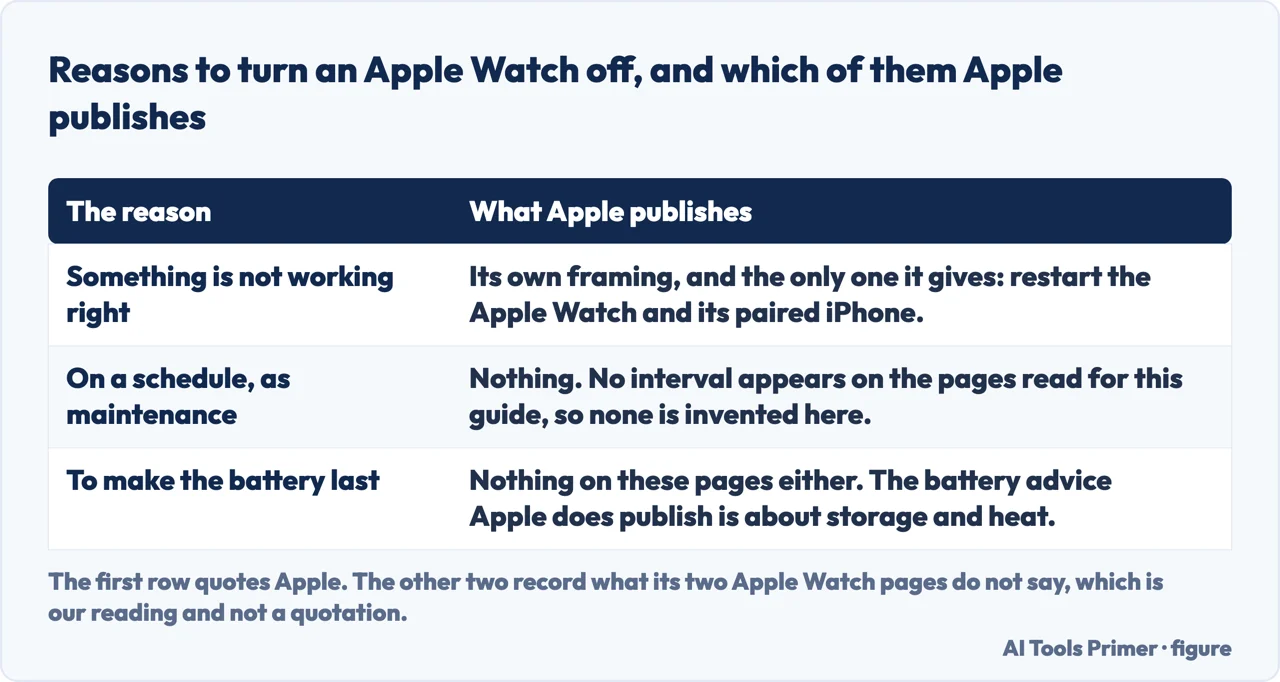
Apple treats the two devices as a pair. The page opens with it: “If something isn’t working right, try restarting your Apple Watch and its paired iPhone.” And it gives the iPhone procedure on the same page — on a model with Face ID, press and hold the side button and a volume button and drag the slider; on a model without, hold the side or top button until the slider appears. It adds a third route that needs no buttons at all: Settings → General → Shut Down, which works “with any model” and needs no button combination at all.
That last route is worth carrying away even for the iPhone alone. Settings → General → Shut Down works on any iPhone and asks nothing of your grip. Button combinations differ between models and are the part of these instructions that goes out of date; a menu item does not.
Apple stops at a support article about a watch that will not charge or turn on. A repair site picks the question up there and publishes two things Apple does not. The first is a number: iFixit says to “leave the watch on the charger for at least one hour to see if the watch begins to charge”, because “with a completely depleted battery, it might take some time before the watch comes to life again”. The second is a reading of a dark screen that is not one of the four above, because it is not a state the watch is in — it is a fault: “It’s possible that the watch appears turned off because the display is bad.” The test costs nothing and needs no buttons: “If it vibrates or you hear a sound but nothing displays on the screen, then the screen is most likely the problem.” There is a matching one for the button — “If the watch turns on and has power, then there might be a problem with the side button” — which is worth running before concluding that a watch you cannot switch off is a watch that has stopped working.
One thing this page will not tell you is when to turn an Apple Watch off at all. Apple frames restarting as something to try “if something isn’t working right”, and that is the whole of the documented reason. There is no published maintenance schedule, and a page that invented one would be adding a habit rather than reporting a fact.
Nor will it say what a watch that still will not turn on after charging and a forced restart needs. Apple’s own next step at that point is a separate support article about a watch that will not charge or will not turn on — which is the manufacturer marking the end of what a set of button instructions can fix.
The guides below take it three ways: the four meanings of off, the buttons on both devices, and the other paired accessory with procedures of its own.
Where to start
Three ways in. If the screen is just dark, the first one is the answer.
- “The screen is black and nothing happens.”
- It may be asleep, not off — four meanings
- “I held the button and got no slider.”
- There is a tap between — the three steps
- “It is completely unresponsive.”
- That is the forced restart, with its condition — when it will not
Four meanings
Off, asleep, Always On switched off, and forced to restart. Only the first is off, and Apple documents each of the others separately.
The three steps
Hold, tap, drag. The tap in the middle is the reason a held button seems to do nothing — and a watch on its charger will not do any of it.
When it will not
Apple puts a condition on the forced restart and a separate article after it. Both are the documentation saying where buttons stop helping.
Not covered here. It will not tell you a dark screen means the watch is off. Apple lists three ways to wake a sleeping display, and a sleeping display is the ordinary state.
It will not present the forced restart as an alternative. Apple attaches a condition to it — only if you are unable to restart normally — and the order is the advice.
And it will not suggest turning it off regularly. Apple gives one reason, which is that something is not working right, and there is no published schedule to report. What holds instead is simple: four different things stay four different things here, each named as Apple’s own guide names it, with no tidying into a single switch.
Sources
- Apple, Restart Apple Watch — Apple Watch User Guide (that if something is not working right, both the Apple Watch and its paired iPhone should be restarted; that the Apple Watch is turned off by pressing and holding the side button until the sliders appear, tapping the power control and dragging the Power Off slider to the right, and turned on by holding the side button until the Apple logo appears; the note that an Apple Watch cannot be restarted while it is charging; the iPhone shut-down routes for models with and without Face ID and the alternative of Settings → General → Shut Down on any model; and that if the Apple Watch cannot be turned off or the problem continues it may need to be force restarted by holding the side button and the Digital Crown together for at least ten seconds until the Apple logo appears, to be done only if a normal restart is not possible) — support.apple.com, read 22 August 2026.
- Apple, Turn Apple Watch on or off — Apple Watch User Guide (that the watch is turned on by pressing and holding the side button until the Apple logo appears and that the watch face appears once it is on; and that a watch which will not turn on may need charging or a forced restart, with a separate support article for a watch that will not charge or turn on). The article carried the title Turn on and wake Apple Watch, and the waking instructions, when this page was written: Apple has since split the two apart — support.apple.com, read 16 September 2026.
- Apple, Wake and unlock Apple Watch — Apple Watch User Guide (that by default the display wakes when you raise your wrist, tap the display, or press or turn the Digital Crown, and that it sleeps again when you lower your wrist; the note to make sure the proper wrist and watch orientation is selected if raising the wrist does not wake it; and that if it does not wake on a tap or on the Digital Crown it may need charging) — support.apple.com, read 16 September 2026.
- Apple, Adjust the display settings — Apple Watch User Guide (that with Always On the watch face and time are displayed even when the wrist is down, that it is set at Settings → Display & Brightness → Always On with Show Complication Data, Show Notifications and Show Apps under it, and the note that Always On is not available in Low Power Mode) — support.apple.com, read 16 September 2026.
- iFixit — Apple Watch Troubleshooting (the advice to leave the watch on the charger for at least one hour to see if it begins to charge, with the note that a completely depleted battery might take some time before the watch comes to life again; the possibility that a watch appears turned off because the display is bad, with the test that if it vibrates or makes a sound but nothing displays then the screen is most likely the problem; and the side button test, that if the watch turns on and has power after charging then there might be a problem with the side button. Its force-restart instruction matches Apple’s: hold the side button and the digital crown until the Apple logo appears, about ten seconds) — www.ifixit.com, read 6 September 2026.
Written by Alberto Gulotta
Founder and editor of AI Tools Primer, writing from Palermo, Italy. Thirty-five years of taking computers apart, starting with a Commodore 64 — the long version is on the about page.
Something wrong on this page? Write to aitoolsprimer@gmail.com and it gets fixed.
Written on 22 August 2026 · last checked 23 September 2026.
Independence and limits
No affiliate links and no paid placements anywhere on this site. Nobody pays to appear here, and no company has seen this page before you did.
This is general information, not professional advice. Where a page touches money, health, safety or the law, it names its source and the date it was read — and your situation may still differ. See the privacy page and the cookie policy.