Face ID models
no Home button- From the Home Screen, swipe up from the bottom and pause in the middle of the screen.
- Swipe right or left to find the app.
- Swipe up on the app’s preview to close it.

iPhone · guide
By Alberto Gulotta · Updated · 11 min read
The gesture takes a second and is below. But Apple attaches a condition to it, in two separate documents, and the condition is more useful than the gesture.
“You should close an app only if it’s unresponsive.”
“iPhone automatically manages how apps run in the background, so quitting apps you’re not using doesn’t prolong battery life.”
Two Apple pages, saying the same thing in different words — and the second says it in a note, as an aside. So the honest shape of this answer is unusual: the procedure is simple, and the manufacturer’s advice is not to make a habit of it. Closing an app is a remedy for one condition — an app that has stopped responding — and Apple names the belief it is correcting rather than leaving it implied.
That is worth taking at face value rather than as caution. Apple is not saying closing apps is harmful. It is naming one specific benefit and denying it: battery. It does not explain why on either page, and this guide will not supply a reason it did not give — what is on the record is the denial, and the denial is what the habit was built on.
So the useful reading is: keep the gesture for a frozen app, and stop tidying.
Face ID models
no Home buttoniPhone SE, iPhone 8 and earlier
with a Home button“Swipe up from the bottom of the screen and pause in the middle of the screen.”
The pause is the whole gesture. A swipe up without it goes to the Home Screen; the same swipe with a hesitation partway opens the App Switcher instead. Apple writes it as one instruction because it is one movement, but the two outcomes are different — and a gesture that keeps sending you Home is a gesture that has not paused yet.
One detail separates the two lists and it is worth naming, because instructions written for the wrong one simply do not work: the App Switcher is opened by a gesture on newer iPhones and by a button on older ones. Everything after that — swipe sideways to find it, swipe up to close it — is identical.
Now the part that is more useful than the gesture, for anybody who arrived here because an app is misbehaving rather than out of curiosity. Apple publishes a sequence, and closing the app is only the beginning of it.
What Apple says to do when an app misbehaves
Closing it is step one of five, and the ladder is worth knowing before you get stuck on the first rung.
That ladder is the answer to a question this question only half asks. Closing an app is the first rung and the one the search asks about; the four above it are the rest of what Apple publishes, and three of them cost nothing but a minute. An app that misbehaves after a restart and an update is telling you something about itself rather than about your phone.
The step with a cost. Step four is the one to slow down on. Apple states the risk plainly — deleting an app “might” lose data stored in it — and the hedge is doing real work, because whether anything is lost depends on the app. Something that keeps its material on a server will come back as it was; something that kept notes, drafts or progress on the phone may not. Apple cannot tell you which yours is, and neither can this page. What can be said is the order: try the three free steps above it first, and if you reach step four, find out where that particular app stores things before you tap delete.
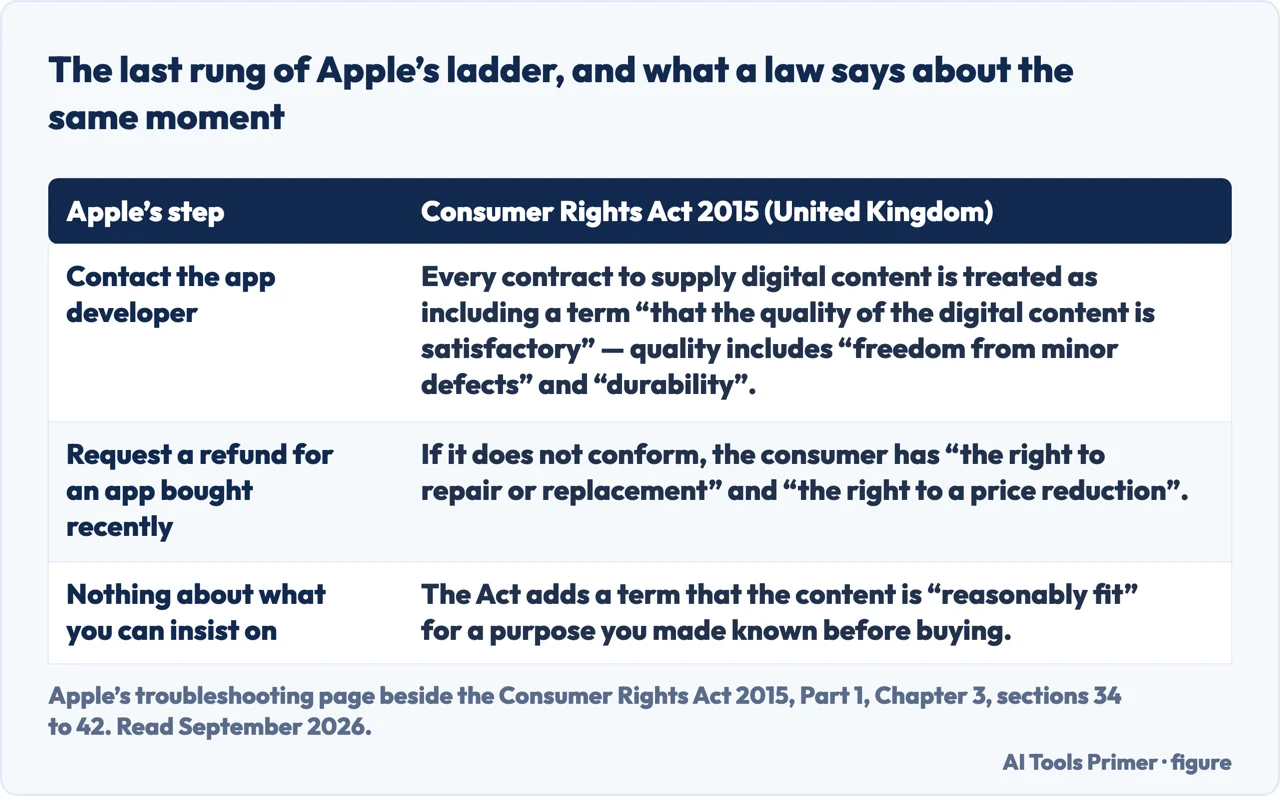
One note on that last rung, because Apple presents it as its own courtesy and in the United Kingdom it is not only that. The Consumer Rights Act 2015 treats every contract to supply digital content as including a term “that the quality of the digital content is satisfactory”, and says that quality includes “freedom from minor defects” and “durability”, alongside a term that the content is “reasonably fit” for a purpose made known before the contract. Where it does not conform, the Act gives the consumer “the right to repair or replacement” and “the right to a price reduction”. An app that closes on opening is a support question and also a contract, and only the second framing has a remedy attached to it.
The last rung deserves a mention because it is not a technical step at all. Apple names two: contact the developer, and — if the app was bought recently and is no longer wanted — request a refund. A misbehaving paid app is a transaction as well as a fault, and Apple links to the refund route from the same page as the troubleshooting.
What this page will not do is tell you that closing apps speeds up an iPhone. Apple addresses the battery claim directly and says the opposite; on speed it says nothing at all, and a page that filled that silence would be inventing the part that people most want to hear.
The guides below take it three ways: the gesture itself, the ladder that starts with it, and what to do about apps you want gone rather than restarted.
Three ways in. If an app is frozen, the ladder matters more than the gesture.
A pause partway up opens the App Switcher; without it the same swipe goes Home. On older iPhones it is a double-click instead, and the rest is the same.
Apple publishes a sequence for an app that misbehaves. Closing it is the first rung; the update and the restart above it are where the fix usually is.
Deleting is the fourth rung and the one with a cost attached, in Apple’s own words. These guides are about apps you want off the phone rather than restarted.
Not covered here. It will not tell you to clear the App Switcher regularly. Apple says the iPhone manages background apps by itself, and that quitting the ones you are not using does not prolong battery life.
It will not claim closing apps makes a phone faster. Apple does not say it, and filling that silence would be the invention people are hoping for.
And it will not treat deleting an app as free. Apple warns that data stored in the app might go with it, and which apps that applies to depends on the app. What holds instead is simple: Apple’s own advice on closing apps is quoted here, including its sentence on why quitting apps you are not using does not prolong battery life.
Written by Alberto Gulotta
Founder and editor of AI Tools Primer, writing from Palermo, Italy. Thirty-five years of taking computers apart, starting with a Commodore 64 — the long version is on the about page.
Something wrong on this page? Write to aitoolsprimer@gmail.com and it gets fixed.
Written on 22 August 2026 · last checked 23 September 2026.
Independence and limits
No affiliate links and no paid placements anywhere on this site. Nobody pays to appear here, and no company has seen this page before you did.
This is general information, not professional advice. Where a page touches money, health, safety or the law, it names its source and the date it was read — and your situation may still differ. See the privacy page and the cookie policy.