Before anything else, there is a test that costs two seconds and settles most of this question. It comes from one sentence in Apple’s own documentation.
“To move the AssistiveTouch menu button, drag it to a new location on the
screen.”
One line from Apple’s documentation, and it is the whole diagnosis. Put a finger on the dot
and drag. If it moves, it is a control that iOS is drawing — a setting, switched on, doing
exactly what it is designed to do. If it stays exactly where it is while everything else moves
under it, it is not this. That single test takes two seconds and separates a settings question
from a hardware one.
Assuming it moved, there are two things Apple documents that put dots on an iPhone screen. They look different from each other, and telling them apart takes no tools.
AssistiveTouch
one dot · draggable · opens a menu
Apple: “Turn on AssistiveTouch. The AssistiveTouch menu button appears on the
screen.” Tapping it opens a menu of up to eight icons.
It can look faint rather than solid, because Apple provides Idle Opacity — a setting
to “adjust the visibility of the menu button when not in use”.
Vehicle Motion Cues
several dots · at the edges · only in a car
Apple: “animated dots on the edges of the screen that represent how the vehicle is
moving”.
And the detail that identifies it: on Automatic, the dots “appear on the screen when
iPhone detects that you’re riding in a car… the dots are hidden when the motion
stops”.
The distinction is easy once it is named. One dot that you can drag and tap is a control.Several dots at the edges that drift while the car moves are a display. The first opens a menu; the second does not respond to touch at all, because it is not there to be touched.
The AssistiveTouch one is worth understanding rather than just switching off, because it explains why it appeared. Apple describes what the button is for: reaching Control Center, notifications, the Lock Screen or the App Switcher, performing gestures, and — the important part — being used “when you need to press iPhone buttons”. It is a substitute for hardware buttons, built for people who cannot use them comfortably.
Which raises the obvious question of how it got switched on. Apple answers that too, in a tip.
“To quickly turn AssistiveTouch on or off, you can set up the Accessibility Shortcut,
then triple-click the side or Home button.”
This is how a dot arrives without anyone deciding to add one. A triple-click of the side
button is not a deliberate gesture — it is something a hand does in a pocket, or a child
does, or you do while trying to do something else. The shortcut exists so that people who need
AssistiveTouch can reach it instantly; the same speed is what puts it on the screen of somebody
who has never heard of it. Nothing is broken and nothing was installed.
Siri is the other route Apple names — “Ask Siri something like, ‘Turn on AssistiveTouch.’” — which is worth knowing for the same reason: a phrase said near a phone can produce a dot that nobody chose from a menu.
Turning each one off
Two different places in Accessibility, and neither is where people look first.
AssistiveTouch
Settings → Accessibility → Touch → AssistiveTouch, and turn it off.
If a triple-click keeps bringing it back, the Accessibility Shortcut is what to change
— the same shortcut Apple describes for turning it on.
Vehicle Motion Cues
Settings → Accessibility → Motion → Vehicle Motion Cues, then choose an option.
Apple also gives a faster route for showing or hiding them: “open Control
Center, tap the Vehicle Motion Cues button, then tap an option”.
The Vehicle Motion Cues case has a cleaner tell than any setting screen, and it is worth using before opening anything. If the dots only exist while the car is moving and vanish when it stops, that is the Automatic setting doing precisely what Apple describes. Nothing needs diagnosing; the feature is reporting motion, which is its whole purpose — Apple says the dots “may help reduce motion sickness” for a passenger.
Apple attaches a safety note to that one, and it belongs here rather than in a footnote: Vehicle Motion Cues “should not be used while operating a moving vehicle and in other situations requiring attention to safety”, and they “work best when you’re seated facing forward in the vehicle”.
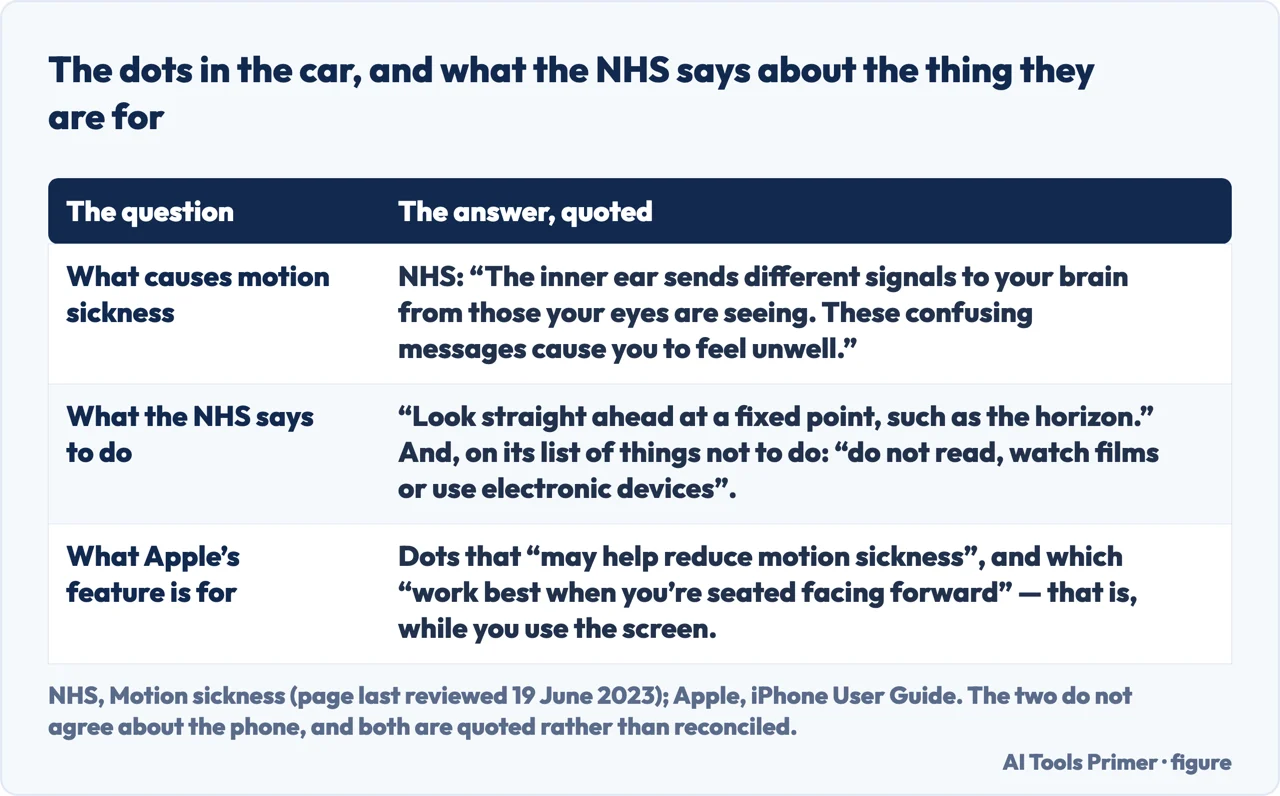
The NHS and Apple, quoted rather than reconciled. Figure drawn by AI Tools Primer.
Who answers this question. Of the guides read for this page on the day it was written, six of the first seven were published by
companies that sell iPhone repair or “system fix” software. That is a count of who publishes,
not a judgement of what they wrote — this guide has not audited those pages. It is worth knowing
only because of what sits at the other end of the question: the two explanations documented by
Apple are both settings, and both are switched off in the same app, for nothing. A page whose
business is selling repair software is answering the question from a different direction than a
page that is not.
One thing is worth saying about the feature that draws those dots, because the whole point of it is a passenger who wants to keep reading. The NHS describes the cause plainly — “The inner ear sends different signals to your brain from those your eyes are seeing. These confusing messages cause you to feel unwell.” — and its own list of what to do puts “do not read, watch films or use electronic devices” among the things not to do, beside “look straight ahead at a fixed point, such as the horizon”. Apple’s dots are an attempt to make the screen survivable. The health service’s advice is to put the screen down. Both are quoted here because they genuinely do not say the same thing.
What this page cannot tell you is what a dot that does not move and does not match either description is. Apple’s accessibility documentation covers the two features above; it does not describe screen faults, and neither will this guide. If the test at the top failed — the dot stayed put under your finger — then the question has left the settings app, and the honest next step is Apple Support rather than a page written by somebody who cannot see your screen.
The guides below take it three ways: the test and what it separates, the settings themselves, and the neighbouring things that appear on an iPhone screen without being asked for.
Where to start
Three ways in, and the first is the two-second test.
Drag it. A control moves because iOS is drawing it; anything that stays put under your finger is a different kind of question, and not one a page can answer.
AssistiveTouch and Vehicle Motion Cues, both in Accessibility, both free, and both switchable in a few taps. One arrives by triple-click; the other by getting into a car.
Not covered here. It will not suggest repair software. The two explanations Apple documents are both settings, switched off in the Settings app, at no cost.
It will not diagnose a dot that does not move. Apple’s accessibility documentation describes two features, not screen faults, and this page has no way to see your screen.
And it will not treat AssistiveTouch as a nuisance. It is a substitute for hardware buttons built for people who need one, and it is on your screen because a shortcut is easy to trigger. What holds instead is simple: the two settings and the one test here are described in Apple’s own user guide, not guessed from what the dot looks like.
Something on the iPhone screen you did not choose
Four things people take for faults, and all four are settings.
Apple, Use AssistiveTouch on iPhone — iPhone User Guide (that AssistiveTouch adapts the touchscreen, allows gestures to be replaced, and can be used when iPhone buttons need to be pressed, including reaching Control Center, notifications, the Lock Screen and the App Switcher; that it is turned on at Settings → Accessibility → Touch → AssistiveTouch, after which the AssistiveTouch menu button appears on the screen; that the top level menu can have up to eight icons and that single-tap, double-tap, long press and 3D Touch actions can be assigned; that Idle Opacity adjusts the visibility of the menu button when not in use; that the menu button is moved by dragging it to a new location on the screen; the tip that AssistiveTouch can be turned on or off quickly by setting up the Accessibility Shortcut and triple-clicking the side or Home button; and that Siri can be asked to turn AssistiveTouch on) — support.apple.com, read 22 August 2026.
Apple, Use iPhone more comfortably while riding in a vehicle — iPhone User Guide (that Vehicle Motion Cues are onscreen cues that may help reduce motion sickness for a passenger, appearing as animated dots on the edges of the screen that represent how the vehicle is moving without interfering with what is on screen; that they are turned on at Settings → Accessibility → Motion → Vehicle Motion Cues, and that on the Automatic option the dots appear when iPhone detects riding in a car or other on-road vehicle and are hidden when the motion stops; that they can be shown or hidden from Control Center; the customisation options of Pattern, Colour and Visibility; and the notes that they should not be used while operating a moving vehicle or in other situations requiring attention to safety, and that they work best when seated facing forward) — support.apple.com, read 22 August 2026.
NHS — Motion sickness, page last reviewed 19 June 2023, for the cause of motion sickness as a conflict between what the inner ear reports and what the eyes see, for the advice to look straight ahead at a fixed point such as the horizon, and for the instruction, on its own list of things not to do, not to read, watch films or use electronic devices while travelling — www.nhs.uk, read 6 September 2026.
AG
Written by Alberto Gulotta
Founder and editor of AI Tools Primer, writing from Palermo, Italy. Thirty-five years of
taking computers apart, starting with a Commodore 64 — the long version is on the
about page.
Written on 22 August 2026 · last checked 23 September 2026.
§
Independence and limits
No affiliate links and no paid placements anywhere on this site. Nobody pays to appear here,
and no company has seen this page before you did.
This is general information, not professional advice. Where a page touches money, health,
safety or the law, it names its source and the date it was read — and your situation may
still differ. See the privacy page and the
cookie policy.