Through the Files app
any download, any time- Open the Files app.
- Tap Browse at the bottom of the screen.
- Tap the Downloads folder.

iPhone · guide
By Alberto Gulotta · Updated · 10 min read
There are two routes to the same folder, and then a setting that decides whether that folder is where your files went in the first place. The routes take seconds. The setting is the one that decides whether they lead anywhere.
Through the Files app
any download, any timeStraight from Safari
if you just downloaded itIf there is no Files app on the Home Screen. Apple answers this in the same breath, because the app can be present without being visible: “Don’t have the blue Files app icon on your Home Screen? Swipe down from the center of your Home Screen, then search for the Files app.” It is installed on every iPhone; the icon is the only part that can go missing, and search finds it whether or not it is on a page you can see.
For most downloads that is the end of it. Apple states the general rule plainly: “If you download a file onto your iPhone or iPad from the internet, you can find it in your Downloads folder in the Files app.” The Safari button is the same folder reached by a shortcut, useful in the moment because it also shows a download still in progress.
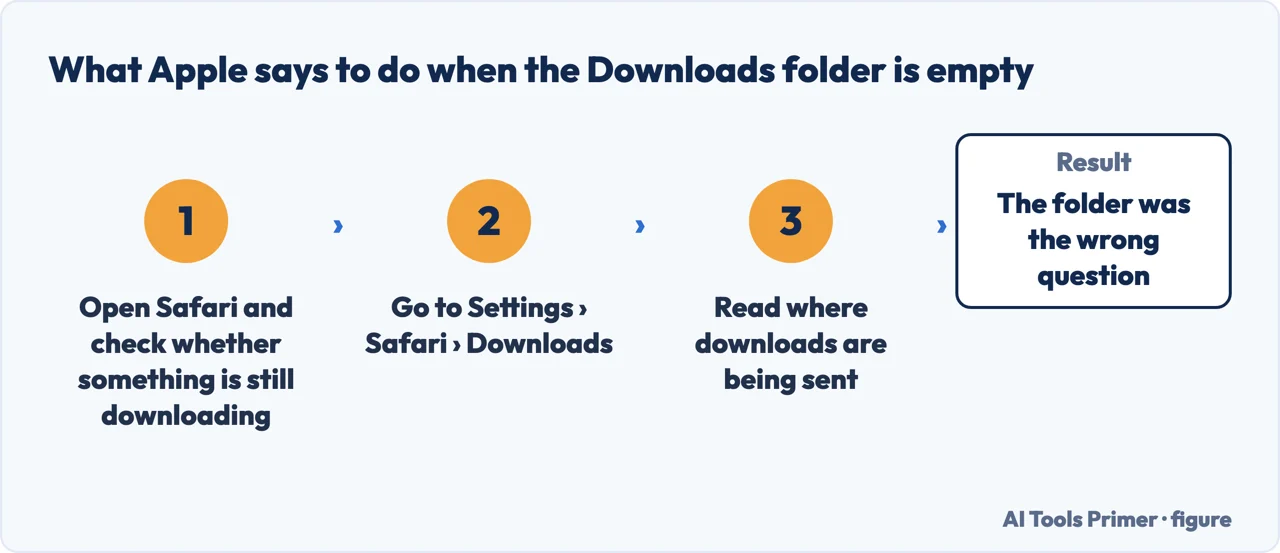
But Apple attaches a note to its own instructions, and the note is the interesting part. It opens “If you don’t see your downloaded files, go to the Safari app on your iPhone”, sends you to the Safari button to check whether something is still downloading, and then closes by pointing somewhere else entirely: “See Choose where to save downloads.” In other words, the manufacturer’s own answer for a folder that turns out to be empty is not to look harder. It is to go and check where downloads are being sent.
The three destinations, in Settings → Safari → Downloads
Apple’s own descriptions. Which one is selected decides where “Downloads” even means anything.
Other: “Select this option to save downloads in a location other than a Downloads folder.”
That is one of the three choices Apple offers for where Safari puts a download — and it is the reason a set of instructions can be followed perfectly and still find nothing. If Other was chosen, there is no Downloads folder holding your files, because you asked for them to go somewhere else. No amount of looking in the right folder will help, since the right folder is not the one being used.
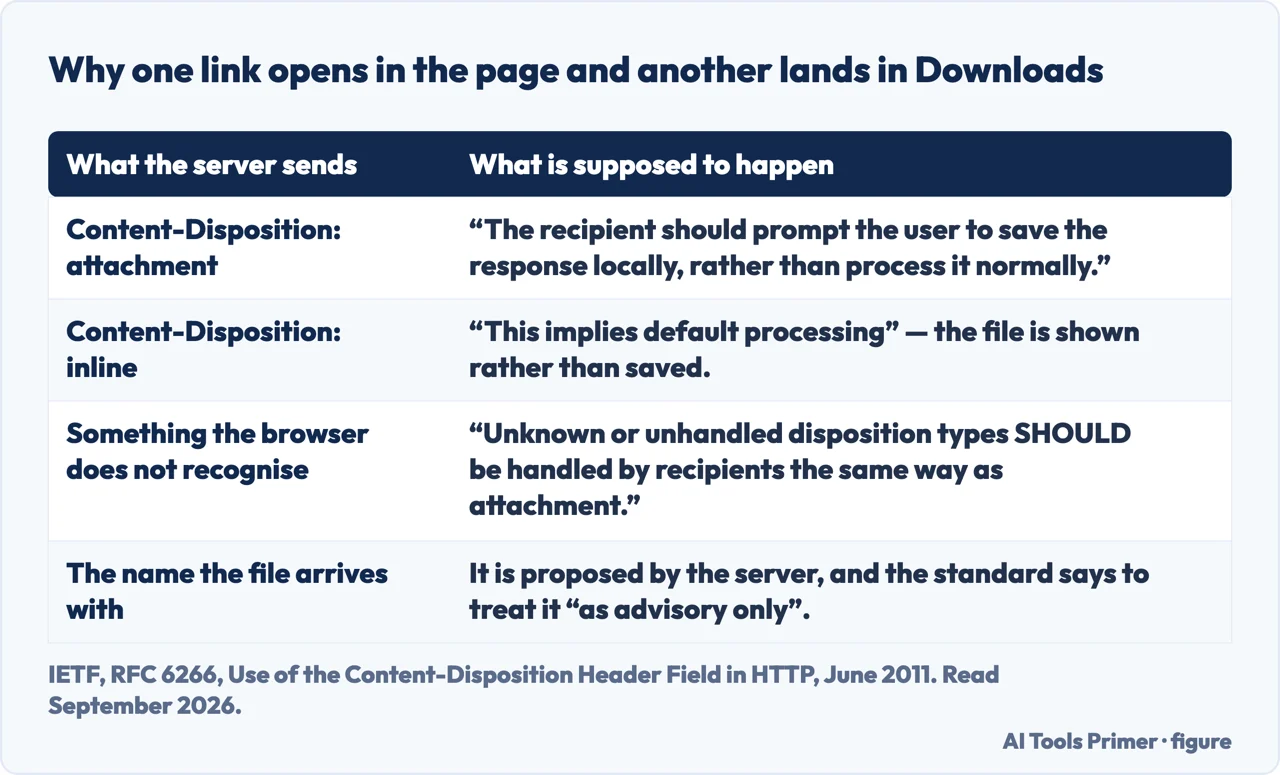
One layer below all of this, whether a link opens in the page or lands in the folder is not the phone’s decision either. The standard is RFC 6266, which defines the header the server sends with the file. The attachment type means “the recipient should prompt the user to save the response locally, rather than process it normally”; the inline type means that “this implies default processing”. Anything a browser does not recognise “SHOULD be handled by recipients the same way as ‘attachment’”. The name the file arrives with comes from the same header, and the standard is blunt about how far to trust it: treat it “as advisory only”.
So the honest order for someone who cannot find a file is: try the two routes above, and if the folder is empty, stop looking and go to the setting. Settings → Safari → Downloads will tell you in one screen whether you have been searching the right place at all. It is a faster answer than any amount of scrolling through Files.
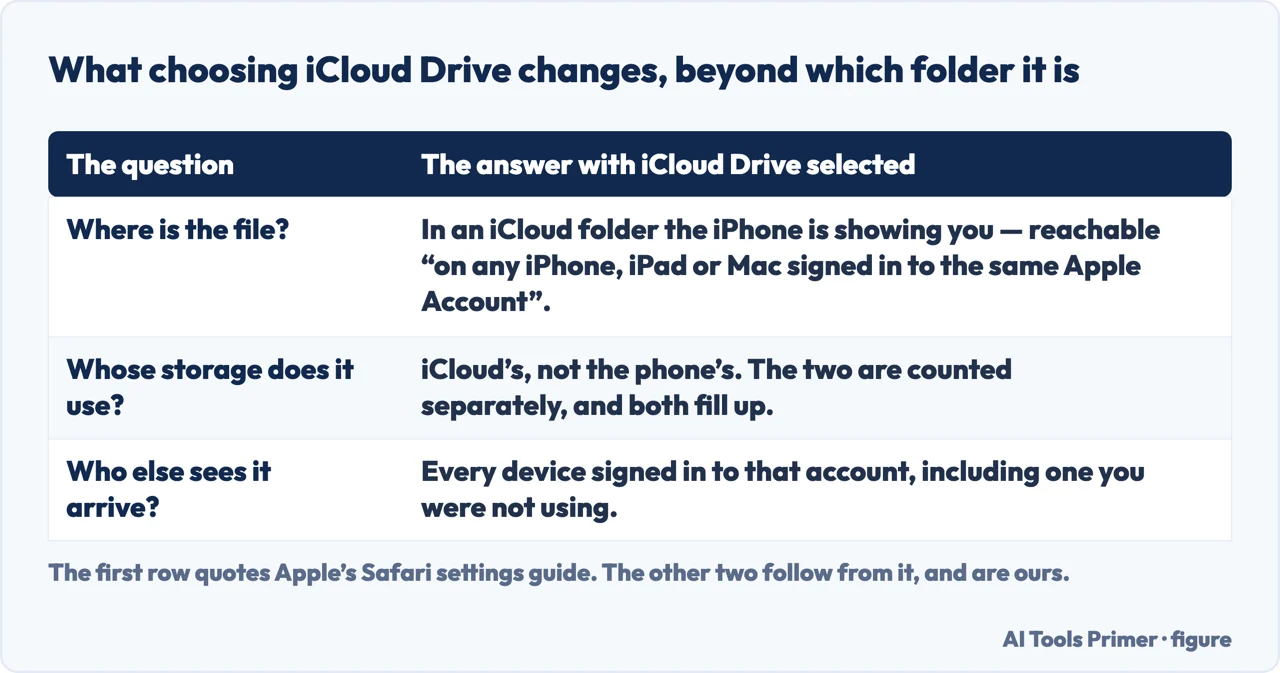
The iCloud Drive option deserves a second look, because it changes what “on my phone” means. With it selected, the download is not stored on the iPhone at all — it is in an iCloud folder that the iPhone is showing you, and the same folder is visible on every device signed in to that account. That is a feature and a surprise at the same time: convenient when you want the file on the computer, unexpected when a download appears on a machine you were not using.
It also means the file occupies iCloud storage rather than phone storage, which matters when either one is close to full — and the two are counted separately.
One practical consequence of all of this is worth stating on its own. “Where is my download?” is a question about a setting, not about a folder. The folder is easy to reach by two routes, and Apple documents both in a few lines. Everything that goes wrong after that goes wrong upstream of the folder, in a settings screen the folder never mentions.
What this page will not tell you is where a download from an app other than Safari goes. Apple’s documentation here is about files downloaded from the internet and, in the user guide’s wording, from a mail app; an app that saves something into its own private storage is following its own rules, and those belong to the app rather than to iOS.
The guides below take it three ways: the folder and its two routes, the setting that feeds it, and what to do about the space it all takes up.
Three ways in. If the folder is empty, take the second.
Files → Browse → Downloads, or the button beside Safari’s search field. The same folder, and the second one also shows a download still arriving.
Three destinations in one Safari setting, and one of them is not a Downloads folder at all. Apple points here itself when the folder looks empty.
A download saved to iCloud uses iCloud storage; one saved on the phone uses the phone’s. The two are counted separately, and both fill up.
Not covered here. It will not tell you to keep looking in Files. Apple’s own note says that an empty folder is a reason to check the setting, and a page that repeated the folder instructions louder would be wasting your time.
It will not treat iCloud Drive as the same thing as the phone. Apple describes it as a folder visible on every signed-in device, which is a different arrangement with a different storage bill.
And it will not guess where a non-Safari app puts its downloads. Apple documents files from the internet and from mail; anything an app keeps privately is that app’s business to explain. What holds instead is simple: the Files and Safari routes to the Downloads folder are Apple’s own wording, together with its note directing anyone who cannot see a download to the location setting.
Written by Alberto Gulotta
Founder and editor of AI Tools Primer, writing from Palermo, Italy. Thirty-five years of taking computers apart, starting with a Commodore 64 — the long version is on the about page.
Something wrong on this page? Write to aitoolsprimer@gmail.com and it gets fixed.
Written on 22 August 2026 · last checked 23 September 2026.
Independence and limits
No affiliate links and no paid placements anywhere on this site. Nobody pays to appear here, and no company has seen this page before you did.
This is general information, not professional advice. Where a page touches money, health, safety or the law, it names its source and the date it was read — and your situation may still differ. See the privacy page and the cookie policy.