
iPhone · guide
How to free up iCloud storage, and what it is not
By Alberto Gulotta · Updated · 10 min read
Before how to free up iCloud storage there is a question that decides whether any of it will help, and Apple asks it first on its own page.
“Not sure about the difference between the storage capacity that comes with your device and iCloud storage?”
Apple asks that question on its own page about managing iCloud storage, and links a separate article to answer it — which is a fair sign of how often the two get mixed up. They are different quantities in different places. Deleting apps to free space on the phone does not add room in iCloud, and clearing iCloud does not make the phone roomier. Before following any instruction here, it is worth checking which of the two is actually full.
The starting figure is the reason this comes up so often. Apple: “When you set up iCloud, you automatically get 5 GB of storage for free” — used for backups, for photos and videos in iCloud Photos, for files in iCloud Drive, “and more”. One allowance, shared by everything on that list.
What stops working when iCloud is full, in Apple’s list
- “Your device won’t back up to iCloud”
- “New photos and videos won’t upload to iCloud Photos”
- “iCloud Drive and other iCloud apps won’t stay up to date across your devices”
- “You won’t be able to send or receive emails with your iCloud email address”
That list is worth reading before deciding this can wait, and the last item is the one least connected to storage in anybody’s mind: an iCloud email address stops sending and receiving. A full account becomes a communication problem, and the two facts sit on opposite sides of the phone.
The shortcut Apple documents first. On iOS 17 or later there is a screen that does the looking for you: Settings → your name → iCloud → Recommended for You. Apple describes it as a place to “delete certain things that you might not need anymore, like photos, large files, or old backups”, with onscreen instructions for each.
It is the first route on Apple’s own page, ahead of every manual method. Apple adds the sensible caveat: “If you don’t see what you’re looking for under Recommended For You, you can still manually delete content from iCloud.”
Where the space actually goes
Apple’s own categories, in the order its page lists them.
- Backups
- Reduce them by choosing which apps back up, or by deleting an old device’s backup entirely: Settings → your name → iCloud → Storage or Manage Account Storage → Backups → the device → Turn Off and Delete from iCloud. Apple notes that a backup currently being used to restore a device cannot be deleted.
- iCloud Photos
- Photos and videos kept in sync across devices — which is why deleting one deletes it everywhere.
- Messages
- With Messages in iCloud, the texts and the attachments count. Apple’s route goes through the conversation: the contact’s name at the top → the Photos section → See All → select → Delete Attachment.
- And the rest
- iCloud Drive files, Mail, Contacts posters and photos, voice memos, FaceTime data, Apple Invites data. Apple lists each with its own steps.
Two of those categories deserve a note, because the numbers there are often larger than expected. A backup of a device you no longer own can sit in iCloud indefinitely, and deleting it costs you nothing you are still using. And with Messages in iCloud, Apple is explicit that the attachments count as well as the texts — so every photograph ever sent or received in a conversation is occupying part of the same allowance as the backups.
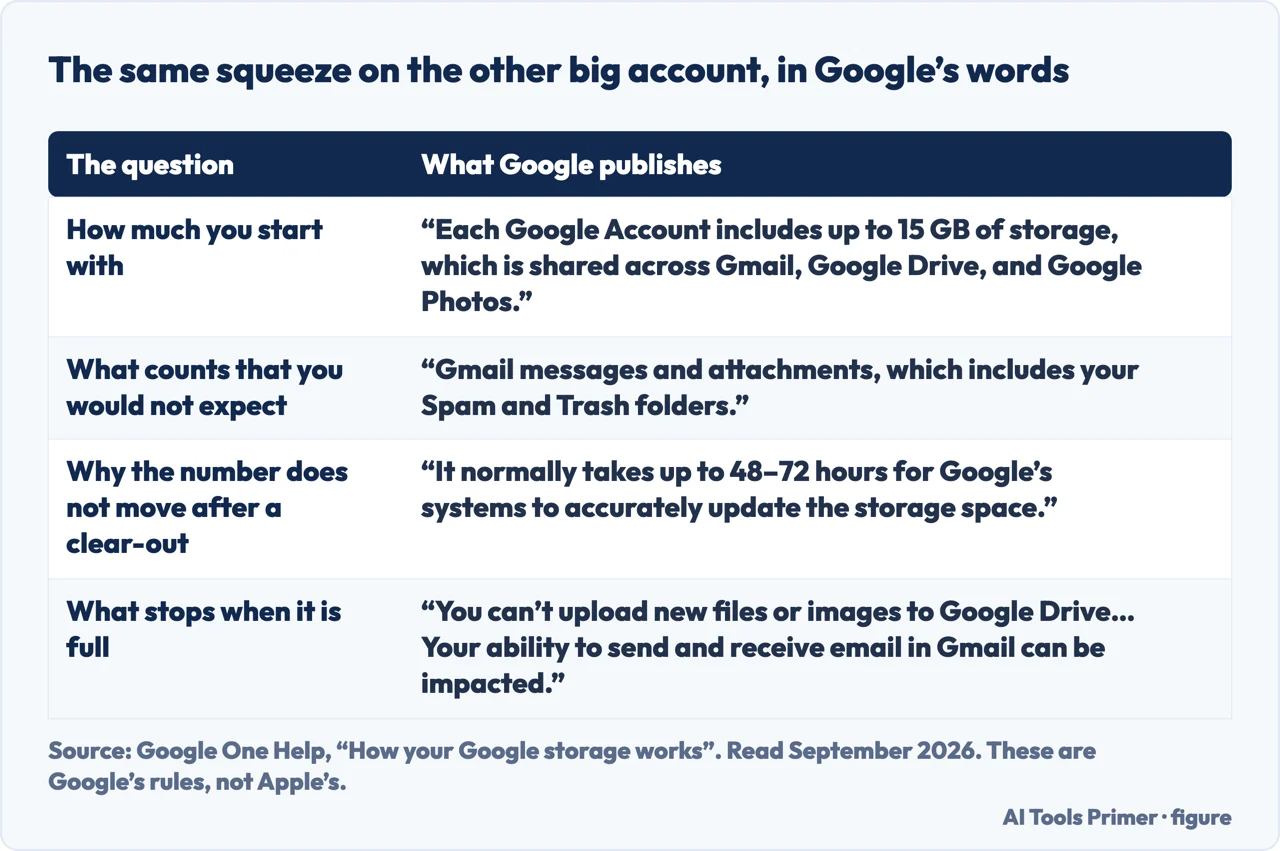
The shape of this is not an Apple invention, and two of the confusions above have exact counterparts elsewhere. Google publishes the same arrangement for its own accounts: “Each Google Account includes up to 15 GB of storage, which is shared across Gmail, Google Drive, and Google Photos” — one allowance, several services. Two details from that page answer questions people ask here as well. What counts includes “Gmail messages and attachments, which includes your Spam and Trash folders”, which is the same trap as a photograph that has been deleted but is still in Recently Deleted. And there is a documented reason the number does not move after a clear-out: “after you delete a large number of files, it normally takes up to 48–72 hours for Google’s systems to accurately update the storage space.” Those are Google’s rules for Google accounts, quoted because the pattern is the same — not because they describe iCloud.
The sentence Apple puts before all of it. “Before you delete anything, you might want to archive or make copies of the information that you store in iCloud.” Worth taking literally on this particular job: the whole point of iCloud storage is that it is where things live rather than a copy of them, so a deletion here is not tidying a duplicate. Everything on this guide removes originals.
The other route Apple names is the honest one it would be strange to leave out: pay for more. iCloud+ exists, Apple links it from the same page, and for somebody whose 5 GB is full of things they actually want, buying space is a legitimate answer rather than a failure to tidy. This guide has no view on whether it is worth it — that is a judgement about your own files — but it is one of the two doors, and pretending otherwise would waste an afternoon.
The guides below take it three ways: the difference between the two storages, what fills iCloud, and the phone-side question underneath it.
Where to start
Three ways in.
- “Which storage is actually full?”
- Start at the two storages
- “What is taking up the space?”
- Go to where the space goes
- “It is the phone that is full.”
- That is the other question
The two storages
Apple asks about the confusion on its own page and links an article to settle it. Freeing one does nothing for the other, which is why the wrong afternoon is easy to spend.
Where the space goes
Backups, photos and message attachments first. Apple publishes a route for each, and a screen that picks the candidates for you.
The other question
Very often the thing that is full is the handset rather than the account. Different screen, different fixes, and none of them interchangeable.
Not covered here. It will not treat phone storage and iCloud storage as the same thing. Apple raises the confusion itself, and getting it wrong means spending an afternoon on the wrong screen.
It will not pretend buying space is a defeat. Apple offers iCloud+ on the same page, and for a full allowance of things you want, it is one of the two real answers.
And it will not skip the warning. Apple says to archive or copy before deleting, because what is in iCloud is often the only copy. What holds instead is simple: the note that device storage and iCloud storage are different is Apple’s own, along with the routes for reducing backups and the advice to archive first.
Getting photos off the phone and keeping them
Copied is not moved, and synced is not backed up. Four jobs that get confused for each other.
- The same job, in the other places it comes up
- Google Photos backup on desktop, and what Google closed
- How to backup photos on Android, and the 15 GB behind it
- How to transfer photos from iPhone to computer, two ways
Sources
- Apple, Manage your iCloud storage on your Apple device (that setting up iCloud gives 5 GB of storage free, used for backups, iCloud Photos, iCloud Drive and more; that Apple links a separate article on the difference between device storage and iCloud storage; that running out means the device will not back up to iCloud, new photos and videos will not upload to iCloud Photos, iCloud Drive and other iCloud apps will not stay up to date across devices, and iCloud email cannot send or receive; the advice to archive or make copies before deleting; the Recommended for You screen on iOS 17 or later at Settings → your name → iCloud, for deleting photos, large files or old backups, and the note that content can still be deleted manually; the route to Storage or Manage Account Storage → Backups → the device → Turn Off and Delete from iCloud, and that a backup being used to restore a device cannot be deleted; that with Messages in iCloud both texts and attachments use storage, with the route through the conversation, the Photos section and See All; and the list of other categories including iCloud Drive, Mail, Contacts, voice memos, FaceTime and Apple Invites data, plus the option to upgrade to iCloud+) — support.apple.com, read 16 September 2026.
- Google One Help — How your Google storage works (that each Google Account includes up to 15 GB of storage, shared across Gmail, Google Drive and Google Photos; that Gmail messages and attachments count towards it, including the Spam and Trash folders; that after deleting a large number of files it normally takes up to 48–72 hours for Google’s systems to accurately update the storage space; and that going over quota stops uploads to Google Drive and backups to Google Photos and can affect the ability to send and receive email in Gmail, while the account can still be signed into). Google accounts only — support.google.com, read 5 September 2026.
Written by Alberto Gulotta
Founder and editor of AI Tools Primer, writing from Palermo, Italy. Thirty-five years of taking computers apart, starting with a Commodore 64 — the long version is on the about page.
Something wrong on this page? Write to aitoolsprimer@gmail.com and it gets fixed.
Written on 22 August 2026 · last checked 23 September 2026.
Independence and limits
No affiliate links and no paid placements anywhere on this site. Nobody pays to appear here, and no company has seen this page before you did.
This is general information, not professional advice. Where a page touches money, health, safety or the law, it names its source and the date it was read — and your situation may still differ. See the privacy page and the cookie policy.