
iPhone · guide
How to delete all messages on iPhone, and the automatic way
By Alberto Gulotta · Updated · 9 min read
There are two answers to how to delete all messages on iPhone: one that clears what is there now, and one that keeps clearing without being asked again. Apple documents both, and they are on different screens. But before either of them, there is a sentence that decides whether this is worth doing at all.
“You can delete text messages, attachments, and entire conversations from your iPhone anytime, without affecting what your recipients see.”
Apple’s first sentence on the subject, and it is either the reassurance or the disappointment, depending on what you were hoping for. Deleting a conversation empties your copy; by Apple’s wording, what the recipient sees is unaffected. There is exactly one documented exception, and it has a stopwatch on it.
“Use Undo send to retract (within 2 minutes) a message you sent accidentally, deleting it from both your phone and your recipient’s phone.”
Two minutes, and only for something you sent. It is the one route Apple documents that reaches across to the other device — which is worth knowing precisely because everything else on this page does not.
With that settled, the clearing itself. Apple gives four routes rather than one, and picking the wrong one is the difference between an afternoon and a minute.
Four routes, depending on how much you are clearing
Apple documents each separately. The third is the one that answers “all”.
- Individual messages or attachments
- Open the conversation, touch and hold a bubble or attachment, tap More, select, then delete.
- Only the attachments
- Tap the contact or group icon at the top, tap a category such as Photos, then Edit → Select. A filter at the bottom left separates Screenshots, Videos and Photos.
- Many conversations at once
- At the top of the conversation list tap Edit, tap Select Messages, select the conversations, then delete. This is the “all” route.
- One conversation
- Swipe left on it, or touch and hold it and tap Delete.
The third route is the answer to the question as asked. Edit, then Select Messages, then as many conversations as you want in one go. It is at the top of the conversation list, above the first conversation rather than inside one.
Then the same two-stage structure that governs photographs on this phone: deleting is not the end of it. Apple: “Deleted messages and attachments remain in your Recently Deleted folder for up to 30 days, and you can recover them.” To finish the job early, tap through to Recently Deleted at the top of the conversation list, select, and delete — with the warning Apple attaches: “This can’t be undone.”
The setting that does it permanently, without you. Settings → Apps → Messages → scroll down → Keep Messages, below Message History. Apple describes what it is for plainly: it deletes “messages and attachments that are older than 30 days or a year old, on an ongoing basis.”
And the warning it attaches, which is the reason to read the option twice before choosing it: “If you choose an option other than Forever, your conversations (including all attachments) are automatically removed after the specified time period elapses.” That is not a tidying setting. It is a standing instruction, and it applies to conversations you have not thought about in months.
Worth being concrete about the trade in that setting, because it is genuinely two-sided. On one hand it is the only arrangement here that keeps working — a phone that clears itself needs no discipline and no reminder. On the other, the thing being deleted on an ongoing basis includes the conversation you will want in a year: a booking reference, an address somebody sent you, the last messages from somebody. The decision is made once and executed indefinitely, which is exactly what makes it convenient and exactly what makes it worth choosing carefully.
Where the deletion reaches. Apple: “If you use Messages in iCloud, deleting a message or conversation on your iPhone deletes it from all your devices where Messages in iCloud is turned on.” So the scope of a delete is set by a setting you may have turned on years ago — and it is your own devices that are affected, not anybody else’s.
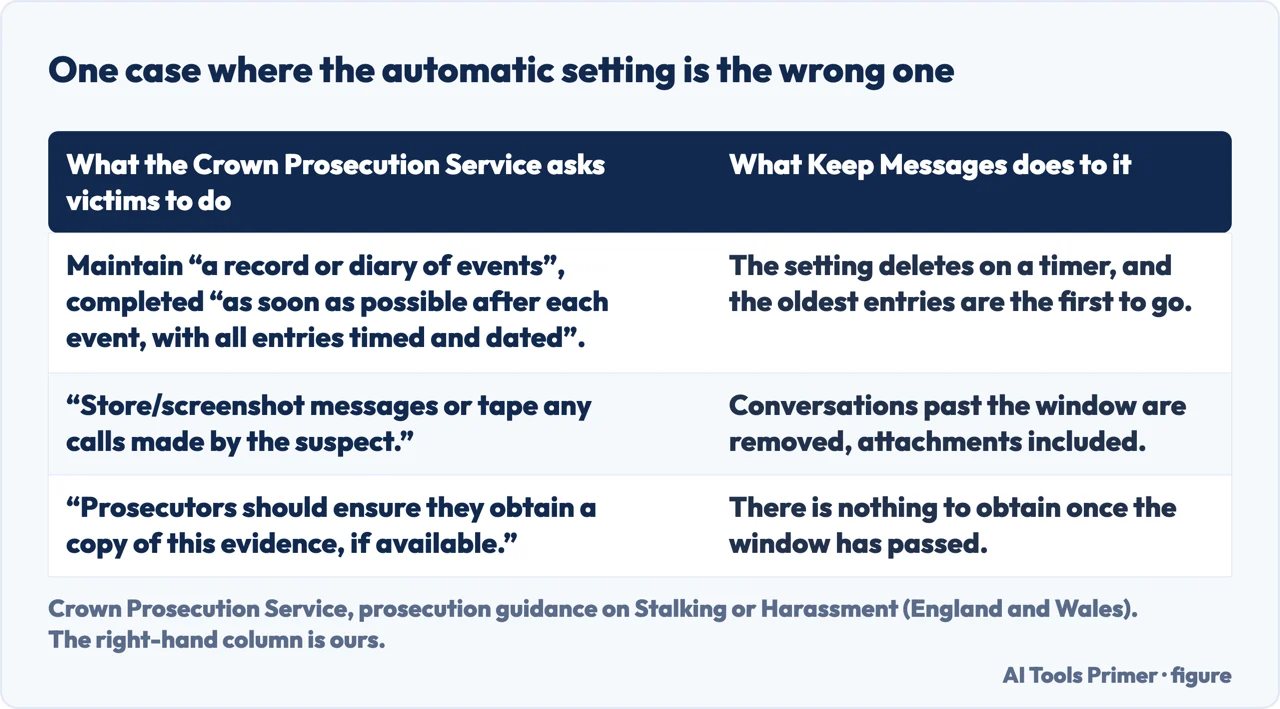
There is one situation in which the automatic setting is exactly the wrong choice, and it is worth naming rather than leaving to be discovered. The Crown Prosecution Service, in its guidance on stalking and harassment, asks that victims maintain “a record or diary of events”, completed “as soon as possible after each event, with all entries timed and dated”, and that they “store/screenshot messages or tape any calls made by the suspect” — and it tells prosecutors to “ensure they obtain a copy of this evidence, if available”. Keep Messages set to 30 Days or 1 Year deletes precisely that: on a timer, oldest first, attachments included. If any part of a message history might one day be evidence, this is the setting to leave on Forever.
The guides below take it three ways: what the other person sees, the routes for clearing, and the setting that keeps clearing on its own.
Where to start
Three ways in.
- “Will they know I deleted it?”
- Start at what the other person sees
- “I want the whole list gone.”
- Go to clearing conversations
- “I never want to do this again.”
- That is the automatic setting
What the other person sees
Nothing, by Apple’s own description — with one exception that lasts two minutes and applies only to something you sent.
Clearing conversations
Four documented routes for four different amounts of clearing, plus a Recently Deleted folder that holds everything for thirty days first.
The automatic setting
Keep Messages turns a one-off clear-out into a standing instruction — including for the conversation you have not thought about since.
Not covered here. It will not tell you deleting removes the message from the other phone. Apple says the opposite in its first sentence, and the single exception — unsending a message you have just sent — has a two-minute limit attached.
It will not present Keep Messages as housekeeping. Apple’s own note says conversations and all their attachments are removed automatically, and that is a different kind of decision.
And it will not skip the thirty days. Deleted messages sit in Recently Deleted first, which is either a safety net or an unfinished job depending on why you started. What holds instead is simple: the statement that deleting does not affect what recipients see and the thirty-day Recently Deleted folder are Apple’s own wording.
Sources
- Apple, iPhone User Guide — Delete messages and attachments in Messages on iPhone (that you can delete messages, attachments and entire conversations without affecting what your recipients see; that Undo send retracts a message within 2 minutes, deleting it from both your phone and the recipient’s; that deleted messages and attachments remain in Recently Deleted for up to 30 days and can be recovered; the routes for deleting individual messages and attachments, for deleting attachments by category with a filter for Screenshots, Videos and Photos, for deleting one conversation by swiping or holding, and for deleting multiple conversations via Edit and Select Messages; the route to Recently Deleted at the top of the conversation list and the warning that permanent removal can’t be undone; the Settings → Apps → Messages → Keep Messages option for deleting messages older than 30 days or a year on an ongoing basis, with the note that choosing an option other than Forever automatically removes conversations including all attachments; and that with Messages in iCloud, deleting on the iPhone deletes from all devices where it is turned on) — support.apple.com, read 22 August 2026.
- Crown Prosecution Service — prosecution guidance on Stalking or Harassment, section on information recorded by victims, for the advice that victims maintain a record or diary of events completed as soon as possible after each event with every entry timed and dated, that they store or screenshot messages and record calls made by the suspect, and that prosecutors obtain a copy of that evidence where it exists, together with its warning that keeping such a record carries a risk if the suspect discovers it. The guidance covers England and Wales — www.cps.gov.uk, read 6 September 2026.
Written by Alberto Gulotta
Founder and editor of AI Tools Primer, writing from Palermo, Italy. Thirty-five years of taking computers apart, starting with a Commodore 64 — the long version is on the about page.
Something wrong on this page? Write to aitoolsprimer@gmail.com and it gets fixed.
Written on 22 August 2026 · last checked 23 September 2026.
Independence and limits
No affiliate links and no paid placements anywhere on this site. Nobody pays to appear here, and no company has seen this page before you did.
This is general information, not professional advice. Where a page touches money, health, safety or the law, it names its source and the date it was read — and your situation may still differ. See the privacy page and the cookie policy.