
iPhone · guide
How to delete all photos from iPhone, and where they go
By Alberto Gulotta · Updated · 10 min read
Before any instruction for how to delete all photos from iPhone, there is one sentence from Apple that changes what the job is. It is on its own support page, above the steps, and it is the reason this guide puts it first too.
“When you use iCloud Photos and delete a photo or video on one device, it gets deleted on all other devices where you’re signed in with the same Apple Account.”
Apple’s warning, and it belongs before the instructions rather than after them. Clearing the phone is not a thing you do to the phone: with iCloud Photos on, it is a thing you do to the library, and the iPad in a drawer and the Mac at home are looking at the same library. Neither of the two confirmations Apple names at the end is “this device only”.
Apple’s own advice before starting is the ordinary one and worth not skipping: “Make sure that you back up the photos and videos that you still want.” It also gives the place to check the figure — Settings → General → [Device] Storage — which is worth reading before and after, since that number is the only way to see what a clear-out actually did.
Deleting is two steps, and only the second one is final
Apple: photos “go to your Recently Deleted album for 30 days. After 30 days, they’ll be permanently deleted.”
- Step one — out of the library
- Open Photos, tap Select, then “tap multiple photos or slide your finger across multiple photos to select more than one.” Tap the Trash button and confirm. The sliding gesture is the part that makes a large clear-out practical.
- Step two — out of the phone
- Photos → Collections → swipe up → Recently Deleted under Utilities → in iOS 16 or later tap View Album and unlock with Face ID or Touch ID → Select → the More button → Delete All. Apple: “When you delete a photo or video from this album, you can’t get it back.”
The thirty days are the safety net, and they are also the reason a clear-out can look like it did nothing. Apple’s own description is that deleted photos are in Recently Deleted on the device until the period ends or you empty it. Whether that album counts against your storage is not something Apple states on this page, so the honest instruction is the one that removes the doubt: finish the second step, then read the storage figure rather than the other way round.
Apple names two confirmations at the end of that second step, and they are not the same choice.
Removes them everywhere the same Apple Account is signed in. The option that matches what iCloud Photos was already doing.
The second confirmation Apple names on that screen. Two buttons, two different scopes, at the last possible moment.
This is the moment to be certain, because of the sentence Apple attaches to that album: you cannot get it back. There is no second bin behind the bin.
If the Trash button is grey. This is a documented condition rather than a fault, and the cause is nothing to do with the Photos app. Apple: “If you add photos to your iPhone or iPad by connecting your device to your computer, you can’t delete them directly from your device in the Photos app. If the Trash button is gray when you try to delete a photo… you might need to stop syncing photos from your computer.”
So a library can contain two kinds of photograph that look identical and behave differently: the ones the phone owns, and the ones a computer is putting there. Only the first kind can be deleted on the phone. Nothing on the screen distinguishes them until you try.
“If someone else deletes a photo or video from the Shared Library, it no longer appears for you, either. Only the person who added the photo or video to the Shared Library can permanently delete or recover it.”
Worth knowing if a Shared Photo Library is in use — Apple says one can be started with up to five invited contacts, and that “anyone can delete, add, or edit items”. Which means a disappearance is not necessarily something you did, and a recovery may not be yours to make.
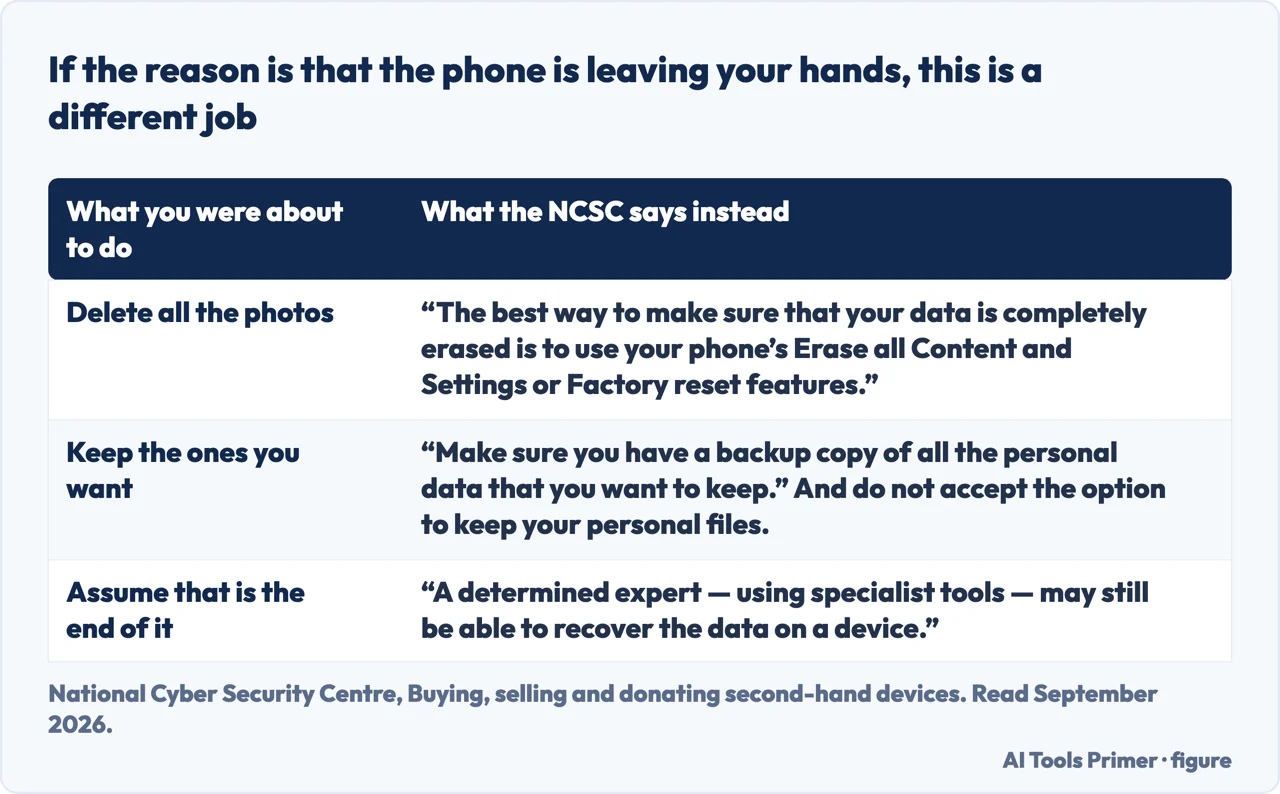
One case is worth separating out, because the answer to it is a different command altogether. If the reason for clearing the library is that the phone is leaving your hands — sold, traded in, given away — the National Cyber Security Centre’s instruction is not to delete anything by hand: “The best way to make sure that your data is completely erased” is “to use your phone’s Erase all Content and Settings or Factory reset features”. It asks for a backup first, “of all the personal data that you want to keep”, and warns against accepting any offer to keep your personal files on the way through. And it attaches a footnote worth carrying away: “A determined expert — using specialist tools — may still be able to recover the data on a device.”
One more route worth knowing before deleting anything, because it can achieve part of what you wanted without deleting a single photograph you meant to keep. Apple documents a Duplicates album — Photos → Collections → swipe up → Duplicates under Utilities — with a Merge action, and Select All to do the lot. On what merging does, Apple is specific: “your phone combines the highest image quality and relevant data to keep one photo”. That is a reduction that costs you nothing, and it is a reasonable thing to try before a clear-out.
The guides below take it three ways: what happens across your devices, the two-step deletion itself, and the storage question that usually prompts all of this.
Where to start
Three ways in.
- “Will this delete them from my iPad too?”
- Start at across your devices
- “I deleted them and nothing changed.”
- Go to the second step
- “The delete button is greyed out.”
- That is when you cannot delete
Across your devices
With iCloud Photos on, deleting is something you do to a library rather than to a handset. Apple states it before the instructions, and so does this guide.
The second step
Thirty days in Recently Deleted, and the space does not come back until that album is emptied. Which is why a clear-out can appear to have done nothing.
When you cannot delete
A grey Trash button is documented behaviour with a cause outside the Photos app, and a Shared Library adds a second set of rules about who may delete what.
Not covered here. It will not tell you deleting on the phone keeps them elsewhere. With iCloud Photos on, Apple says the opposite, and that sentence belongs before the instructions rather than in a footnote.
It will not treat the first delete as the end of it. The space comes back when Recently Deleted is emptied, and Apple says what happens then in the bluntest words it uses on this subject.
And it will not suggest a photo cleaner app. Apple documents a Duplicates album with a merge action, on a screen the phone already has. What holds instead is simple: the warning about iCloud Photos deleting across devices and the documented reason the Trash button can be grey are Apple’s own.
Sources
- Apple, Delete photos on your iPhone or iPad (the advice to back up photos you still want; that with iCloud Photos, deleting on one device deletes on all other devices signed in with the same Apple Account; the Settings → General → [Device] Storage route for checking storage; that deleted photos go to Recently Deleted for 30 days and are then permanently deleted; the routes for deleting a single photo and for selecting multiple photos including sliding a finger across them; that photos added by connecting the device to a computer cannot be deleted directly on the device and that a grey Trash button may mean syncing from the computer must be stopped; the Shared Photo Library rules, including that up to five contacts can be invited, that anyone can delete, add or edit items, that a deletion by someone else removes the item for you, and that only the person who added it can permanently delete or recover it; the Duplicates album with Merge and Select All, where merging combines the highest image quality and relevant data to keep one photo; the route Photos → Collections → Recently Deleted under Utilities, tapping View Album and unlocking with Face ID or Touch ID in iOS 16 or later, then Select, the More button and Delete All, with the confirmations Delete from All Devices or Delete Photos I Added; and the statement that when you delete a photo or video from this album, you can’t get it back) — support.apple.com, read 22 August 2026.
- National Cyber Security Centre — Buying, selling and donating second-hand devices, for the instruction that the way to erase personal data before a device changes hands is Erase all Content and Settings or a factory reset rather than deleting by hand, for the list of what that removes, for the warning not to accept an offer to keep your personal files on the way through, for the requirement to make a backup of what you want to keep first, and for the footnote that a determined expert using specialist tools may still be able to recover data from a device — www.ncsc.gov.uk, read 6 September 2026.
Written by Alberto Gulotta
Founder and editor of AI Tools Primer, writing from Palermo, Italy. Thirty-five years of taking computers apart, starting with a Commodore 64 — the long version is on the about page.
Something wrong on this page? Write to aitoolsprimer@gmail.com and it gets fixed.
Written on 22 August 2026 · last checked 23 September 2026.
Independence and limits
No affiliate links and no paid placements anywhere on this site. Nobody pays to appear here, and no company has seen this page before you did.
This is general information, not professional advice. Where a page touches money, health, safety or the law, it names its source and the date it was read — and your situation may still differ. See the privacy page and the cookie policy.