
Software · guide
How to transfer data from one iphone to another: the choice
By Alberto Gulotta · Updated · 9 min read
The mechanics of how to transfer data from one iphone to another are not the difficult part. Apple’s Quick Start does it: turn on the new phone, put it next to the old one, follow the prompts. Any of the ten pages on this question will tell you that much.
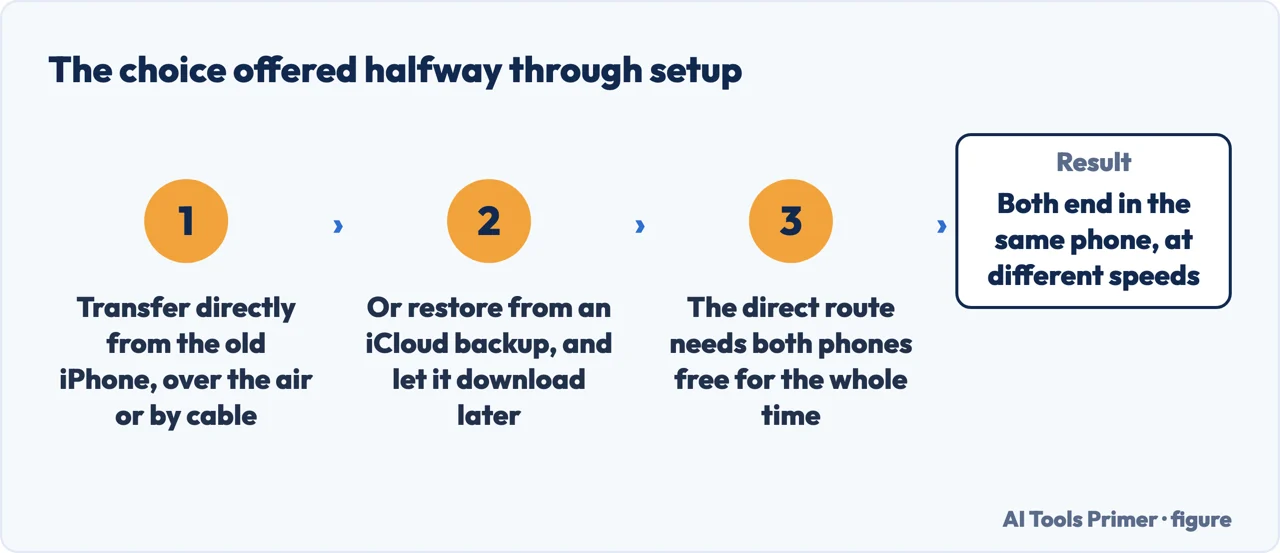
What none of them tell you is that halfway through, the setup asks a question that decides the next two hours, and it goes by in about four seconds without knowing what they have chosen.
The one screen that decides your afternoon
Apple: “Choose how you want to transfer your data.” Two options, presented as equals, with completely different consequences.
“your apps and data download in the background so that you can start using your new device right away”
You get a working phone in minutes. Apps fill in behind you over the following hours.
“you’ll need to wait for the transfer to complete on both devices before you can use them”
Both phones are out of action until it finishes. Nothing depends on your iCloud backup being current.
Neither is wrong. The question is what the next two hours look like. If you are standing in a shop, or the new phone is a replacement for one that broke, take iCloud and walk away with a working phone. If you are at a table at home and the old phone is complete and the iCloud backup is not, take the direct transfer and leave them alone.
Before either of them, three conditions have to be true or the prompt never appears at all. The current phone needs to be on Wi-Fi, Bluetooth needs to be on, and the new device needs to be near it. If the prompt shows up and then vanishes — which happens — Apple’s instruction is specific and slightly comic: restart both devices.
There is also a warning on Apple’s page that deserves more prominence than it gets, because it is the difference between a smooth evening and a stressful one: “Quick Start occupies both devices.” Not the new one. Both. For as long as it takes. So this is not a thing to begin ten minutes before leaving the house, and not a thing to begin on the only phone that can receive a verification code you are expecting. (A code that arrives when you are not expecting one at all is a different matter entirely.)
Two more conditions on the transfer itself, both from the same page. Keep the devices near each other and plugged in to power until it finishes — this is a job for a table with a socket, not a sofa. And Quick Start needs iOS 11 or later on the device you are transferring from, which in practice means almost any iPhone still working, but not one that has been in a drawer since before that.
The exception worth knowing in advance, because it stops the whole method dead: if the new device is enrolled in Apple School Manager or Apple Business Manager, Quick Start cannot be used at all. That is a work or school phone, the restriction is deliberate, and the route in that case runs through whoever administers it rather than through anything on this page.
If the wireless transfer is slow, stalling, or simply not something you want to trust to a room full of Wi-Fi, there is a wired route — and the cable it needs is not the same cable for everyone.
| From | To | What you need |
|---|---|---|
| iPhone 15 or later | iPhone 15 or later | USB-C Charge CableBoth ends plug straight in. The one you already own. |
| iPhone 14 or earlier | iPhone 15 or later | USB-C to Lightning CableThe cable that came with the older phone will not do it. |
| iPhone 14 or earlier | iPhone 14 or earlier | Lightning to USB 3 Camera Adapter + Lightning to USB CableAnd the adapter has to be connected to power through its own Lightning port. |
That third row is the one to check before you start rather than after. Two older phones cannot be joined with an ordinary cable at all: it takes an adapter, and the adapter itself has to be plugged into power. If that is your pair, the wireless route is very probably the better plan, and the wired one is not a shortcut.
It is worth separating two things that people describe with the same words. Setting a new handset up from a backup is not the same operation as Quick Start, even though both get called transfer data from iphone to iphone. Quick Start needs the old phone switched on and beside you; a restore needs only the backup, and works when the old phone is at the bottom of a canal. They also produce different results, because a backup is a photograph of a moment and the handset is the present tense.
One last thing that this whole task quietly rests on, and that is worth settling before the new phone is even out of its box. A direct transfer copies what is on the old phone; an iCloud download copies what is in the backup. If the old phone is damaged, lost, or already wiped, only the second of those exists — which is the moment people find out how current their backup was. The guide on that sits below, and it is worth ten minutes before this becomes urgent.
The same transfer, in the direction Apple does not document. Google publishes its own instructions for copying apps and data from an iPhone to a new Android phone, with a cable and a wireless route just as Apple has. Two things are worth taking from it before you start any transfer: the destination phone has to be at the setup screen, so a phone you have already finished setting up usually has to be erased first; and what survives the crossing is data, not arrangement — accounts, photographs and messages move, while the layout, the subscriptions and anything tied to the old account do not.
The guides underneath split it four ways: the wireless method in detail, the wired one, moving from an Android phone, and what to do with the old iPhone once the new one is working.
Where to start
Four ways in.
- “The new phone is in front of me now.”
- Start at the wireless way
- “It is stuck, or there is no prompt.”
- Also the wireless way
The wireless way
Quick Start in detail — the conditions that have to be true before it appears, the choice in the middle, and the failures that have documented causes rather than mysterious ones.
Before and after
The two jobs on either side of this one. Both are more important than the transfer itself, and both are the ones people skip.
Not covered here. It will not recommend a third-party transfer app. Apple ships two methods, both free, and the paid tools in this category ask for access to everything on both phones in order to do what the phones already do between themselves.
It will not pretend the two options in the middle are the same. They produce different afternoons, and which one is right depends on where you are standing.
And it will not skip the cable question. Two older iPhones cannot be connected with an ordinary cable, and finding that out at the table is worse than reading it here. What holds instead is simple: the conditions and the cable requirements are quoted from Apple’s own support articles, with their publication dates.
Sources
- Apple Support — Use Quick Start to transfer data to a new iPhone or iPad (the requirements, the statement that Quick Start occupies both devices, the two transfer options and their consequences, and the Apple School Manager restriction). Published 20 July 2026 — support.apple.com, read 22 August 2026.
- Apple Support — Use a wired connection to transfer data to a new iPhone or iPad (the three generation pairings and the cable or adapter each one needs) — support.apple.com, read 22 August 2026.
- Android Help — Copy apps & data from an iPhone or iPad to a new Android device: the same transfer in the other direction, and the setup-screen condition both platforms share — support.google.com, read 4 September 2026.
Written by Alberto Gulotta
Founder and editor of AI Tools Primer, writing from Palermo, Italy. Thirty-five years of taking computers apart, starting with a Commodore 64 — the long version is on the about page.
Something wrong on this page? Write to aitoolsprimer@gmail.com and it gets fixed.
Written on 22 August 2026 · last checked 23 September 2026.
Independence and limits
No affiliate links and no paid placements anywhere on this site. Nobody pays to appear here, and no company has seen this page before you did.
This is general information, not professional advice. Where a page touches money, health, safety or the law, it names its source and the date it was read — and your situation may still differ. See the privacy page and the cookie policy.