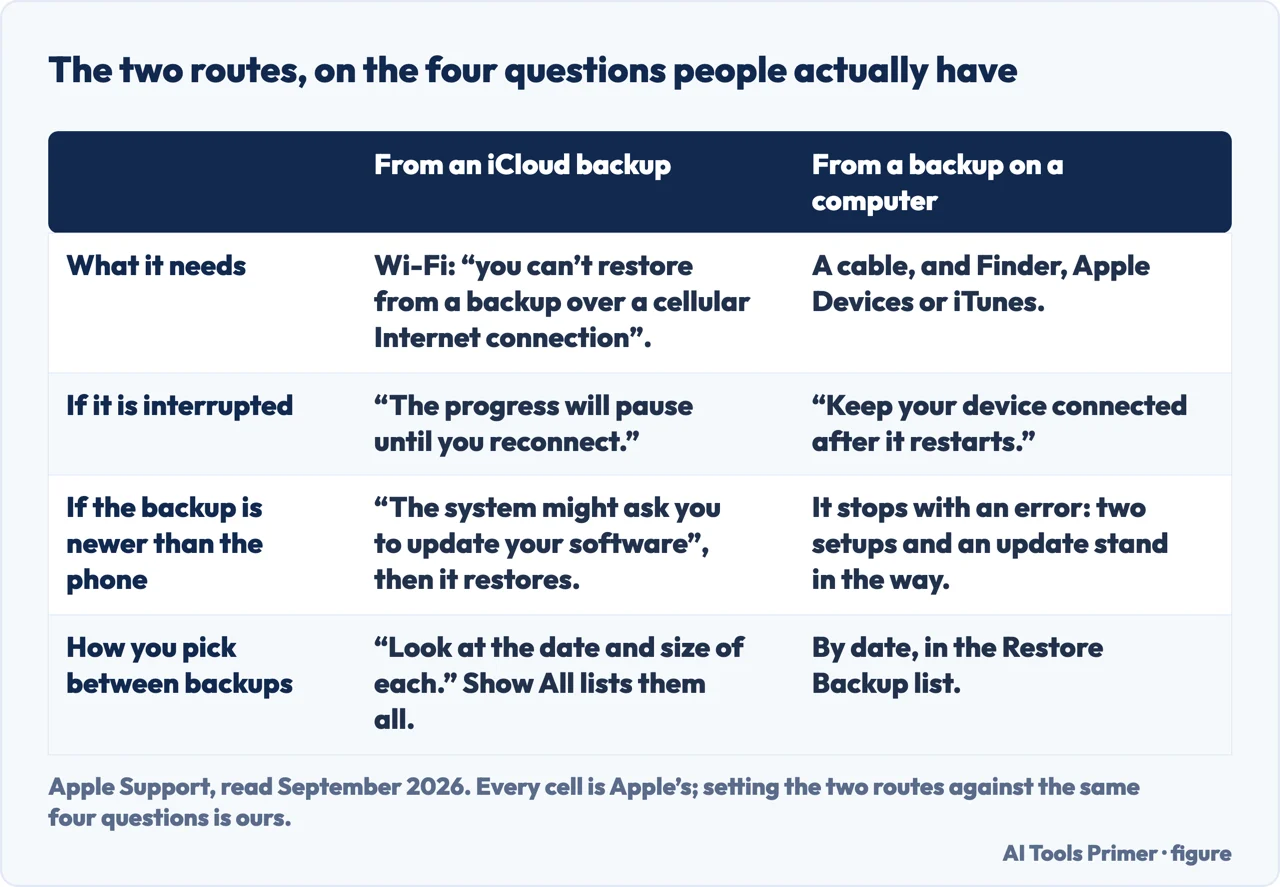
How to restore iPhone from backup has a precondition that reorders everything else, and Apple states it in the first step rather than in a footnote.
“Turn on your device. You should see a Hello Screen. If you already set up your
device, you need to erase all of its content before you can use these steps to restore from
your backup.”
One sentence, and it reorganises the whole question. A restore is something that happens
during setup, not something you do to a phone you are already using. There is no menu on a
working iPhone that pours a backup back into it. If the phone in your hand is set up, the
honest sequence is: erase it, then restore during the setup that follows — which is a far
larger commitment than the word “restore” suggests, and worth knowing before you start rather
than halfway through.
With that established, the rest is a choice between two routes, and the choice is mostly decided by where the backup already is. An iCloud backup restores over Wi-Fi during setup; a computer backup restores over a cable. Neither is better in the abstract, and Apple gives the same instruction for choosing between individual backups on both: look at the date.
From an iCloud backup
during setup · over Wi-Fi
At the Hello Screen, follow setup to the Transfer Your Apps & Data
screen, then tap From iCloud Backup.
Sign in to your Apple Account.
“Choose a backup. Look at the date and size of each and pick the most relevant.”
Stay on Wi-Fi and wait for the progress bar.
From a backup on a computer
over a cable
Open Finder, or the Apple Devices app on Windows, or iTunes on
Windows without it — or on macOS Mojave and earlier.
Connect by USB and answer any passcode or Trust This Computer prompt.
Select the device, then Restore Backup, and pick by date.
Click Restore. “If asked, enter the password for your encrypted backup.”
On the iCloud side there is one extra instruction worth following literally. Apple says to look at “the date and size of each” — size, not just date. A backup that is markedly smaller than its neighbours is telling you something about what was included when it ran, and the moment to notice that is before you commit to it rather than after.
Every cell is Apple’s; setting the two routes against the same four questions is ours. Figure drawn by AI Tools Primer.
“Once you’ve made your backup, it’s important you know how to restore it, and to
check that it contains all your important data.”
That is the UK’s National Cyber Security Centre, and set beside Apple’s first step it turns
uncomfortable. A restore is the only test a backup ever gets, and on a phone it is a test that
cannot be rehearsed — the device has to be erased before the restore can begin, so whatever
the backup turns out to be missing is discovered after the old contents are gone. CISA says the
same thing from the other end: “A backup plan is only helpful if everyone knows how to use
it.” Neither body is writing about phones, and both describe precisely the position of
somebody who reaches this page on the worst possible day.
What follows from that is not a procedure but a habit, and it belongs to a calm week rather than a bad day. The instruction is to check that a backup contains what matters, which is a different action from making one — and the only one of the two that can be carried out without erasing anything. A backup cannot give back what was never included in it, and the restore is the worst possible moment to find out where that line falls.
“If you’ve purchased iTunes or App Store content using multiple accounts,
you’ll be asked to sign in to each account.” Two sentences later: “Until you sign in to your
Apple Account, you will not be able to use the apps.”
This is the part that is easiest to miss on the far side of a restore. The apps are back on the
home screen and they will not open. Their icons are placeholders until the account that
bought them has been signed into, and if purchases were spread across more than one Apple
Account over the years, that is more than one sign-in. Apple does let you defer it — “you can
tap Skip this Step and sign in later” — at the price of a phone full of apps that do
nothing yet.
The restore finishes twice
The progress bar is the first ending. Apple describes the second one plainly.
First: “Depending on the size of the backup and the network speed, the progress bar
might need a few minutes to an hour to complete.”
Then: “Content like your apps, photos, music, and other information will
continue to restore in the background. This may take several hours or days,
depending on the amount of information on your device.”
Apple’s instruction for that stretch: “Try to connect often to Wi-Fi and power to
let the process complete.”
On the cable route there is a second stage too: “Keep your device connected after it
restarts and wait for it to sync with your computer. You can disconnect after the sync
finishes.”
What happens if you walk out of range. Nothing dramatic, and Apple
says so: “If you disconnect from Wi-Fi too soon, the progress will pause until you
reconnect.” It pauses rather than fails — which is reassuring, and also the reason a restore
that appears to have stalled has usually just lost the network rather than broken. The same
applies to the long background stage afterwards, which is why the advice there is about Wi-Fi and
power rather than about waiting by the phone.
The other thing that stops a restore is not the network but the calendar. A backup carries the version of iOS it was made on, and a phone older than that will not take it — which is easy to walk into after a repair or a replacement handset.
“Your backup might need a newer version of iOS or iPadOS. If so, you’ll see an error
that you can’t restore it.”
A backup can be too new for the phone it came from — after a repair, a replacement handset, or
a device that sat in a drawer through two releases. From iCloud this is barely an event: Apple
says “update your device before you restore”, and “if you install the update, your device
updates automatically, then restores your backup”. From a computer it simply
stops, with an error that names the wrong problem.
The way through is the part worth knowing before you begin, because it means setting the
phone up twice. At the Transfer Your Apps & Data screen, “tap Don’t Transfer Apps
& Data” — you are deliberately building an empty phone. If you have already gone the
other way, Apple has a step for that too: “If you tapped Restore from iCloud Backup, tap Back
to return to the Set Up screen.” From there, “You can
skip the steps for Apple Account, Touch ID or Face ID, and passcode.” Then update it to the
latest iOS, let it restart, and erase everything you just made: Settings, General, “Transfer
or Reset”, “Erase All Content and Settings”. The Hello screen returns, and this time
the backup will load. Two setups and an update stand between the backup and the phone, and none
of it is visible from the error message.
When the restore refuses rather than pauses. Three of Apple’s
answers explain most of it. The connection is not negotiable — “you can’t restore from a backup
over a cellular Internet connection” — so a phone with no Wi-Fi has no route at all. If the
backup you are looking for is not on the list, it may not be missing: “when you choose a backup,
you can tap Show All to see all available backups”. And the loop that looks like a bug is
not one: “if you made purchases with more than one Apple Account, you might get repeated
prompts to enter a password”. Apple’s way out is to enter each one, or “tap Skip this Step
or Cancel. Repeat until there are no more prompts.”
One more case Apple documents, because it arrives at exactly the wrong moment. After a repair, “when you get your iPhone or iPad back from an Apple Store or Apple Authorized Service Provider, keep in mind you might need to restore your device” — from an existing backup or by setting it up as new. Handing a phone in for service is one of the times a current backup is worth checking rather than assuming.
What this page will not do is tell you which backup to pick. Apple’s instruction is the date and the size, you are the only one who knows what happened between them, and a page that guessed would be guessing about your week rather than about the software.
It also will not promise that everything comes back. A restore returns what the backup contained, and what a backup contains is a separate question with its own answer — which is the first guide below.
Where to start
Three ways in. If the phone is already set up, read the box above first.
A restore is a setup-time operation. A phone already in use has to be erased before it can accept one, which makes this a bigger decision than the word suggests.
iCloud over Wi-Fi during setup, or a computer over a cable. Apple’s instruction for choosing between backups is the same on both: the date, and the size.
It finishes twice: a progress bar of minutes to an hour, then hours or days of background restoring. And the apps stay inert until the buying account signs in.
Not covered here. It will not tell you which backup to choose. Apple gives you the date and the size; the rest is knowledge of your own week that no page has.
It will not promise everything returns. A restore gives back what the backup held, and what a backup holds is a different question with its own guide.
And it will not recommend third-party software that claims to restore selectively from an iPhone backup. Apple documents two routes and this site has tested nothing else against a real backup, which is the only test worth anything here. What holds instead is simple: when you can restore, and when you cannot, is Apple’s own answer, and the advice to rehearse it first comes from a cyber security body.
Sources
Apple, Restore your iPhone, iPad, or iPod touch from a backup — Apple Support (that the device should show a Hello Screen and that a device already set up must have all its content erased before these steps can be used; the setup route to the Transfer Your Apps & Data screen and From iCloud Backup; signing in to the Apple Account; the instruction to choose a backup by looking at the date and size of each and picking the most relevant; the request to sign in to restore apps and purchases, the note that content purchased using multiple accounts requires signing in to each, the Skip this Step option, and the statement that apps cannot be used until you sign in; the instruction to stay connected to Wi-Fi, that the progress bar may need a few minutes to an hour, and that disconnecting from Wi-Fi too soon pauses progress until reconnection; that apps, photos, music and other information continue to restore in the background over several hours or days with the advice to connect often to Wi-Fi and power; the computer route through Finder, the Apple Devices app on Windows or iTunes, connecting by USB, answering the passcode or Trust This Computer prompt, selecting the device, selecting Restore Backup, choosing by date, clicking Restore and entering the password for an encrypted backup; the instruction to keep the device connected after it restarts until the sync with the computer finishes; and the note that a device returned from an Apple Store or Apple Authorized Service Provider might need restoring from an existing backup or setting up as new) — support.apple.com, read 22 August 2026.
National Cyber Security Centre, Backing up your data — Small organisations guide to cyber security (that once a backup has been made it is important to know how to restore it and to check that it contains all your important data; the suggestion to keep two backups, online and on a storage device, in case one is lost, stolen or fails; and the instruction to protect online backups with 2-step verification) — www.ncsc.gov.uk, read 26 August 2026.
CISA, Back Up Business Data — Secure Your Business (that regularly backing up data is a critical part of a cybersecurity strategy and that it is important to perform scheduled recovery tests to verify backup integrity; the instruction to test backup procedure so that data can be restored both fully and partially; and the statement that a backup plan is only helpful if everyone knows how to use it) — www.cisa.gov, read 26 August 2026.
Apple Support — Restore an iPhone, iPad, or iPod touch that needs a newer version of iOS or iPadOS (that an iCloud backup might need a newer version and the device should be updated before restoring, and that if the update is installed the device updates automatically and then restores the backup; that when restoring from a computer you will see an error that you can’t restore it; and the sequence to work around it — tapping Don’t Transfer Apps & Data at the Transfer Your Apps & Data screen, tapping Back to return to the Set Up screen if Restore from iCloud Backup was tapped, skipping the Apple Account, Touch ID or Face ID and passcode steps, updating the device to the latest version of iOS or iPadOS, letting it restart, then going to Settings, General, Transfer or Reset and Erase All Content and Settings, after which the Hello screen returns and a backup can be selected). Published date given on the page: 15 September 2026 — support.apple.com, read 16 September 2026.
Apple Support — If restore from iCloud backup failed (the instruction to plug the device into power and connect to Wi-Fi, and that you cannot restore from a backup over a cellular Internet connection; the instruction to check the software version and update if needed; that tapping Show All reveals every available backup when choosing one; that on an error you should try another network or another backup; that if the backup does not appear on the Choose a Backup screen you should confirm a backup exists and try another network; and that purchases made with more than one Apple Account can cause repeated password prompts, which are cleared by entering each password or tapping Skip this Step or Cancel until no more prompts appear) — support.apple.com, read 24 August 2026.
AG
Written by Alberto Gulotta
Founder and editor of AI Tools Primer, writing from Palermo, Italy. Thirty-five years of
taking computers apart, starting with a Commodore 64 — the long version is on the
about page.
Written on 22 August 2026 · last checked 23 September 2026.
§
Independence and limits
No affiliate links and no paid placements anywhere on this site. Nobody pays to appear here,
and no company has seen this page before you did.
This is general information, not professional advice. Where a page touches money, health,
safety or the law, it names its source and the date it was read — and your situation may
still differ. See the privacy page and the
cookie policy.