Time Machine
built in · automaticApple’s own feature. Uses “a USB drive or other storage device” to back up “all of your files, including apps, music, photos, email, and documents”.

Software · guide
By Alberto Gulotta · Updated · 13 min read
Asking how to back up MacBook gets four answers from Apple, and they are published in an order. The order is most of the answer: only the first runs without being asked, and only one of the four is described as bringing back something you deleted.
One thing no backup covers is the login password itself, and a reset of it costs you the keychain rather than the files — a forgotten Mac password sets out the three routes back in and the sentence Apple buries inside the procedure.
Time Machine
built in · automaticApple’s own feature. Uses “a USB drive or other storage device” to back up “all of your files, including apps, music, photos, email, and documents”.
iCloud
sync and storeFiled by Apple under “Sync and store data” — it keeps data “available anywhere you go”, and it “uses storage space in your iCloud storage plan”.
Dragging files
manual · no schedule“Simply dragging them from your Mac to a USB drive or other external storage device connected to your Mac.” To restore them, drag them back. Nothing automatic, and nothing to configure.
Something else
third partyApple lists the category and then declines to endorse it: information about products not made by Apple is “provided without recommendation or endorsement”.
That first card is the recommendation, and the wording underneath it is the reason. Apple describes a Time Machine backup as something you can use “to recover your files, including older files, files that have been deleted, or files that are no longer accessible”. That sentence is not attached to any of the other three.
It is worth being exact about the second card rather than arguing with it. Apple does say iCloud keeps your data “safe, automatically backed up, and available anywhere you go”. But it files the section under “Sync and store data with iCloud”, and the promise it makes there is about access across devices, not about recovering an older version of something. The two are different jobs and Apple’s own headings separate them.
Setting up Time Machine — macOS Ventura 13 or later
Four steps, and two questions the Mac may ask you in the middle of them.
Two of those steps deserve a second look. The erase question is the one that matters on a drive that already has things on it — Apple’s options are “either erase it or select a different backup disk or volume”, and there is no third path. The claim existing backups question only appears when the drive has been used by another Mac, and claiming them makes them “part of the backups for this Mac”.
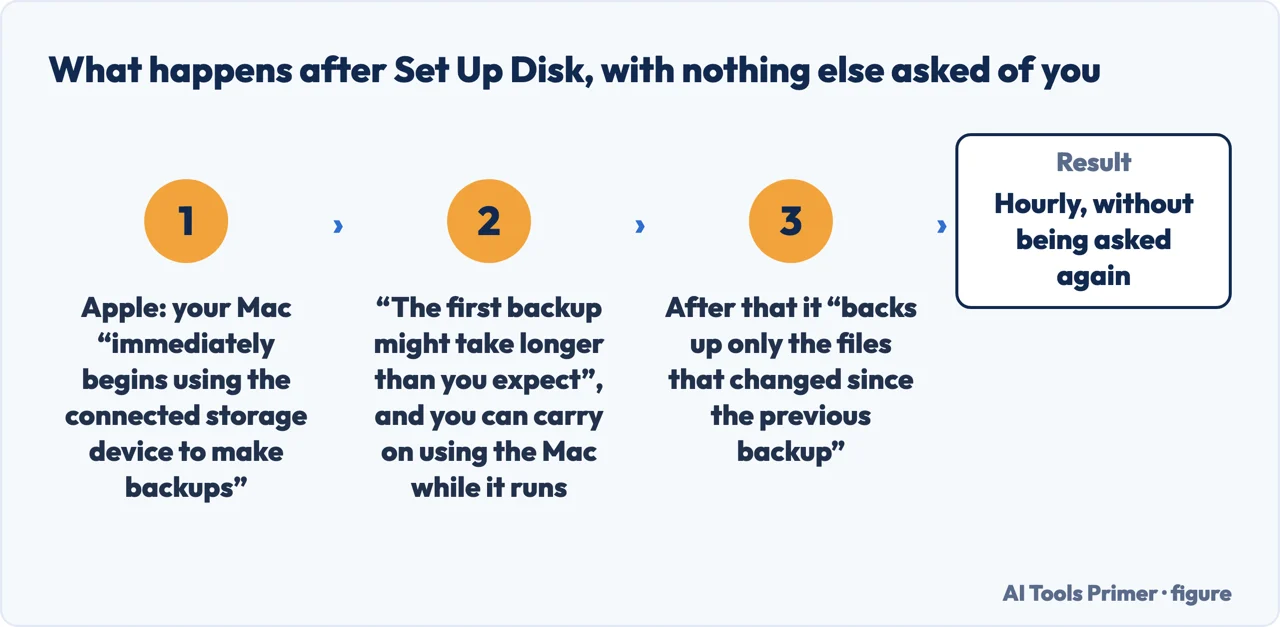
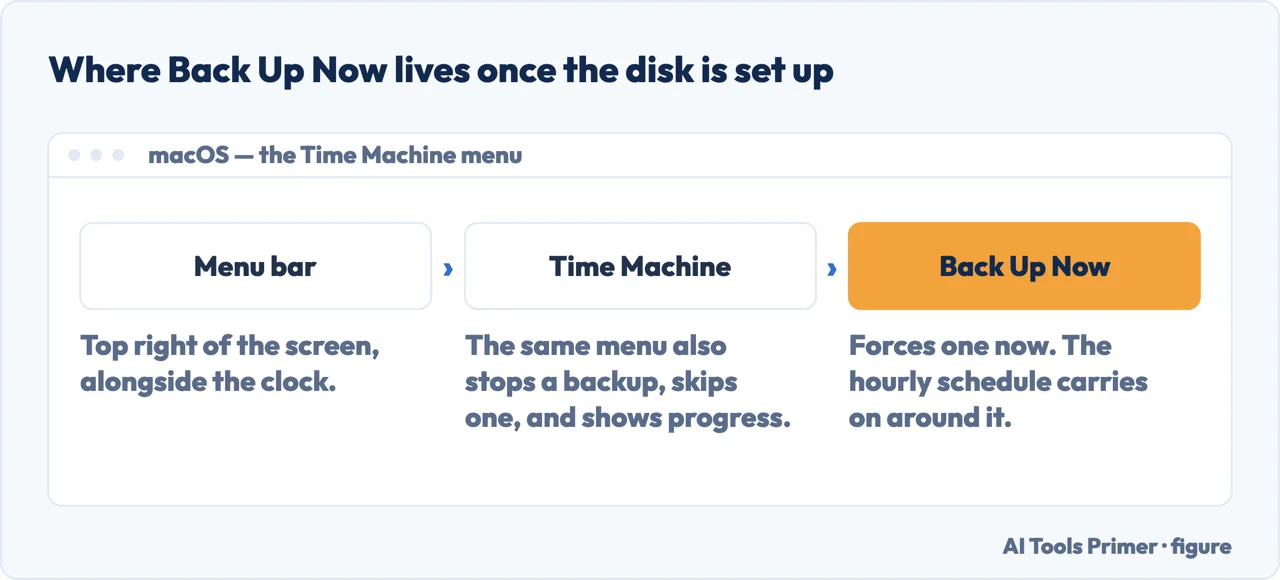
After that, nothing more is required: “your Mac immediately begins using the connected storage device to make backups”. To force one, choose Back Up Now from the Time Machine menu in the menu bar — the same menu stops, skips, or shows progress. If that menu is not there, Apple points at Menu Bar settings, Control Center settings, or Desktop & Menu Bar preferences.
If you turn on Encrypt Backup, “you’re asked to create a backup password”. Apple follows that immediately with the consequence: “You will need it if you later attempt to restore files from the backup.” A password chosen carelessly during a two-minute setup is the same password standing between you and your files on the worst day of the year.
“The oldest backups are deleted when your backup disk is full.” Time Machine is not an archive that grows for ever; it is a rolling window whose length depends on how big the disk is. That single sentence is the reason the sizing rule below exists.
“Before disconnecting your backup disk, either eject the backup disk or shut down your Mac.” Pulling the cable is not covered by the automatic behaviour that follows it — Time Machine “will automatically resume its backup schedule” on reconnection, but the instruction about how to disconnect comes first.
Two rules about the drive itself. Apple asks for “a storage device with at least twice the storage capacity of your Mac” — the published example is a 1TB Mac wanting a 2TB backup disk — and adds that if Time Machine needs more room, “your Mac will let you know”. The second rule is the one people break: use the backup disk “only for Time Machine backups, not for storage of other files”. A drive doing two jobs is a drive whose free space is being decided by the wrong one.
Apple explains how to make a backup. It does not discuss what a backup is exposed to, and two public bodies do. The UK cyber security centre, writing in August 2019 about incidents it had handled: “The NCSC has seen numerous incidents where ransomware has not only encrypted the original data on-disk, but also the connected USB and network storage drives holding data backups.” A Time Machine disc left attached is precisely that drive.
Its rule is short and it is about connection, not about copies: “only connecting the backup to live systems when absolutely necessary”, and “never having all backups connected (or ‘hot’) at the same time”. The reason follows in one line: “With at least one backup offline at any given time, an incident cannot affect all of your backups simultaneously.”
And the famous rule does not cover itThe 3-2-1 rule gets repeated everywhere: the US agency spells it out as “3 copies of important files”, “2 different types of storage media (like a hard drive and the cloud)” and “1 copy stored off-site”. But the NCSC adds the sentence almost nobody repeats with it: “it does not require any backup location to be offline – hence the need for our first offline rule.” Three copies can all be reachable from the same infected machine. The US guidance lands in the same place from the other side, listing what to protect a backup with: “physical security, encryption and offline copies”.
Both documents are written for organisations rather than for one laptop, and that is worth saying. The mechanism they describe does not care about the size of the network: it cares whether the disc is attached.
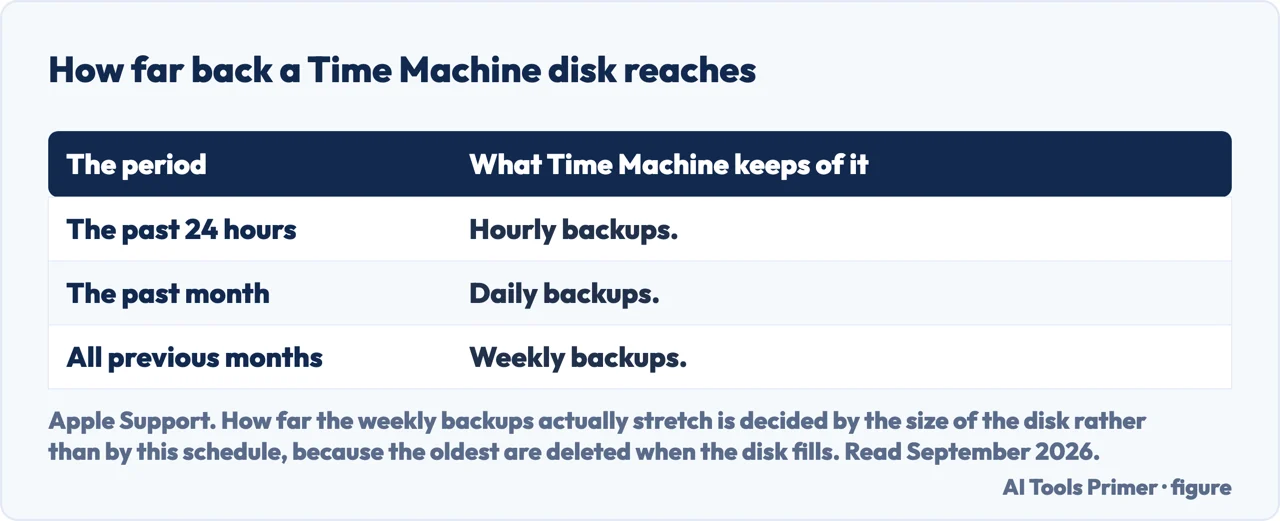
The schedule is fixed unless you change it, and it is finer at the near end than at the far end. Time Machine keeps hourly backups for the past 24 hours, daily backups for the past month, and weekly backups for all previous months. To change how often it runs, open Time Machine Settings from that menu, click Options, and use the “Back up frequency” menu.
One reassurance about the first run, in Apple’s own words: “The first backup might take longer than you expect, but you can continue using your Mac while a backup is underway.” After that it “backs up only the files that changed since the previous backup, so future backups will be faster”. The slow one happens once.
The guides below take it in three directions: the setup itself, what Apple promises about getting things back, and the drive the whole arrangement depends on.
Three ways in. If the drive is already connected, take the first.
Four steps, two questions in the middle of them, and a schedule that is already running before you look at it again.
A backup is only the half of this you can see. These guides are about the other half — and about the password that stands in front of it.
Twice the capacity of the Mac, used for nothing else, and ejected rather than unplugged. Three rules, all published, all easy to break.
Not covered here. It will not name a backup drive to buy. That needs drives bought, filled, and still working a year later, and until that has happened a recommendation here would be a guess with a link on it.
It will not tell you iCloud is not a backup. Apple’s own page says your data is automatically backed up there; what this page does instead is show which promises are attached to which method, and let the difference speak.
And it will not recommend a third-party backup utility. Apple lists the category without endorsing anything in it, and this page has tested nothing in it. What holds instead is simple: every step and figure here is Apple’s own, in Apple’s own order, and nothing has been rounded or modernised on the way through.
Written by Alberto Gulotta
Founder and editor of AI Tools Primer, writing from Palermo, Italy. Thirty-five years of taking computers apart, starting with a Commodore 64 — the long version is on the about page.
Something wrong on this page? Write to aitoolsprimer@gmail.com and it gets fixed.
Written on 22 August 2026 · last checked 23 September 2026.
Independence and limits
No affiliate links and no paid placements anywhere on this site. Nobody pays to appear here, and no company has seen this page before you did.
This is general information, not professional advice. Where a page touches money, health, safety or the law, it names its source and the date it was read — and your situation may still differ. See the privacy page and the cookie policy.