The answer to how to restart MacBook is one menu item: Apple menu → Restart. The power button is not involved, and the reason that is worth saying out loud is that the power button does two other things, both of which people reach for by mistake.
Held while it is running
this is a shutdown, not a restart
“You can force a shutdown if necessary — for example, if your Mac becomes
unresponsive — by pressing and holding the power button until your Mac shuts down.
You may lose unsaved changes in open documents.” Elsewhere Apple puts a number on the
hold: up to 10 seconds.
Held while it is off
this opens a menu
Hold it and “your Mac turns on and loads startup options”. Release when you see
“Loading startup options” or the Options icon. That screen is where macOS Recovery
lives — Disk Utility, Reinstall macOS, Restore from Time Machine.
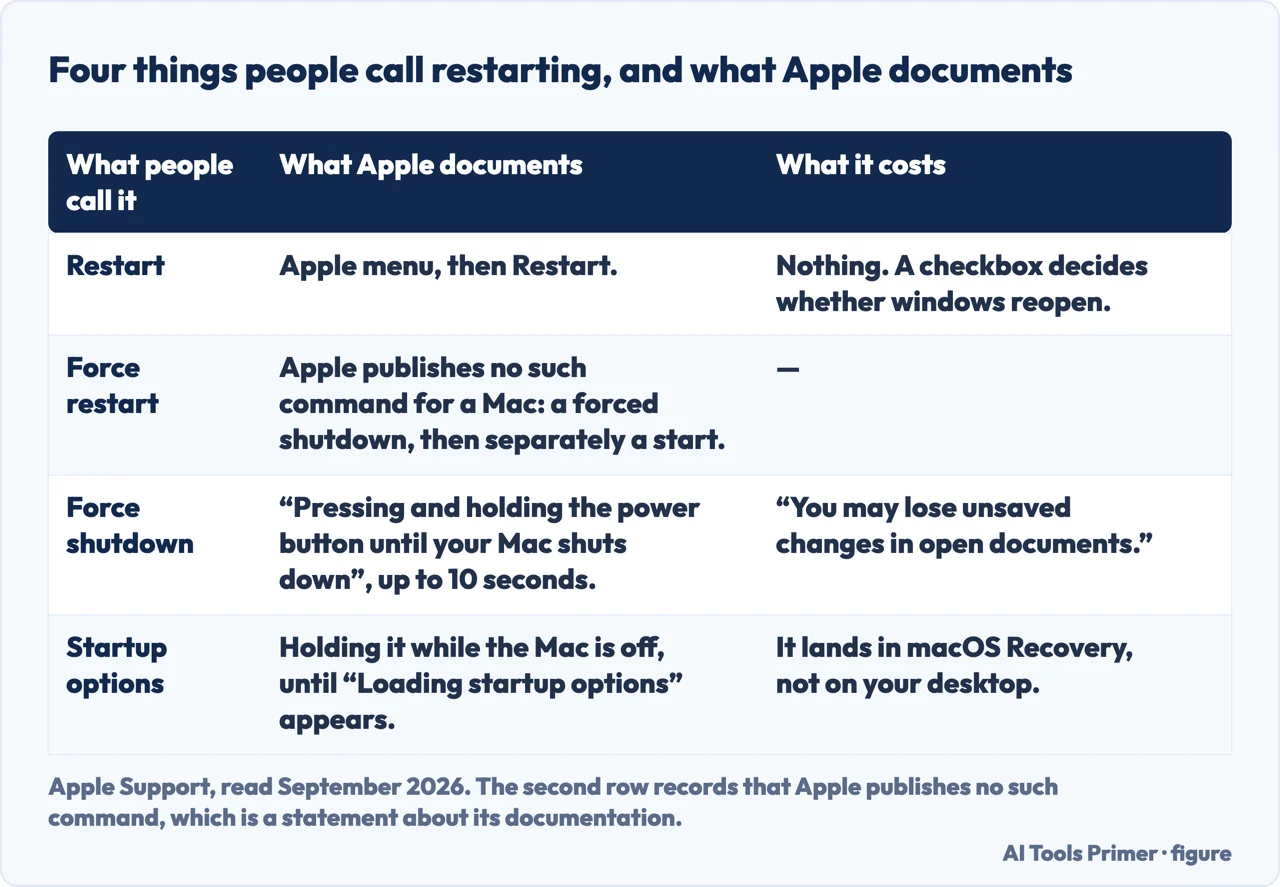
Put together, those two cards say something the phrase “force restart” hides. Apple does not document a force restart on a Mac. It documents a force shutdown — hold until it goes off — and then, separately, a startup. The two-step is not clumsiness on Apple’s part; the second hold is a different instruction that lands you somewhere else entirely.
Four different operations under one word. The second row is empty because the two Apple pages read for this guide document a force shutdown and a startup, not a force restart. Figure drawn by AI Tools Primer.
“If you don’t want app windows that are open to reopen when your Mac restarts,
deselect ‘Reopen windows when logging back in.’”
It is a single checkbox in the confirmation dialog and it decides what the machine looks like
on the other side. Leave it ticked and the restart is nearly invisible — everything comes
back where it was. Untick it and you get a clean desktop, which is the point if the reason for
restarting was that something had gone wrong with what was open. Apple attaches the same
sentence to both Restart and Shut Down, so the choice is the same one either way.
That checkbox is the only decision the ordinary restart asks you to make, and it is easy to click straight past. It is worth a second of attention precisely when you are restarting because something misbehaved: reopening every window is exactly how you restore the state you were trying to clear.
“If you’re using a Mac laptop, wait for it to shut down completely before closing
the display. If you close the display while the Mac is shutting down, it may not shut down
properly and may start up more slowly the next time you turn it on.”
Apple marks that one Important, and it is the most quietly expensive habit on this page.
Choosing Shut Down and immediately folding the laptop closed is the natural thing to do — and
it is the documented cause of a slower start next time. How to tell it has finished:
“A Mac is completely shut down when the screen is black.” Apple adds that some models
also show no power light and make no fan or drive noise.
The other things worth knowing about that button
Small published details that change what you do with it.
“Every Mac has a power button. On laptop computers that have Touch ID, press and hold
the Touch ID button.” The fingerprint sensor is the power button.
Getting to Recovery is two separate holds: one to force it off, then release, then
hold again to bring it up into startup options.
From Recovery, Apple’s way out is not the power button either: “To quit Recovery, choose
Restart or Shut Down from the Apple menu.”
“Always shut down your Mac before opening the case to install additional memory or
other devices inside the computer.”
The restart nothing is asking you for
Everything above is about restarting when something is wrong. There is a reason to do it when
nothing is, and it comes from the UK cyber security centre rather than from Apple: an update
can be downloaded and still not be in force. In its list of ways automatic updating quietly
fails: “Some updates might require the device to be manually restarted. If a device
hasn’t been restarted in a while then the update might not be installed.”
The same page explains why waiting is not free, and it is the part that changes how the delay
feels. Once a patch is published, “attackers can work out what the original flaws were
that have been patched in the update and start attacking devices that haven’t had the
updates installed”. The fix and the description of the hole arrive together. Its
instruction on timing is plain: “Install updates promptly when notified — ideally
within a few days.”
And the case where restarting cannot help at all, from the US agency: “Do not use
unsupported EOL software” — end-of-life, meaning a product the maker has stopped
issuing updates for. Its position on those is one sentence: “CISA recommends that users
and administrators retire all EOL products.” A Mac too old to be offered updates is
not a Mac that needs restarting more often.
The Touch ID detail deserves its own moment, because on a modern MacBook there is no button that looks like a power button. The fingerprint sensor in the corner of the keyboard is it — a fact that is obvious once stated and genuinely puzzling until then, particularly if you are trying to hold something down on a machine that has stopped responding.
What lies behind the second hold is worth knowing even if you never need it today. The startup options screen leads to macOS Recovery, and Apple lists what is in there: Restore from Time Machine, Reinstall macOS, and Disk Utility for repairing or erasing the startup disk. Terminal and other utilities sit in the menu bar at the top of that screen.
One thing you do not have to shut down for. Apple says it plainly:
“You don’t need to shut down your Mac when connecting or disconnecting cables, such as
USB-C, Thunderbolt, or Ethernet.” Peripherals are a different matter — Apple notes you “may also
need to shut down before connecting or unplugging certain peripheral devices” and, where it is
unclear, points you at the documentation that came with the device rather than offering a
general rule. Cables, no. Devices, sometimes. That is as far as the published answer goes, and
this page will not extend it.
This page will not tell you that restarting fixes things, or how often to do it. Apple publishes the commands and their consequences and stops there, and every claim about restart frequency this page could add would be somebody’s habit rather than anybody’s measurement.
It also will not tell you to hold the power button when an app has frozen. That is a different problem with a smaller answer, and taking the whole machine down for it costs you everything else that was open.
The guides below go three ways from here: the smaller thing to try first, what the second hold leads to, and the point at which restarting is no longer the question.
Where to start
Three ways in. If one app has frozen, take the first — do not restart at all.
Not covered here. It will not tell you how often to restart a Mac. Neither of the two Apple pages read for this guide gives one, and every number in circulation is a habit that acquired a decimal point.
It will not call the power-button hold a restart. Apple documents a force shutdown, and calling it something else is how people end up holding a button waiting for a machine that has already finished turning off.
And it will not promise a restart fixes anything in particular. It clears what was running, which is a real and limited thing, and the guides above are about the cases where something smaller would have done. What holds instead is simple: every hold and timing here is Apple’s own, and the reopen-windows option still carries the sentence Apple attaches to it.
Sources
Apple, Shut down or restart your Mac — Mac User Guide (the Apple menu routes to Shut Down and Restart; the instruction to deselect “Reopen windows when logging back in” if open app windows should not reopen; that a Mac is completely shut down when the screen is black and that some computers also show no active power light and make no fan or drive noise; the Important note that a Mac laptop should be allowed to shut down completely before the display is closed, because closing it during shutdown may prevent a proper shutdown and cause a slower start next time; the instruction to always shut down before opening the case to install memory or other internal devices; the note that a shutdown may be needed before connecting or unplugging certain peripheral devices and to refer to the documentation supplied with the device; the statement that a shutdown is not needed when connecting or disconnecting cables such as USB-C, Thunderbolt or Ethernet; and that a shutdown can be forced by pressing and holding the power button until the Mac shuts down, with the possible loss of unsaved changes in open documents) — support.apple.com, read 22 August 2026.
Apple, How to start up from macOS Recovery — Apple Support (that if a Mac with Apple silicon cannot be shut down normally the power button should be pressed and held for up to 10 seconds until it turns off; that every Mac has a power button and that on laptop computers with Touch ID the Touch ID button is pressed and held; that pressing and holding the power button again turns the Mac on and loads startup options, to be released at “Loading startup options” or the Options icon; the steps of clicking Options and Continue, selecting a volume and a user; the utilities available in Recovery including Restore from Time Machine, Reinstall macOS and Disk Utility for repairing or erasing the startup disk, with other utilities such as Terminal in the menu bar; and the instruction to quit Recovery by choosing Restart or Shut Down from the Apple menu) — support.apple.com, read 22 August 2026.
National Cyber Security Centre (UK), Keeping devices and software up to date — device security guidance, published 29 June 2021 and reviewed 13 May 2025 (that some updates require a manual restart and that a device not restarted in a while might not have installed them; that once a patch is published attackers can work out the flaws it fixed and attack devices that have not installed it; and the instruction to install updates promptly when notified, ideally within a few days) — www.ncsc.gov.uk, read 26 August 2026.
Cybersecurity and Infrastructure Security Agency (US), Understanding Patches and Software Updates, released 23 February 2023 (the instruction not to use unsupported end-of-life software, and the recommendation that users and administrators retire all end-of-life products) — www.cisa.gov, read 26 August 2026.
AG
Written by Alberto Gulotta
Founder and editor of AI Tools Primer, writing from Palermo, Italy. Thirty-five years of
taking computers apart, starting with a Commodore 64 — the long version is on the
about page.
Written on 22 August 2026 · last checked 23 September 2026.
§
Independence and limits
No affiliate links and no paid placements anywhere on this site. Nobody pays to appear here,
and no company has seen this page before you did.
This is general information, not professional advice. Where a page touches money, health,
safety or the law, it names its source and the date it was read — and your situation may
still differ. See the privacy page and the
cookie policy.