Amber
“Amber when charging is underway or charging is on hold.” Two different states, one colour — and one of them is not charging at all.

Software · guide
By Alberto Gulotta · Updated · 11 min read
How to know if my Mac is charging depends on the port, and on a USB-C model there is no light to look at. Even where there is one, it means two opposite things.
Amber
“Amber when charging is underway or charging is on hold.” Two different states, one colour — and one of them is not charging at all.
Green
“Green when your battery is fully charged.” The only unambiguous signal the connector gives you.
“The indicator light on the MagSafe connector then glows amber or green: Amber when charging is underway or charging is on hold.”
That single sentence is why the light cannot answer the question on its own. Amber covers both “it is filling” and “it has deliberately stopped”, and Apple lists two ordinary reasons for the second — Optimized Battery Charging, and a Charge Limit you or the system set. Neither is a fault. Both look identical from the outside. So the light tells you power has arrived; the menu tells you what is being done with it.
On a USB-C MacBook the question is simpler and stranger: there is no indicator at all. Apple’s instructions for charging with USB-C are three steps — plug in the adapter, plug in the cable, plug the cable into any USB-C port — and then they stop. No light is described because none exists. Everything you can know is on the screen.
What the battery status menu says, and what each one means
Four published messages. Three of them mean nothing is wrong.
Reading that list in order changes what a stalled charge feels like. Three of the four messages describe the Mac working as designed, and two of them have the same one-click remedy sitting in the same menu. Only the fourth is a fault. A battery that has sat at 80 per cent all afternoon is far more likely to be the second item than the last one.
“Your Mac charges over only one port at a time, using the source that provides the most power. Connecting a charging solution to more than one port, whether MagSafe or USB-C, doesn’t charge your Mac faster.”
Apple prints that twice on the same page, once under each charging method, which suggests it is a thing people try. The Mac picks the strongest source and ignores the rest. Worth knowing in the other direction too: a connected USB-C or Thunderbolt display can be the charger — Apple names the Studio Display — so a Mac that seems to be charging from nothing may be charging from the screen.
Which of these applies to you depends on the port. The MagSafe port “is on the left side of the Mac, near the Esc (Escape) key”, and MagSafe 3 charging covers the MacBook Pro introduced in 2021 or later — excluding the MacBook Pro (13-inch, M2, 2022) — and the MacBook Air introduced in 2022 or later. USB-C ports are “on the left side or both sides”, and any of them can be used; USB-C charging covers the MacBook Pro from 2016, the MacBook Air from 2018, and the MacBook from 2015. One compatibility note worth having before buying a cable: “MagSafe 3 isn’t compatible with the power adapters and charge cables used by earlier versions of MagSafe.”
One number is worth checking before blaming anything: the wattage. Apple’s framing is that for “the best charging experience, the power adapter and charge cable should deliver at least the minimum wattage recommended for your Mac model” — and where they do not, recent macOS now says so out loud rather than leaving you to infer it from a slow-moving percentage.
There is a second place that number is meant to appear, and it is more recent than most of the advice about chargers. The European Commission’s common-charger rules have applied to phones, tablets and a list of other devices since 28 December 2024, and it states that they “will also apply to laptops as of 28 April 2026”. The part that matters here is not the port but the label: producers “need to provide relevant visual and written information about charging characteristics, including information on the power the device requires and whether it supports fast charging”, and the stated aim of harmonising fast charging is that “charging speed is the same when using any compatible charger for a device”. On a machine sold in the EU under those rules the wattage question is supposed to have an answer on the packaging, rather than only in a support article you have to go and find.
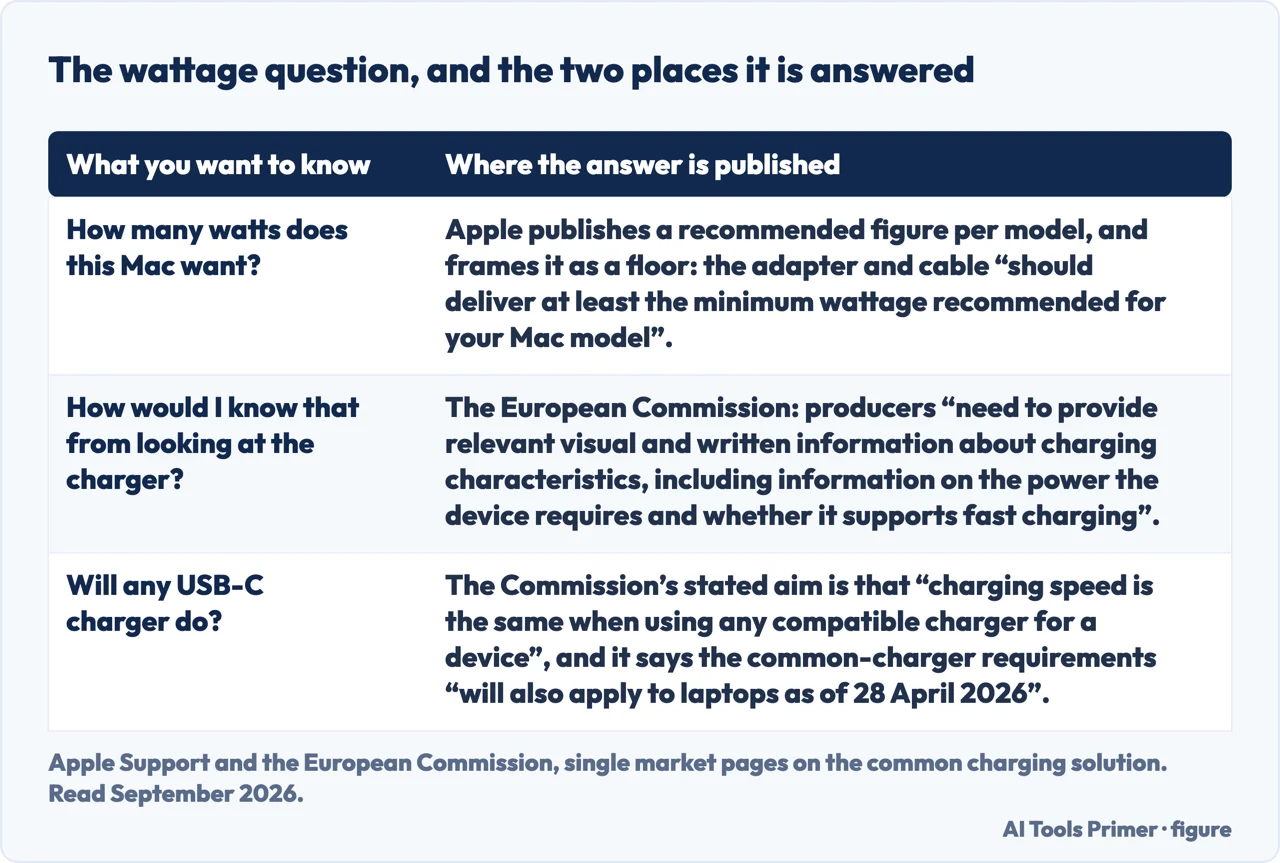
What this page will not do is tell you which charger to buy. Apple publishes a recommended wattage per model and that is the number that matters; a product recommendation here would add nothing to it except a link.
It also will not diagnose a Mac that is genuinely not charging. Apple has separate pages for a MagSafe adapter that is not working — including what a flashing connector light means — and for a USB-C adapter that is not, and sending you to a guess instead of to those would be worse than sending you nowhere.
The guides below take it three ways: the battery itself, the machine it is powering, and what to do when the answer turns out to be the last message on the list.
Three ways in. If it has been stuck at the same percentage, take the second.
Amber means charging or charging on hold. Green means full. On USB-C there is nothing at all, and the screen is the only source.
Charging On Hold, Charged to Limit, Slow Charger, Battery Is Not Charging. Only the last one is a problem, and two of the others have the same one-click answer.
One port charges at a time and a second charger adds nothing. MagSafe 3 will not take an older MagSafe cable. A connected display can be the charger.
Not covered here. It will not recommend a charger. Apple publishes a minimum recommended wattage for each model, and that number is the whole of the useful advice.
It will not diagnose a Mac that genuinely is not charging. Apple keeps separate pages for a MagSafe adapter that is not working and for a USB-C one, and a guess here would be worse than either.
And it will not tell you to turn off Optimized Battery Charging or a Charge Limit. Both exist to protect the battery; the menu offers Charge to Full Now when you need the exception, which is a different thing from switching the protection off. What holds instead is simple: every light, message and limit here is Apple’s own, and the page says plainly where Apple gives no indicator at all.
Written by Alberto Gulotta
Founder and editor of AI Tools Primer, writing from Palermo, Italy. Thirty-five years of taking computers apart, starting with a Commodore 64 — the long version is on the about page.
Something wrong on this page? Write to aitoolsprimer@gmail.com and it gets fixed.
Written on 22 August 2026 · last checked 23 September 2026.
Independence and limits
No affiliate links and no paid placements anywhere on this site. Nobody pays to appear here, and no company has seen this page before you did.
This is general information, not professional advice. Where a page touches money, health, safety or the law, it names its source and the date it was read — and your situation may still differ. See the privacy page and the cookie policy.