Green
“Your computer is using all of its RAM efficiently.” Nothing to do. A full memory bar with a green graph is a working machine.

Software · guide
By Alberto Gulotta · Updated · 11 min read
How to speed up MacBook has a published answer from Apple, and the useful thing about it is how short it is. Five causes, one page, and nothing that needs buying.
Apple’s published list, in Apple’s order
Five items. That is the whole page.
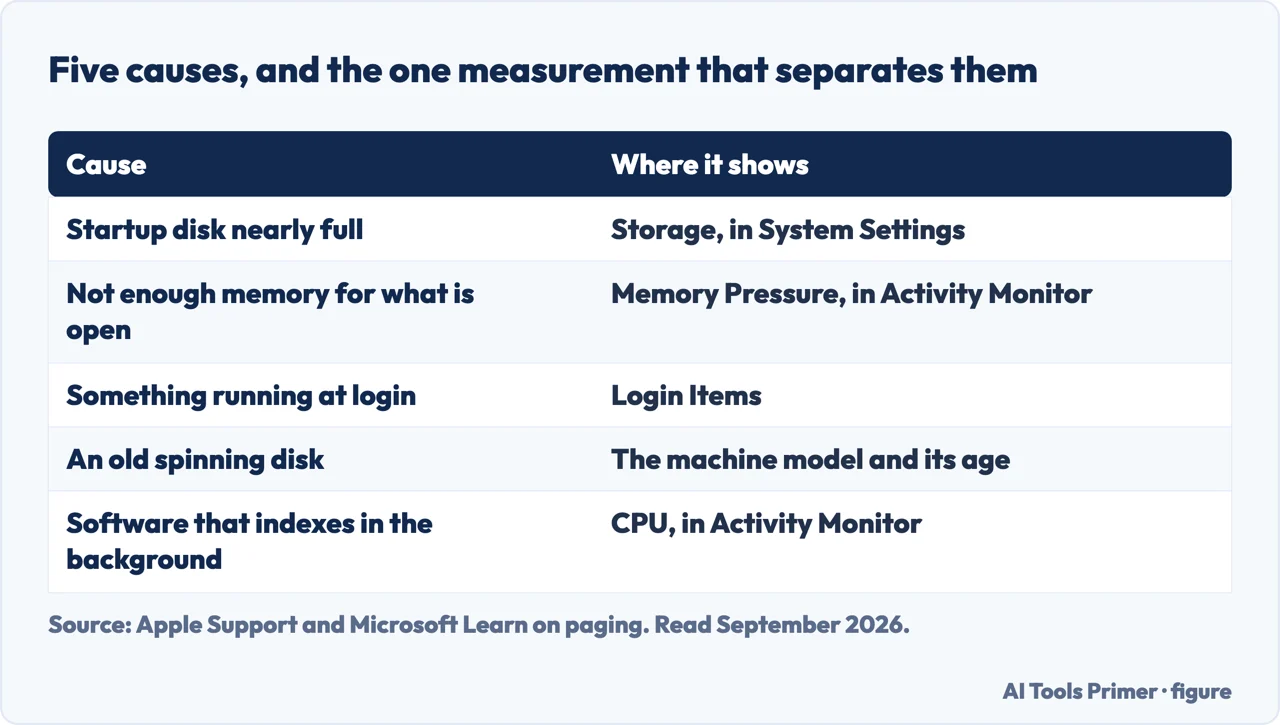
Two of those five are the ordinary ones and hardly need a page: quit what you are not using, and make room on the disk. Apple’s storage route is worth taking literally though, because the recommendations it offers are computed from your machine rather than copied from an article — System Settings → General → Storage, then choose among what it suggests.
The third item is the one almost nothing else mentions, and it is the most interesting. An app may simply not be compatible with the Mac it is running on — Apple’s example is that it “may require a different processor or graphics card”. To check what you have: System Settings → General → About for the processor, and About → System Report → Graphics/Displays for the graphics card. A machine that is slow only inside one application is worth testing against that before anything else.
No cache clearing. No deleting system files. No cleaning app. No maintenance routine, no “speed-up” utility, no folder to empty by hand. Apple’s complete published answer to a slow Mac contains none of it, and the list is short enough that the absence is hard to read as an oversight.
That is not proof those things never help. It is a statement about where the burden of proof sits: the manufacturer, which has every reason to want your Mac feeling fast, publishes five causes and nothing else. An instruction that is not on this list is somebody else’s claim, and worth treating as one.
The second item, memory, deserves its own section — partly because Activity Monitor is where Apple sends you, and partly because Apple prefaces it with a sentence that runs against the entire market built around this question.
“When you have free or unused memory, your computer performance does not necessarily improve. macOS obtains the best performance by efficiently using and managing all of your computer’s memory.”
Apple puts that sentence at the top of the page about memory, before the graph it is explaining. It contradicts the premise of every tool that offers to free up your RAM — the idea that empty memory is healthy memory. On a Mac, memory that is full is memory that is being used, and Apple describes that as the goal rather than the problem. Which is why the thing to read is not how much is free, but the graph below.
Green
“Your computer is using all of its RAM efficiently.” Nothing to do. A full memory bar with a green graph is a working machine.
Yellow
“Your computer might eventually need more RAM.” A watch-this rather than a do-this — Apple’s wording is deliberately unhurried.
Red
“Your computer needs more RAM.” The one unambiguous verdict on the page, and the only one that points at hardware.
That traffic light is the actual answer to “do I need more memory”, and it is worth noticing how careful the middle one is. Yellow is not an instruction. Apple says the computer might eventually need more RAM — a sentence written to avoid being read as a purchase recommendation, which is the opposite of how the same information is usually presented.
Whether you can even add memory, and how the answer arrives. Apple’s method: “press and hold the Option key, then choose Apple menu → System Information. Under Hardware on the left, click Memory. In the Memory Slots pane, go to Upgradeable Memory.” And then the part worth knowing before you go looking: “If the Memory Slots pane doesn’t appear, upgradeable memory isn’t available for your Mac.” The absence of the pane is the answer — which is a strange way to be told something, and a definite one.
The fifth item sends you to Disk Utility, and it is the one to take seriously rather than last, because a disk with problems produces symptoms that look like everything else on this list. What Disk Utility does and does not check has its own guide below.
What this page will not do is add a sixth item. Apple publishes five, this site has run no controlled test of anything outside them, and the honest thing is to hand you the vendor’s list rather than pad it.
The other manufacturer names the same two causes first. Microsoft’s documentation of the page file explains what happens when memory runs out rather than when it is merely busy: the page file is a “physical extension of RAM” that lets the system “remove infrequently accessed modified” pages from memory to disk. That is the mechanism behind the slowdown people describe as the machine “thinking”, and it is why a full startup disk and a shortage of memory produce the same symptom: when there is no room to page out to, there is nowhere for the memory pressure to go.
It also will not recommend a cleaner. Not because they are all bad, but because saying so would require having run one on a slow Mac and measured the result — and until that has happened, a recommendation here would be a link with an opinion attached to it.
Three ways in. If it is slow inside one app only, take the second.
Disk space, memory, an incompatible app, apps left open, and a disk problem. Apple’s whole list, with nothing to install and nothing to clean.
Apple says free memory does not necessarily mean better performance. The number to read is the pressure graph, and it has three colours.
The fifth cause produces symptoms that look like the other four. It is worth ruling out early rather than last.
Not covered here. It will not add a sixth cause to Apple’s five. Nothing outside that list has been tested here, and padding a vendor’s list is how invented maintenance advice spreads.
It will not recommend a cleaning app. That would need one run against a genuinely slow Mac with the result measured, and that has not happened.
And it will not tell you to free up memory. Apple’s own page says free memory does not necessarily improve performance, which is as close to a direct contradiction of that advice as a manufacturer is likely to print. What holds instead is simple: the advice Apple leaves out is named as missing rather than filled in, and everything Apple does publish is here in Apple’s own terms.
Written by Alberto Gulotta
Founder and editor of AI Tools Primer, writing from Palermo, Italy. Thirty-five years of taking computers apart, starting with a Commodore 64 — the long version is on the about page.
Something wrong on this page? Write to aitoolsprimer@gmail.com and it gets fixed.
Written on 22 August 2026 · last checked 23 September 2026.
Independence and limits
No affiliate links and no paid placements anywhere on this site. Nobody pays to appear here, and no company has seen this page before you did.
This is general information, not professional advice. Where a page touches money, health, safety or the law, it names its source and the date it was read — and your situation may still differ. See the privacy page and the cookie policy.