Clear History
History menu · removes ten things- In Safari, choose History → Clear History.
- Click the pop-up menu and “choose how far back you want your browsing history cleared”.

Software · guide
By Alberto Gulotta · Updated · 10 min read
Safari has two commands for this, in two different places, and they do different jobs. Choosing between them is most of the question — and one of them quietly removes something that is not history at all.
Clear History
History menu · removes ten thingsManage Website Data
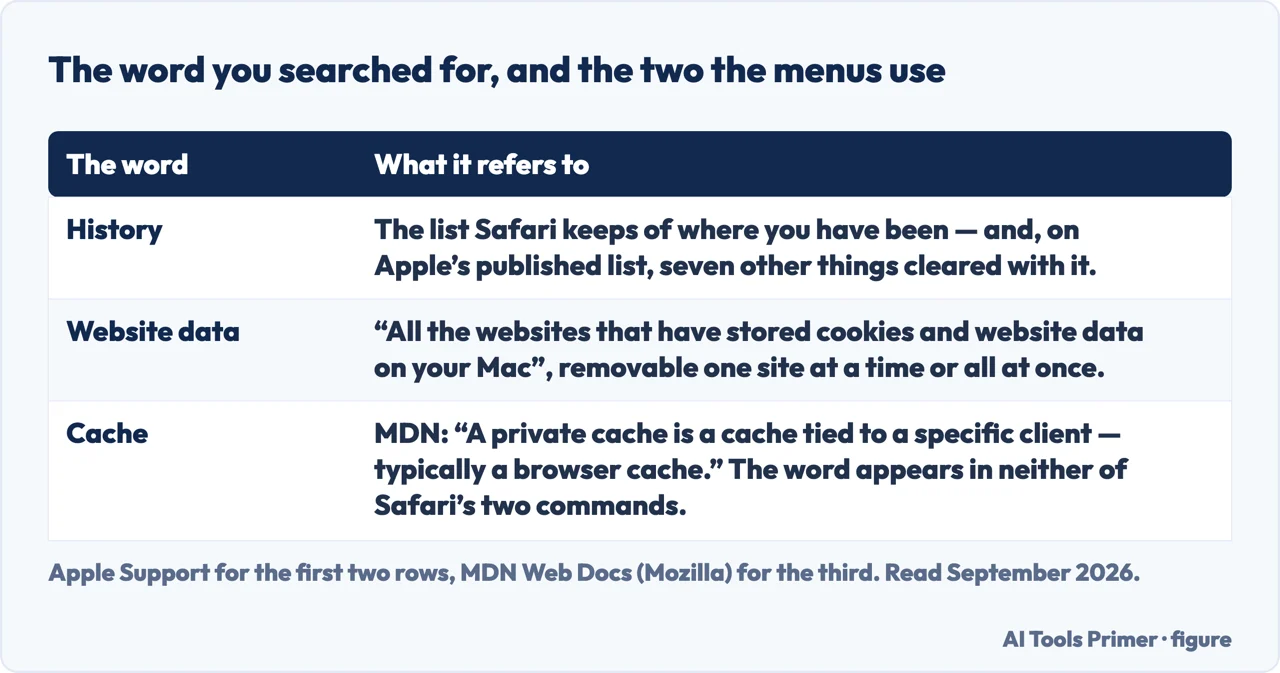
Settings · per site, or allThe short version of the difference: Clear History is about time — you pick how far back and Safari removes a defined list of things from that period. Manage Website Data is about sites — you can see “all the websites that have stored cookies and website data on your Mac” and remove them individually or all at once.
So a single misbehaving site is a Manage Website Data job, and a general clear-out is a Clear History one. Reaching for the wrong one is why this sometimes appears not to work.
One word is missing from both of those commands, and it is the word people arrive with. Neither menu says cache. Apple’s two commands are called Clear History and Manage Website Data; the thing being searched for is defined somewhere else entirely. Mozilla’s developer documentation gives it in one line: “A private cache is a cache tied to a specific client — typically a browser cache. Since the stored response is not shared with other clients, a private cache can store a personalized response for that user.” That is the distinction the menus leave you to make on your own: the cache is the stored copy of what a site sent you; the history is the list of where you went. They are cleared by different commands, and confusing them is why one of the two often seems not to have worked.
What “Clear History” actually removes
Apple publishes the list. Two items on it are not history in any ordinary sense of the word.
Two of those ten are worth stopping on, because they are not what anybody means by history. Clearing history forgets which websites asked to use your location and which asked to send you notifications. That is not a bad thing — but it means sites you had already answered will ask again, and a clear-out is therefore also a reset of those small permissions.
The downloads line is the other one to read carefully. Safari removes “the list of items you downloaded” — and Apple adds, in the same breath, that the downloaded files aren’t removed. The record goes; the files stay where they were saved.
“If your Mac and your other Apple devices have iCloud set up for Safari, your browsing history is removed from all of them.”
Clearing history on the Mac is not a local tidy-up if Safari is syncing. It reaches the iPhone and the iPad too, which is either exactly what you wanted or a surprise, depending on why you were doing it. Worth knowing in advance, because there is no undo and no “this device only” option on that menu.
“Note: Removing cookies and website data in Safari may change or remove them in other apps.”
“Removing the data may reduce tracking, but may also sign you out of websites or change website behavior.”
Two costs, both stated by Apple and both easy to meet without expecting them. The second is the familiar one: Remove All is also a log-out-of-everything button. The first is stranger and more interesting — website data on a Mac is not sealed inside Safari, so clearing it there can change what happens in other applications. Apple does not say which, and this page will not guess; what it says is enough to make Remove All a deliberate act rather than a routine one.
Between those two boxes sits the practical advice this page can honestly give. Manage Website Data with a site selected is the small, reversible-in-practice version — one site signs you out, the rest carry on. Remove All is the large version, and Apple names its two consequences rather than leaving them to be discovered.
The limit Apple states plainly. “Clearing your browsing history in Safari doesn’t clear any browsing histories kept independently by websites you visited.” That is the sentence that separates tidying your own machine from disappearing. What you removed was your copy. The record a site kept of a visit, an account, or a purchase is on their side, unaffected by anything in this menu.
What this page will not tell you is how to clear system or application caches outside Safari. Apple documents the browser; the folders elsewhere on a Mac are not something it tells people to empty, and a page that sent you into them on the strength of nothing would be inventing both the instruction and the reason.
Nor will it claim that clearing anything here frees up meaningful disk space. Apple describes these commands in terms of privacy and website behaviour, not storage, and the storage claim is somebody else’s to make.
The guides below take it three ways: the two commands, what leaves the machine when you use them, and the same question on the other Apple device.
Three ways in. If one site is misbehaving, take the first.
One works by time and one by site. Clear History removes a published list of ten things; Manage Website Data lets you pick a single site or all of them.
Signed out of websites, changed website behaviour, and possibly changes in other apps. All three are Apple’s own words rather than warnings invented here.
With iCloud set up for Safari, clearing history on the Mac clears it everywhere. And what websites keep on their own side is untouched either way.
Not covered here. It will not send you into system folders to delete caches. Apple documents the browser, and an instruction to empty anything else would be invented along with its justification.
It will not promise disk space. Apple describes these commands in terms of privacy and website behaviour, and says nothing about storage.
And it will not suggest clearing history removes you from a website’s own records. Apple states the opposite in a single sentence, quoted above in full. What holds instead is simple: everything clearing removes, and everything it does not remove, is Apple’s own list from the Safari guide rather than a tidier version of it.
Written by Alberto Gulotta
Founder and editor of AI Tools Primer, writing from Palermo, Italy. Thirty-five years of taking computers apart, starting with a Commodore 64 — the long version is on the about page.
Something wrong on this page? Write to aitoolsprimer@gmail.com and it gets fixed.
Written on 22 August 2026 · last checked 23 September 2026.
Independence and limits
No affiliate links and no paid placements anywhere on this site. Nobody pays to appear here, and no company has seen this page before you did.
This is general information, not professional advice. Where a page touches money, health, safety or the law, it names its source and the date it was read — and your situation may still differ. See the privacy page and the cookie policy.