
Web · guide
HTTP vs HTTPS: what the padlock does not say
By Alberto Gulotta · Updated · 11 min read
One letter separates them, and it stands for exactly one thing. The trouble is that people read it as standing for something larger — and the company that makes the most-used browser says so on its own help page.
“Even on secure sites, be careful with your personal information. To make sure you’re on the correct site, check the site name in the address bar.”
That is Google’s own instruction, printed directly beneath the description of the secure indicator — and it is the whole of the difference between the two words. HTTPS is about the connection, not about the company at the other end of it. A page can be perfectly encrypted and still belong to somebody who set it up this morning to collect card numbers. The padlock says the envelope is sealed. It says nothing about who is receiving the letter.
So the honest translation of the two is short. HTTP carries a page between a server and your browser in the open. HTTPS carries the same page inside an encrypted connection, so that, in Google’s words, the information you send or get through the site “is private”. The S is a promise about the pipe.
What it is not is a promise about the destination — and browsers have four different things to say on the subject, only one of which is about the site itself.
The four states Chrome distinguishes
Google’s own wording. Only the last is a judgement about the site rather than about the connection.
- Secure
- “The information you send or get through the site is private.”
- Not private
- “The site doesn’t use a private connection. Someone may be able to view and change the information you send and get through this site.” Note “and change” — the risk is not only being read.
- Not secure
- “Proceed with caution. Site connection isn’t private. Someone can find the information you send or get through this site.”
- Dangerous
- “Do not use this site.” A full-page red warning means the site “is flagged as unsafe by Google Safe Browsing” — it “threatens your privacy and security which can abuse any information it receives, and could attempt to install harmful software”. This one is about the site, and the judgement comes from a separate system.
Reading those four in order shows where the real judgement sits. The first three are all statements about the connection: private, not private, or something wrong with it. Only Dangerous is a statement about the site — and Google is explicit that it comes from Safe Browsing, a separate system that flags sites, rather than from anything the certificate proves.
“Someone may be able to view and change the information you send and get through this site.”
Two verbs, and the second is the one usually left out. Without HTTPS the concern is not only that somebody between you and the site could read the page — it is that they could alter it: change a bank detail, add a download, rewrite a link. That is why browsers treat a missing connection as a warning on ordinary pages and not only on payment ones, and why Google’s remedy is addressed to the site rather than to you: “the site owner must secure the site and your data with HTTPS.”
That distinction matters more than it sounds. A certificate is not a character reference. It shows that the connection to a particular name is encrypted; it does not investigate who registered that name or what they intend to do. Which is exactly why Google’s advice on a secure page is not “relax” but “check the site name in the address bar” — the name is the part a certificate cannot vouch for on your behalf.
For a page without HTTPS, Google’s advice is plain: “Do not enter any personal information on this page. If possible, do not use the site.” Note what it does not say — it does not tell you to fix anything, because there is nothing on your side to fix.
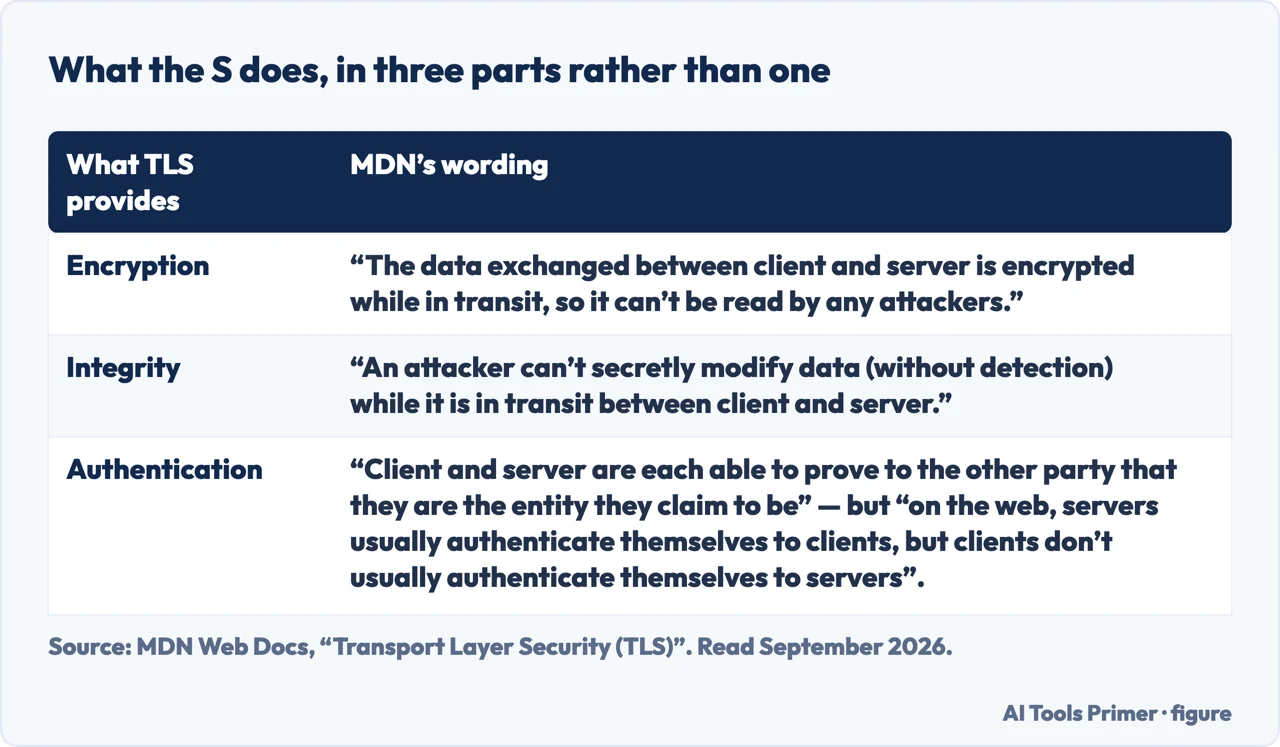
Those two verbs are not an accident, and a source with no browser to sell breaks them into three. Mozilla’s developer documentation lists what the connection actually provides. Encryption: “the data exchanged between client and server is encrypted while in transit, so it can’t be read by any attackers”. Integrity: “an attacker can’t secretly modify data (without detection) while it is in transit between client and server”. And authentication: “client and server are each able to prove to the other party that they are the entity they claim to be”. The third is where the padlock’s reputation comes from and where it is most often misread, because MDN adds the asymmetry in the next sentence: “on the web, servers usually authenticate themselves to clients, but clients don’t usually authenticate themselves to servers”. The certificate proves the server is the name in the address bar. It proves nothing about you, and nothing about whether that name deserves your card number — which is exactly why the advice on a secure page is still to read the name.
The setting that asks first. Chrome has an option called Always use secure connections. Google describes what it does plainly: with it on, “if a site doesn’t support HTTPS, Chrome displays a ‘Your connection to this site is not secure’ warning”. So instead of quietly loading an unencrypted page, the browser stops and asks. For anybody who would rather be told than assume, that is the one switch on this page worth changing — and it changes the default from silence to a question.
There is one more thing worth knowing about what the icons do and do not tell you, and Google mentions it in passing. Selecting the symbol opens “a summary of the site’s privacy, cookies and site data, site settings, and information about the page”. The icon is a door as well as a status — and behind it is the list of what that site has been allowed to do on your machine, which is a more useful thing to read than the icon itself.
What this page will not tell you is that HTTPS makes a site trustworthy. That is the specific confusion it exists to correct, and repeating it in softer words would defeat the purpose. Encrypted and honest are two different properties, checked by two different mechanisms, and only one of them is reported by a padlock.
Nor will it tell you how to get a certificate for your own site — that belongs to the guides on hosting and domains, where the practical arrangements live.
The guides below take it three ways: what the connection protects, what it does not, and the neighbouring things a browser reports about a page.
Where to start
Three ways in. If the question is “is this site safe”, take the second.
- “What does the S actually add?”
- One thing, precisely — what the s adds
- “Is this site safe because it has a padlock?”
- No — read what it does not say
- “The browser says not secure.”
- That is the site owner’s to fix — the four states
What the S adds
An encrypted connection, so that the information you send or get through the site is private. That is the whole of the difference, and it is a real one.
What it does not say
Nothing about who owns the site or what they intend. Google’s own advice on a secure page is to check the name in the address bar, which is the part no certificate covers.
The four states
Secure, not private, not secure, dangerous. Three describe the connection; only the last describes the site, and it comes from a different system.
Not covered here. It will not tell you a padlock means a site is trustworthy. Google prints a warning to keep checking the address directly beneath its own description of the secure indicator.
It will not treat the four browser states as four grades of safety. Three of them describe the connection and one describes the site, and they are not on the same scale.
And it will not tell you to work around a “not secure” warning. Google says the site owner is the one who has to fix it, and that there is nothing to enter on such a page in the meantime. What holds instead is simple: what the padlock does not say is Chrome’s own wording about its own states, and this page adds no reassurance Chrome itself withholds.
Step 3 of 6 in putting a site online
The order these jobs come up in for somebody who runs a website.
- Before this
- How to make a website mobile friendly, and why it is the real one
- After this
- What is an SSL certificate chain, and why one link goes missing
Sources
- Google, Check if a site’s connection is secure — Chrome Help (that the symbols beside the web address indicate whether Chrome has or has not established a secure and private connection with a site; that on a secure connection the information sent or received through the site is private, together with the instruction to be careful with personal information even on secure sites and to check the site name in the address bar to make sure it is the correct one; that a site without a private connection may allow someone to view and change the information sent and received, that the site owner must secure the site and the user’s data with HTTPS, and that private or personal information should not be entered on such a page and the site avoided if possible; that a “not secure” state means the site connection is not private and that someone can find the information sent or received; that a full-page red warning means the site is flagged as unsafe by Google Safe Browsing, threatens your privacy and security, can abuse any information it receives and could attempt to install harmful software, and should not be used; that selecting the icon shows a summary of the site’s privacy, cookies and site data, site settings and information about the page; and that with the Always use secure connections setting turned on, Chrome displays a “Your connection to this site is not secure” warning when a site does not support HTTPS) — support.google.com, read 28 August 2026.
- MDN Web Docs (Mozilla) — Transport Layer Security (TLS) (that TLS secures a network connection in three ways: encryption, meaning the data exchanged between client and server is encrypted while in transit so it cannot be read by any attackers; integrity, meaning an attacker cannot secretly modify data without detection while it is in transit; and authentication, meaning client and server are each able to prove to the other party that they are the entity they claim to be — with the note that on the web servers usually authenticate themselves to clients while clients usually do not authenticate themselves to servers) — developer.mozilla.org, read 5 September 2026.
Written by Alberto Gulotta
Founder and editor of AI Tools Primer, writing from Palermo, Italy. Thirty-five years of taking computers apart, starting with a Commodore 64 — the long version is on the about page.
Something wrong on this page? Write to aitoolsprimer@gmail.com and it gets fixed.
Written on 22 August 2026 · last checked 23 September 2026.
Independence and limits
No affiliate links and no paid placements anywhere on this site. Nobody pays to appear here, and no company has seen this page before you did.
This is general information, not professional advice. Where a page touches money, health, safety or the law, it names its source and the date it was read — and your situation may still differ. See the privacy page and the cookie policy.