
iPhone · guide
How to turn off private browsing on iPhone, and what stays open
By Alberto Gulotta · Updated · 10 min read
Apple documents no switch for how to turn off private browsing on iPhone. Its instruction for turning it off is to open an ordinary tab, and every route it gives runs through tab groups rather than through a setting — which is a useful thing to know before hunting through Safari’s options for a control that is not there.
How to get out of it, by version
Apple’s instructions all amount to the same move: open a tab in a different group. The route changed with iOS 17, so both are here.
- Current iOS
- Open Safari, tap the More button, then choose New Tab. That is Apple’s whole instruction for turning it off.
- iOS 17 and earlier
- Open Safari, tap the Tabs button, “swipe to the [number] Tabs tab group button, then tap the tab that you want to open.”
- From the tab groups view
- Apple’s longer route: tap through to All Tabs, “then swipe left to open a Tab Group from the menu at the bottom of your screen.”
Once that is clear, the next question is how to tell which one you are in, and Apple gives an answer that needs no menu at all.
Apple: “the Safari address bar appears black or dark instead of white or gray.”
Apple: “the Safari address bar appears white or gray.”
That is the whole test. A dark address bar means private tabs; a light one means ordinary tabs. It is visible from across a room, which makes it more useful than any setting screen — and it is the fastest way to check a phone you have just been handed.
“The websites you have open in Private Browsing stay open, and Private Browsing locks.”
Apple’s sentence about what happens when you leave, and it is the most important one on this page. Exiting Private Browsing does not close what was open in it and does not clear it. The tabs are still there, behind a lock, waiting for the next time somebody swipes back. If the reason you are leaving is that you want those pages gone, leaving is not the action that does it — closing the tabs is.
Two different actions hide under the same words. Leaving Private Browsing is switching tab groups, and Apple says what was open stays open. Clearing it is closing those tabs, which is a separate act. Anybody who exits and treats it as the second is relying on something Apple explicitly says does not happen.
The lock, and the delay attached to it. Apple: “If you have a passcode set on your iPhone, Private Browsing locks when it’s not in use.” And immediately after, the qualification that matters: “Private Browsing may not lock immediately.” So the protection exists and it is not instantaneous, which is worth knowing before handing somebody an unlocked phone.
To require it: Settings → Apps → Safari, then turn on Require Passcode to Unlock Private Browsing, or the Face ID or Touch ID equivalent on supported models.
And there is a genuine reassurance in the same guide about how far private tabs travel, which is not very far: “Tabs in Private Browsing aren’t shared with your other Apple devices, even if you’re signed in to the same Apple Account.” Whatever else Private Browsing does or does not do, it does not sync.
Two things that change while you are in there, and neither is obvious. Apple: “Any Safari extensions you have installed that have access to browsing data are automatically turned off in Private Browsing.” And the search engine can be different: in Settings → Apps → Safari, turning off Also Use in Private Browsing reveals a separate Private Search Engine setting. So a private tab is not simply an ordinary tab with the history switched off — parts of the browser behave differently inside it.
On what the mode actually protects, Apple is specific and worth quoting rather than summarising: with Private Browsing, “Safari won’t remember the pages you visit, your search history, or your AutoFill information”, and it “blocks known trackers, removes tracking used to identify individual users from URLs, and adds protections against advanced fingerprinting techniques”. Every item on that list is about this device and the sites you visit. None of it is a claim about your network, your employer, or your internet provider — and Apple does not make one.
It is worth having one more voice on that list, from somebody with nothing to sell. The Federal Trade Commission, writing for consumers about browsers in general, puts the boundary in a single sentence: “Some have a private browsing mode that deletes your browsing history after you end your session, but it doesn’t block websites from seeing your online activity.” The same page names two mechanisms that live outside the browser’s memory entirely — “device fingerprinting — a technique that uses your browser’s unique configurations and settings to track your activity”, and, inside apps rather than sites, “a unique advertising identifier”. None of that contradicts Apple. It describes the same boundary from the outside.
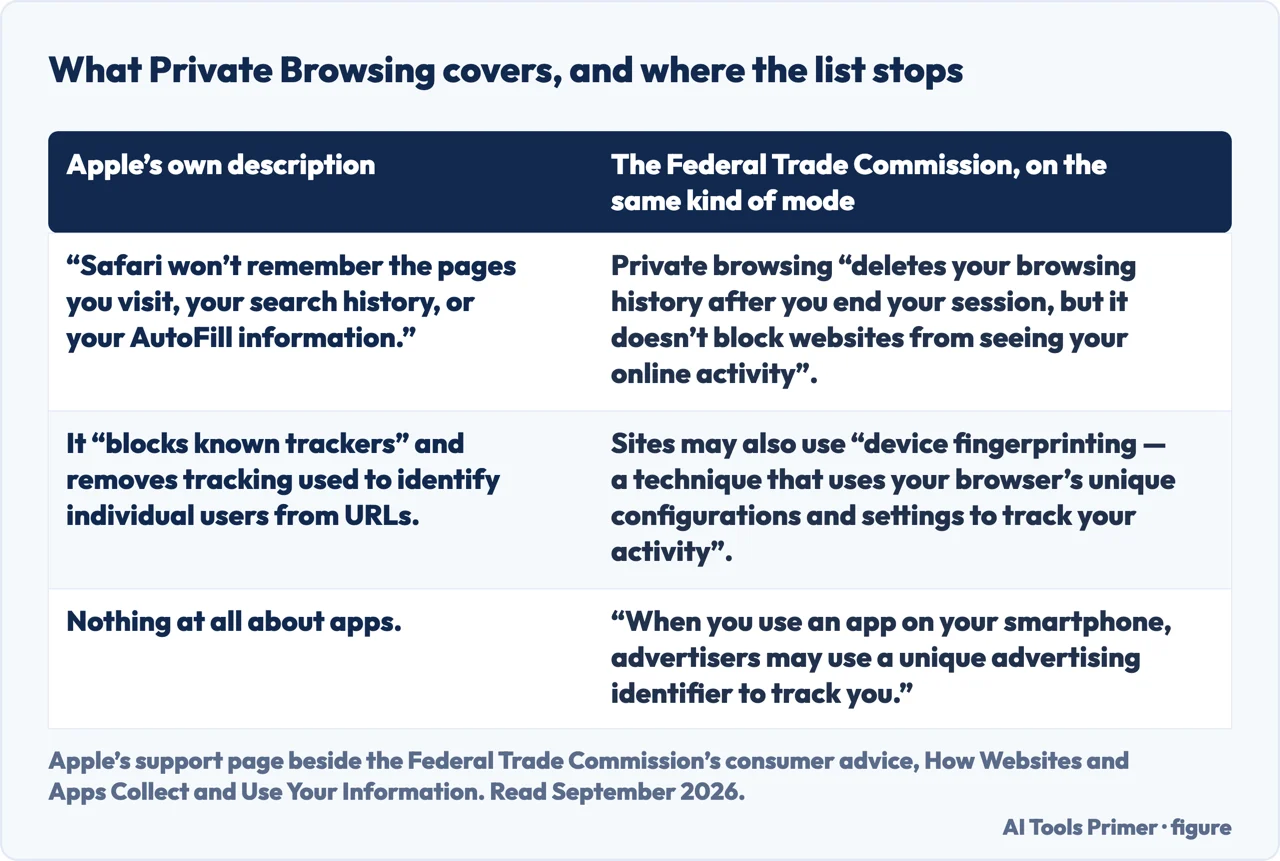
The guides below take it three ways: leaving the mode, telling which one you are in, and the related settings on the same Safari screen.
Where to start
Three ways in.
- “How do I get out of it?”
- Start at leaving the mode
- “Am I in private browsing right now?”
- Go to telling which one
- “I want those pages gone.”
- Read what stays open
Leaving the mode
Not a switch but a tab group. Apple’s instruction for turning it off is to open an ordinary tab, and the route differs on iOS 17 and earlier.
Telling which one
A dark address bar or a light one. Apple’s own indicator, visible without opening anything, and the fastest check on a phone you have just been handed.
What stays open
Apple says the pages stay open and Private Browsing locks. Leaving and clearing are two different actions, and only one of them removes anything.
Not covered here. It will not tell you private browsing hides you from a network. Apple’s list is about what Safari remembers and what trackers can do, and it stops there.
It will not treat leaving as clearing. Apple says the pages stay open, and a guide that skipped that sentence would be leaving somebody with a false idea of what they had just done.
And it will not describe one route. The instruction changed with iOS 17, and both versions are given because both phones exist. What holds instead is simple: the address-bar colours and the automatic disabling of extensions are Apple’s own wording, quoted with the statement that open pages stay open.
Sources
- Apple, Turn Private Browsing on or off on your iPhone (that with Private Browsing Safari will not remember pages visited, search history or AutoFill information, and that it blocks known trackers, removes tracking used to identify individual users from URLs and adds protections against advanced fingerprinting; that the address bar appears black or dark while Private Browsing is on and white or gray while it is off; the route to open a New Private Tab and, to turn it off, to choose New Tab from the More button; the iOS 17 and earlier routes via the Tabs button and tab group buttons; and that private tabs lock with the device and are unlocked with Touch ID, Face ID or the device passcode) — support.apple.com, read 22 August 2026.
- Apple, iPhone User Guide — Browse the web privately in Safari on iPhone (that private tabs do not appear in History and are not shared with other Apple devices even when signed in to the same Apple Account; that with a passcode set, Private Browsing locks when not in use and may not lock immediately; the route out via All Tabs and swiping to another Tab Group, with the note that the websites open in Private Browsing stay open and Private Browsing locks; the Settings → Apps → Safari options requiring a passcode, Face ID or Touch ID to unlock Private Browsing; the note that Safari extensions with access to browsing data are automatically turned off in Private Browsing; and the separate Private Search Engine setting revealed by turning off Also Use in Private Browsing) — support.apple.com, read 22 August 2026.
- Federal Trade Commission, Consumer Advice — How Websites and Apps Collect and Use Your Information, for its statement that a private browsing mode deletes the browsing history at the end of the session but does not block websites from seeing the activity, for device fingerprinting as a technique that uses a browser’s own configurations and settings to track it, for the unique advertising identifier used inside apps, and for the distinction between first-party and third-party tracking — consumer.ftc.gov, read 6 September 2026.
Written by Alberto Gulotta
Founder and editor of AI Tools Primer, writing from Palermo, Italy. Thirty-five years of taking computers apart, starting with a Commodore 64 — the long version is on the about page.
Something wrong on this page? Write to aitoolsprimer@gmail.com and it gets fixed.
Written on 22 August 2026 · last checked 23 September 2026.
Independence and limits
No affiliate links and no paid placements anywhere on this site. Nobody pays to appear here, and no company has seen this page before you did.
This is general information, not professional advice. Where a page touches money, health, safety or the law, it names its source and the date it was read — and your situation may still differ. See the privacy page and the cookie policy.