
iPhone · guide
How to turn off parental controls on iPhone, and what stays on
By Alberto Gulotta · Updated · 11 min read
The instruction for how to turn off parental controls on iPhone is three taps, and the useful part is the sentence Apple puts before them — the one that says the switch is not always yours to use.
“Depending on your state, country, or region, and your child’s age, some parental controls are on by default and can’t be removed.”
Read that before looking for the switch, because it says the answer is not the same everywhere. Apple is more specific further down the same page: “in some places, settings like Screen Time, Ask to Buy, Ask to Browse, and content restrictions for apps can’t be turned off”, and “where required by law, an Apple Account created for a child under 18 needs to be part of a Family Sharing group”. So a control that will not switch off is not always a fault, and not always a forgotten passcode: in some places it is the law, and no route through Settings moves it.
Where the switch is, in Apple’s order
The route runs through the child’s name rather than through a general settings list.
- Open Settings, then tap Family.
- Tap your child’s name.
- Tap Content & Privacy Restrictions. “If asked, enter your Screen Time passcode”, then turn the setting off — or back on.
The route is worth noticing, because the setting is not where its name suggests. It is not under Privacy and not under anything called Restrictions: it is under Family, behind the child’s name. What that ordering tells you is that in Apple’s arrangement these controls hang off a person in your family group rather than off a handset — which is also why the Family Sharing step below comes first.
That has a consequence worth knowing before you start. Apple’s setup order is Family Sharing first — “Make sure you have Family Sharing set up” — and it also decides who may change anything: “You can set parental controls from your own iPhone or iPad as long as you’re the Family Sharing organizer or a parent/guardian in the Family Sharing group.” If the controls you are looking for are not there, the missing piece is often further back than the settings screen.
And a note about the software versions, which is where the confusion comes from when a change appears to have had no effect. Apple: “To access these updated parental controls, make sure every device in your Family Sharing group is using these software versions.” If that is not possible, Apple says what to do instead: “if you can’t update every device in your Family Sharing group, you can continue to use the previous version of Screen Time and parental controls, or adjust the parental controls directly on the child’s device.” A phone left a version behind can be the reason the family group disagrees with itself.
“Certain settings are automatically turned on for accounts under 18.”
This is the sentence to remember if a restriction appears that nobody remembers setting. Apple names two of them: “Ask to Buy and Ask to Browse are on by default for children under 13. Limit adult websites is on by default for children under 18.” And it adds the one that blocks the obvious workaround: “depending on the child’s state, country, or region, Ask to Buy is turned on by default and can’t be turned off if the child is under 18.” Finding a control switched on is not evidence that somebody switched it on.
It is also worth knowing what the master switch actually governs, because it is narrower than “parental controls”. Apple’s own line for it is the container’s job description — “Content & Privacy Restrictions let you manage Apple content, apps, and settings for your child’s device” — and the things it holds are the ones reached by tapping it: age-based content restrictions, Siri restrictions, Game Center restrictions, privacy restrictions and Screen Distance. Everything else a parent sets up on that phone is reached by a different tap from the same screen, and is not inside the container at all.
Four settings that are not inside the container — Apple gives each its own route
- Allowed Contacts — “Open the Settings app, tap Family, then tap your child’s name. Tap Allowed Contacts.” It governs “who your child communicates with in Messages, FaceTime, and Phone”.
- Communication Safety — its own route again, and Apple’s description: it “helps protect your child from viewing or sharing photos or videos with detected nudity, gore, or violence”.
- Apps & Websites — where Ask to Buy and Ask to Browse live. Worth knowing what a block looks like from the child’s side: “if you block an app, the app won’t be deleted, it’s just dimmed on the Home Screen”.
- Screen Time Schedule and Time Allowances — the hours and the daily budget, each reached from the child’s name rather than from the restrictions screen.
Those four are the reason “turn off parental controls” and “turn off Screen Time” are not the same instruction. Content & Privacy Restrictions is one tap among several under the child’s name, and turning it off leaves the others where they are — so a household that wants the communication protections without the content rules is asking for a different tap, not for this switch.
On the passcode, and what this guide will not do. Apple’s route asks for the Screen Time passcode, and there is a large genre of pages promising to remove parental controls without it. This guide does not carry those methods: restrictions on a child’s device were set by somebody with the authority to set them, and a guide to defeating them is a guide to defeating that person. If you are the parent and it is your own passcode you have forgotten, that is a different question with a documented answer, and it belongs on the Screen Time guide rather than here.
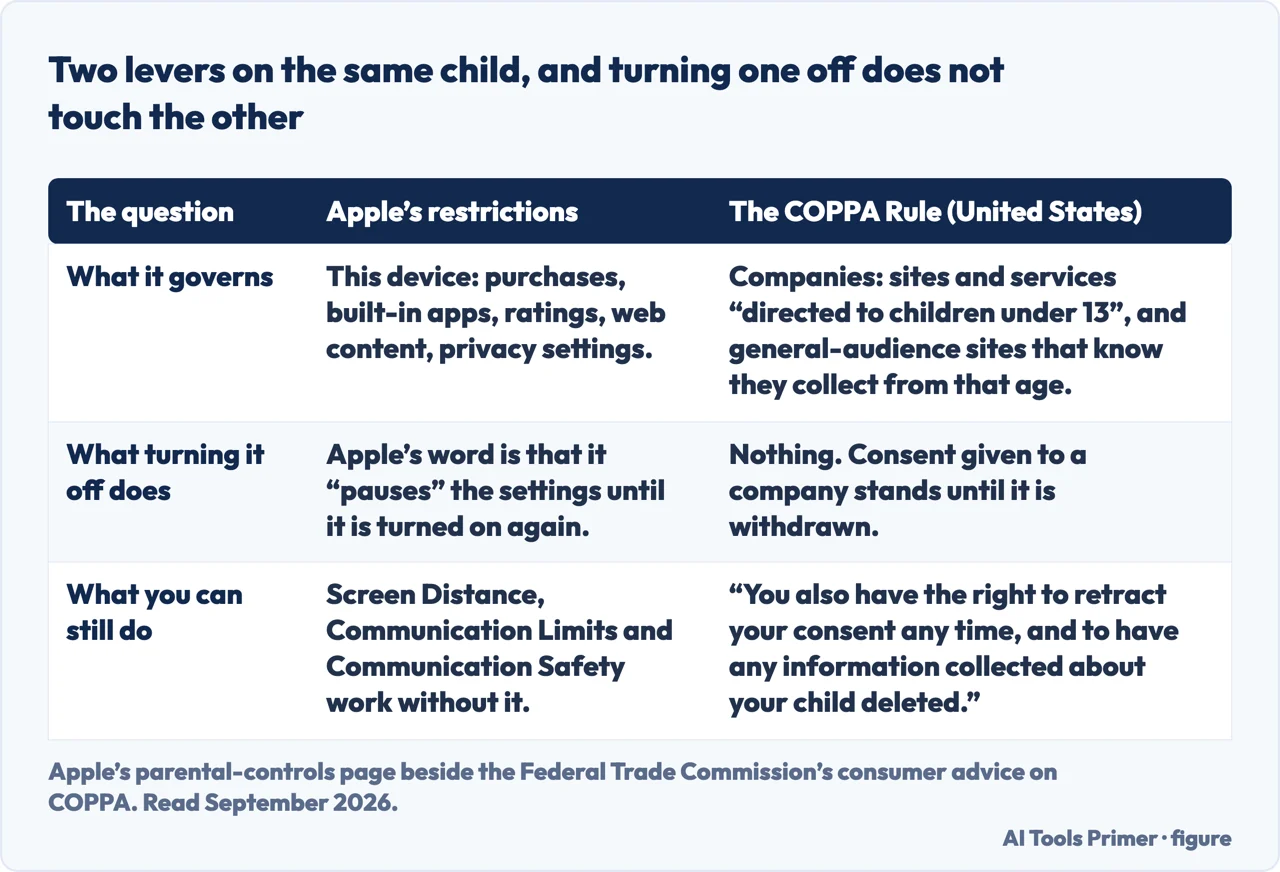
One thing this switch does not touch, and it is the other half of the same worry. Apple’s restrictions govern this device. What a company may collect from a child is governed elsewhere: in the United States by the COPPA Rule, which the Federal Trade Commission enforces on sites and services “directed to children under 13”, and on general-audience services that know they are collecting from that age. The agency’s summary of what a parent keeps is the part that survives any change on this screen: “You also have the right to retract your consent any time, and to have any information collected about your child deleted.” Turning Content & Privacy Restrictions off does nothing to that, in either direction.
The guides below take it three ways: the switch and what pausing means, what sits inside the container and what does not, and the neighbouring settings — including the one the name Screen Time is normally taken to mean.
Where to start
Three ways in.
- “I want them off for now.”
- Start at the switch
- “Something is restricted and I did not set it.”
- Go to what is on by default
- “It is Screen Time I want, not this.”
- That is the neighbouring settings
The switch
Three taps, behind the child’s name under Family. And the sentence to read first, because in some places Apple says the control can’t be turned off at all.
What is on by default
Apple says certain settings are turned on automatically for accounts under 18, and that some of them can’t be removed. A restriction nobody set is not a fault.
The neighbouring settings
Content and Privacy Restrictions is one tap among several under the child’s name. The others are set elsewhere on the same screen, and one is not Apple’s to switch at all.
Not covered here. It will not tell you how to remove restrictions without the passcode. Those controls were set by somebody entitled to set them, and this site is not going to help take them off.
It will not recommend a third-party parental control app. Apple documents the built-in controls, and judging the products against them needs testing this guide has not done.
And it will not promise the switch will work. Apple writes that in some places Screen Time, Ask to Buy, Ask to Browse and content restrictions for apps can’t be turned off at all, and a page that skipped that sentence would be selling a route that ends at a wall. What holds instead is simple: the statement that some parental controls are on by default and cannot be removed is Apple’s own, quoted with the Family Sharing prerequisite and the version requirement.
Sources
- Apple, Use parental controls to manage your child’s iPhone or iPad — rewritten for iOS 27, published 14 September 2026 (that Family Sharing must be set up first and that only the Family Sharing organizer or a parent/guardian in the group can set the controls; the route Settings → Family → the child’s name → Content & Privacy Restrictions, entering the Screen Time passcode if asked; that depending on state, country or region and the child’s age some parental controls are on by default and can’t be removed, and that in some places Screen Time, Ask to Buy, Ask to Browse and content restrictions for apps can’t be turned off at all; that where required by law an Apple Account created for a child under 18 must be part of a Family Sharing group and certain settings are automatically turned on for accounts under 18; that Ask to Buy and Ask to Browse are on by default under 13 and Limit adult websites under 18; that every device in the Family Sharing group must be on the new software versions, and what to do when it cannot be; what Content & Privacy Restrictions holds and what is reached by its own route instead — Allowed Contacts, Communication Safety, Apps & Websites, Screen Time Schedule and Time Allowances; and that a blocked app is not deleted but dimmed on the Home Screen) — support.apple.com, read 16 September 2026.
- Federal Trade Commission, Consumer Advice — Protecting Your Child’s Privacy Online, for the COPPA Rule’s scope over sites and services directed to children under 13 and over general-audience services that know they are collecting from that age, for what counts as personal information under the Rule including physical location and persistent identifiers, for the plain language notice a parent should get about what will be collected and how to consent and approval before collection, and for the parent’s continuing right to review the information, to retract consent at any time and to have the information deleted. The Rule applies in the United States — consumer.ftc.gov, read 6 September 2026.
Written by Alberto Gulotta
Founder and editor of AI Tools Primer, writing from Palermo, Italy. Thirty-five years of taking computers apart, starting with a Commodore 64 — the long version is on the about page.
Something wrong on this page? Write to aitoolsprimer@gmail.com and it gets fixed.
Written on 22 August 2026 · last checked 23 September 2026.
Independence and limits
No affiliate links and no paid placements anywhere on this site. Nobody pays to appear here, and no company has seen this page before you did.
This is general information, not professional advice. Where a page touches money, health, safety or the law, it names its source and the date it was read — and your situation may still differ. See the privacy page and the cookie policy.