Almost everybody searching how to turn off screen time already knows where the switch is. They are stuck one step earlier, at a four-digit box, typing a number that ought to work and does not. The reason is a sentence Apple puts at the top of its own page and almost no guide repeats.
“A Screen Time passcode isn’t the same as the passcode you use to unlock your
device.”
Apple, in the first paragraph of its own page on this. It is a separate four-digit code, invented
separately, and it exists precisely so that knowing how to unlock the phone does not let you change
the limits on it. Typing the unlock code and watching it fail is what happens when the two codes get confused.
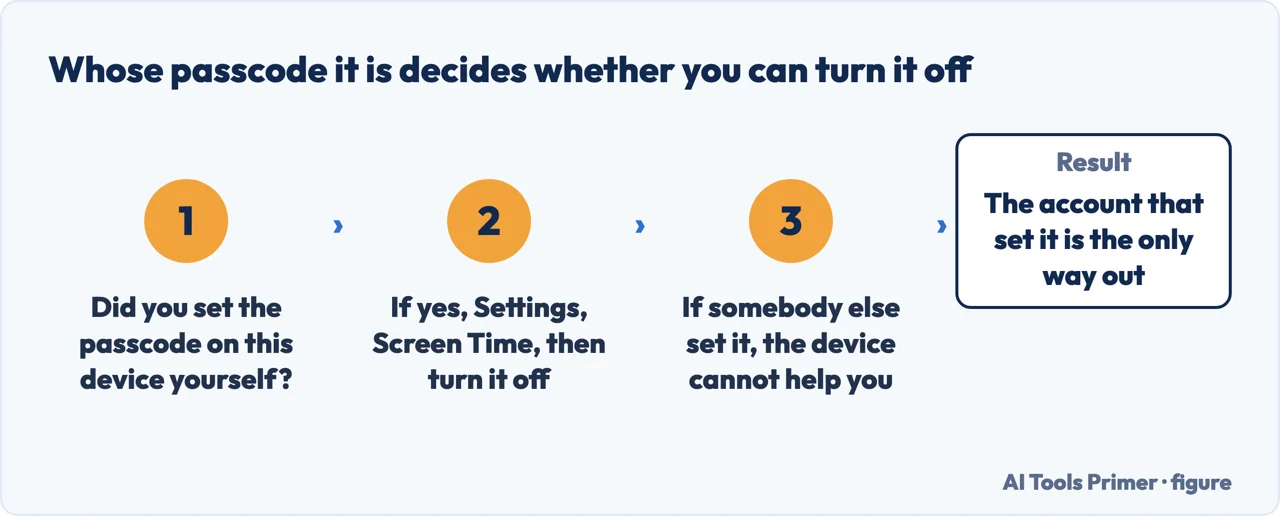
One question, and it is not about the phone. Figure drawn by AI Tools Primer.
Once that is clear the rest follows, and it splits into two situations with two entirely different answers. Which one you are in is not about the phone — it is about whose Apple Account set the code.
It is your own phone
Settings › Screen Time › Change Screen Time Passcode
Tap it twice — the confirmation is a second tap of the same words. Then, Apple: “If asked,
enter the Apple Account email address and password that you used to set up the Screen
Time passcode.”
That works only if you set up Screen Time Passcode Recovery when you created the code.
Apple recommends not skipping it, which tells you how often people do.
It is a child’s phone
Family organiser’s device › Settings › Screen Time › the child’s name ›
Manage Screen Time › Change Screen Time Passcode
Read the first three words again, because they are the whole answer: Apple says the Family
organiser “needs to reset the Screen Time passcode on their own device, not the child’s
device.”
People spend an hour on the child’s phone looking for a screen that is not there.
The second of those is the one that costs people afternoons. A parent picks up the child’s phone, goes to Settings, taps Screen Time, and finds a screen that asks for a code rather than offering to change it. Nothing is broken and nothing has been forgotten: on a Family Sharing account the control lives on the organiser’s phone, and the child’s device is deliberately not the place where limits can be lifted.
Worth knowing before you set one, rather than after: when you create the code for yourself the menu item is not called what you expect. It is Lock Screen Time Settings. And immediately afterwards Apple offers Screen Time Passcode Recovery — the step that ties the code to your Apple Account and makes the paragraph above possible. Skipping it is the difference between a forgotten code being an inconvenience and being permanent.
And if it is not your phone and not your family’s account, there is no route here. That is
not this guide being unhelpful — it is the feature working. A Screen Time passcode exists so that
the person holding the phone cannot remove the limits on it, and the tools sold against this question work by erasing the device — which is not getting past the code, it is destroying what
the code was protecting.
The honest routes are two: ask the person who set it, or, if the account is genuinely yours, use
the Apple Account recovery Apple documents. Anything else is somebody selling you something.
A word about the phrasing in the search itself. Searching how to turn off screen time on iphonewithout password is asking for a way past a control somebody set on purpose, and the honest answer is the one above rather than a trick: if the account is yours, the recovery runs through your Apple Account; if it is not, it runs through the person whose it is. There is no third door, and the pages offering one are selling software that erases the phone.
Two more details that explain otherwise baffling behaviour. If Share Across Devices is on, Apple says the Screen Time passcode “automatically updates on those devices if you reset it” — so changing it in one place changes it everywhere, which is convenient and occasionally alarming. And for settings to sync properly across a Family Sharing group, Apple’s instruction is to update every device to the latest software before turning Screen Time on or changing it, not after.
One thing in this area deserves more attention than it gets, because it is the difference between a forgotten code and a wiped phone, and it is offered only at the moment the code is created. Apple: “After setting a passcode for yourself, you can also set up Screen Time Passcode Recovery. If you set up this feature, you can use your Apple Account to reset your Screen Time passcode if you ever forget it.” The note sits under Create a Screen Time passcode and nowhere else in the article: the offer arrives in the same screen as the four digits, and does not come back.
A note on who this applies to at all, because Apple has just changed it. Reread on 16 September 2026, the passcode article describes the passcode as being for yourself alone — “a passcode that you must enter before changing Screen Time settings you selected for yourself” — and sends the other case somewhere else: “If you want to set up Screen Time or parental control features for your child, see Apple Devices for Kids and Families.” The age that used to be written into that sentence has gone out of it with the rest, and this guide will not carry a number its source has stopped publishing. What Apple does still say about a child’s code is who resets it: with Family Sharing, “the Family Sharing organizer or a parent/guardian needs to reset the Screen Time passcode on their own device, not the child’s device”.
The other family system draws the same line in the same place. Google’s Family Link puts the limits on the child’s device and the controls in the parent’s account, which is exactly why a code set by somebody else cannot be removed from the device it governs. Both systems are built on the same assumption: the person who set the limit is not the person holding the phone. If you are the one holding it and the code is not yours, the route out is the account that set it, on any platform.
The guides below take it four ways: the code itself, turning the limits off when you are entitled to, setting it up properly in the first place, and the related restrictions that are governed from the same screen and show up elsewhere on this site.
Screen Time is not only about time. Several restrictions elsewhere on this site are set from this screen, and people meet them without knowing where they came from.
Not covered here. It will not tell you how to bypass a Screen Time passcode. The feature exists to stop exactly that, and the tools sold against this question either erase the device or do not work.
It will not suggest that a restriction on a phone you do not own is yours to remove. If somebody set it, the route runs through them.
And it will not treat Screen Time as an enemy. The blocking half of it is genuinely useful, and it is the reason more than one guide on this site points back here. What holds instead is simple: the distinction between the two passcodes and the recovery arrangement are Apple’s own.
Sources
Apple Support — If you forgot the Screen Time passcode for an iPhone or iPad (the statement that it is not the unlock passcode, the reset route for yourself and for a child, and the note that the Family organiser must do it on their own device) — support.apple.com, read 16 September 2026.
Apple — iPhone User Guide, Create, change, or remove a Screen Time passcode on iPhone (the Lock Screen Time Settings route and Screen Time Passcode Recovery). The article was called Create, manage, and keep track of a Screen Time passcode when this page was written, and carried the child case with it: today it points the child case to the separate Apple Devices for Kids and Families guide, and the under-18 wording and the passcode notifications have gone out of it — support.apple.com, read 16 September 2026.
Google For Families Help — Manage your child’s screen time: limits on the device and control in the parent’s account, the same split that makes a passcode unremovable from the phone it governs — support.google.com, read 4 September 2026.
AG
Written by Alberto Gulotta
Founder and editor of AI Tools Primer, writing from Palermo, Italy. Thirty-five years of
taking computers apart, starting with a Commodore 64 — the long version is on the
about page.
Written on 22 August 2026 · last checked 23 September 2026.
§
Independence and limits
No affiliate links and no paid placements anywhere on this site. Nobody pays to appear here,
and no company has seen this page before you did.
This is general information, not professional advice. Where a page touches money, health,
safety or the law, it names its source and the date it was read — and your situation may
still differ. See the privacy page and the
cookie policy.