
Software · guide
How to update apps on iphone when it is already automatic
By Alberto Gulotta · Updated · 10 min read
The odd thing about how to update apps on iphone is that on almost every phone asking the question, it is already happening. Apple’s wording is plain: apps downloaded from the App Store “are automatically updated by default”. The switch is on unless somebody turned it off.
So the search is nearly always standing in for a different question, and which one you have decides what to do.
The question is almost never the question
Apple: apps from the App Store “are automatically updated by default”. So if you are here, it is usually one of these four.
- One app has not updated and the others have.
- Update that one by hand, below. Apple documents the setting and the manual route but publishes no schedule for the automatic one, so there is nothing to wait for and nothing to watch.
- It updated something I did not want updated.
- That is the switch, and turning it off has a cost Apple states in a single sentence. It is below too.
- It is doing this on my mobile data.
- A separate setting on the same screen, and the one worth checking before a trip.
- I cannot find the update for Safari, Mail or Photos.
- You will not. Apple: apps installed by default “are updated whenever you update iOS”. They are not in the App Store and there is nothing to tap.
The manual route, for the first of those, is three taps and it is behind your own profile picture: open the App Store, tap your picture at the top right, tap App Updates, then tap Update beside the app you want or Update All. The account picture is the whole difficulty: it is the route Apple documents, it is not labelled “updates”, and people who go looking for a tab conclude their phone has no update screen.
Singular changes nothing: to update an app on iphone one at a time you tap Update beside its name rather than Update All, on the same screen. That is the route to use when you want one thing changed and everything else left exactly as it is — which is the only reason to update by hand at all once the automatic switch is on.
A small detail from Apple worth knowing when you want to confirm something actually happened: after an app updates, “it appears in the list of apps below Updated Recently” on that same screen. That list is the receipt.
Now the switch itself, and the trade that comes with it.
One screen holds all of it
Settings › Apps › App Store
- App Updates — “Automatically download and install app updates.” The switch this question is usually about.
- Cellular Data — whether the App Store may use mobile data at all, with its own separate settings for automatic downloads.
- App Downloads — “Automatically install apps you purchased on your other devices.” This is why an app you installed on an iPad appears on the phone by itself.
- In-App Content — downloads content in the background “before the first time you open the app”. Invisible, and not free if you are on cellular.
- Offload Unused Apps — “Automatically remove unused apps.” The explanation for apps that are still on the Home Screen but have to be downloaded again before they open.
- Video Autoplay, In-App Ratings & Reviews, Location, Siri, Search — the rest of the screen, none of which touches updating.
Three of those are worth setting deliberately once. The other seven are worth reading once so that nothing on this phone surprises you later — and Offload Unused Apps in particular, because a phone that removes your apps on its own is otherwise a genuinely alarming thing.
Turning App Updates off is a legitimate choice — people do it to keep a version of an app that works, to control what changes on a phone they depend on, or to stay off mobile data. Apple states the consequence in one sentence, and it is not a smaller phone bill: “When you do this, you receive notifications from the App Store each time an update for one of your apps is released.”
Apple names the consequence of that switch and stops there, which is its business: it documents its own product. The cost of the same decision is published by somebody whose business it is. The UK’s National Cyber Security Centre puts app updates among its top tips for staying secure online, and says what one contains: “Updates include protection from viruses and other kinds of malware, and will often include improvements and new features.” Its instruction about the switch is the opposite of the one being considered here — “You should also turn on ‘automatic updates’ in your device’s settings, if available” — and its instruction about the notifications that replace it is blunt: “If you receive a prompt to update your device (or apps), don’t ignore it.” It also names the end of the road, which is the one thing no setting fixes: “Manufacturers eventually stop providing updates for older devices.”
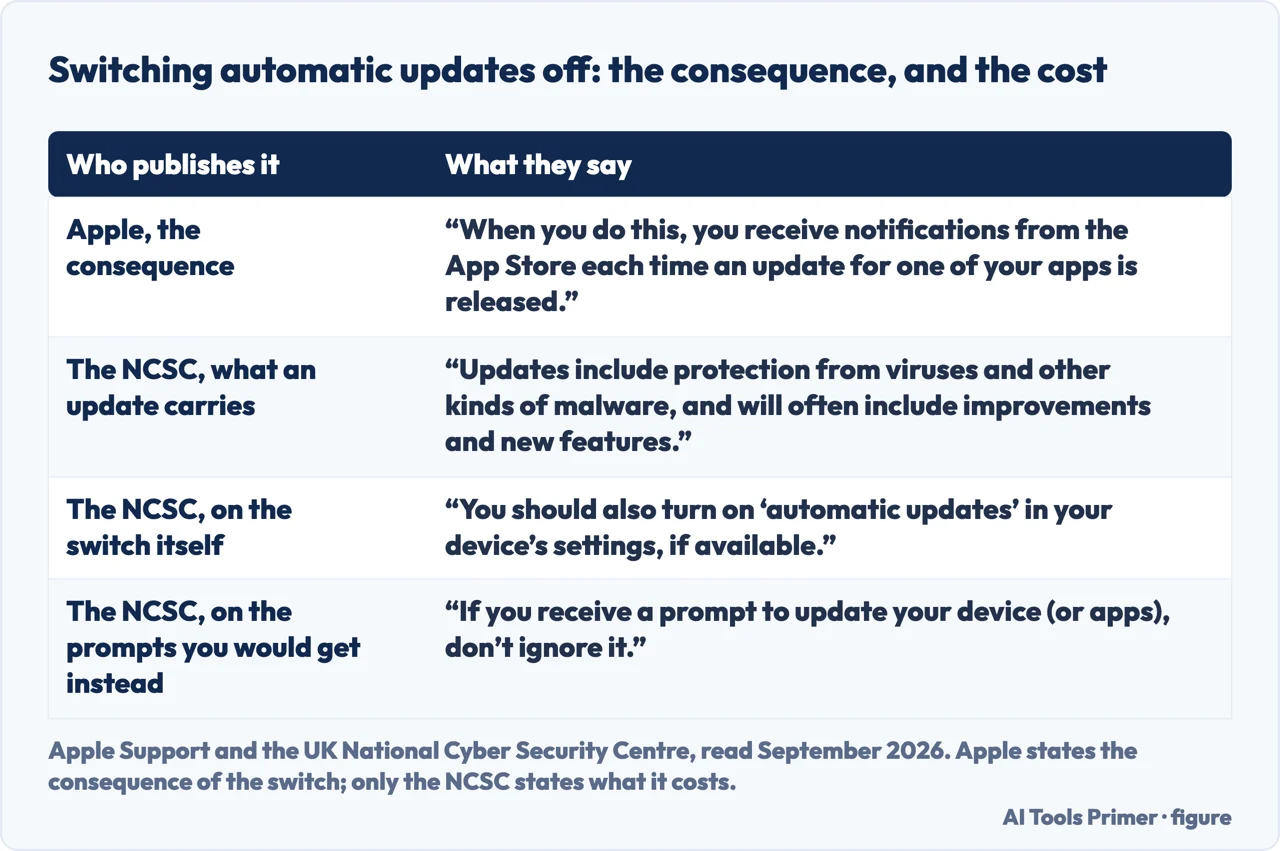
In other words the choice is not between updating and silence. It is between updating quietly and being told, repeatedly, about every update you are declining. On a phone with sixty apps that is a considerable amount of being told. It may still be the right setting; it is worth knowing what you are agreeing to.
The mobile data question deserves its own moment, because two different settings govern it and they sit at different depths. There is a Cellular Data switch for the App Store as a whole, and there are separate settings for automatic downloads underneath it. A phone that updates half a gigabyte of apps on a train is obeying the second while you were looking at the first.
And the fourth question — the one about Safari, Mail, Photos and the rest — has an answer that is short and final. Those apps are not in the App Store, they have no update button, and Apple says why: they “are updated whenever you update iOS”. If one of them is behaving badly, the fix is a system update or nothing, and no amount of looking in the App Store will produce a version to install.
One last setting on that screen deserves a warning label, because it produces a symptom people find frightening. Offload Unused Apps is an automatic switch that removes apps you have not opened, leaving the icon in place with a small cloud beside it. The app is not deleted and your data is kept — but the first time it happens to something you needed in a hurry, on a train, with no signal, it does not feel like a helpful feature.
The guides below take it four ways: the routes, the automatic settings and what each costs, the updates that are not app updates at all, and what to do when one particular app refuses.
Where to start
Four ways in.
- “Where is the update screen?”
- Start at the routes
- “I want to control what updates.”
- Go to the automatic settings
- “One app will not update.”
- That is when one refuses
The routes
Updating by hand, on each device, plus the screen that tells you whether it worked. All of it lives behind the account picture rather than in a tab.
The automatic settings
One screen in Settings holds ten switches, three of which change how your phone behaves without asking. This wing is about setting them once, deliberately.
When one refuses
The specific case: everything else updates and one app sits there. The causes are few and none of them require a repair shop.
Not covered here. It will not tell you to update everything immediately. Automatic updating is the sensible default and it is already on, which is why this guide is mostly about the other four questions.
It will not pretend switching it off is free. Apple documents the notifications that replace it, and on a phone with a lot of apps that is the real cost.
And it will not send you looking for a Safari update. There is not one, there never was, and the pages that describe finding it have not checked. What holds instead is simple: the default behaviour and the notification trade-off are Apple’s own wording, with the manual route.
Sources
- Apple — iPhone User Guide, Update apps from the App Store on iPhone (the statement that App Store apps update automatically by default, that built-in apps update with iOS, the manual route and the Updated Recently list) — support.apple.com, read 22 August 2026.
- Apple Support — How to manually update apps from the App Store (the per-device routes to the automatic setting, and the notifications you receive once it is off). Published 24 March 2026 — support.apple.com, read 22 August 2026.
- Apple — iPhone User Guide, Change settings and restrictions in the App Store on iPhone (the full list of switches on that screen, including Cellular Data, App Downloads, In-App Content and Offload Unused Apps) — support.apple.com, read 22 August 2026.
- National Cyber Security Centre (UK) — Top tips for staying secure online: Install the latest software and app updates (that updates should be applied to apps and device software as soon as they are available; that updates include protection from viruses and other kinds of malware and will often include improvements and new features; that a prompt to update a device or apps should not be ignored, and that applying updates is one of the most important and quickest things you can do to keep yourself safe online; that automatic updates should be turned on in the device settings where available; and that manufacturers eventually stop providing updates for older devices, which then no longer receive security updates) — www.ncsc.gov.uk, read 6 September 2026.
Written by Alberto Gulotta
Founder and editor of AI Tools Primer, writing from Palermo, Italy. Thirty-five years of taking computers apart, starting with a Commodore 64 — the long version is on the about page.
Something wrong on this page? Write to aitoolsprimer@gmail.com and it gets fixed.
Written on 22 August 2026 · last checked 23 September 2026.
Independence and limits
No affiliate links and no paid placements anywhere on this site. Nobody pays to appear here, and no company has seen this page before you did.
This is general information, not professional advice. Where a page touches money, health, safety or the law, it names its source and the date it was read — and your situation may still differ. See the privacy page and the cookie policy.