
iPhone · guide
How to turn off location on iPhone, and what it does not cover
By Alberto Gulotta · Updated · 11 min read
The instruction for how to turn off location on iPhone is four taps long, and it sits at the bottom of this page because on its own it is the least useful thing here. Apple publishes two sentences about what the switch does not cover, and reading those first changes what you actually do with the setting.
“Even if you disable Location Services, third-party apps and websites may still use other ways to determine your location.”
“For safety, your device’s location information may be used for emergency calls to aid response efforts regardless of whether you turn on Location Services.”
Both sentences are Apple’s, from the Personal Safety User Guide, and together they set the boundary of this setting before you touch it. The switch governs one route to your location — the one the operating system provides. It does not govern an address you typed, a network you are connected to, or anything a website works out for itself. And Apple states plainly that emergency calls sit outside it altogether, which is a design decision rather than an oversight.
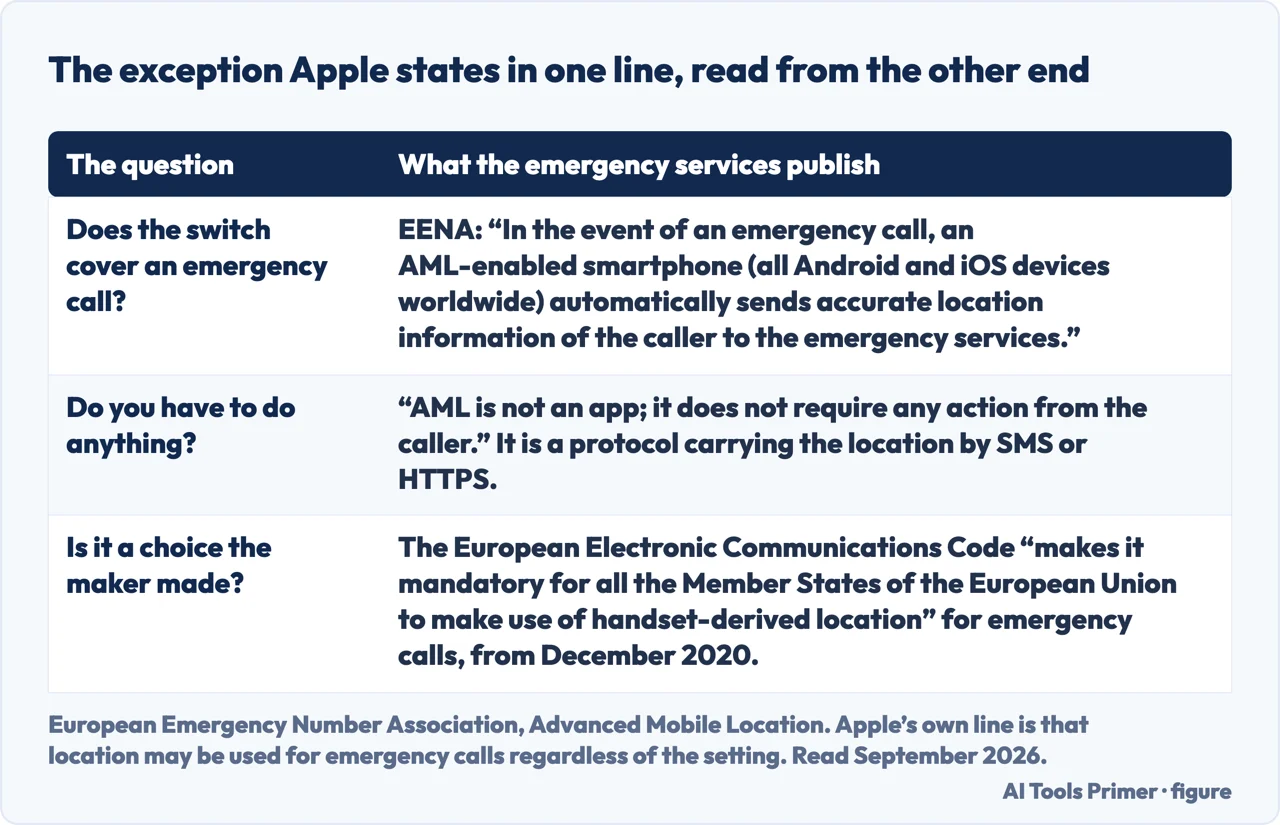
That emergency-call line of Apple’s is worth reading from the other end, because the emergency services publish their side of it. The European Emergency Number Association describes Advanced Mobile Location: “In the event of an emergency call, an AML-enabled smartphone (all Android and iOS devices worldwide) automatically sends accurate location information of the caller to the emergency services.” It adds the part that matters here — “AML is not an app; it does not require any action from the caller.” — and notes that the European Electronic Communications Code “makes it mandatory for all the Member States of the European Union to make use of handset-derived location” for emergency calls from December 2020. The exception inside Apple’s sentence is not one company’s design choice: it is a legal requirement with a published protocol underneath it.
So the honest framing is not on or off. It is who, when, and how precisely — three questions Apple gives you three separate controls for, and the master switch is the bluntest of them.
Start with what the system is doing when the setting is on. Apple: Location Services “uses GPS and Bluetooth (where they’re available), along with crowd-sourced Wi-Fi hotspots and cellular towers to determine the approximate location of your device.” Four inputs, not one. Apple does not say how they combine, but the list itself is the useful part: this is not a GPS switch, and switching off a single radio is not the same act as switching off Location Services.
The per-app settings, in Apple’s own words
Settings → Privacy & Security → Location Services, then tap the app. Apple notes that “some apps might offer only two options”.
- Never
- “Prevents access to Location Services information.”
- Ask Next Time Or When I Share
- “Allows you to choose Always While Using App, Allow Once, or Don’t Allow.” The state that defers the decision rather than making one.
- While Using the App
- “Allows access to Location Services only when the app or one of its features is visible on screen.”
- Always
- “Allows access to your location even when the app is in the background.” The only one of the four that keeps working when you are not looking.
The distinction between the last two is the one worth acting on. While Using the App is bounded by your attention: Apple ties it to the app being “visible on screen”. Always is not bounded by anything — it is explicitly access “even when the app is in the background”. Apple says apps “should provide an explanation of how the app will use your location information”, and points at where to read it: “To see its explanation for requesting Location Services, tap the app.” Worth doing for anything set to Always.
The second switch, underneath the first. Granting an app access is one decision; how exactly it sees you is another, and it has its own control. Apple: “To share only your approximate location — which may be sufficient for an app that doesn’t need your exact location — turn Precise Location off.” Same screen, per app: Settings → Privacy & Security → Location Services → the app.
This is the setting worth reaching for before Never, because it turns one question into two. Not may this app know where I am, but does it need the street or only the town — and for a weather forecast, a news edition or the nearest branch of something, that is a question with an obvious answer. Turning Precise Location off keeps the app working and narrows what it learns, which the all-or-nothing choice cannot do.
“When an app is using Location Services, the Location Services icon appears on iPhone and iPad (in the status bar at the top of the screen) and on Mac (in the menu bar).”
There is a second indicator, and it is harder to miss. Apple: if an app is set to While Using the App, “you might see your status bar turn blue with a message that an app is actively using your location.” Between them these two give you something the settings screen cannot: evidence at the moment it is happening, rather than a list of permissions granted at some point in the past.
A note on the first prompt, because that is where a permission is granted before anybody visits this screen. Apple describes the choice you get the first time an app asks: Allow Once, Allow While Using App, or Don’t Allow. Note what is not on that list — Always is not offered at first contact. An app that ends up with background access got there through a second conversation, and the Location Services screen is where you can see which apps have had one.
Where the master switch lives, on each device.
iPhone and iPad: Settings → Privacy & Security → Location Services.
Mac, macOS 13 or later: Apple menu → System Settings → Privacy & Security → Location
Services — “enter your password if asked, then click Unlock”.
Mac, macOS 12 or earlier: Apple menu → System Preferences → Security & Privacy →
Privacy → Location Services, unlocking the padlock at the bottom left first.
Apple Watch: Settings → Privacy & Security → Location Services.
One last thing that belongs on a page about turning something off. Apple’s note is that “some apps might not work unless you turn on Location Services”, and that is not a threat but a description: maps, camera geotagging, weather, and anything that finds a nearby branch will stop doing the thing you use them for. Which is the argument for working downwards — Precise Location off, then Always changed to While Using, then Never for the apps that never needed it — rather than reaching for the switch at the top and then wondering what broke.
The guides below take it three ways: the master switch and what it leaves running, the per-app settings including the one that is not a permission, and the neighbouring settings people are usually looking for when they arrive here.
Where to start
Three ways in.
- “I want it all off.”
- Read the limits first, in what the switch covers
- “One app is following me.”
- Go to the per app settings
- “I do not want anyone to see where I am.”
- That is the neighbouring settings
What the switch covers
One route to your location — the one the system provides. Apple names two things it does not cover, and both belong in the decision rather than in a footnote.
The per-app settings
Four states, plus a separate switch that is not a permission at all. Precise Location is the one that narrows what an app learns without stopping it working.
The neighbouring settings
People arrive at this switch on the way to something larger — a phone that reveals less. These are the guides next door, and one of them is probably the one you wanted.
Not covered here. It will not tell you that turning this off hides you. Apple’s own guide says third-party apps and websites may still use other ways, and that sentence is quoted here rather than skipped.
It will not treat emergency calls as an exception worth burying. Apple says location may be used for them regardless of the setting, and anybody deciding this for safety reasons should know it.
And it will not recommend a privacy app. Every control on this guide is one Apple already documents, on a screen you already have. What holds instead is simple: the note that disabling Location Services does not prevent other methods is Apple’s own, quoted with the emergency-call exception and the Precise Location switch.
When the phone is not where you left it
What can be done afterwards depends entirely on what was switched on before.
- The same job, in the other places it comes up
- How to find lost iPhone, and the three warnings
- How to turn off Find My iPhone, and when you should not
- How to share location on iphone: three kinds, not one
Sources
- Apple, Personal Safety User Guide — Manage Location Services settings (that Location Services lets you choose which apps and websites to share your location with and uses various kinds of networks to determine approximate or precise location; that the Location Services icon appears in the status bar on iPhone and iPad and in the menu bar on Mac; that even if you disable Location Services third-party apps and websites may still use other ways to determine your location; that location information may be used for emergency calls regardless of the setting; the first-prompt options Allow Once, Allow While Using App and Don’t Allow; the instruction to tap an app to see its explanation for requesting Location Services; and the paths for iPhone and iPad, for macOS 13 or later, for macOS 12 or earlier, and for Apple Watch) — support.apple.com, read 22 August 2026.
- Apple, Turn Location Services and GPS on or off on your iPhone, iPad, or iPod touch (that some apps might not work unless Location Services is on; the four per-app states Never, Ask Next Time Or When I Share, While Using the App and Always, with Apple’s definitions of each including that While Using the App applies only when the app or one of its features is visible on screen and Always allows access even in the background; the note that the status bar may turn blue when an app is actively using your location; that some apps might offer only two options; the Precise Location switch and the advice to turn it off to share only approximate location; and that Location Services uses GPS, Bluetooth, crowd-sourced Wi-Fi hotspots and cellular towers) — support.apple.com, read 22 August 2026.
- European Emergency Number Association — Advanced Mobile Location, for the description of AML as a protocol by which a smartphone placing an emergency call sends the caller location to the emergency service without any action from the caller, for the note that it is not an app and carries the data by SMS or HTTPS, for the European Electronic Communications Code making handset-derived location mandatory for Member States from December 2020, for the requirement on smartphones sold in the single market since March 2022, and for the ETSI technical specification TS 103 625 behind it — eena.org, read 6 September 2026.
Written by Alberto Gulotta
Founder and editor of AI Tools Primer, writing from Palermo, Italy. Thirty-five years of taking computers apart, starting with a Commodore 64 — the long version is on the about page.
Something wrong on this page? Write to aitoolsprimer@gmail.com and it gets fixed.
Written on 22 August 2026 · last checked 23 September 2026.
Independence and limits
No affiliate links and no paid placements anywhere on this site. Nobody pays to appear here, and no company has seen this page before you did.
This is general information, not professional advice. Where a page touches money, health, safety or the law, it names its source and the date it was read — and your situation may still differ. See the privacy page and the cookie policy.