
Software · guide
How to find lost iPhone, and the three warnings
By Alberto Gulotta · Updated · 13 min read
The steps take a minute and are below. But Apple attaches three warnings to them, and the warnings are worth more than the steps — one of them because it arrives as a message that looks like good news.
What to do, in Apple’s order
Two routes to the same place: another Apple device, or a web browser.
- Open the Find My app on another Apple device — or go to iCloud.com/find and use Find Devices. “If you’re part of a Family Sharing group, your devices can appear in Find My on your family members’ devices.”
- Select the lost device to find it on a map, and “choose Directions to open its location in Maps”.
- “If you’re close, tap Play Sound.” On an iPhone with Ultra Wideband, Find Nearby shows distance and direction for an AirTag or AirPods Pro 2 or later.
- “While you look for your device or item, mark it as lost” — scroll to the “Lost [device]” section and tap Lost Mode or Show Contact Info.
Two things about that list are worth pulling out before anything else. You do not need another iPhone — iCloud.com/find works from any browser, which matters when the lost device was the only Apple one you had. And if you are in a Family Sharing group, your device already appears on your family’s devices, so somebody else can start looking while you are finding a computer.
Apple also puts marking-as-lost alongside searching rather than after it: “While you look for your device or item, mark it as lost.” Lost Mode locks the device with a passcode and, on devices that use Apple Pay, “suspends payment cards and passes”. There is no reason to wait until the search has failed.
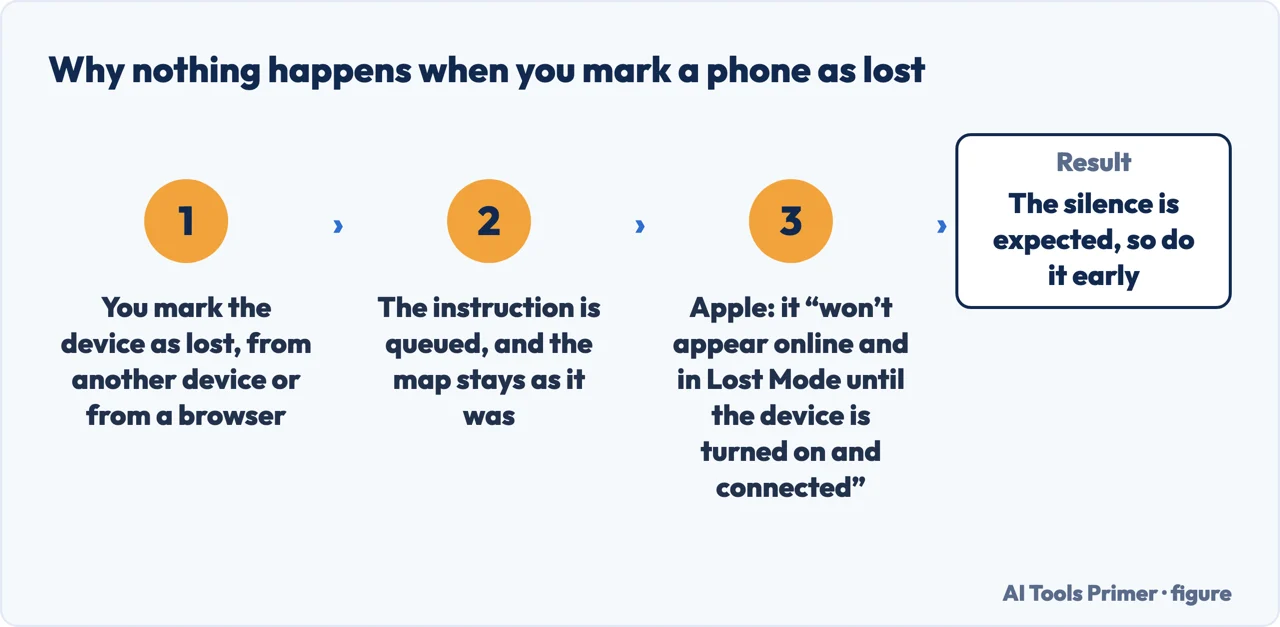
“It only appears online and in Lost Mode if the device has been turned on and is connected to Wi-Fi or cellular.”
Marking a phone as lost is a request that waits, not a switch that flips. Apple states it plainly, and it explains the most anxious hour after a loss: nothing appears to happen, because nothing can happen until the phone is somewhere with a signal. Doing it early is still right — the instruction is queued and takes effect the moment the device connects — but the silence in the meantime is expected rather than a sign that it failed.
What the map says when there is no dot
Apple distinguishes three cases, and one of them has an exact deadline.
- Last known location — for seven days
- If the current location cannot be shown, “for example if your device’s battery has run out, you can see its last known location for up to seven days”.
- “No location found”
- “If more than seven days have passed since your device last sent its location to Apple through the Find My network, Find My can’t display a location.” The seven days are counted from the last contact, not from when you lost it.
- “Not sharing location • Online”
- The device is reachable “but is unable to send its location (for example, if there’s an issue with Location Services)”. Online and unlocatable are different from offline.
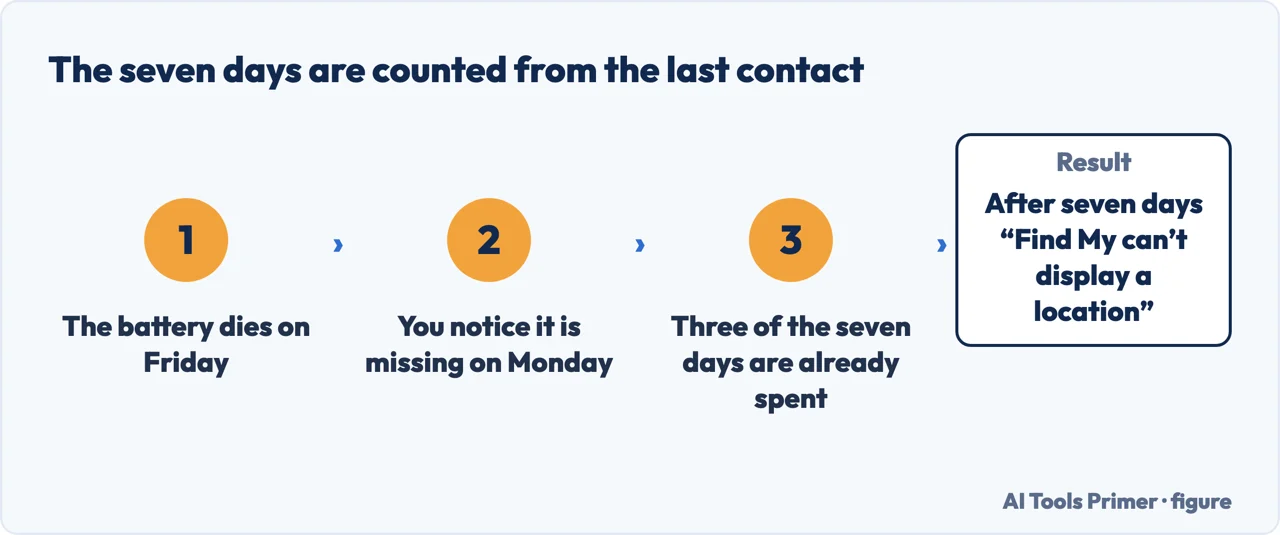
The seven days deserve a moment because of how they are counted. The clock starts at the device’s last contact with the Find My network, not at the moment you noticed it was missing. A phone whose battery died on Friday and was reported missing on Monday has already spent three of them.
It is also worth knowing what the middle state does not mean. “No location found” is a statement about the network’s records, not a verdict on the device — Apple describes it as what appears when nothing has been received recently, which is the same message whether the phone is switched off in a drawer or somewhere else entirely.
“Apple will never contact you to say that your iPhone or iPad has been found. Never share your device passcode, passwords, verification codes, or other account information with anyone who requests it.”
This belongs on the front of every page about a lost phone, and it is on Apple’s. A message saying the device has been located — by text, by email, by a call that sounds like support — is not something Apple sends, and the thing it will ask for is the one thing that unlocks everything. Apple names the category: “social engineering schemes, including phishing messages, phony support calls, and other scams.” The contact details you put in Lost Mode are visible to whoever holds the phone, which is the point of them — and also how the message reaches you.
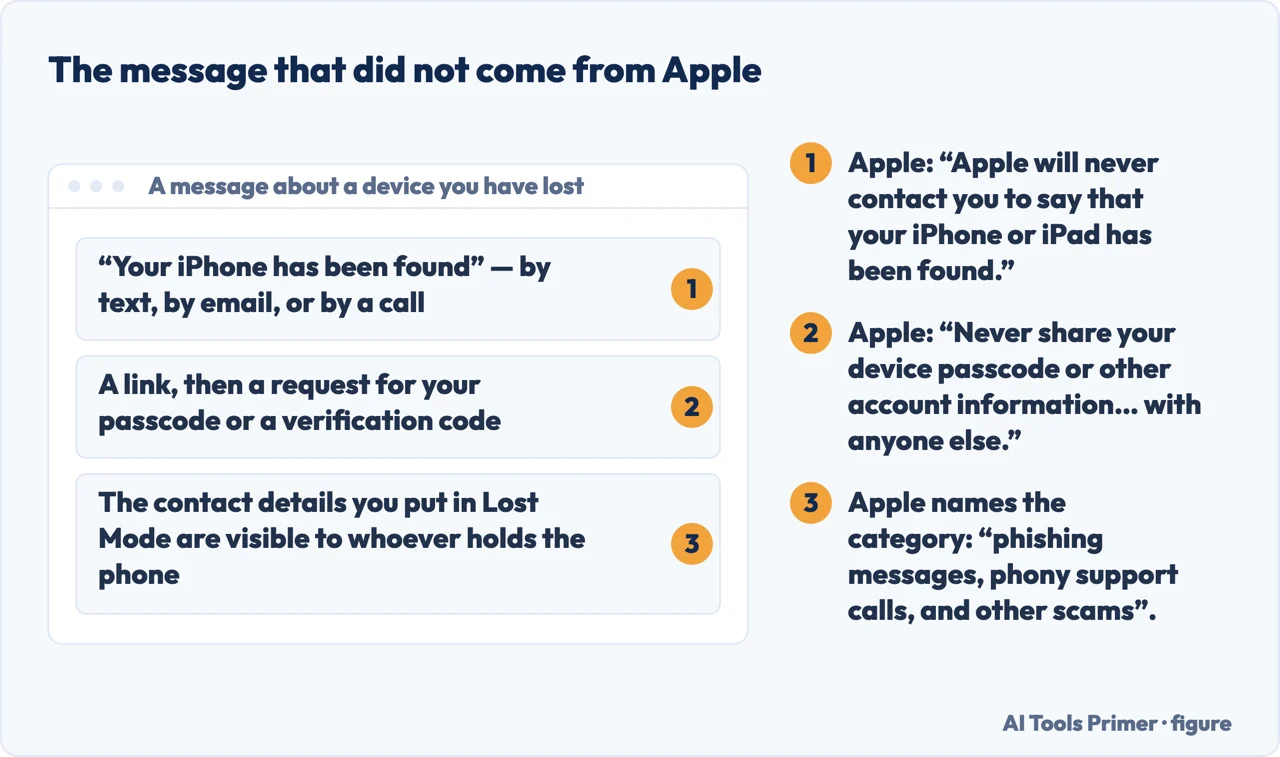
That warning is the reason this page leads with warnings rather than steps. Losing a phone puts your contact details on a screen and your name in a queue of people who want it back, and both of those are useful to somebody running a scam. Apple’s rule is simple enough to hold on to under stress: a message saying your device has been found did not come from Apple, and nothing legitimate will ever need your passcode or a verification code.
Two things not to do, both with a cost attached. If you have AppleCare+ with Theft and Loss, Apple is explicit: “don’t remove your iPhone from Find My or your Apple Account until your claim has been fully approved.” Removing it is the instinctive tidying-up after giving up, and it is exactly the step that can undo a claim. And if Stolen Device Protection is on, Apple notes what it buys: “Face ID or Touch ID is required to turn off Lost Mode — so even if a person has your iPhone and knows your passcode, they’re still locked out of your device.”
All of the above assumes one thing was done before the phone went missing. The US Federal Trade Commission lists it as one of four steps: “mobile operating systems have a program that helps you find your phone if you lose it, or lock it or erase it if you think someone stole it. Go to your settings and turn on this feature.” The same page explains why the passcode on the next line matters as much as the tracking does. A phone holds “your passwords and account numbers, emails, text messages, photos, and videos”, and “if your phone ends up in the wrong hands, someone could steal your identity, buy stuff with your money, or hack into your email or social media accounts”. Its instruction is to set the phone to lock by itself and to use “at least a 6-digit passcode” — which is the same code Lost Mode will be relying on, and the same one the message above will ask you for.
What this page will not do is tell you what to do about a stolen phone rather than a lost one. Apple keeps that as a separate article, because the steps diverge — and the difference matters enough that guessing between them is not a small thing.
Nor will it promise that Find My locates a device that is off, out of battery or out of range. What Apple documents is a last known location with an expiry, and the honest version of this answer includes the possibility that the map has nothing to show.
The guides below take it three ways: finding it, the settings behind Find My, and the protections that matter once a device is out of your hands.
Where to start
Three ways in. If you have just lost it, do the steps and read the last warning.
- “It is missing right now.”
- Steps at the top, then the three warnings
- “The map shows nothing.”
- Three different states — when there is no dot
- “I got a message saying it was found.”
- Apple never sends one — the three warnings
When there is no dot
A last known location that expires after seven days, a “no location found” that is about records rather than the device, and an online-but-unlocatable state.
The three warnings
Lost Mode waits for a signal, an insurance claim can be undone by tidying up, and the message saying your phone has been found is not from Apple.
Before it happens
Most of what helps after a loss is decided beforehand: what is backed up, what is locked, and whether the device can be found at all.
Not covered here. It will not tell you Find My can locate a phone that is off. Apple documents a last known location that expires after seven days, and a map that may have nothing on it.
It will not treat a message about a found device as good news. Apple says it never sends one, and that is the whole of the guidance worth repeating.
And it will not cover a stolen phone. Apple keeps separate instructions for that, and the two situations diverge in ways worth reading properly rather than guessing. What holds instead is simple: every Find My behaviour here is Apple’s own, and the warning that Apple will never write to say a device was found is Apple’s sentence.
When the phone is not where you left it
What can be done afterwards depends entirely on what was switched on before.
- The same job, in the other places it comes up
- How to turn off Find My iPhone, and when you should not
- How to share location on iphone: three kinds, not one
- How to turn off location on iPhone, and what it does not cover
Sources
- Apple, How to find your lost iPhone or iPad (that a lost iPhone or iPad can be found on the web at iCloud.com/find or with the Find My app on another device, and that devices can appear in Find My on family members’ devices within a Family Sharing group; that on the device information card a sound can be played, the device marked as lost, or erased; that marking a device as lost puts it in Lost Mode, locking it with the passcode and suspending payment cards and passes used with Apple Pay, with a phone number and message able to be displayed; that a device marked as lost only appears online and in Lost Mode once it has been turned on and connected to Wi-Fi or cellular; that with Stolen Device Protection, Face ID or Touch ID is required to turn off Lost Mode so that a person holding the iPhone and knowing the passcode is still locked out; that with AppleCare+ with Theft and Loss the iPhone should not be removed from Find My or the Apple Account until a claim has been fully approved; and that Apple will never contact you to say that your iPhone or iPad has been found, that device passcodes, passwords, verification codes and other account information should never be shared with anyone who requests them, and that social engineering schemes including phishing messages and phony support calls should be guarded against) — support.apple.com, read 22 August 2026.
- Apple, Use Find My to locate your lost Apple device or AirTag (that Find My locates a device or item on a map, gives directions to its approximate location, and when nearby can play a sound or help find its exact location; the steps of opening Find My on another Apple device, selecting the lost device to find it on a map, choosing Directions to open its location in Maps, tapping Play Sound when close, and using Find Nearby on an iPhone with Ultra Wideband to show distance and direction to an AirTag or AirPods Pro 2 or later; that a device or item should be marked as lost while searching, by selecting it under Devices or Items, scrolling to the Lost section and tapping Lost Mode or Show Contact Info, then following the onscreen steps to display contact information; that where the current location cannot be displayed, for example because the battery has run out, the last known location can be seen for up to seven days, after which Find My shows “No location found”; and that a device which is online but unable to send its location, for example through an issue with Location Services, shows “Not sharing location • Online”) — support.apple.com, read 22 August 2026.
- US Federal Trade Commission, Consumer Advice — How To Protect Your Phone From Hackers (that a phone holds passwords and account numbers, emails, text messages, photos and videos, and that a phone in the wrong hands can let somebody steal an identity, spend money or reach an email or social media account; that the phone should be set to lock when not in use with at least a six-digit passcode; and that the feature which helps find, lock or erase a lost phone is one to turn on in settings in advance) — consumer.ftc.gov, read 5 September 2026.
Written by Alberto Gulotta
Founder and editor of AI Tools Primer, writing from Palermo, Italy. Thirty-five years of taking computers apart, starting with a Commodore 64 — the long version is on the about page.
Something wrong on this page? Write to aitoolsprimer@gmail.com and it gets fixed.
Written on 22 August 2026 · last checked 23 September 2026.
Independence and limits
No affiliate links and no paid placements anywhere on this site. Nobody pays to appear here, and no company has seen this page before you did.
This is general information, not professional advice. Where a page touches money, health, safety or the law, it names its source and the date it was read — and your situation may still differ. See the privacy page and the cookie policy.